
What do you need?
Niko requirements
Your Niko Home Control installation meets the following requirements:
-
It has a wireless smart hub or a connected controller II.
-
It is configured with the most recent programming software.
Depending on the basic modules of your Niko Home Control installation, you need to install the following additional products:
|
|
Required additional products |
Reference numbers |
|---|---|---|
|
Connected controller |
Digital potential-free sensor module If the output contact on your third-party device is not potential-free, you need an additional potential-free contact module (e.g. Finder 22.32.0.230.1xx0 for 230 V connections, Finder 22.32.0.012.1xx0 for 12 V DC connections, Finder 22.32.0.024.1xx0 for 24 V DC connections) |
|
|
Connected controller with a wireless bridge |
Connected switch or Connected dimmer control If the output contact on your third-party device is not 230 V, you need an additional 230 V contact module (e.g. Finder 22.32.0.230.1xx0 for potential-free connections, Finder 22.32.0.012.1xx0 for 12 V DC connections, Finder 22.32.0.024.1xx0 for 24 V DC connections) The connected (double) switch can be placed on a DIN rail using a modular holder (e.g. Legrand 412950) |
|
|
Wireless smart hub |
Connected switch or Connected dimmer control If the output contact on your third-party device is not 230 V, you need an additional 230 V contact module (e.g. Finder 22.32.0.230.1xx0 for potential-free connections, Finder 22.32.0.012.1xx0 for 12 V DC connections, Finder 22.32.0.024.1xx0 for 24 V DC connections) The connected (double) switch can be placed on a DIN rail using a modular holder (e.g. Legrand 412950) |
Third party requirements
Your system meets the following requirements:
-
It is a keypad and/or MiFare reader, installed in the proximity of the garage door or gate that you want to control.
-
Your system has a potential-free or 12/24 V DC or 230 V AC output contact.
Wiring diagrams
Connecting the sensor module
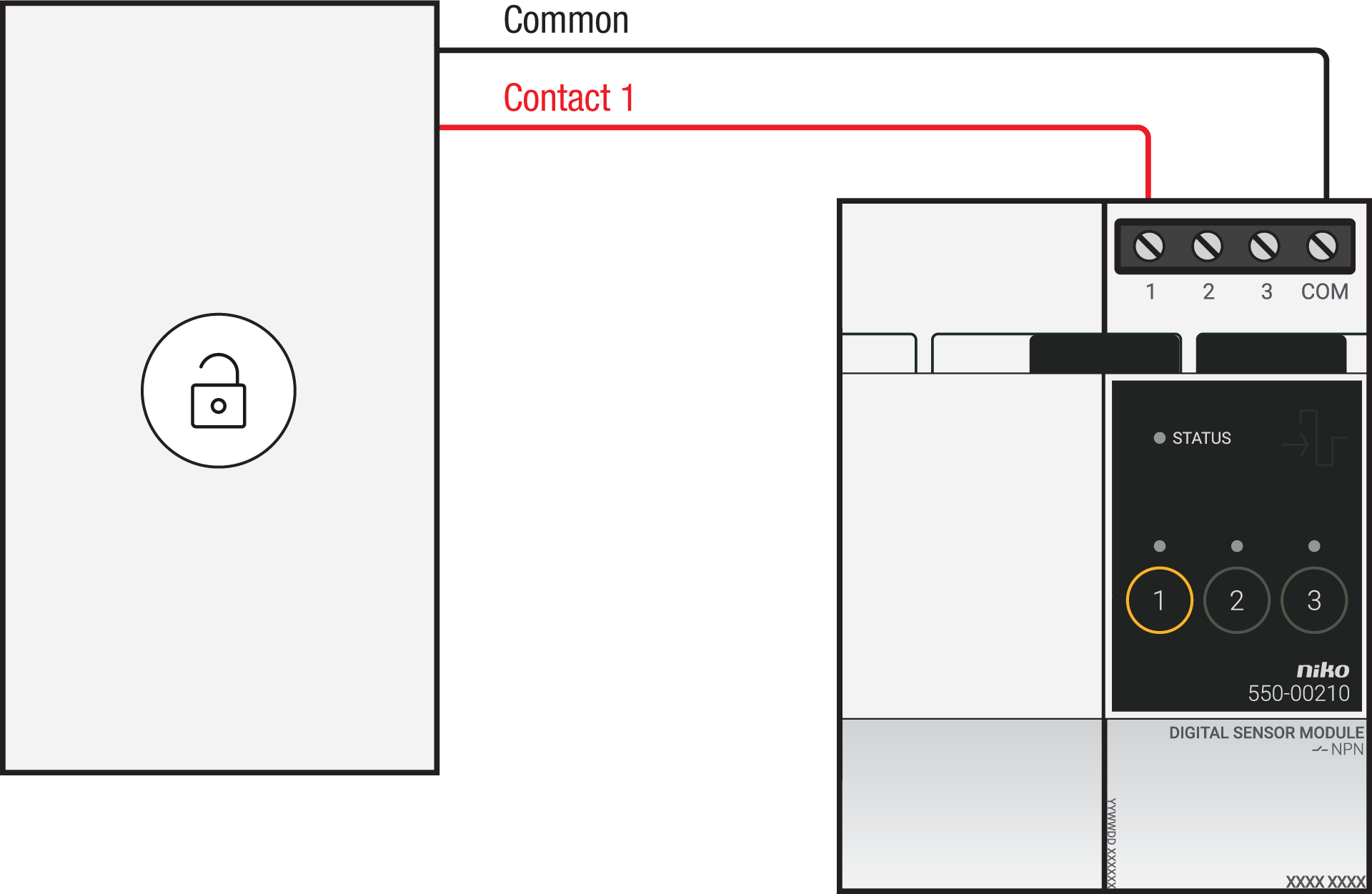
Via potential-free output contact
Connect contact 1 on the Niko sensor module to the output on the third-party system, as shown in the wiring diagram.
Via 230 V or 12/24 V output contact
If the contacts of your Keypad or MiFare reader are not potential-free, you additionally need an appropriate potential-free contact module.
Connect contact 1 on the Niko sensor module to the output on the third-party system, as shown in the wiring diagram.
|
230 V output contact |
12/24 V output contact |
|---|---|
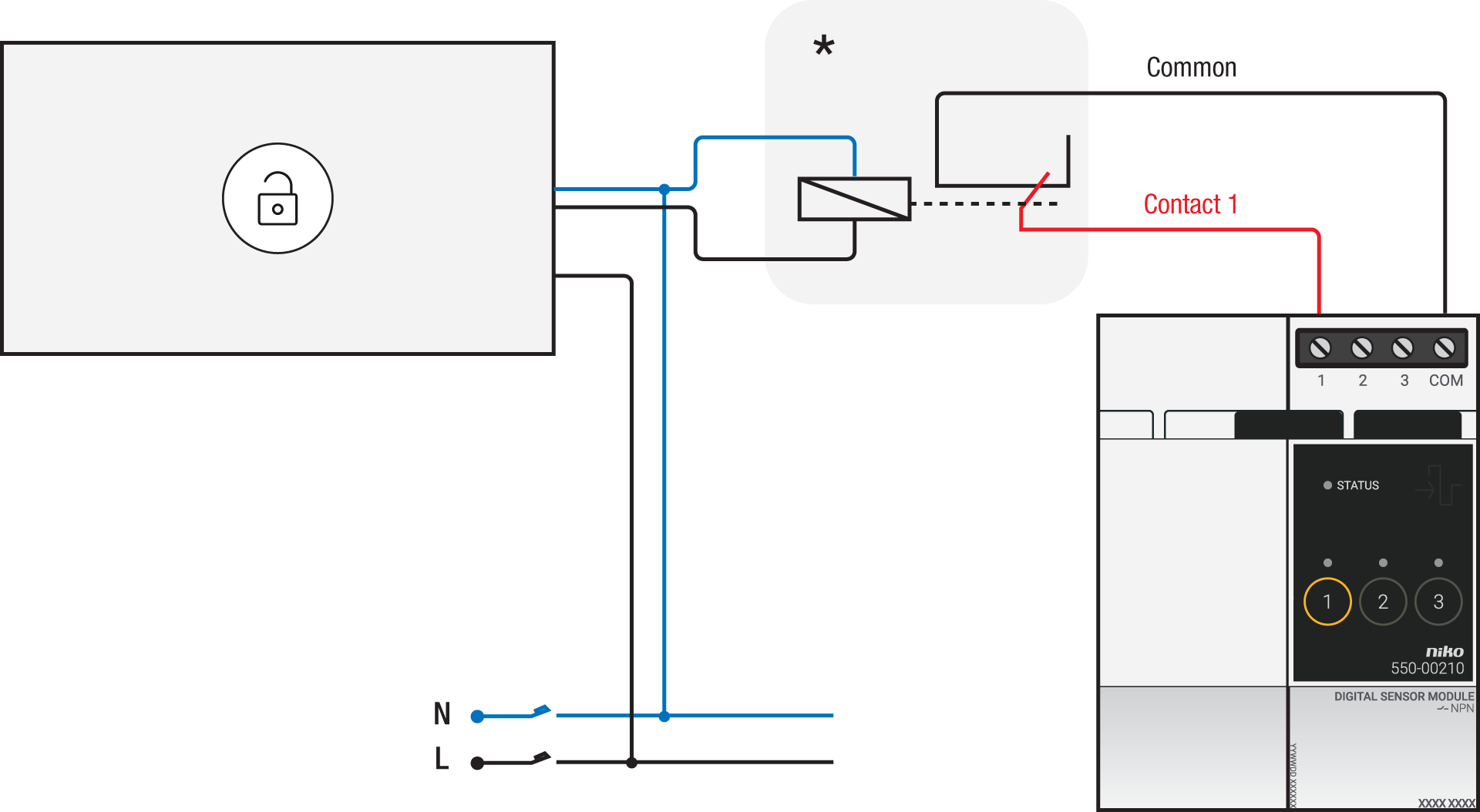
*230 V to potential-free contact module (e.g. Finder 22.32.0.230.1xx0) |
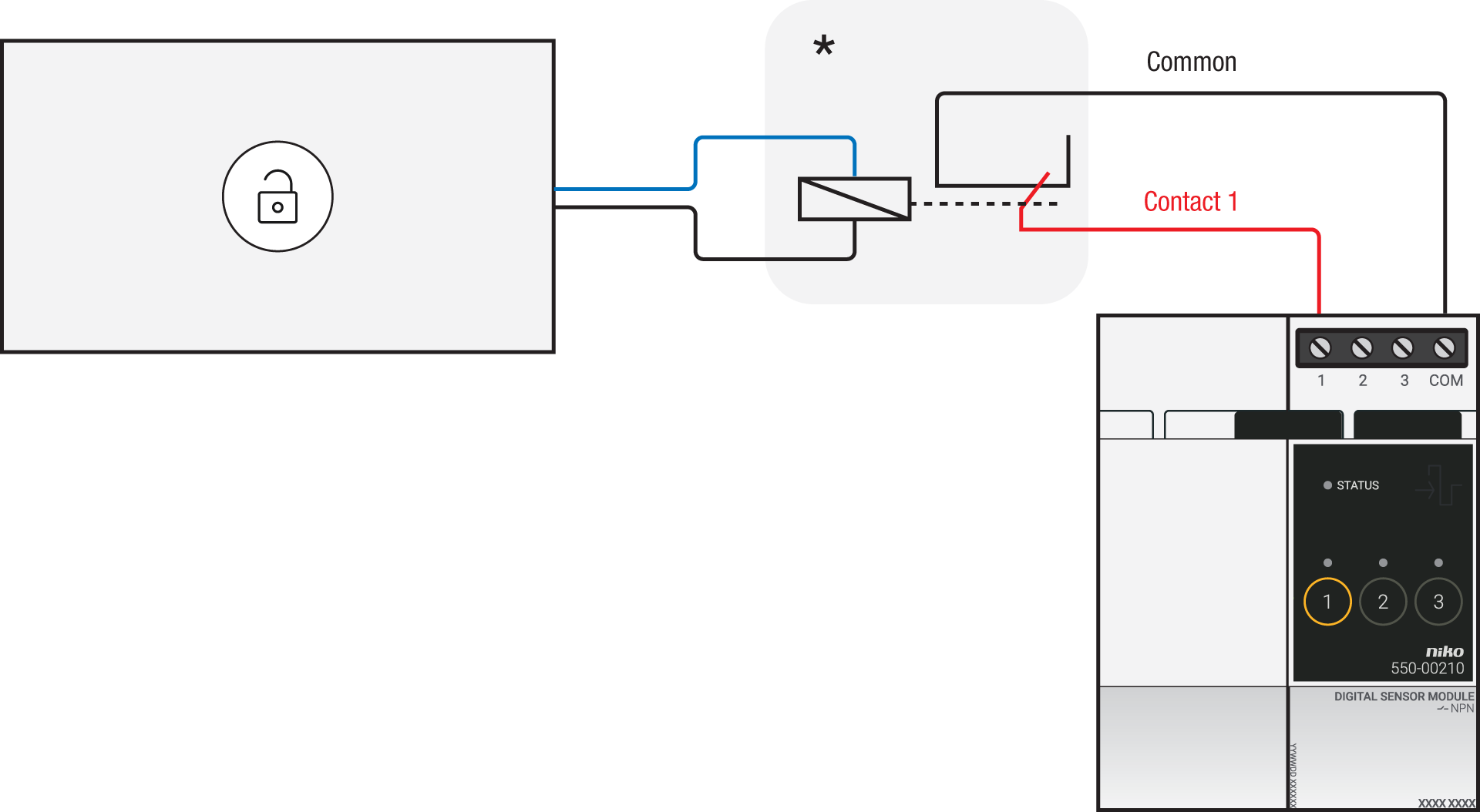
*12 V to potential-free contact module (e.g. Finder 22.32.0.012.1xx0) or 24 V to potential-free contact module (e.g. Finder 22.32.0.024.1xx0) |
Connecting the connected switch
Via potential-free output contact
If the contacts of your Keypad or MiFare reader are not 230 V, you additionally need an appropriate potential-free contact module.
Connect contact 1 on the Niko connected switch to the output on the third-party system, as shown in the wiring diagram.
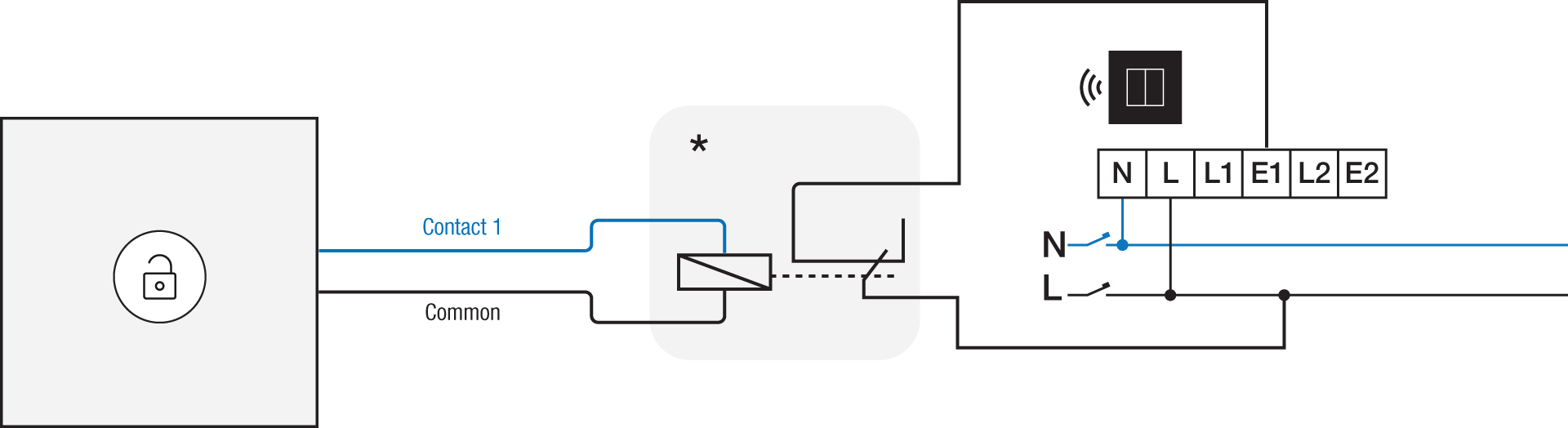
*230 V to potential-free contact module (e.g. Finder 22.32.0.230.1xx0)
Via 230 V or 12/24 V output contact
If the contacts of your Keypad or MiFare reader are not 230 V, you additionally need an appropriate contact module.
Connect contact 1 on the Niko connected switch to the output on the third-party system, as shown in the wiring diagram.
|
230 V output contact |
12/24 V output contact |
|---|---|
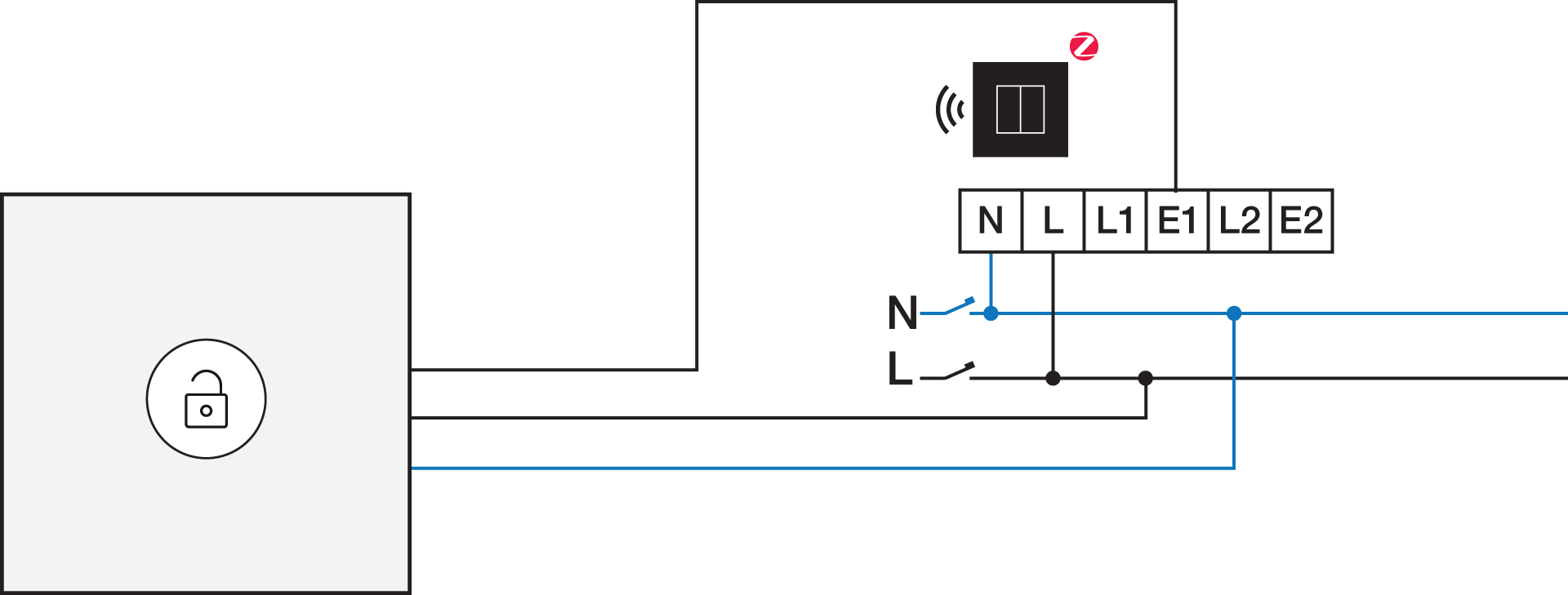
|
*12 V to 230 V contact module (e.g. Finder 22.32.0.012.1xx0) or 24 V to 230 V contact module (e.g. Finder 22.32.0.024.1xx0) |
Programming
Check if your keypad or MiFare reader is normally open or normally closed.
Consult the programming instructions for your specific garage door and/or gate.
Configure the potential-free sensor module or connected switch and use its signal to trigger the garage doors and gates via the Niko Home Control programming software:
In case of bus wiring
-
Create a connection to external system.
-
Use the the inversion setting in case your keypad or MiFare reader is normally closed.
-
Create a condition, where the IF part is the connection to external system.
-
Use the THEN part to trigger your garage door or gate.
In case of traditional wiring
-
Assign the push-button extension to the extension button input (E1) of the connected switch.
-
Set the operating mode of the push-button extension on “push-button mode”.
-
Create a virtual device.
-
Link a basic action between the push-button extension and the virtual device.
-
Create a condition, where the IF part is the virtual device.
-
Use the THEN or ELSE part to trigger your garage door or gate:
-
Use the THEN part in case your keypad or MiFare reader is normally open.
-
Use the ELSE part in case your keypad or MiFare reader is normally closed.
-