Niko Home Control is evolving into MOTIV Building Control. MOTIV is a new brand for intelligent building automation. Built on the trusted foundation of Niko Home Control, MOTIV solutions are designed to make buildings work more naturally for the people inside them. MOTIV helps professionals create smarter, more comfortable buildings. With technology that works quietly in the background. All existing Niko Home Control solutions remain fully compatible with MOTIV. Over time, the full portfolio will move to the MOTIV brand. During this transition, you will see both Niko Home Control (NHC) and MOTIV Building Control (MBC) appear in this documentation. Discover MOTIV at niko.eu/MOTIV
Hardware Manual
English Danish Dutch French German Slovak Swedish

Installing the USB RF interface

Signal range

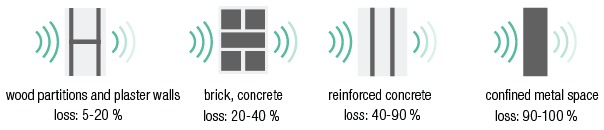
The operation of devices with a remote control, such as a TV or video and audio devices, is not disrupted by a USB RF interface. The indoor range is ± 30 m. In open spaces, the range reaches 100 m. The range of the  USB RF interface depends on the materials used in the residence.
https://s3-eu-west-1.amazonaws.com/guideimages/HWScreenshots/V2.0/EN/58-00-002.png

A diagnostic device (05-370) can be used to determine the wireless signal strength in an environment. The appliance recognizes all 868.3Mhz signals. The nine LEDs on the device will indicate the quality of the signals received or the strength of any interrupting signals.

Wiring

Switch off the mains.

https://s3-eu-west-1.amazonaws.com/guideimages/HWScreenshots/V2.0/EN/PM410-00099-003.png

  1. Plug the extension cable into a free USB port of the connected controller.

    https://s3-eu-west-1.amazonaws.com/guideimages/HWScreenshots/V2.0/EN/PM410-00099-004.png

  2. Mount the assembly ring into the electrical cabinet.

    https://s3-eu-west-1.amazonaws.com/guideimages/HWScreenshots/V2.0/EN/PM410-00099-005.png https://s3-eu-west-1.amazonaws.com/guideimages/HWScreenshots/V2.0/EN/PM410-00099-006.png

  3. Plug the USB stick into the extension cable.

    https://s3-eu-west-1.amazonaws.com/guideimages/HWScreenshots/V2.0/EN/PM410-00099-007.png


Configuration

https://s3-eu-west-1.amazonaws.com/guideimages/HWScreenshots/V2.0/EN/EN-PM552-00001-006.png

Download the Niko Home Control programming software:

  1. In the Niko Home Control programming software open your project.

  2. Click the Fill Cabinet menu.

  3. Click on the button Modules to add the USB RF interface to your cabinet.

  4. Click on the button Upload to upload the project to the installation.