
Starting point
-
You have an installation with a connected controller.
-
You are on the Components tab.
Description of the Components tab
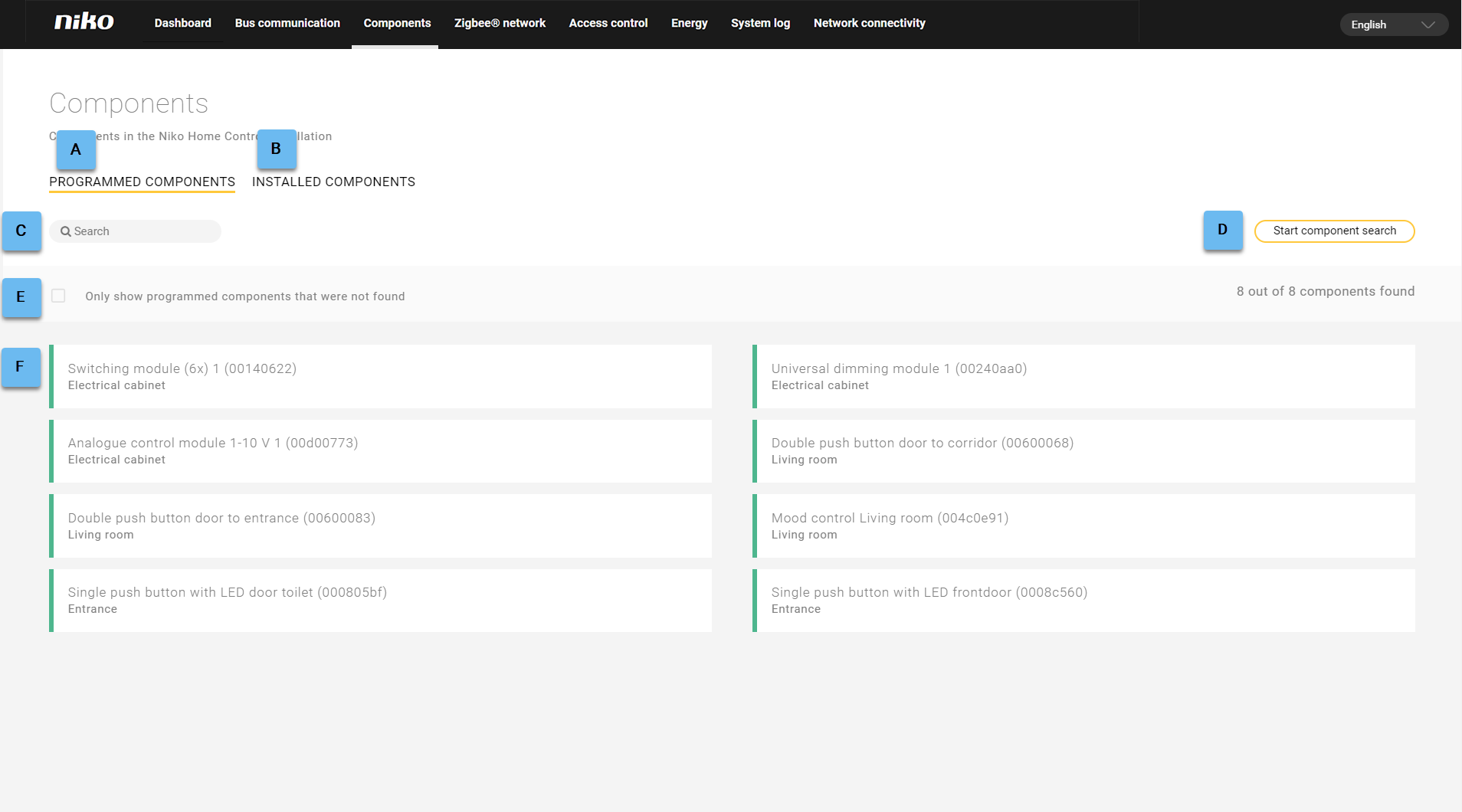
The Components tab shows the status of programmed and/or installed components. These are the physical components of the system, both controls and modules.
The tab contains the following components.
|
Ref |
Component |
|---|---|
|
A |
Programmed components |
|
B |
Installed components |
|
C |
|
|
D |
Start the search for components |
|
E |
Shows only the components that were not found |
|
F |
Component search
To view the components of the installation and check their status:
-
Click on the desired tab: Programmed components or Installed components.
-
At the top right of the list, click on Start component search.
Result: The list is systematically extended and you can see a waiting symbol in the place of the start button. Acolour code indicates the status of the checked components.Check the option
Only show components that were not found
to see only the components with a red status.
A few examples of search terms are:
-
the name of a control or a device as entered in the programming software
-
the address of a control or a module
-
a room
Component list
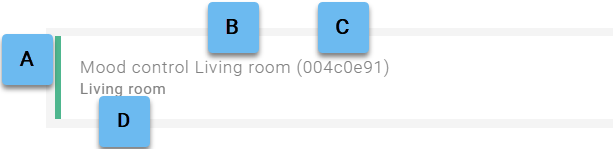
The component list contains the following information for each component.
|
Ref |
Component and description |
|---|---|
|
A |
Status indicator for: |
|
B |
Name of the control or device as entered in the programming software |
|
C |
Address of the control or module |
|
D |
Room where the control or device is located (as entered in the programming software) |
Status indicator for the programmed components
|
Colour |
Meaning |
|---|---|
|
Green |
The component has been programmed and is physically present. |
|
Red |
The component has been programmed but cannot be found. |
Status indicator for the installed components
|
Colour |
Meaning |
|---|---|
|
Grey |
The component is physically present but has not been programmed in the software. |
|
Red |
The component is physically present and has been programmed in the software. |