
Starting point
-
You are in the Create overview window.
-
You have clicked on the Draw rooms tab.
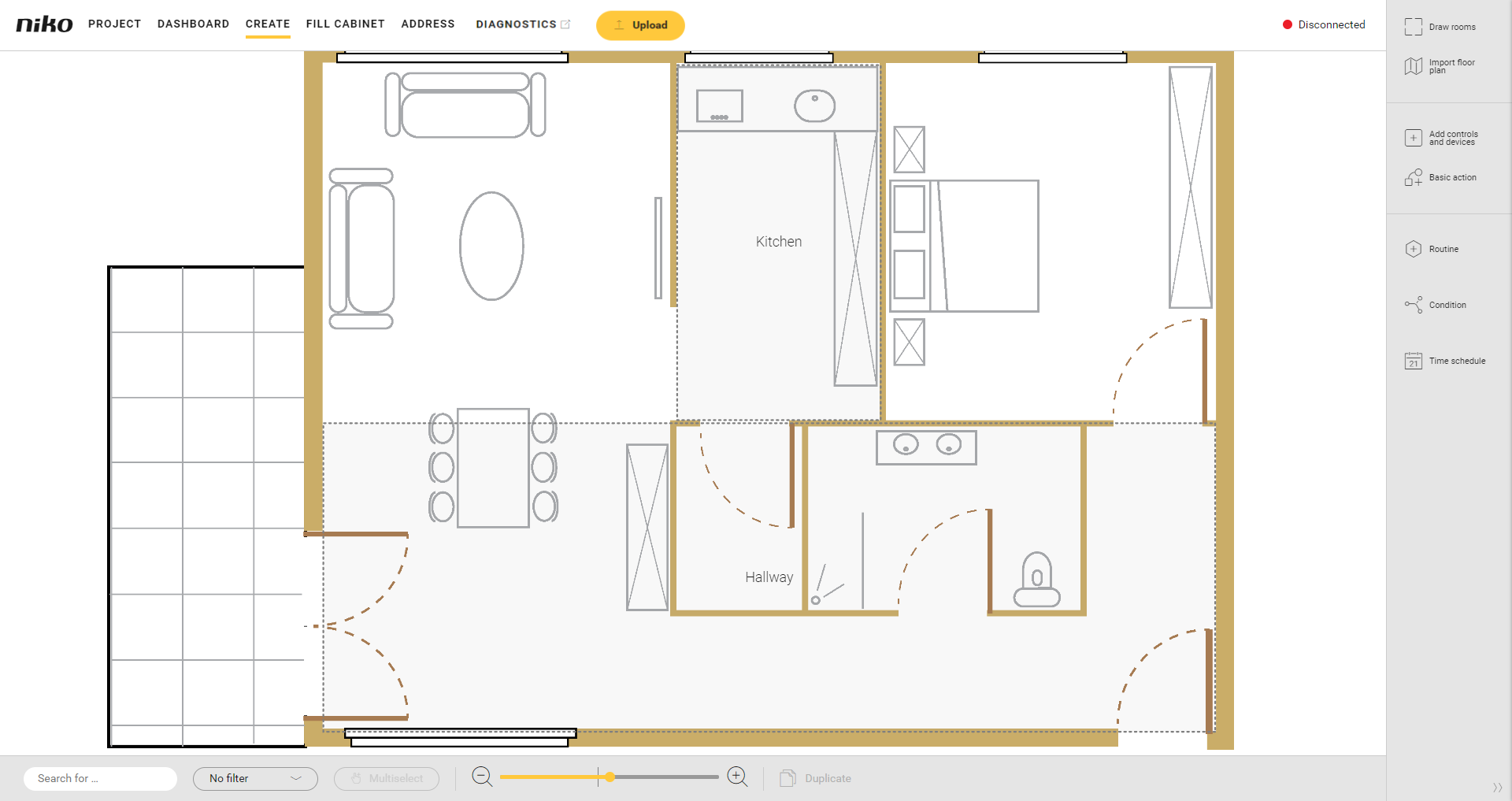
Procedure
-
Select the room by:
-
clicking on the edge of a room
-
double-clicking in the room
-
clicking on the name of the room
Result: The Draw rooms pane appears. The room is marked on the drawing area:
-
a blue bubble appears on each corner
-
a grey bubble appears in the middle of each line.
-
-
You can do the following:
-
Double-click on a grey bubble to divide a line into 2 equal parts. The grey bubble turns blue (becomes a corner).
-
Click and drag a blue bubble to move a corner.
-
Video
See an example here. Turn on the sound to watch the video.
In this example the room corresponding to the bedroom has been drawn as a square. We modify the shape so that it coincides with the bedroom on the floor plan.