
Only applicable for the following touchscreens 550-20101 and 550-20102. For the newer models, all view settings are set on the touchscreen itself.
Starting point
-
You have created basic actions and/or routines.
-
You are in the Dashboard overview window.
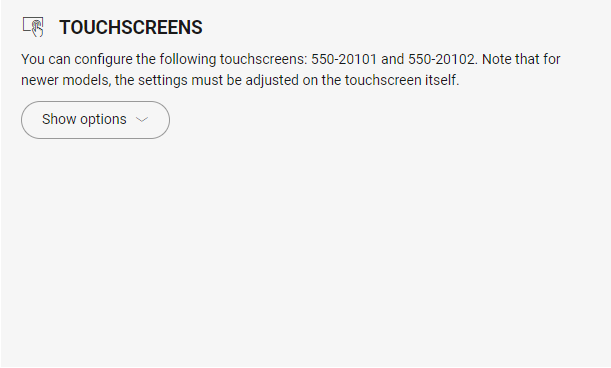
Creating a touchscreen profile
-
Click on Show options.

-
Click on Add profile.
-
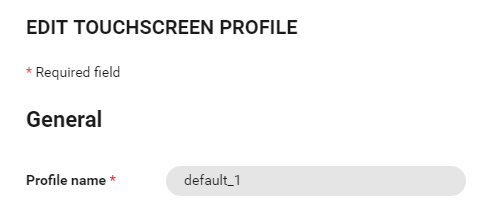
In the window section General, fill in the profile name.
-
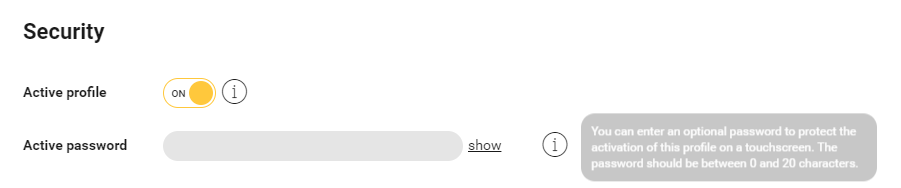
In the window section Security, you set whether the profile is active or not and define a password for the profile.
-
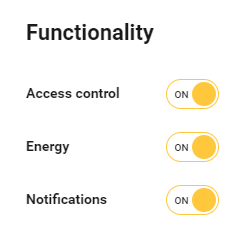
In the window section Functionalities, you enable or disable access control, energy and notifications.
-
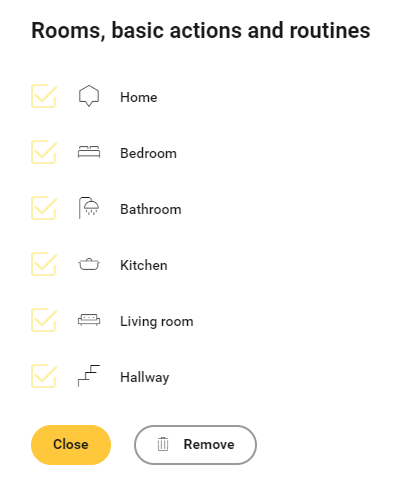
In the window section Rooms, basic actions and routines, you show or hide rooms and/or basic actions and/or routines on your touchscreen.
-
Click the Close button to return to the Dashboard overview window.
Modifying a touchscreen profile
-
Click on the touchscreen profile
-
Make the necessary changes; to do so, see steps 3 to 6 in the above procedure.
-
Click the Close button to return to the Dashboard overview window.