Niko Home Control is evolving into MOTIV Building Control. MOTIV is a new brand for intelligent building automation. Built on the trusted foundation of Niko Home Control, MOTIV solutions are designed to make buildings work more naturally for the people inside them. MOTIV helps professionals create smarter, more comfortable buildings. With technology that works quietly in the background. All existing Niko Home Control solutions remain fully compatible with MOTIV. Over time, the full portfolio will move to the MOTIV brand. During this transition, you will see both Niko Home Control (NHC) and MOTIV Building Control (MBC) appear in this documentation. Discover MOTIV at niko.eu/MOTIV
Upgrade from Niko Home Control 1 to 2
English Danish Dutch French German Slovak Swedish

2. Download the Niko Home Control 1.x configuration file

It is very important to download the Niko Home Control 1.x configuration file from your installation and save it on your computer. You will need this configuration file to rebuild the same configuration in the Niko Home Control 2.x software.

Step 1

Install the Niko Home Control I programming software on your computer:

Operating system

Download link

Windows

Download the programming software here.

To install this software on a Windows computer, you need Adobe Air.

If not already present on your computer you can download it here.

Mac

Download the programming software here.

Step 2

Connect your computer to the controller:

Type of controller

Instructions

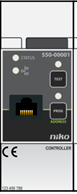
Controller
550-00001

6b942d46-fe5c-4ffd-bf2a-4fd4e573e207.png

Use an Ethernet cable to connect directly to the controller. The network port is located on the front of the controller. It is only accessible if you open the door of your electrical cabinet.

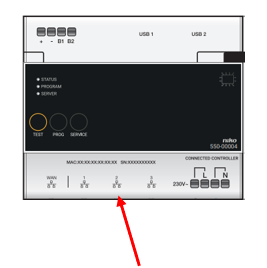
Connected  controller 
550-00003 or 550-00004

connectConnected.png

You have two options:

  • Connect your computer to the same network as your connected controller. In most cases, this is your local network. You can also use Wi-Fi.

  • Use an Ethernet cable to connect directly to the connected controller. The network port is located on the bottom of the connected controller. It's best to connect to one of the ports labelled with 1 to 3. It is only accessible if you remove the protection plate of your electrical cabinet. If necessary, cut the power while the plate is removed. Make sure the power is switched back on before continuing to step 3.

Step 3 

Open the programming software for Niko Home Control I (which you have installed in step 1).

Programming software icon:

iconSoft.png

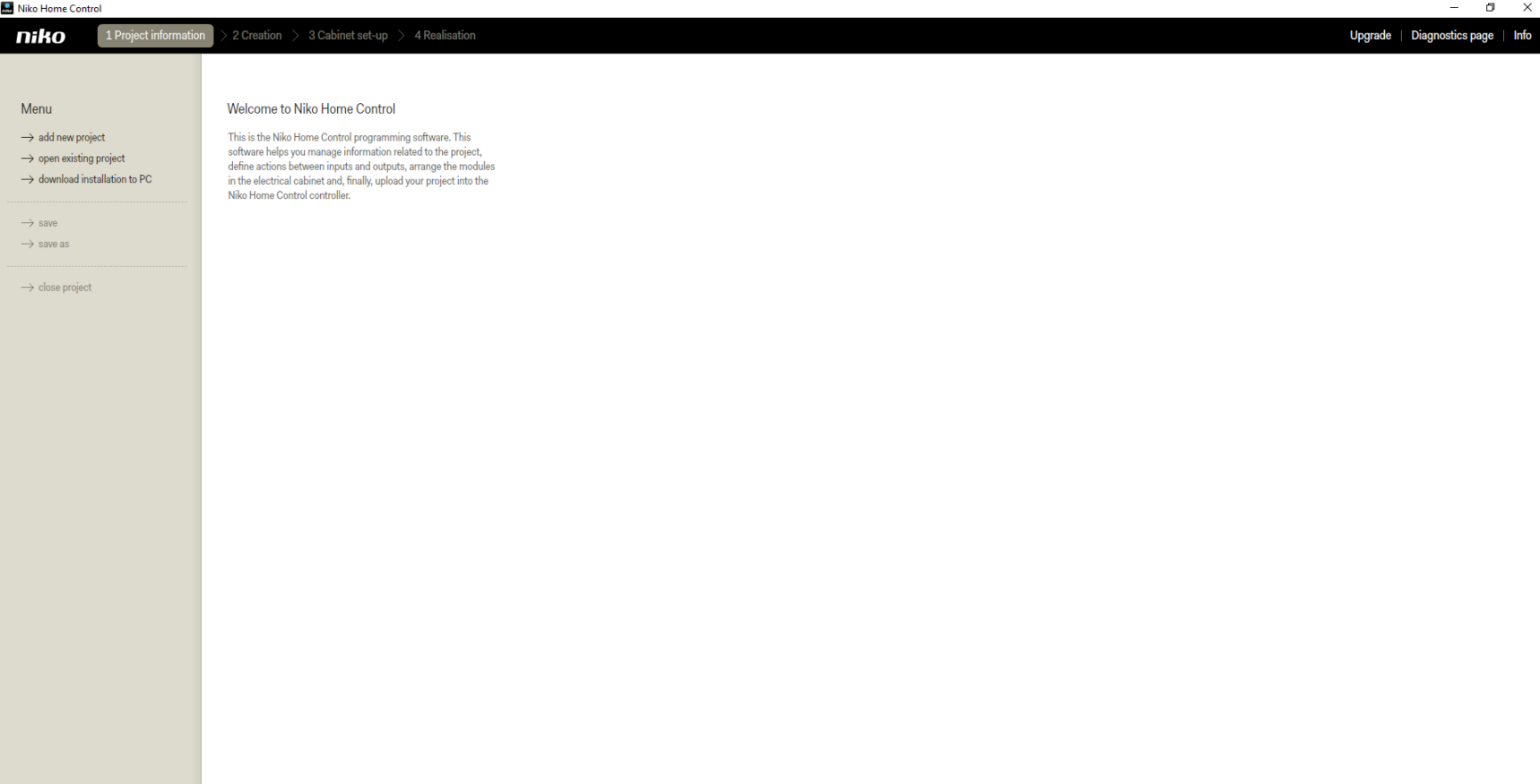
The following screen will be opened:

ConfigStartScreen.png


Step 4

Download the configuration of your Niko Home Control installation to your computer by selecting "download installation to PC":
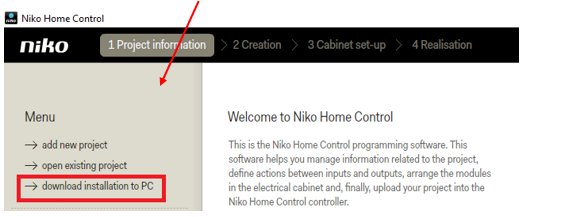
DownloadInstallation.png

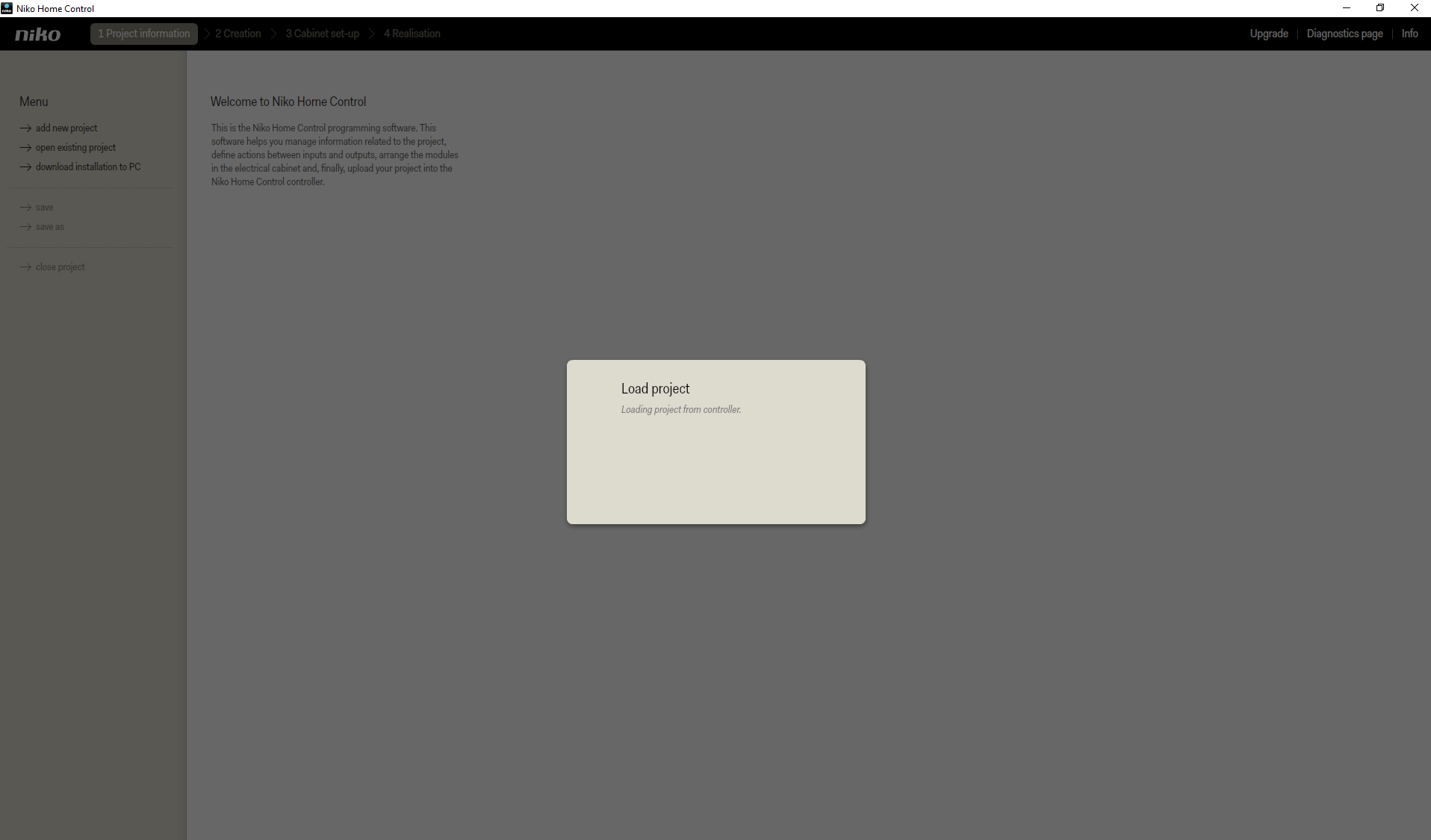
The following screen will open:

DownloadingFile.png

If the project download was successful, you will see "downloaded project" in the upper left corner:
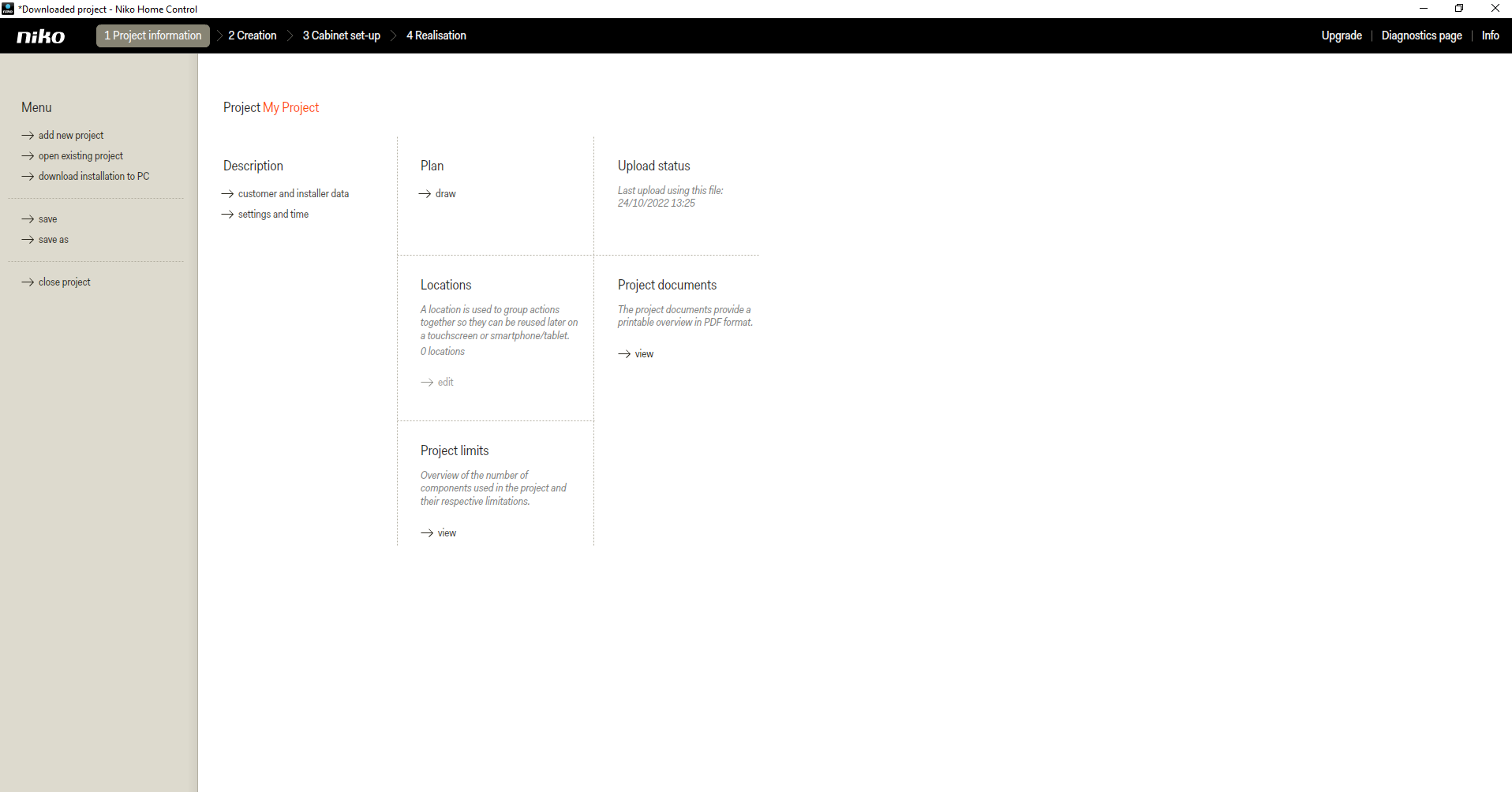
ProjectDownloaded.png


Step 5

Save the project to your computer by clicking "save as"
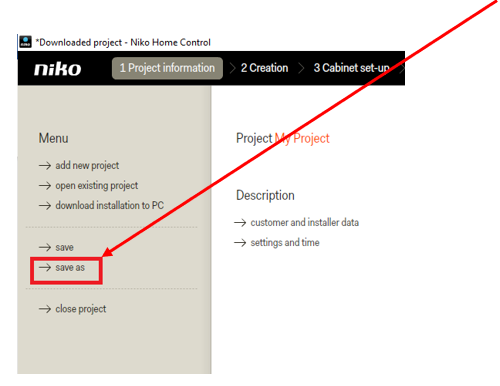
SaveAS.png

A file browser window will open. Choose a location and a name for your project and save this file on your computer.