
What can you do with Niko Home Control?
By using Niko Home Control with your Velux system, you can do the following:
-
Open and close windows, sun screens and shutters
-
Stop opening or closing windows, sun screens and shutters
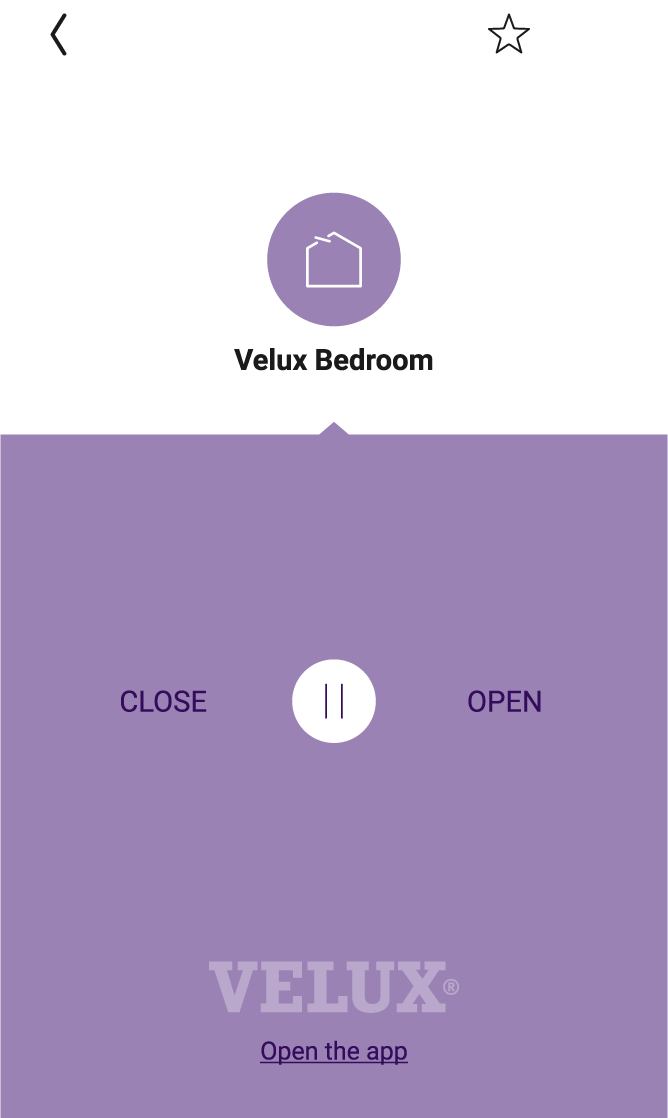
The Velux functions automatically appear in your Niko Home Control apps and your touchscreens after you activate the link between both systems. These functions can also be combined in routines/actions to control multiple items simultaneously at the simple press of a button (e.g. turn off all the lights and close the roof window when pressing the leaving the house button).
The available functionality within Niko Home Control depends upon the specific installation features of the Velux system.
What do you need?
|
|
In short |
Extra information |
|---|---|---|
|
General |
Specific electrial wiring is required. |
An SVV cable with a minimum of 12 conductors is installed between the electrical cabinet and the KLF 200 module(s). |

|
Your Niko Home Control installation meets the following requirements:
|
One of the following modules can be used: 
|

|
Per 5 INTEGRA ® Velux windows a KLF 200 module is installed. |
The KLF 200 module:
|
How do you activate the link between your Niko Home Control and your Velux system?
You have to set up the connection and functionality via the Niko Home Control programming software . Ask your professional installer for help.
You can watch the tutorial here:
How do you deactivate the link between your Niko Home Control and your Velux system?
You deactivate the link with the Niko Home Control programming software. Ask your professional installer for help.
After deactivating the link, the following happens:
-
The Velux functions disappear from your Niko Home Control apps, your touchscreens and Digital blacks.
-
When used in Niko Home Control actions, the Velux functions will not be executed anymore.
How do you update the Niko Home Control basic actions and routines that use your Velux system?
You update the basic actions and routines with the Niko Home Control programming software.