
When your computer is connected to the same network as your installation, and you open the Niko Home Control programming software, you are not connected automatically to your connected controller or wireless smart hub.
If this is the first time the Niko Home Control programming is being opened on this computer while it is connected tot the installation, for security reasons, you have to prove that you have both a digital and a physical connection to the Niko Home Control installation (see procedure below).
Starting point
-
Your computer is connected to the same network as your connected controller or wireless smart hub.
-
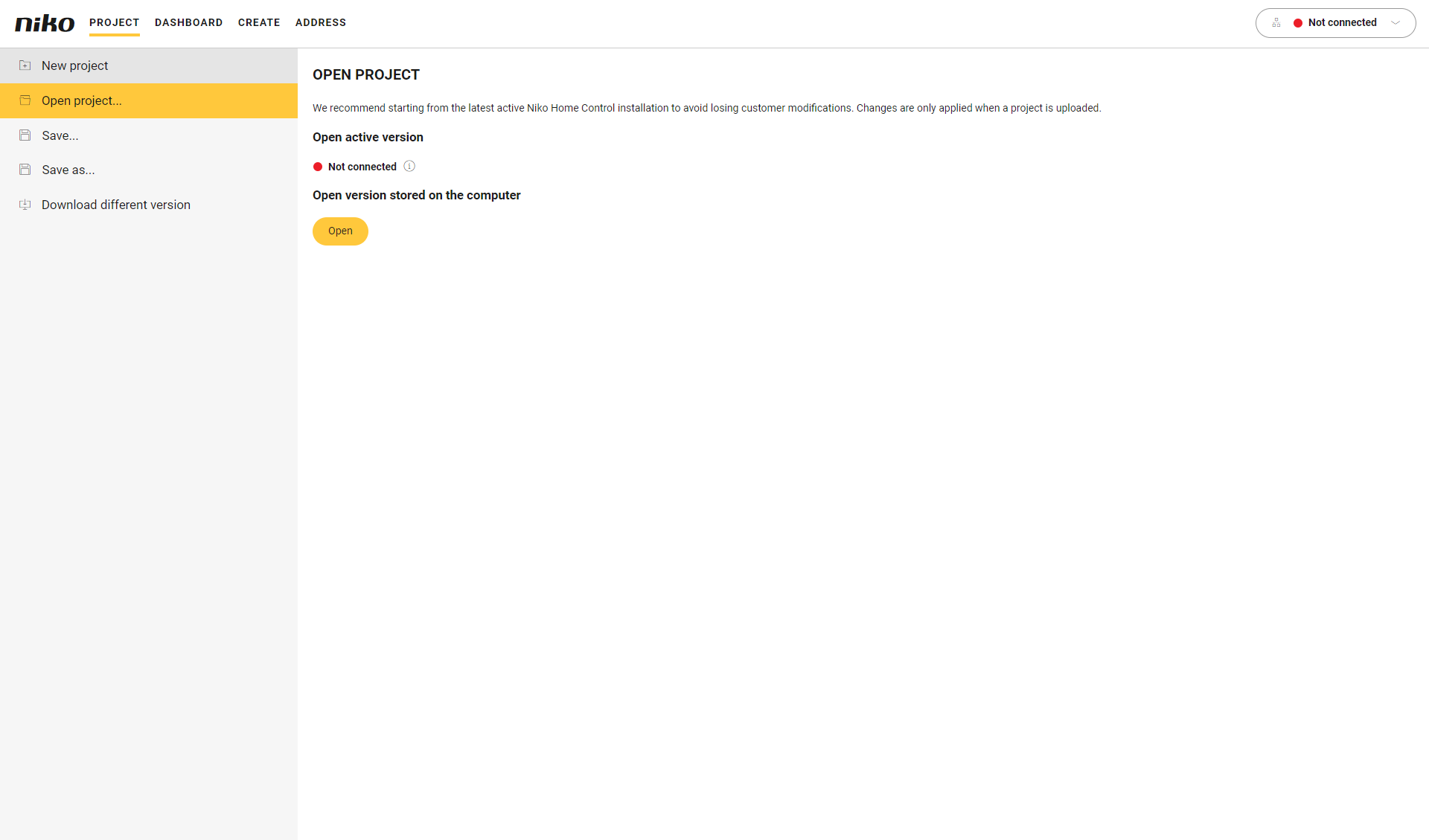
You are in the Project menu.
Procedure
-
On the right-hand side of the menu, click the Connection centre button.
Result:
The Connection centre opens.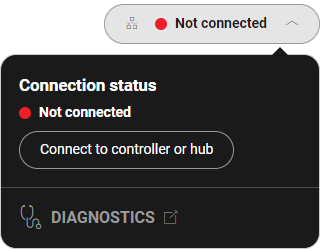
-
Click Connect to controller.
Result:
The local network is scanned for connected controllers or wireless smart hubs. -
In the case of:
-
One controller found in the network,go to step 5.
-
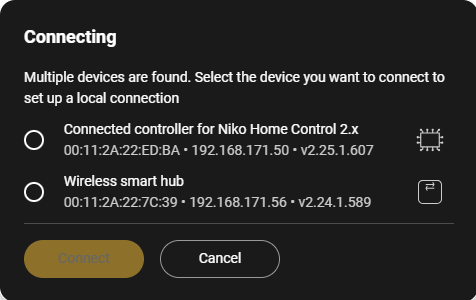
More than one controller found in the network, a list is displayed.
-
-
Select the desired controller from the list and click Connect.
-
After a few seconds your computer is connected to the installation.
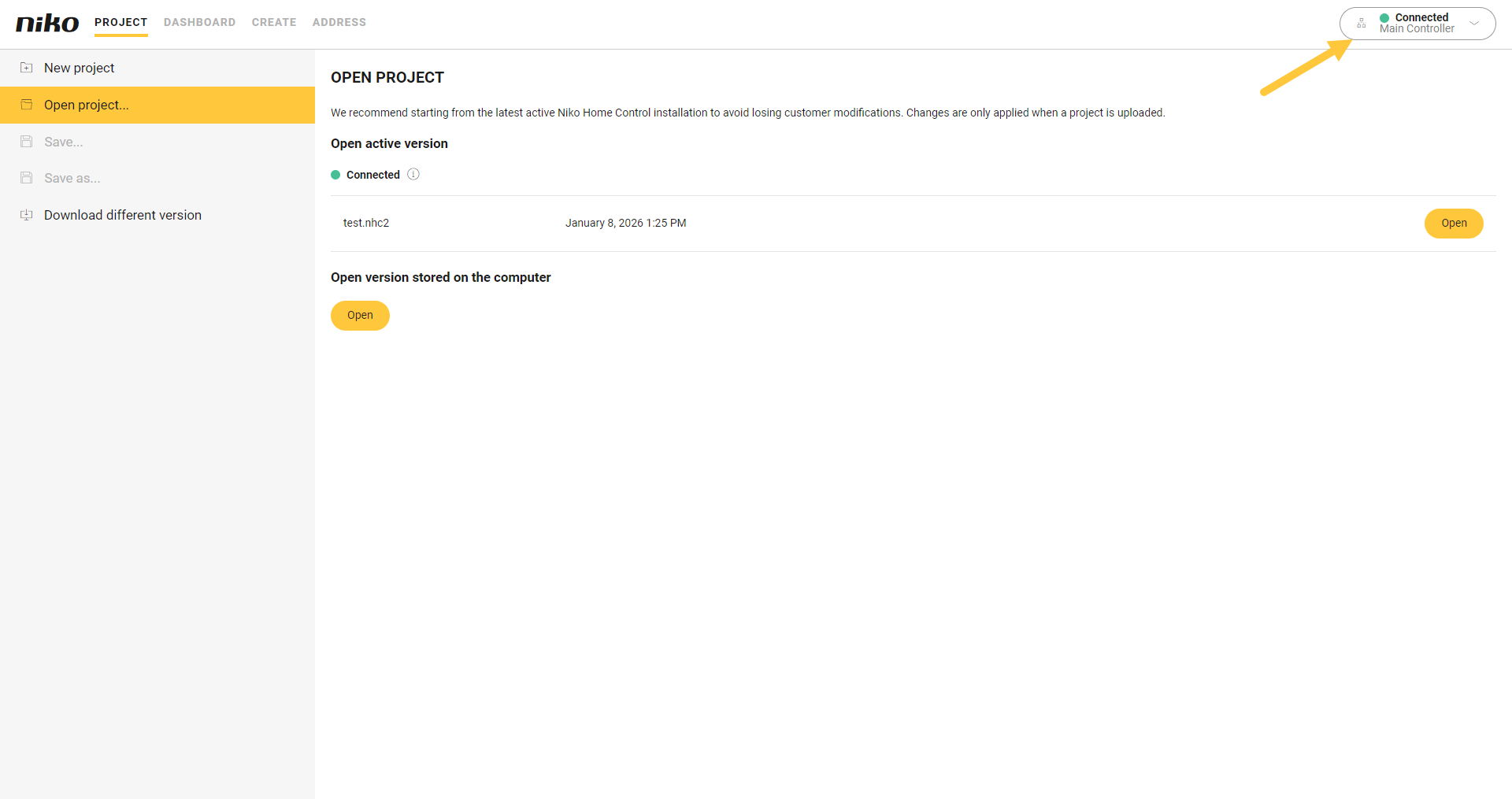
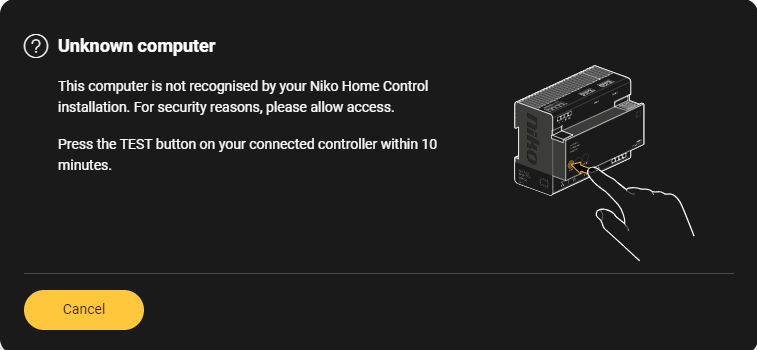
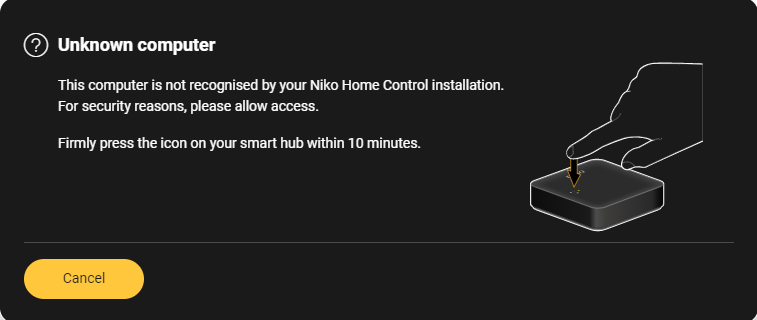
If it is the first time the Niko Home Control programming software is being opened on this computer while it is connected to the installation, you are prompted to press a button on the controller.
|
Connected controller |
Wireless smart hub |
|---|---|
|
|
|
Press the TEST button on your connected controller within 10 minutes. |
Firmly press the icon on your wireless smart hub within 10 minutes. |
To disconnect your computer from the controller, click the Connection centre button (Connected) and click Disconnect.