Niko Home Control is evolving into MOTIV Building Control. MOTIV is a new brand for intelligent building automation. Built on the trusted foundation of Niko Home Control, MOTIV solutions are designed to make buildings work more naturally for the people inside them. MOTIV helps professionals create smarter, more comfortable buildings. With technology that works quietly in the background. All existing Niko Home Control solutions remain fully compatible with MOTIV. Over time, the full portfolio will move to the MOTIV brand. During this transition, you will see both Niko Home Control (NHC) and MOTIV Building Control (MBC) appear in this documentation. Discover MOTIV at niko.eu/MOTIV
Software Manual
Working version 2.27.1 English Dutch French Slovak Danish German Swedish

Creating and modifying touchscreen profiles

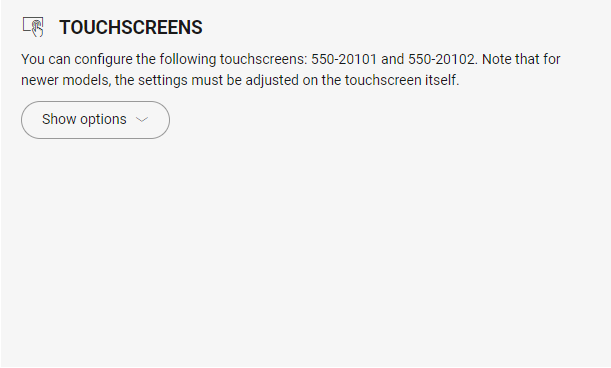
Only applicable for the following touchscreens 550-20101 and 550-20102. For the newer models, all view settings are set on the touchscreen itself.

Starting point

Creating a touchscreen profile

  1. Click on Show options.

    s03_01_01_226_002.png
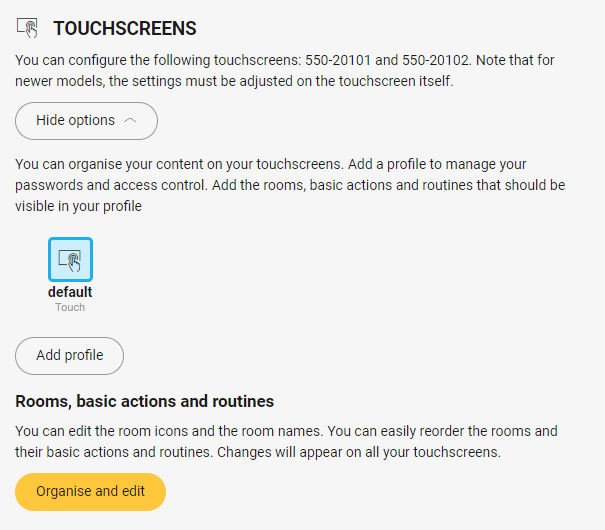
  2. Click on Add profile.

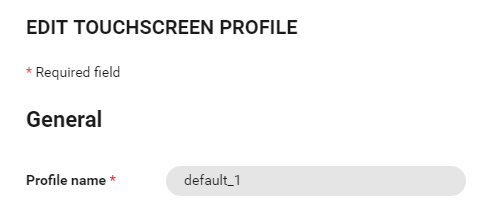
  3. In the window section General, fill in the profile name.
    https://s3-eu-west-1.amazonaws.com/guideimages/Screenshots/V2.9/EN/s03_01_01_226_003.png
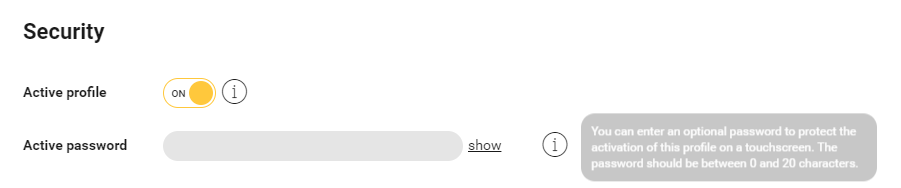
  4. In the window section Security, you set whether the profile is active or not and define a password for the profile.
    https://s3-eu-west-1.amazonaws.com/guideimages/Screenshots/V2.9/EN/s03_01_01_226_004.png
  5. In the window section Functionalities, you enable or disable access control, energy and notifications.
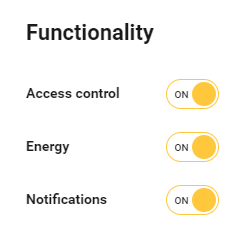
    https://s3-eu-west-1.amazonaws.com/guideimages/Screenshots/V2.9/EN/s03_01_01_226_005.png
  6. In the window section Rooms, basic actions and routines, you show or hide rooms and/or basic actions and/or routines on your touchscreen.
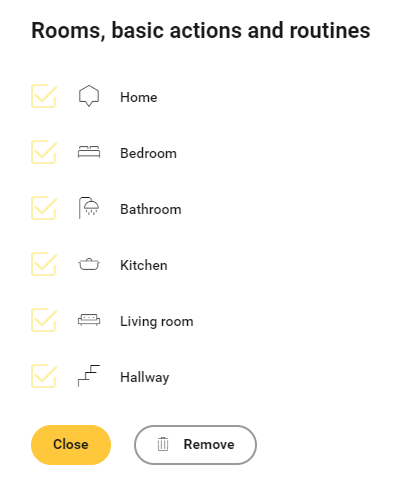
    https://s3-eu-west-1.amazonaws.com/guideimages/Screenshots/V2.9/EN/s03_01_01_226_006.png
  7. Click the Close button to return to the Dashboard overview window.

Modifying a touchscreen profile

  1. Click on the touchscreen profile

  2. Make the necessary changes; to do so, see steps 3 to 6 in the above procedure.

  3. Click the Close button to return to the Dashboard overview window.