
A DALI lighting system has a limitation on the number of DALI groups per DALI bus.
The maximum number of DALI groups per DALI bus is 16.
If the number of groups is insufficient for your Niko Home Control configuration, you can use this tool to priotise your actions and routines for grouping.
Starting point
-
You have created the necessary DALI devices.
-
You have created basic actions and routines with the DALI devices.
-
The DALI control gear (DALI lamps) are connected to the installation.
-
You have filled the cabinet with at least one DALI-2 addressable module.
-
Your computer is connected to the installation.
-
You addressedat least the DALI-2 addressable module(s).
-
You addressed the DALI devices.
-
You are in the Project validation step of uploading your project.
-
A DALI grouping issue warning appears.

Procedure
-
Click on the Cancel button.
-
In the menu, click on Create.
Result: The Create overview window appears.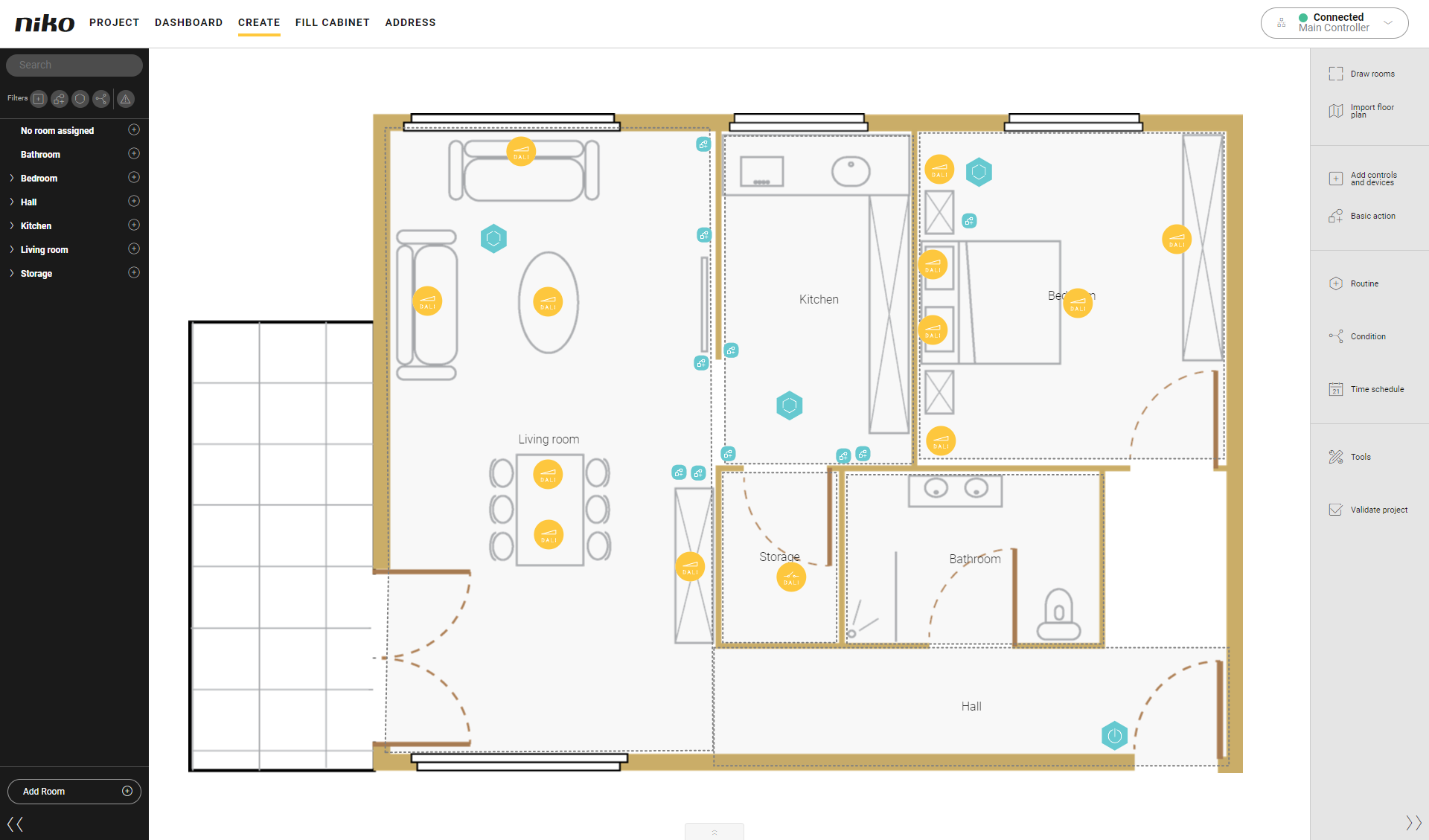
-
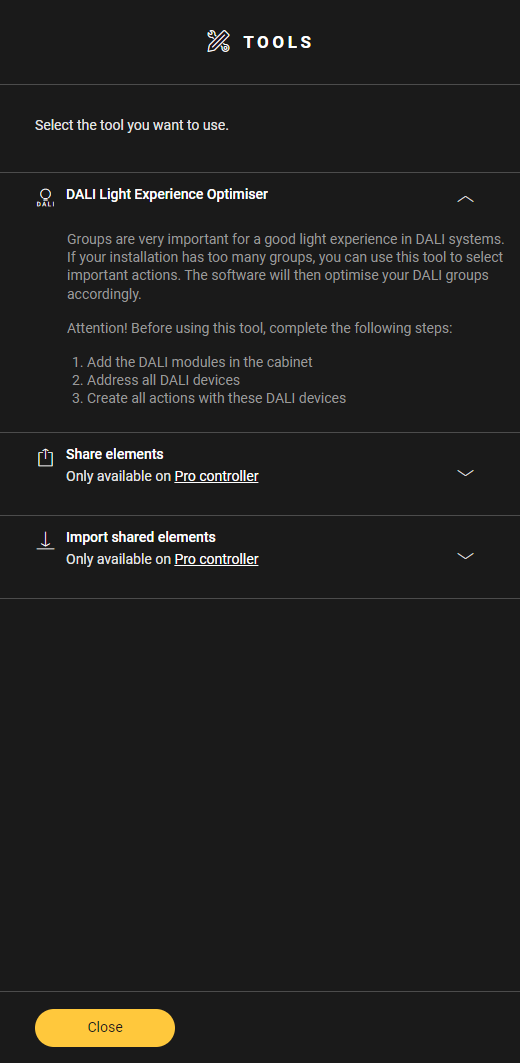
In the right-hand button bar, click on the button Tools.
Result: The Tools pane appears. -
If not opened, click on the arrow next to the tool DALI Light Experience Optimiser.
-
Click on DALI Light Experience Optimiser.

-
Click on Grouping issue to see on which DALI module and DALI bus the issue occurs.

-
On the floor plan, click on the plus signs of the basic actions and routines you want in your priority list.
Result: The basic actions and routines are added to the right pane.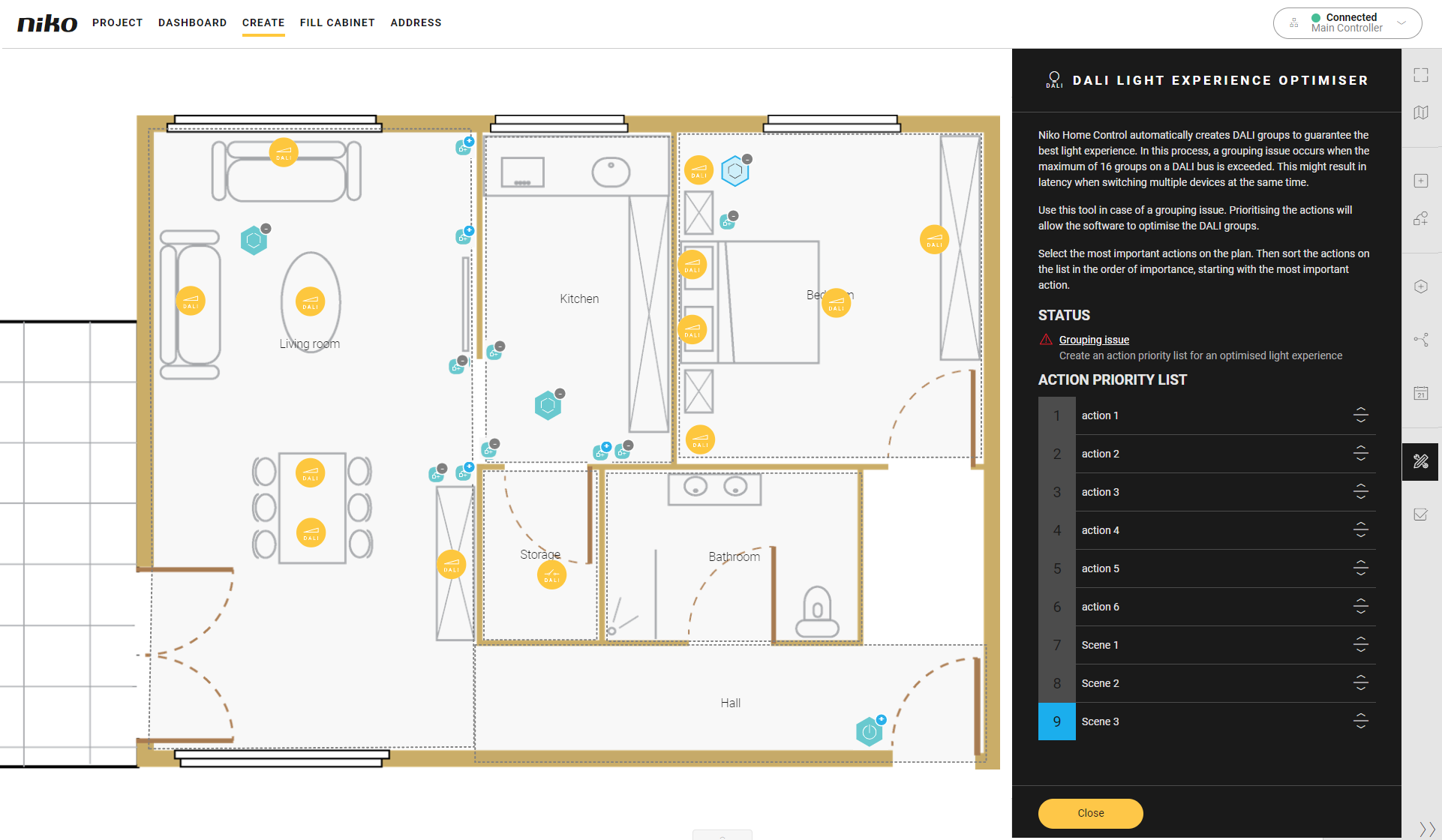
-
Use the arrows next to the basic actions and routines to change the order in the list.
-
Click Close to return to the Create overview window.
-
Upload the configuration file.