
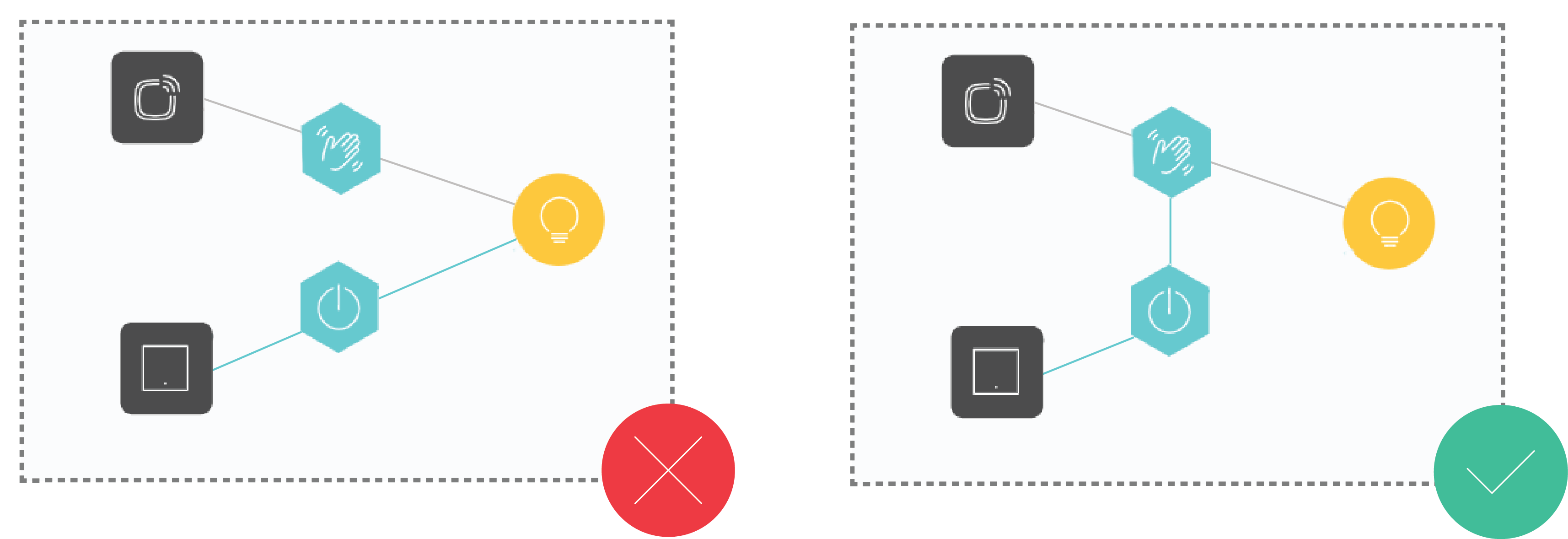
Lights, or other devices used in a motion detection routine should preferably not be used directly in any other routine e.g. do not use these lights or devices in a Basic all-off routine.
If you want to control these devices with other actions or routines, use the motion detection routine in this routine and not the devices.
What is Motion detection with wireless detector(s)?
The routine Motion detection with wireless detector(s) switches on one or several lamps when movement is detected inside. You can programme dimmable lamps to switch on with a certain light intensity. If no movement is detected during a certain, pre-defined period of time, the lamps will switch off again.
Starting point
-
You have created the following controls and devices:
-
a wireless indoor motion detector
-
(optional) several wireless motion detectors and/or single push button with feedback LED
-
a lamp
-
-
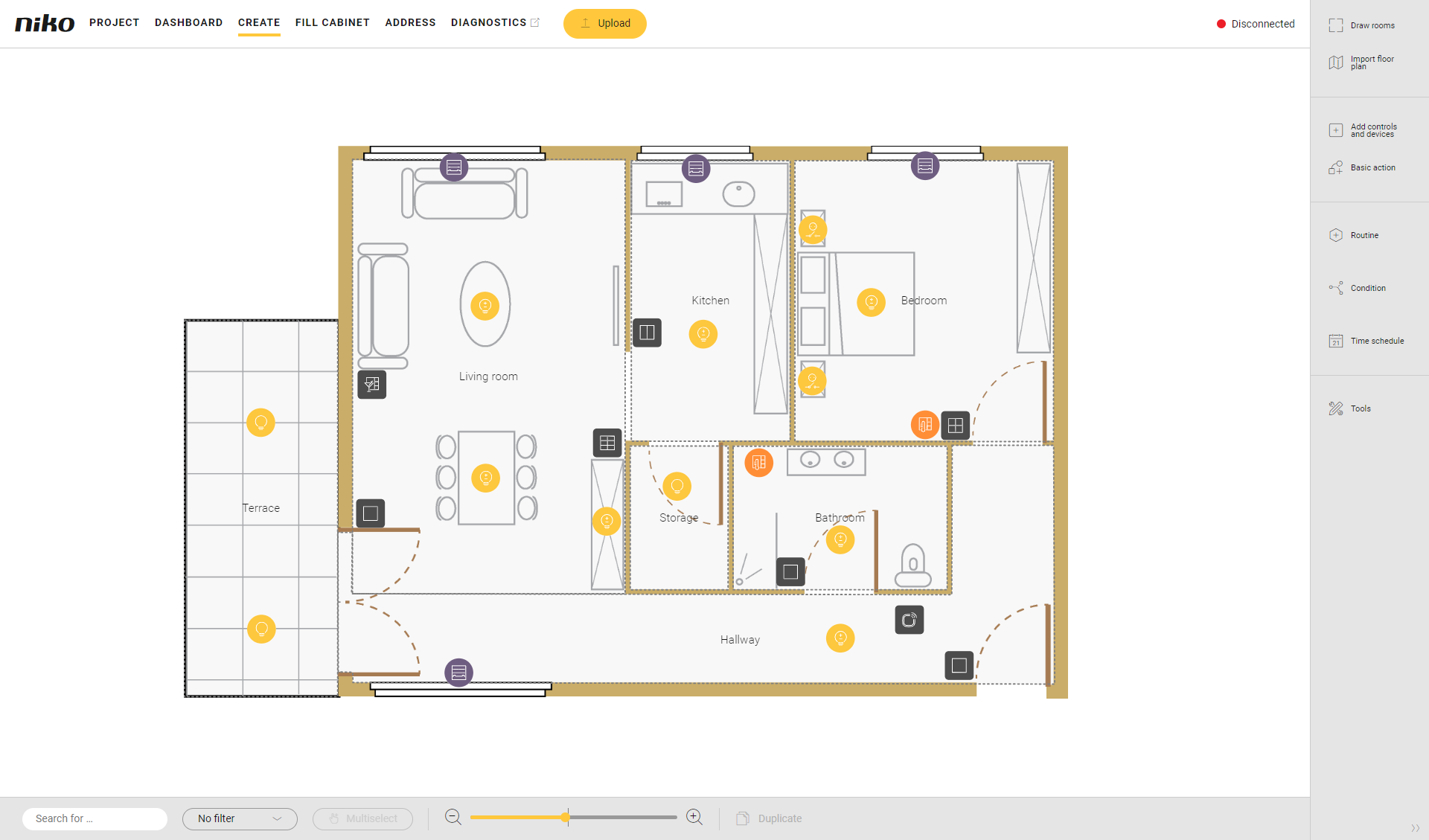
You are in the Create overview window.
Procedure
-
In the right-hand button bar, click on the button Routine.
Result:
The Routine pane appears.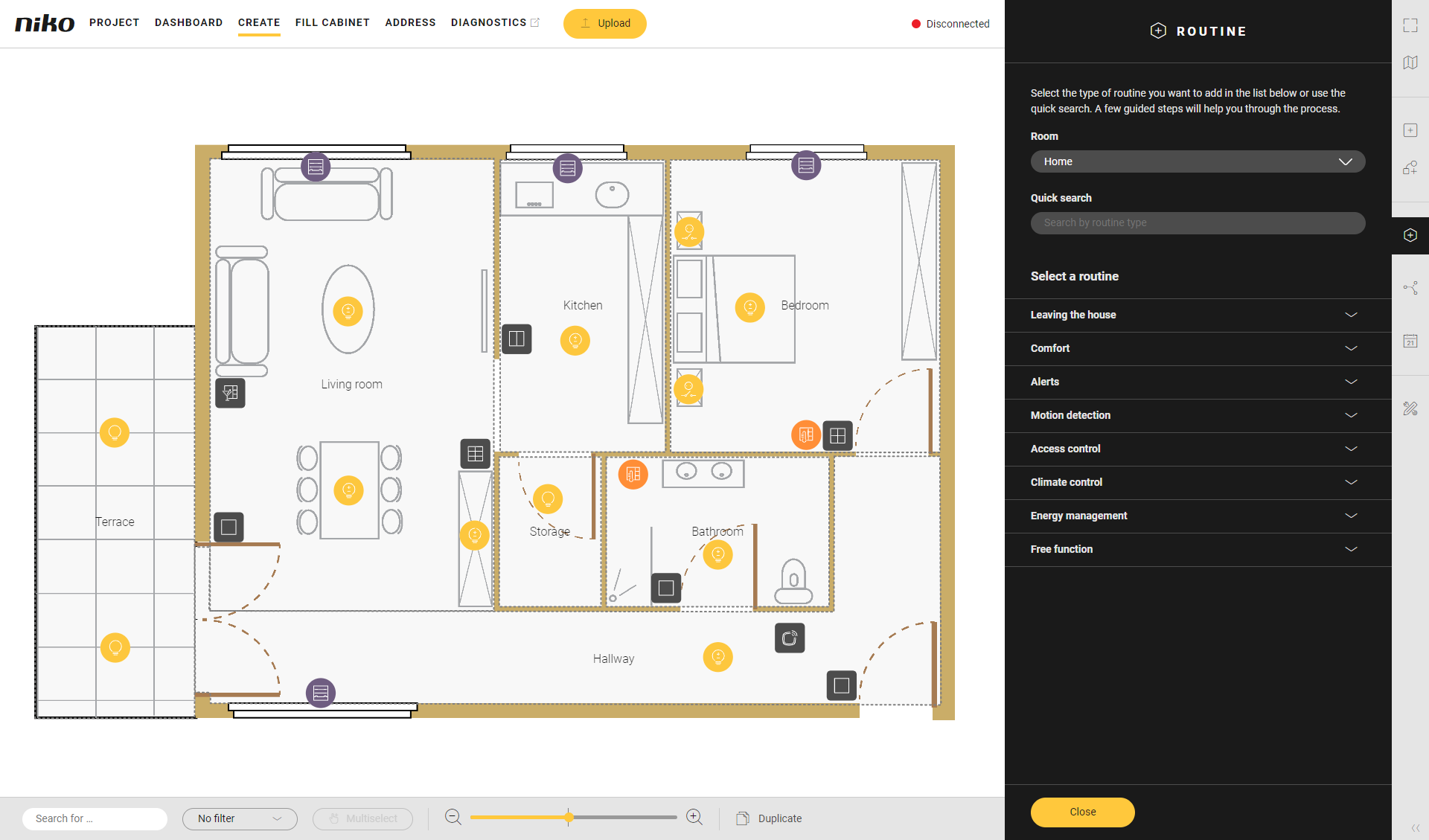
-
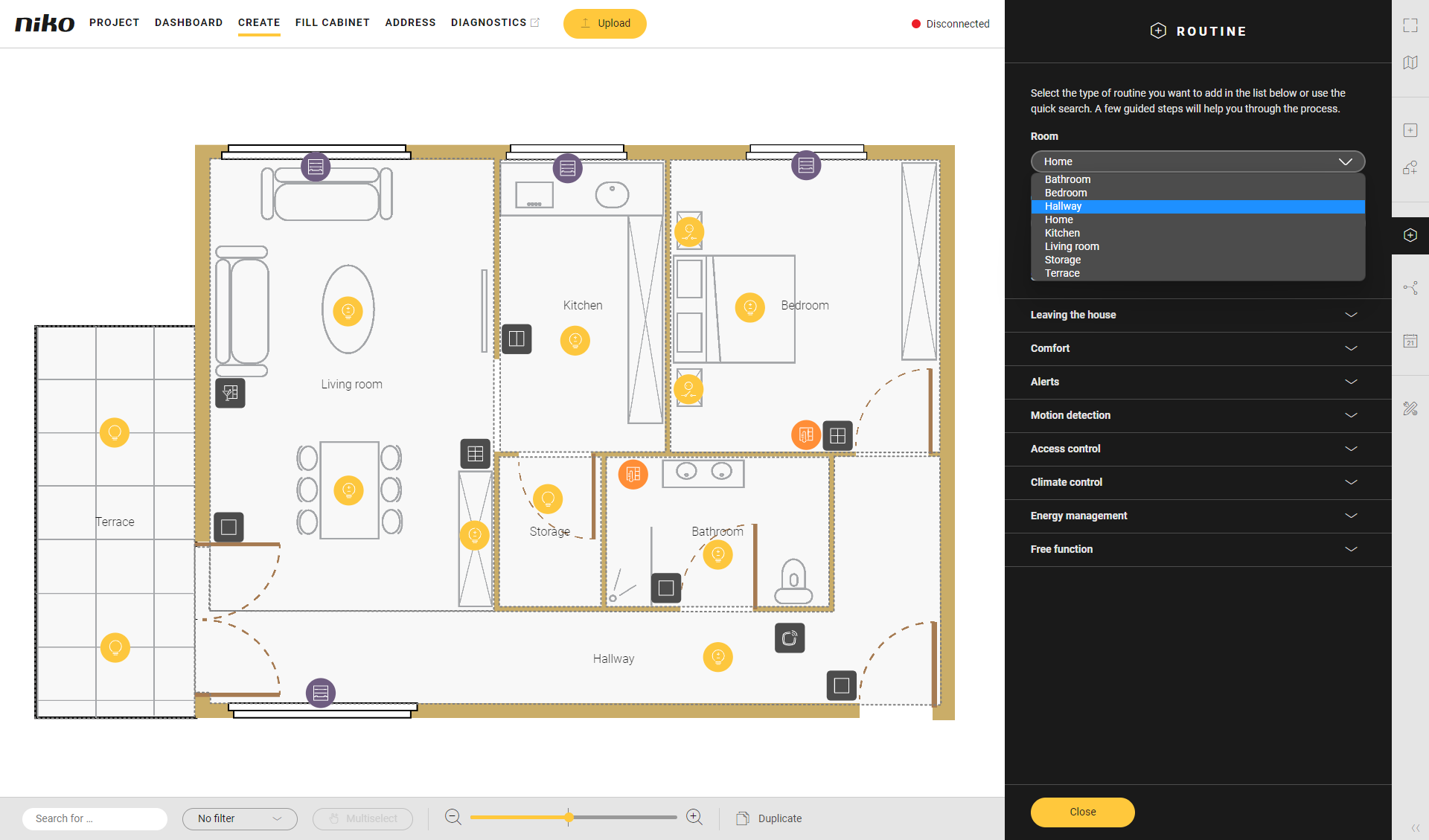
Choose the room as follows:
-
Choose Room from the drop-down list.
-
Click on the room in the drawing area.
-
-
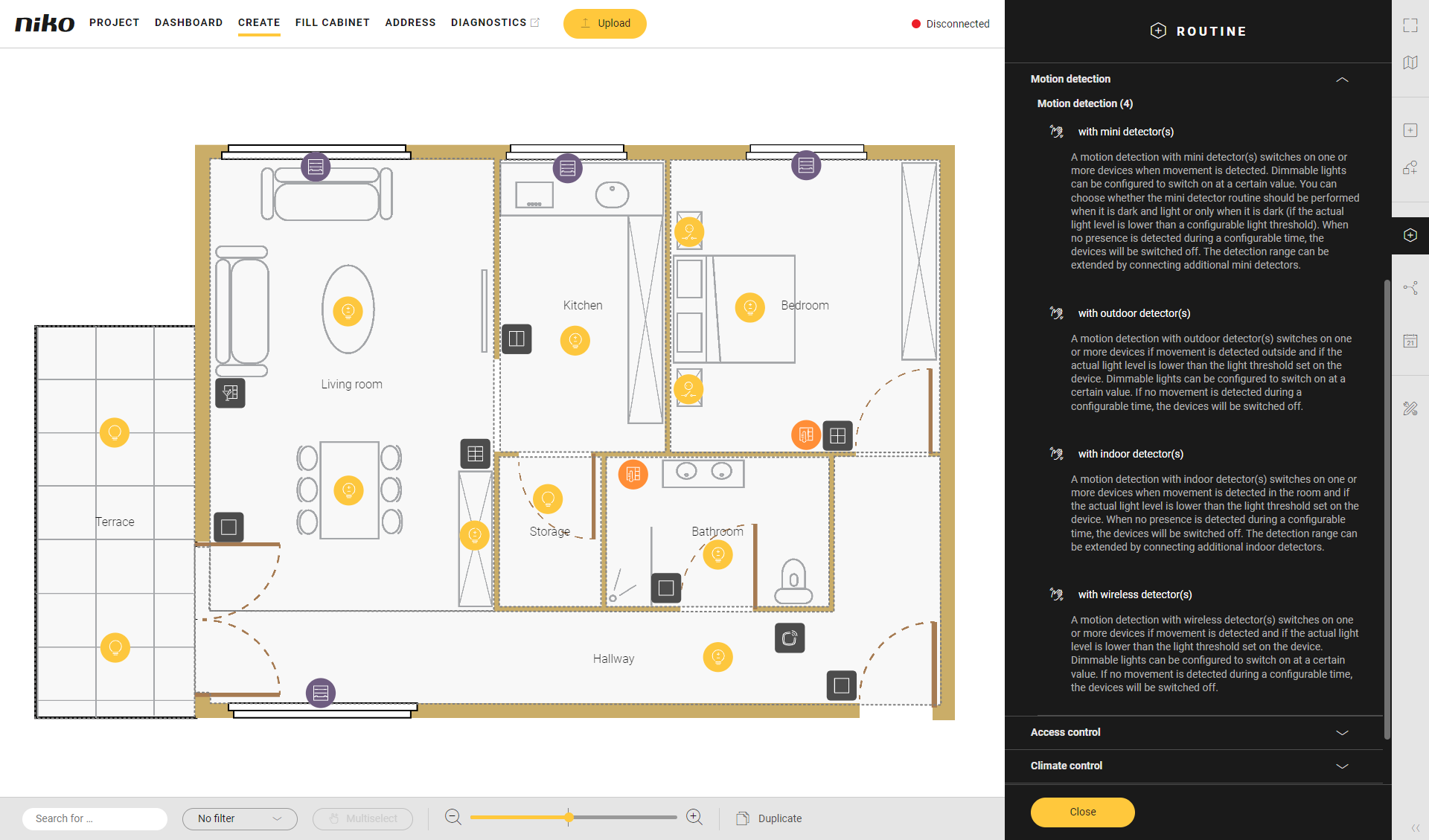
Click on the arrow next to the category Motion detection.
-
Click on Motion detection with wireless detector(s).
-
Give the routine a name.
-
Set the behaviour as follows:
Behaviour
What?
How?
A
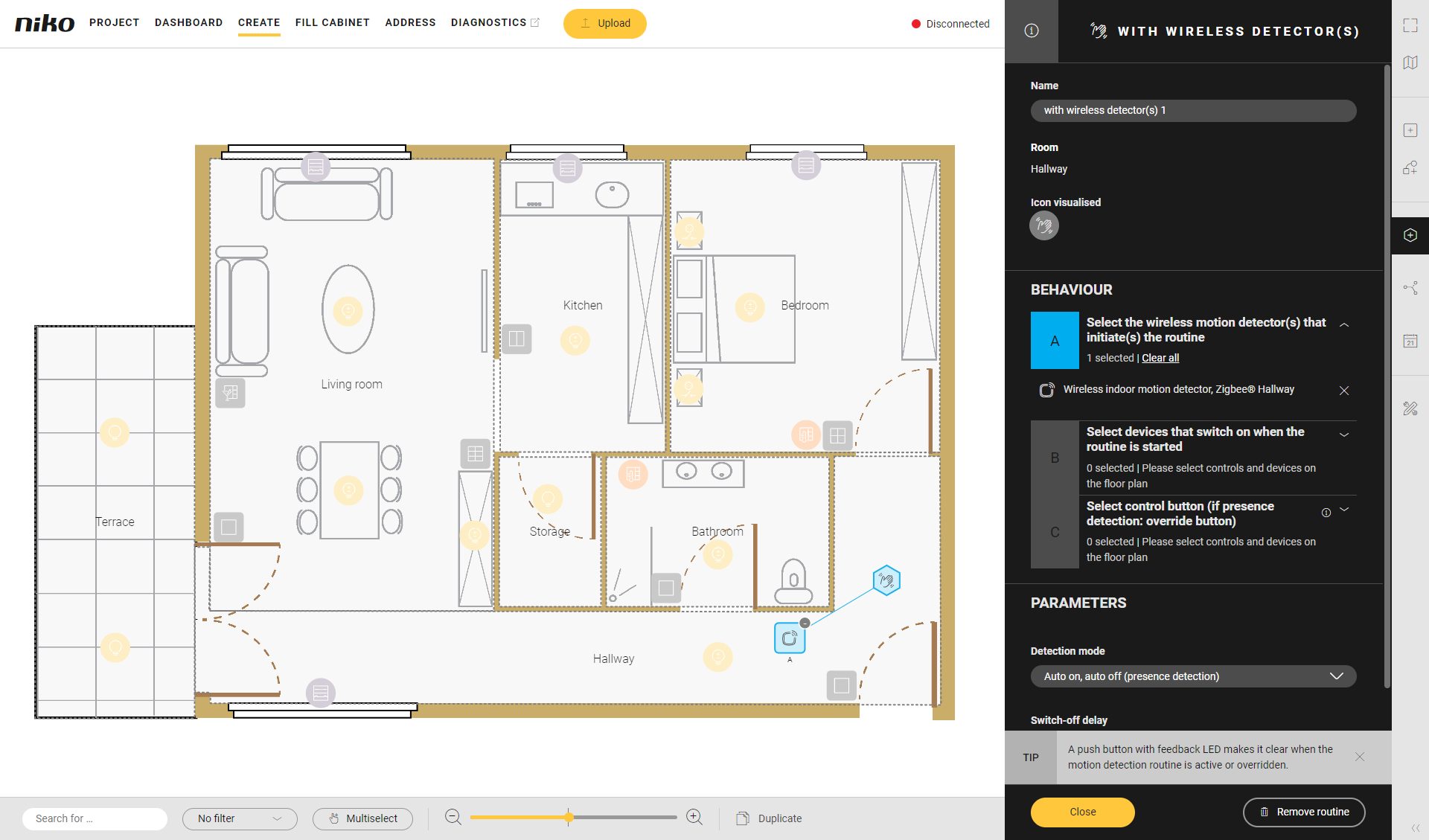
Choose the wireless motion detector(s) which will activate the routine.
In this example we will use 1 wireless motion detector.Click on the plus sign of the wireless motion detector(s) you want to include in the routine.
B
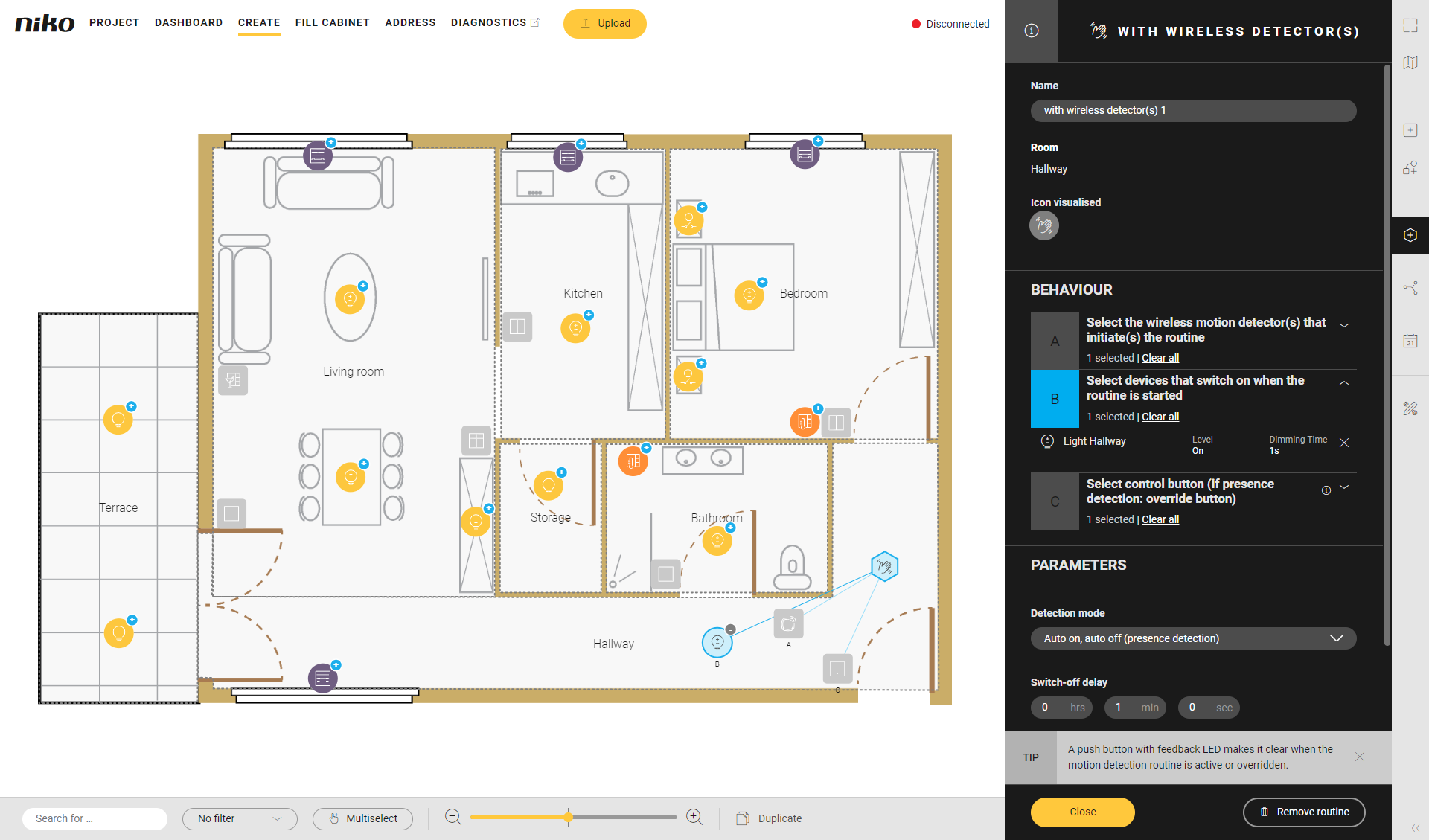
Select devices for this routine.
Click on the plus signs of the devices. You can activate switched lamps or dimmable lamps based on a set value.In this example we have chosen a dimmable lamp.
C
(optional) Choose a control to perform one of the following actions:
-
deactivate the routine (in case of presence detection). The device will always be on and will not be affected by the motion detector.
-
manually switch on devices and automatically switch them off (in case of absence detection)
Click on the plus sign of the control.
Use a push button with feedback LED so you can clearly see whether it is active or not.
Use Multiselect to select various devices at the same time.
-
-
Under Parameters, set the following:
Parameter
Choice
Description
Detection mode
Presence detection (auto on, auto off)
The wireless motion detector controls the lighting.
Absence detection (manual on, auto off)
Switch on the light manually. The wireless motion detector switches off the light when no more movement is detected.
Switch-off delay
0 - 23 hrs. 59 min. 59 sec.
Standard: 1 min.
-
Click the Close button to return to the Routine pane.
-
Click the Close button to return to the Create overview window.