
What is the shift function?
You can create a shift function for the following controls:
-
generic controls
-
specific dimming control
-
specific motor control
-
digital sensor, only bus wiring
-
connection to external system, only bus wiring
-
wireless window or door contact
With the shift function, you can make a button perform different actions (basic actions or routines) depending on its mode (normal or shift).
If the condition is fulfilled, the button will either be in normal or in shift mode.
Starting point
-
You have created the necessary controls and devices.
-
You have created a time schedule (e.g. 6:30 a.m. to 11:00 p.m.)
-
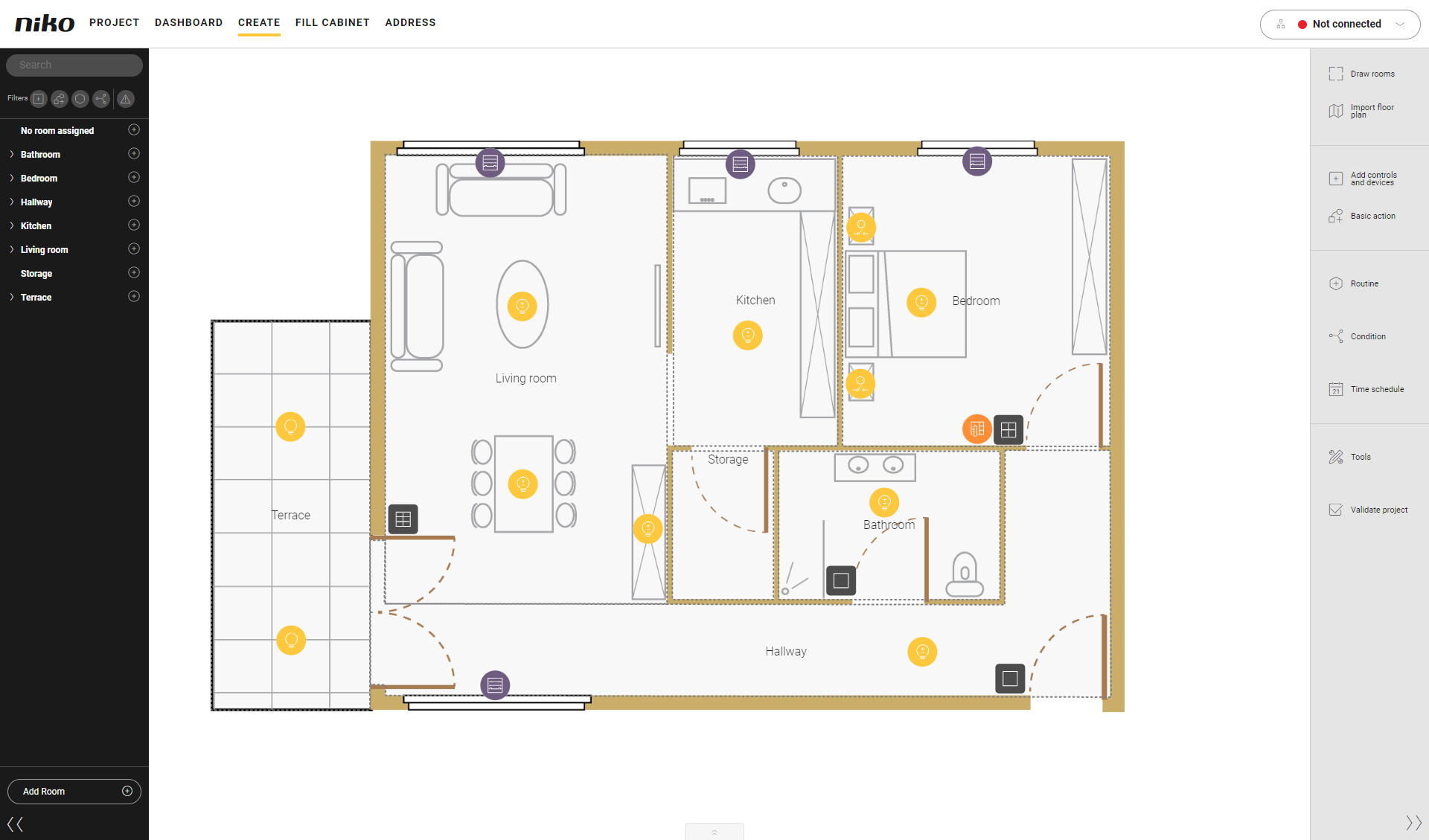
You are in the Create overview window.
Procedure
-
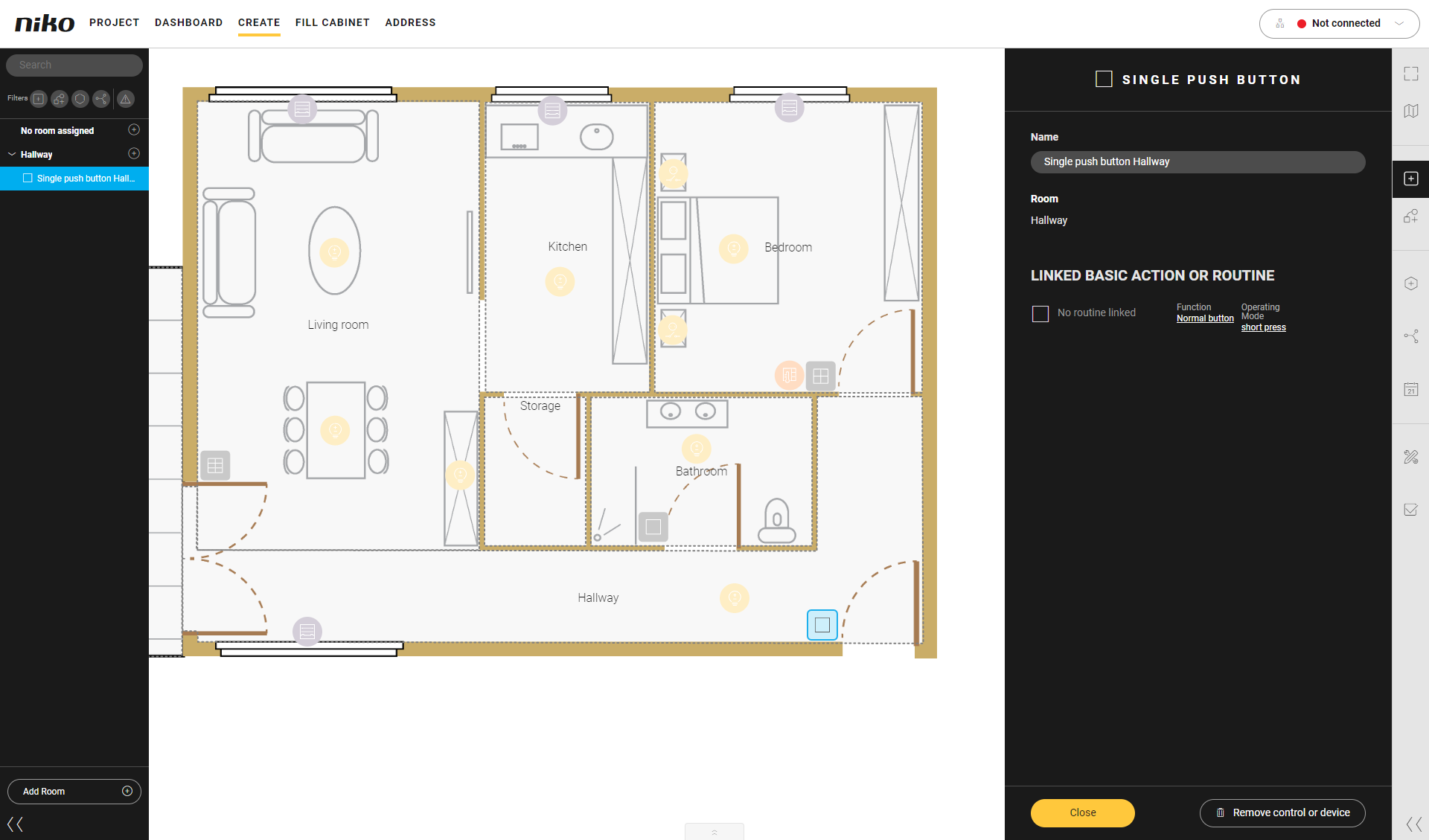
Click on the control to activate the switch function.
Result:
The pane with information appears.
-
Click on Function.
Result:
The Function menu appears.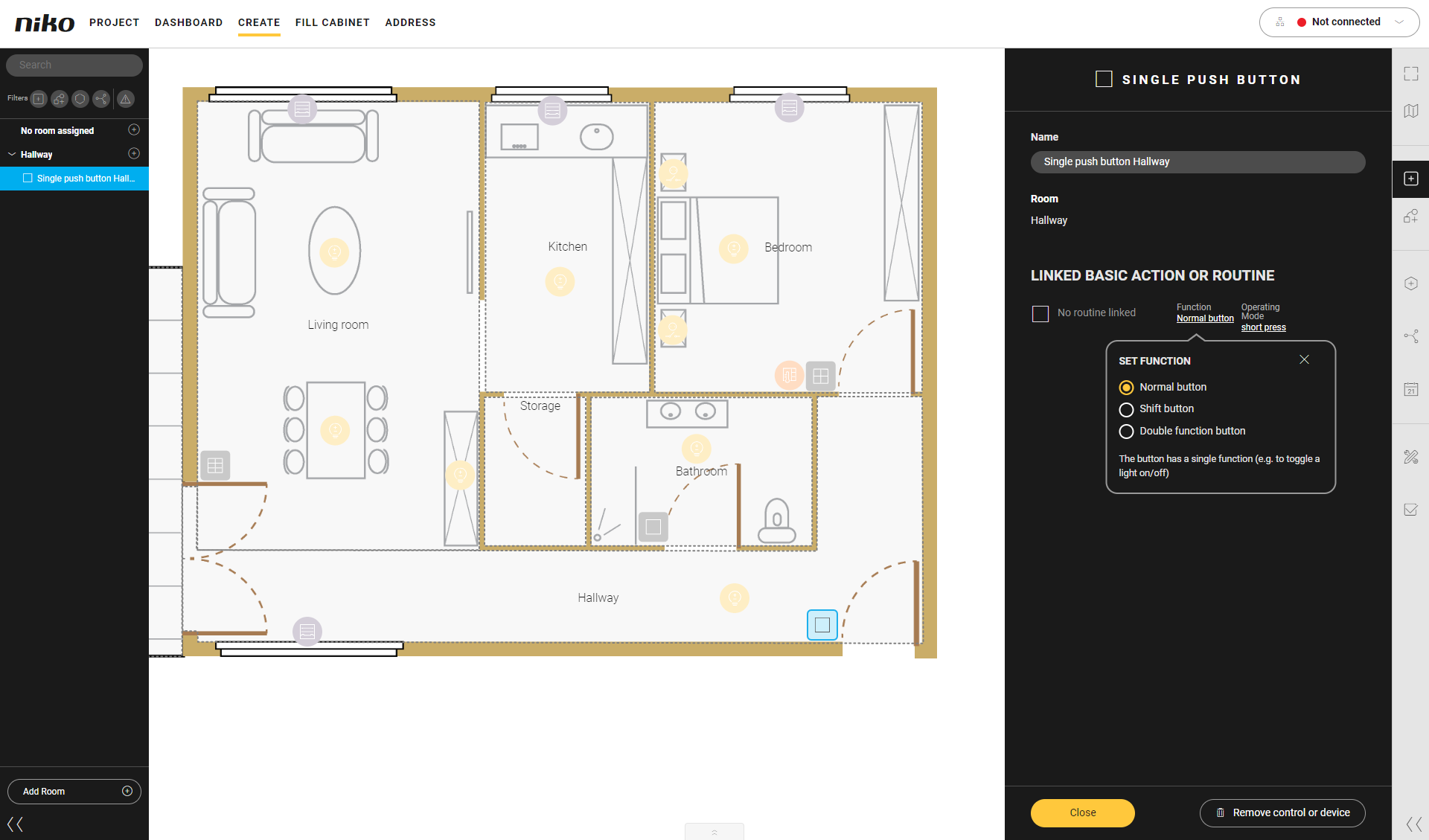
-
Select Shift button.
The control will appear with an 'S' in the drawing area.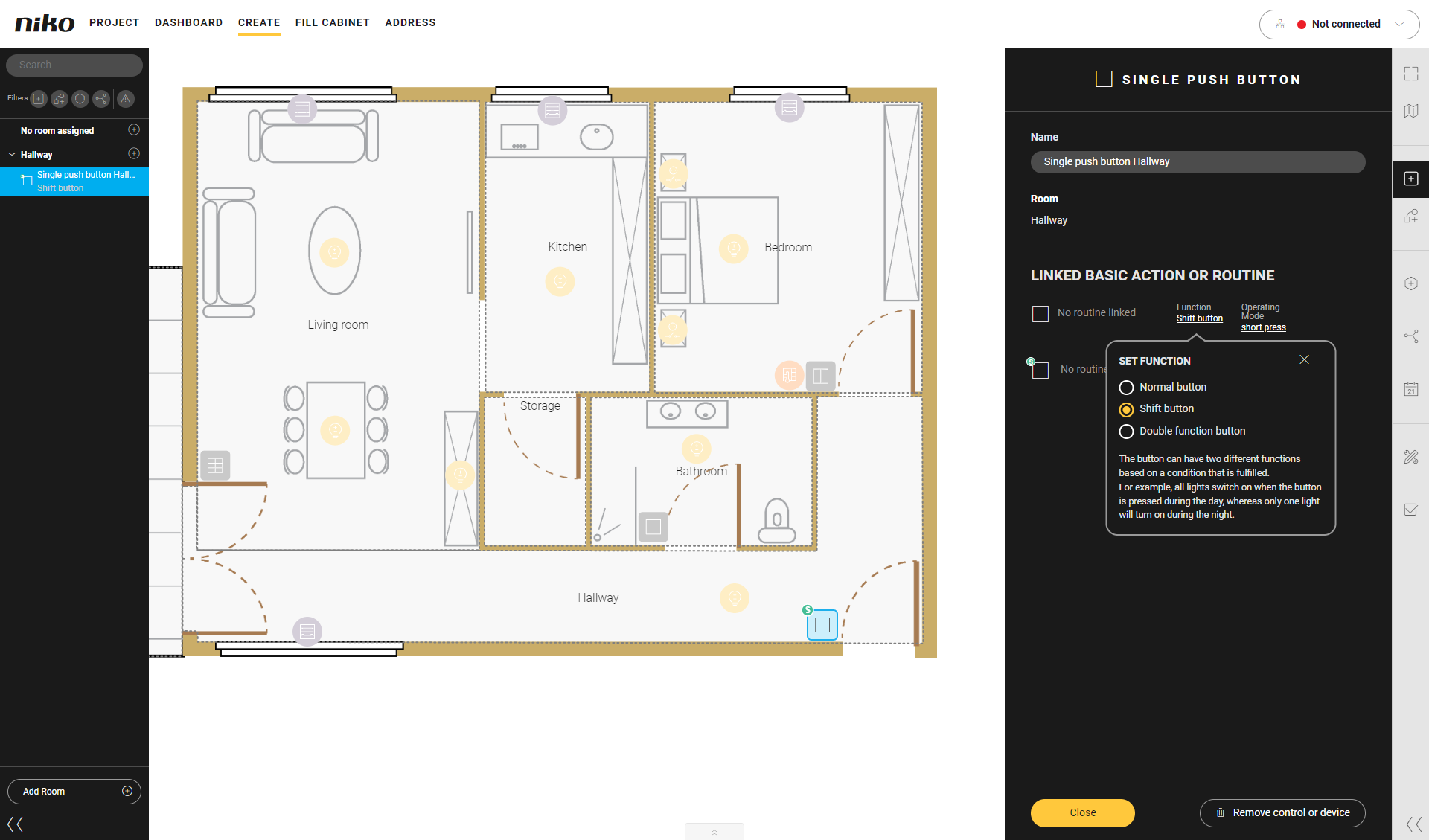
-
Click the Close button to return to the Create overview window.
-
Create a Custom Routine for the Normal mode.
Behaviour
What?
How?
A
Select a control that will initiate the routine.
Click on the control. In this example we opt for a single push button.
Result:
Two possibilities are shown: normal and other function (Shift). Choose normal.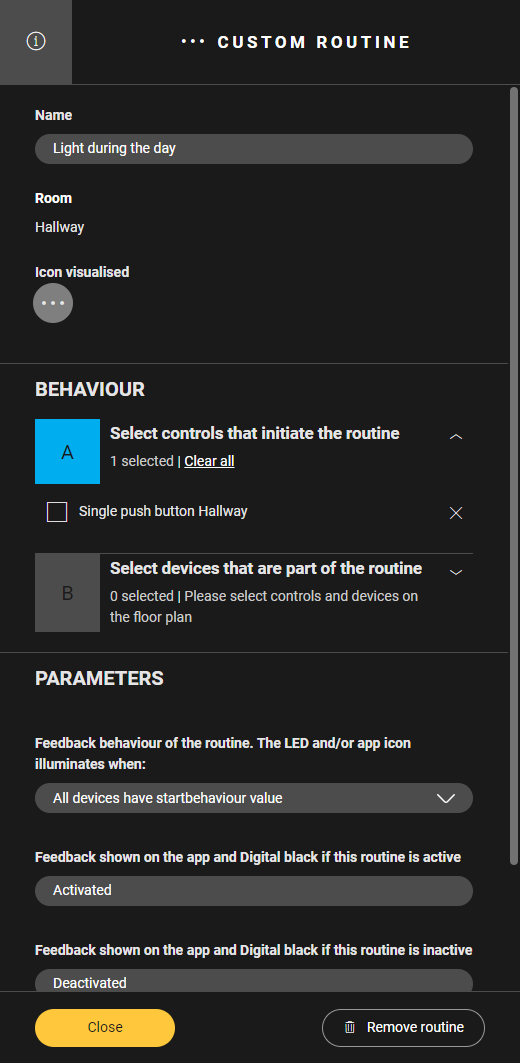
B
Select a device.
Click on the device.
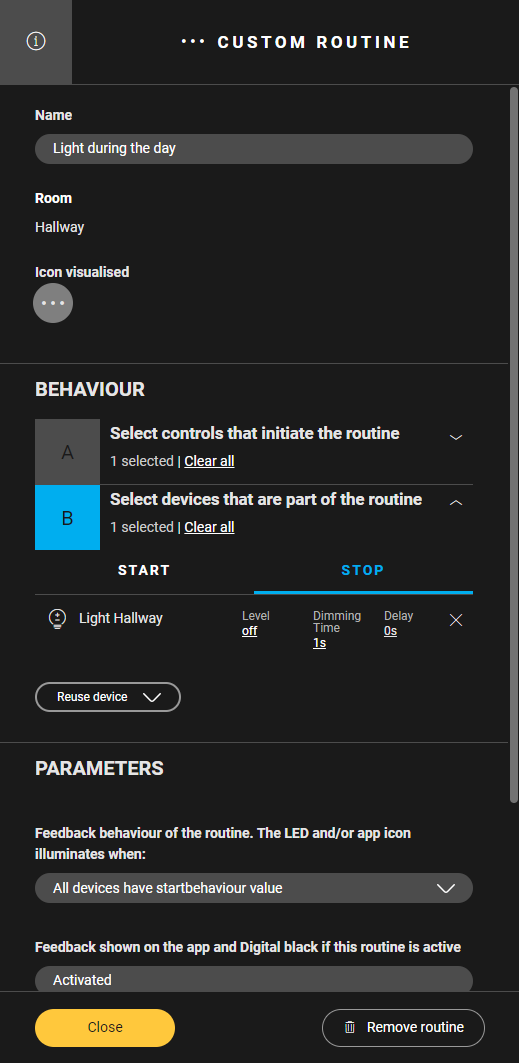
In this example we choose the lamp: its start behaviour is to be on at 100%, its stop behaviour to be on at 0%.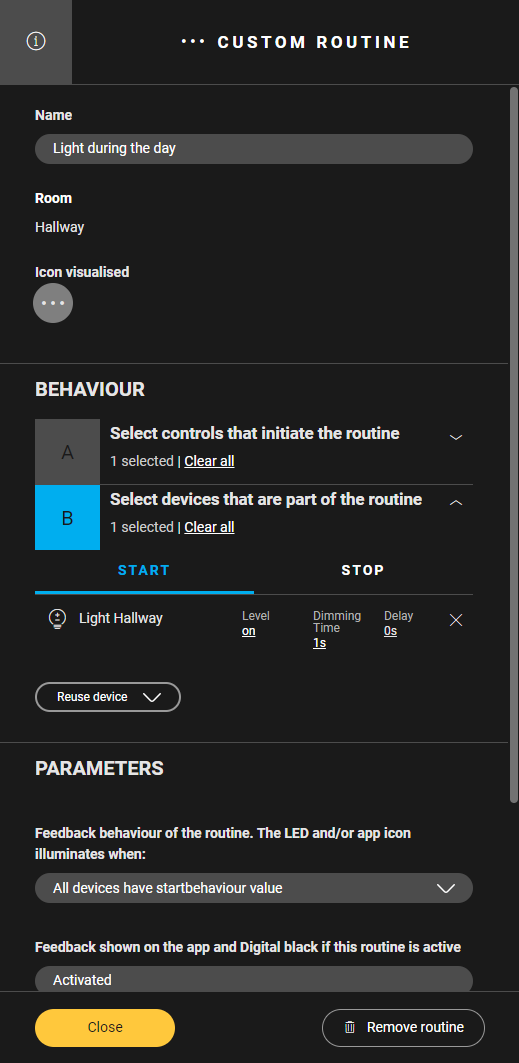
-
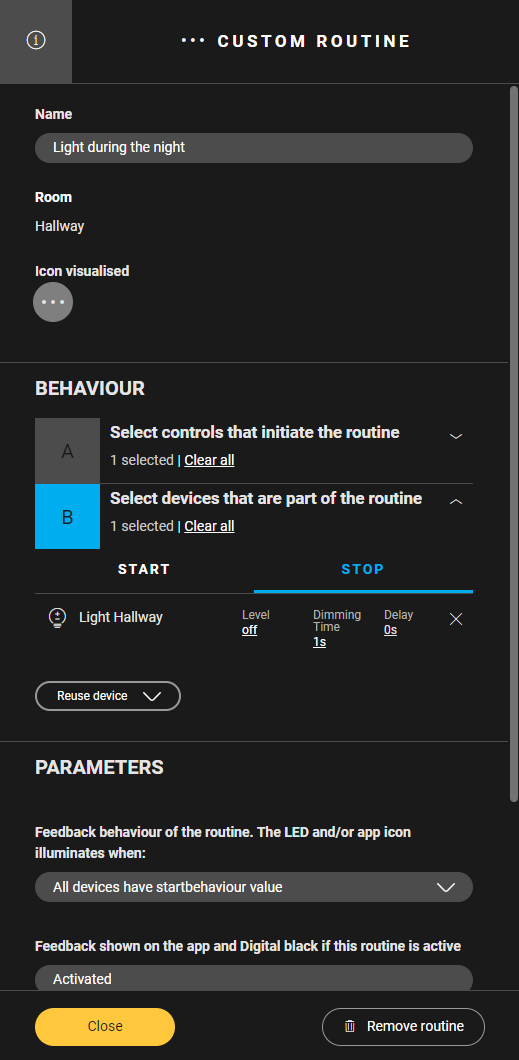
Create a Custom routine for the Shift (other function) mode.
Behaviour
What?
How?
A
Select a control that will initiate the control.
Click on the control. In this example we opt for a single push button.
Result:
Two possibilities are shown: normal and other function. Choose other function.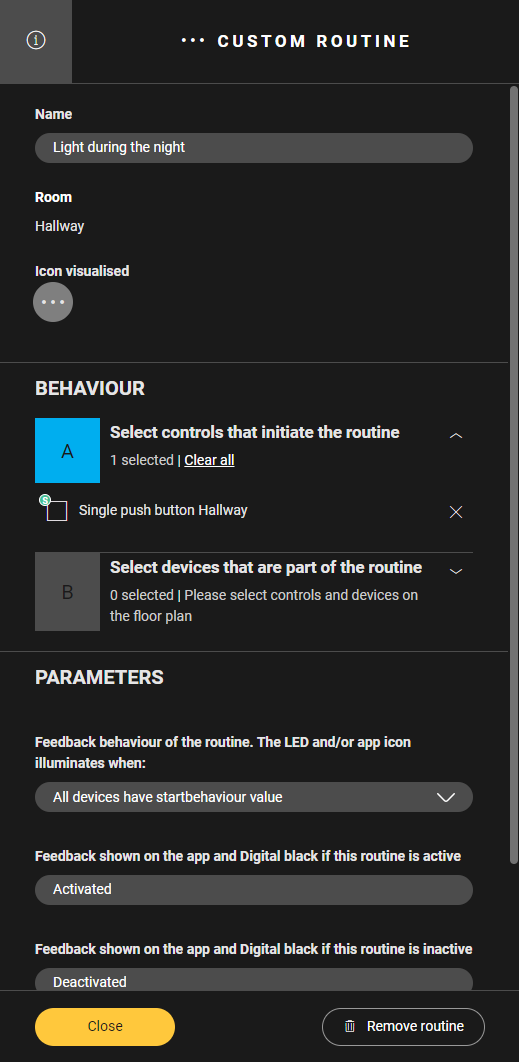
B
Select a device.
Click on the device.
In this example we choose the lamp: its start behaviour is to be on at 40%, its stop behaviour to be on at 0%.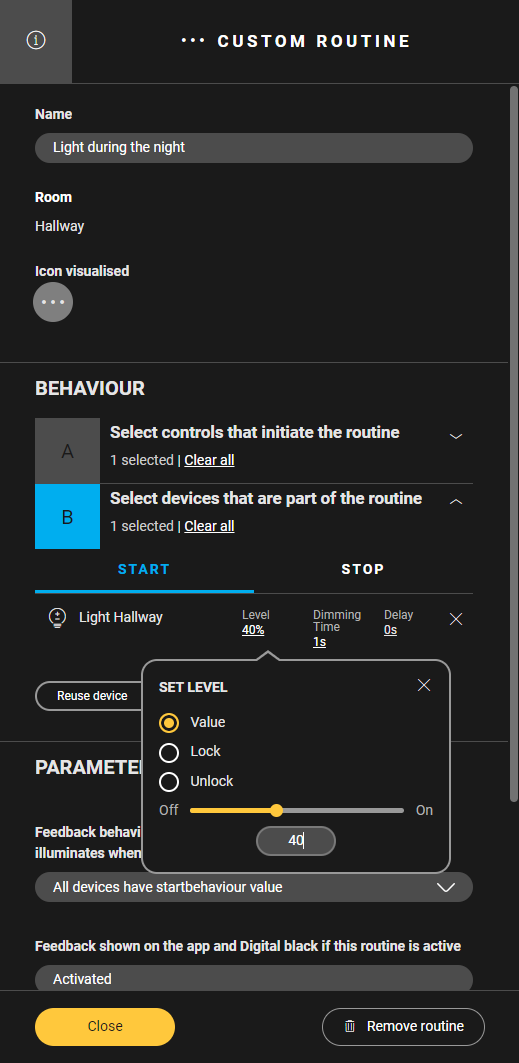
-
Set the conditions for the normal mode and the shift mode.
IF...
THEN...
ELSE...
Example
If it is between 6:00 a.m. and 11:00 p.m....
Then the mode is normal (behaviour A).
Else the mode is shift (behaviour B).
What?
Choose a time schedule as a condition.
Choose the behaviour of the control within that time schedule.
Choose the behaviour of the control if the condition is not fulfilled.