Niko Home Control is evolving into MOTIV Building Control. MOTIV is a new brand for intelligent building automation. Built on the trusted foundation of Niko Home Control, MOTIV solutions are designed to make buildings work more naturally for the people inside them. MOTIV helps professionals create smarter, more comfortable buildings. With technology that works quietly in the background. All existing Niko Home Control solutions remain fully compatible with MOTIV. Over time, the full portfolio will move to the MOTIV brand. During this transition, you will see both Niko Home Control (NHC) and MOTIV Building Control (MBC) appear in this documentation. Discover MOTIV at niko.eu/MOTIV
Software Manual
2.28.1 2.27.1 English Danish Dutch French German Slovak Swedish

Oprette og ændre touchskærm profiler

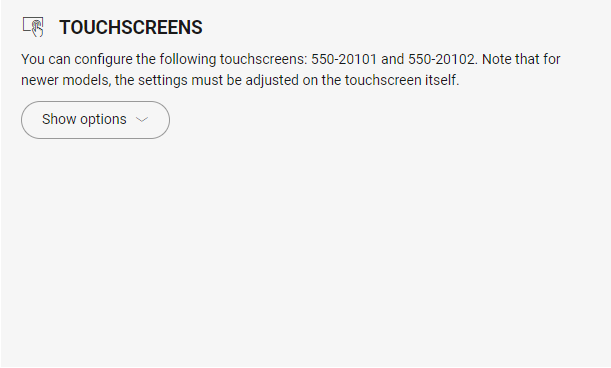
Gælder kun følgende touchskærme 550-20101 og 550-20102. I de nyere modeller justeres alle visningsindstillingerne på selve touchskærmen.

Udgangspunkt

Opret en touchskærm profil

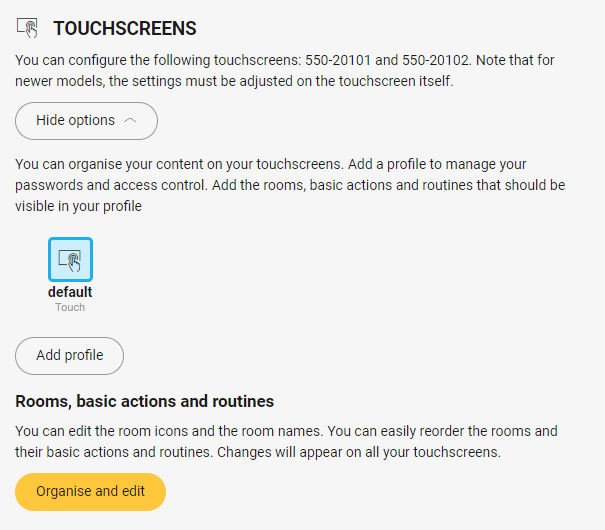
  1. Klik på Vis muligheder.

    s03_01_01_226_002.png
  2. Klik på Tilføj profil.

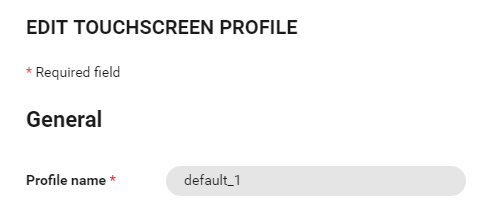
  3. I vinduets afsnit Generelt skrives profilnavnet.
    https://s3-eu-west-1.amazonaws.com/guideimages/Screenshots/V2.9/EN/s03_01_01_226_003.png
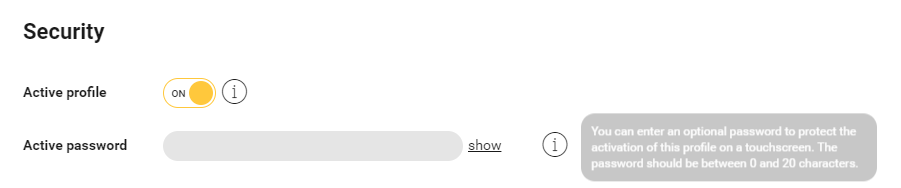
  4. I vinduets afsnit Sikkerhed indstilles om profilen er aktiv eller ikke, og her defineres en adgangskode til profilen.
    https://s3-eu-west-1.amazonaws.com/guideimages/Screenshots/V2.9/EN/s03_01_01_226_004.png
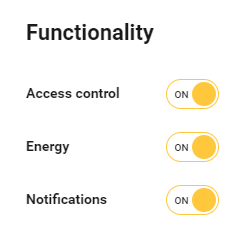
  5. I vinduets afsnit Funktioner aktiveres eller deaktiveres adgangskontrol, energi og notifikationer.
    https://s3-eu-west-1.amazonaws.com/guideimages/Screenshots/V2.9/EN/s03_01_01_226_005.png
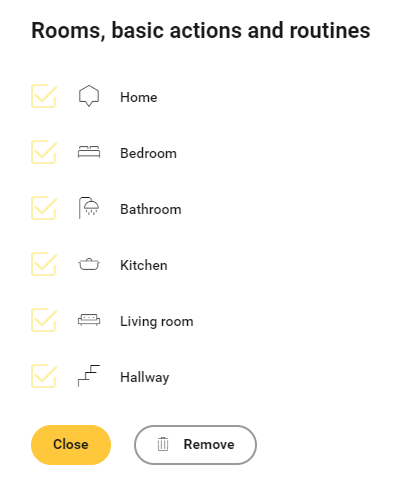
  6. I vinduets afsnit Rum, basisprogrammeringer og scenarier vises eller skjules rum og/eller basisprogrammering og/eller scenarier på din touchskærm.
    https://s3-eu-west-1.amazonaws.com/guideimages/Screenshots/V2.9/EN/s03_01_01_226_006.png
  7. Klik på knappen Luk for at gå tilbage til oversigtsvinduet Oversigt.

Ændring af en touchskærm profil

  1. Klik på touchskærm profilen

  2. Foretag de nødvendige ændringer; for at gøre det, se trin 3 til 6 i ovenstående procedure.

  3. Klik på knappen Luk for at gå tilbage til oversigtsvinduet Oversigt.