Starting point
-
You choose the schedule type.
Procedure Time slot with fixed times
Using a time slot with fixed times you can choose from different possibilities:
-
From time 1 to time 2
-
Before time
-
After time
-
At time
To enter the times, you can:
-
type the time or
-
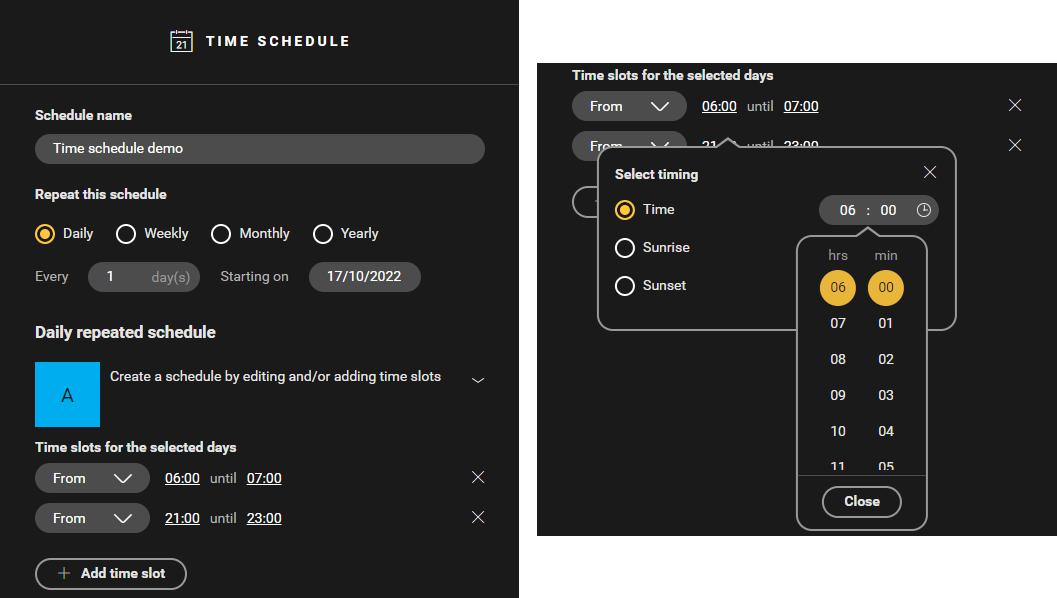
click the clock sign and scroll to the desired time.
In this example of a time schedule for outdoor lighting, the time slots are set from 6:00 a.m. to 7:00 a.m. and from 9:00 p.m. to 11:00 p.m.
Procedure Time slot based on the astronomical clock
A time slot based on the astronomical clock is determined by sunrise and sunset.
-
Choose from:
-
From: From sunrise to sunset.
-
Before: From midnight until the set time, e.g. before sunrise.
-
After: From the set time, e.g. after sunset, until midnight.
-
At: From the set time, e.g. at sunset

-
-
(optional) Adjust the time of sunrise and sunset by assigning an offset. You can set it to a maximum of 2 hours before or 2 hours after sunrise or sunset.
-
(optional) Tick "no earlier than" and/or "no later than" and enter the desired time.

In this example, the time schedule for outdoor lighting has been set such that the outdoor lighting will be on from 1 hour after sunset until 1 hour before sunrise, but no earlier than 8 pm.

Procedure timeslot based on sunset/sunrise and a time set
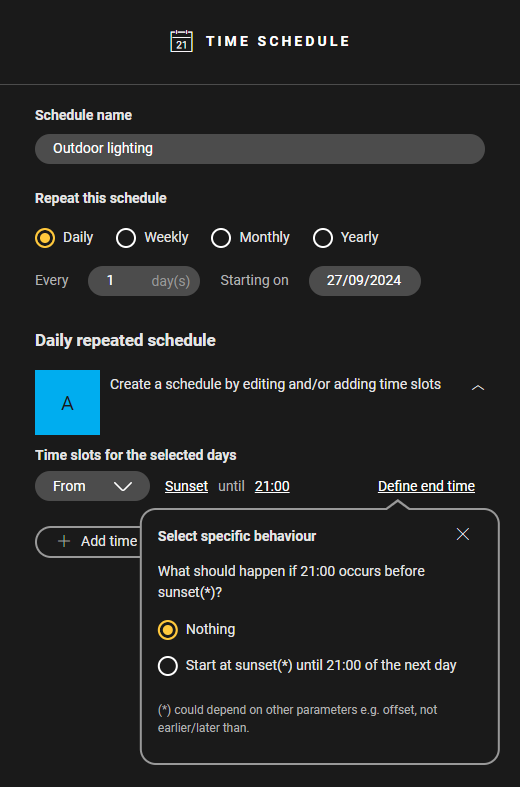
In this example, the time schedule for outdoor lighting has been set such that the outdoor lighting will be on from sunset until 21:00. During summer, the sunset occurs later than 21:00.
UnderDefine end time, you specify what should happen if the time set occurs before the sunset.