
Starting point
-
(optional) you have created a favourite colour in your configuration, e.g. for a DALI device.
-
You are in the Dashboard overview menu.
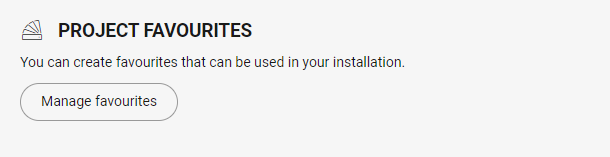
Creating a favourite colour
-
Click on the button Manage favourites.
Result:
The Project favourites window appears.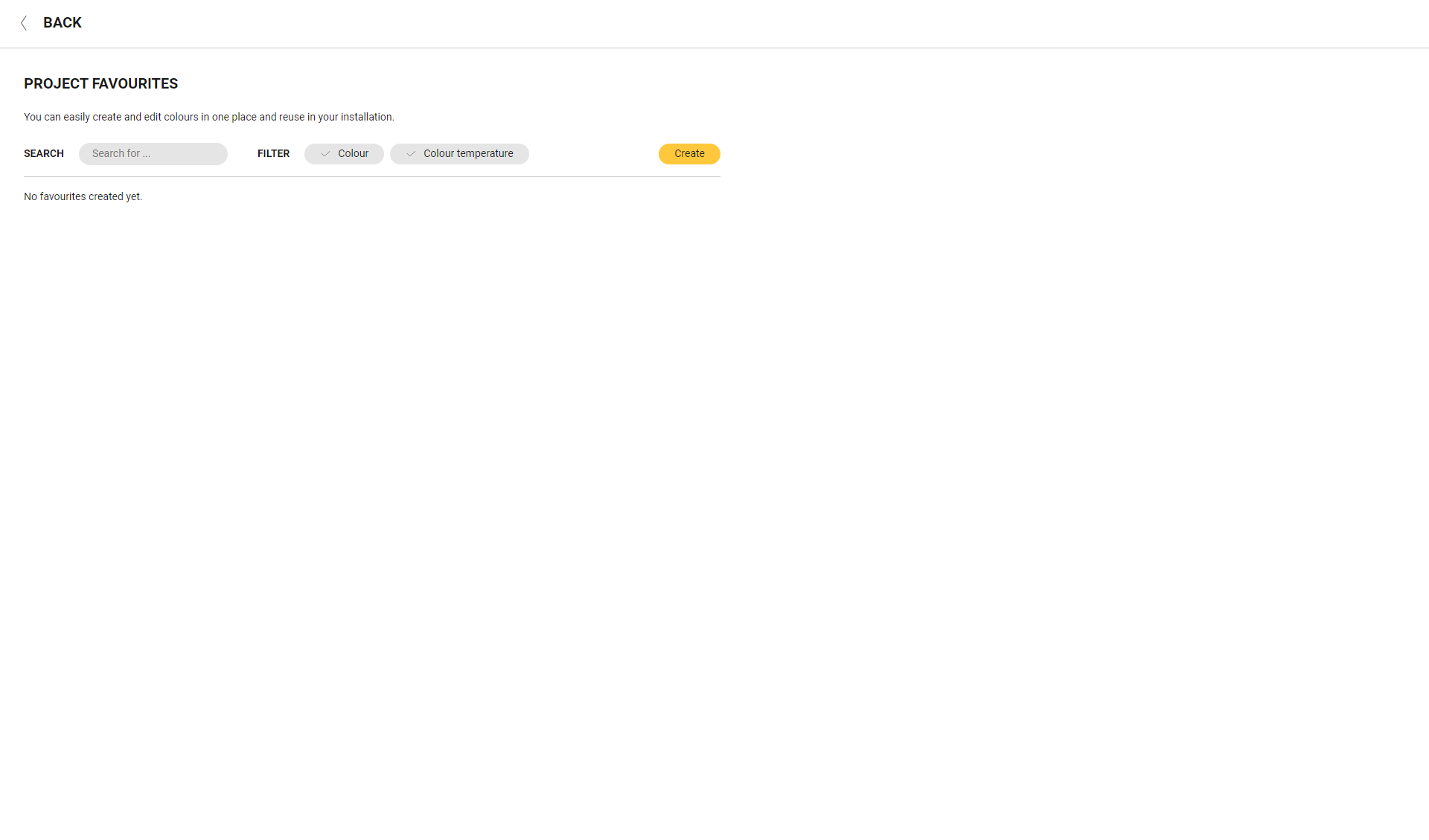
-
Click on the button Create.
-
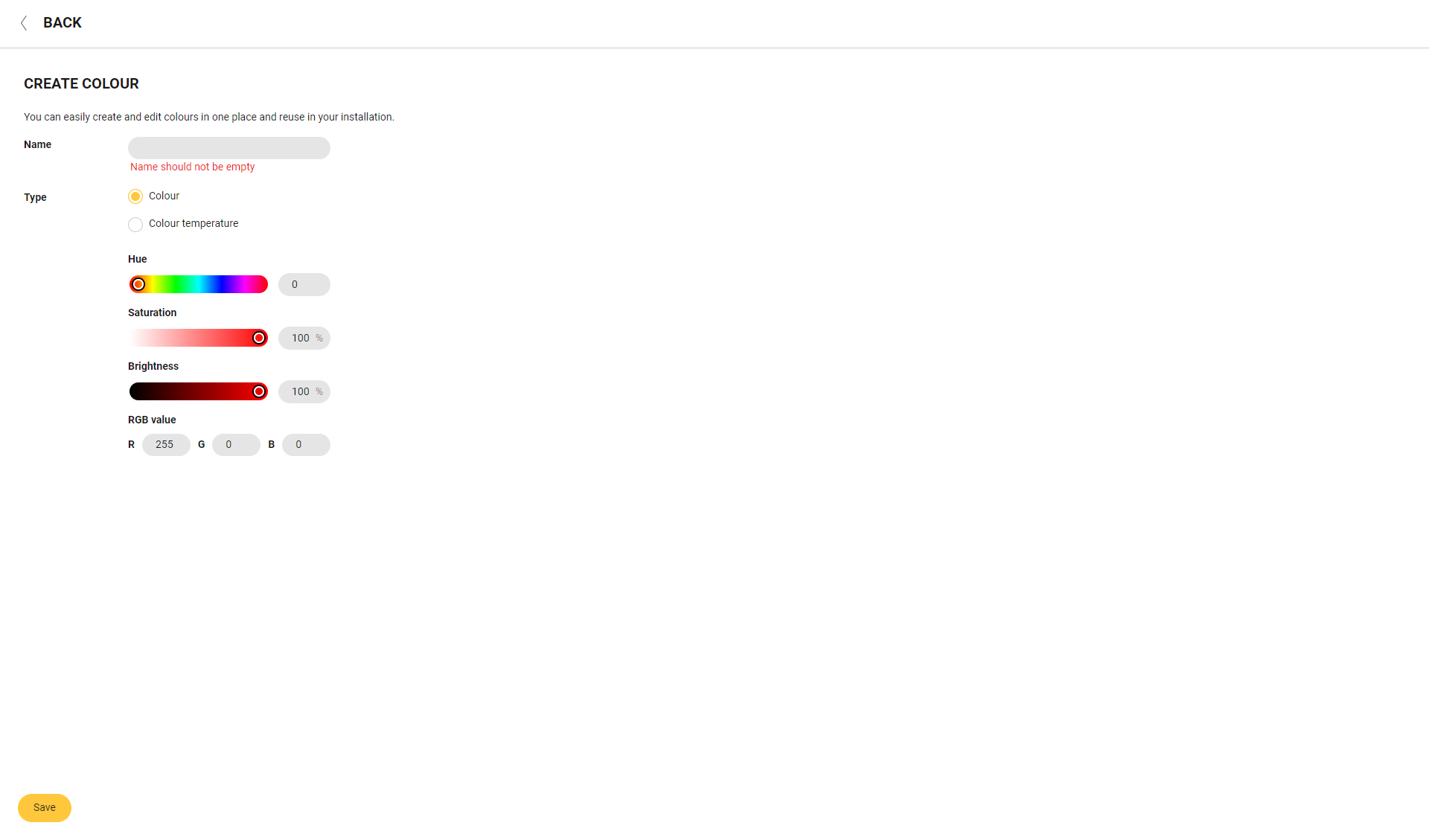
Give the favourite colour a name.
-
Select the type and set the corresponding colour properties by using the sliders or by typing the values.
-
For type Colour: hue, saturation, brightness and RGB value.
-
For type Colour temperature: temperature and brightness.
-
-
Click the Save button.
Now you can use this favourite colour toconfigureDALI tunable white, DALI RGB and DALI RGBW devices in routines and conditions. -
Click Back to return to the Dashboard menu.
Modifying a favourite colour
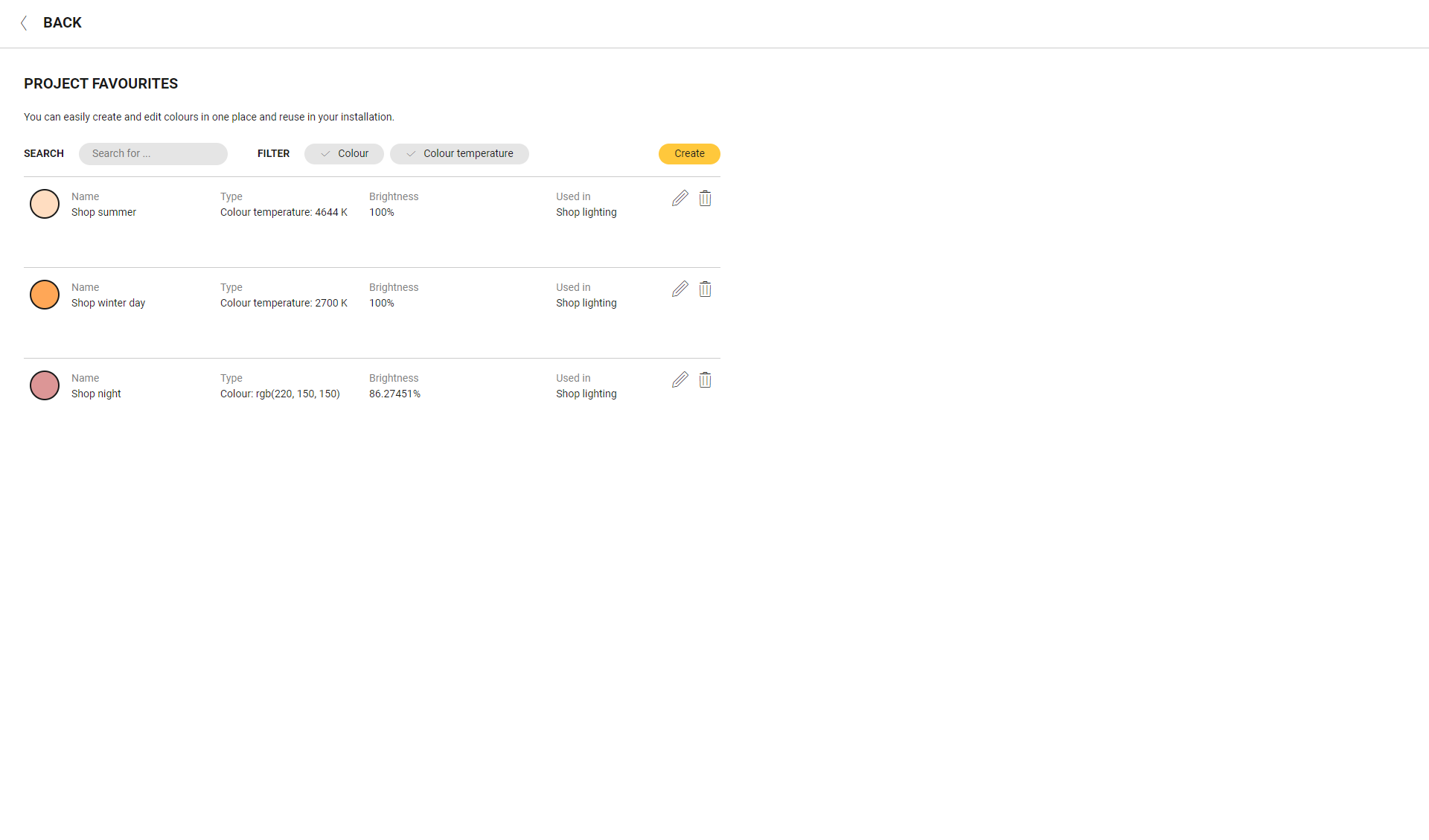
You can use the search and filter function at the top of the list to quickly find a favourite colour.
-
In the Dashboard menu, click on the Manage favourites button.
-
Click on the pencil next to the colour you want to modify.
-
Make the necessary changes; to do so, see steps 3 and 4 in the above procedure. The changes you make will affect the routines and conditions in which this colour is used.
-
Click the Save button.
-
Click Back to return to the Dashboard menu.
Removing a favourite colour
You can use the search and filter function at the top of the list to quickly find a favourite colour.
-
In the Dashboard menu, click on the Manage favourites button.
-
Click on the trash can next to the colour you want to remove. If the colour is used in any routines or conditions, it cannot be removed. First, you have to change the“level” of the DALI device(s) in the affected routines and/or conditions.
-
Click Back to return to the Dashboard menu.