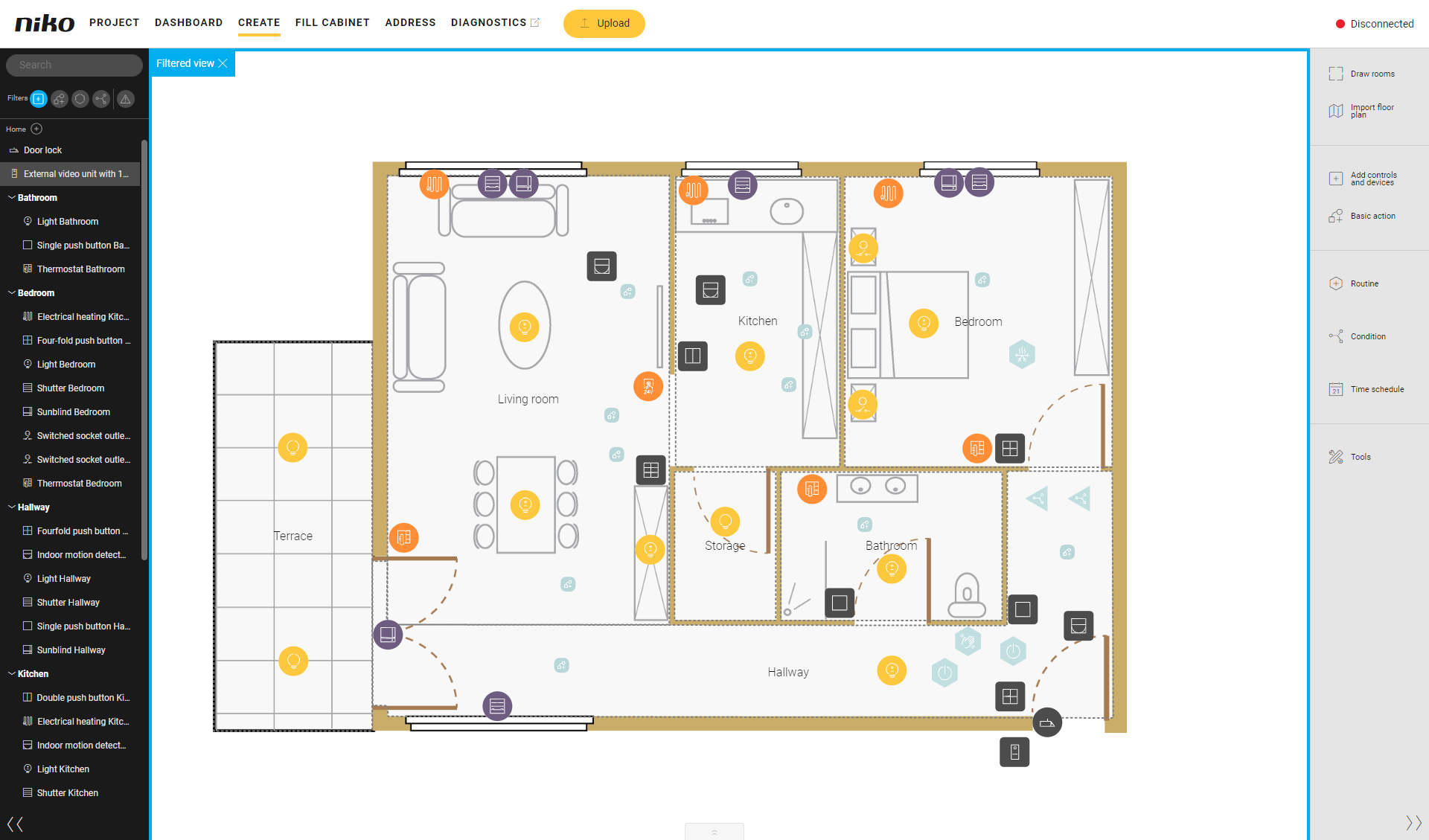
Search
Use the search function in the left sidebar to find controls, devices, basic actions or routines in the drawing area.
The search result is visible in the list and in the drawing area. Controls, devices, basic actions, routines or conditions that are not part of the search result are not shown in the drawing area.
Please also read 'Search for ... in the drawing area'.
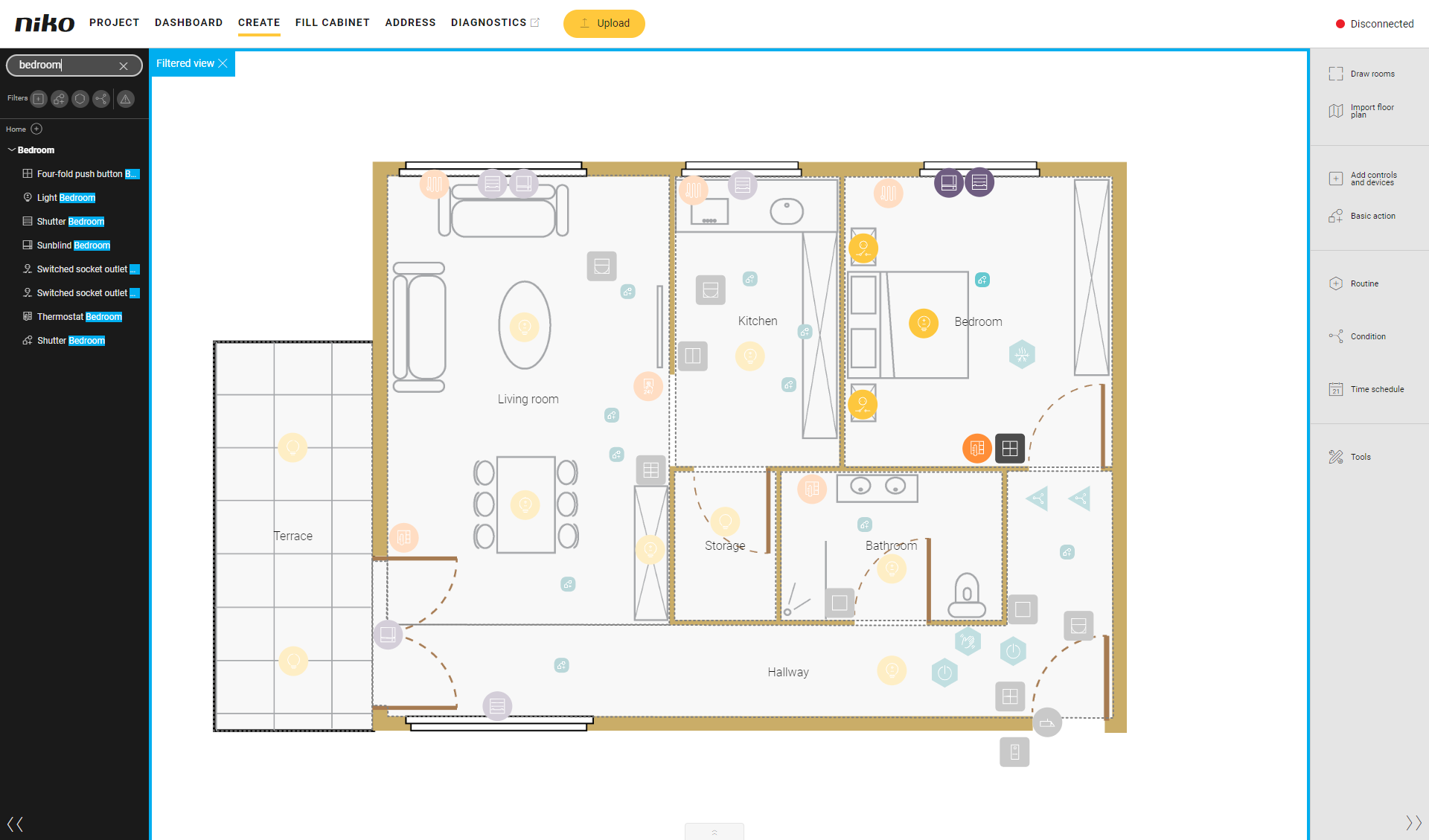
Click on the arrow next to Filtered view to reset the search.
Filter
By default, no filter is active.
You can use the filter function in the left sidebar to select controls, devices, basic actions, routines or conditions, e.g. to show only switched lighting circuits or only basic actions.
You can also use the filter Warnings to find:
-
unassigned (unused) controls and devices (in a basic action, routine or condition)
-
not addressed (unaddressed) devices that are not linked to a module in the cabinet
You can use the filter function in combination with the search function when the latter yields too many results.
You can use multiple filters at the same time.
Please also read 'Filter on type of ... in the drawing area'.
Click on the arrow next to Filtered view to reset the filter.