
Starting point
-
You have an installation with a connected controller.
-
You are on the Components tab.
Description of the Components tab
The Components tab shows the status of programmed and/or installed components. These are the physical components of the system, both controls and modules.
The tab contains the following components.
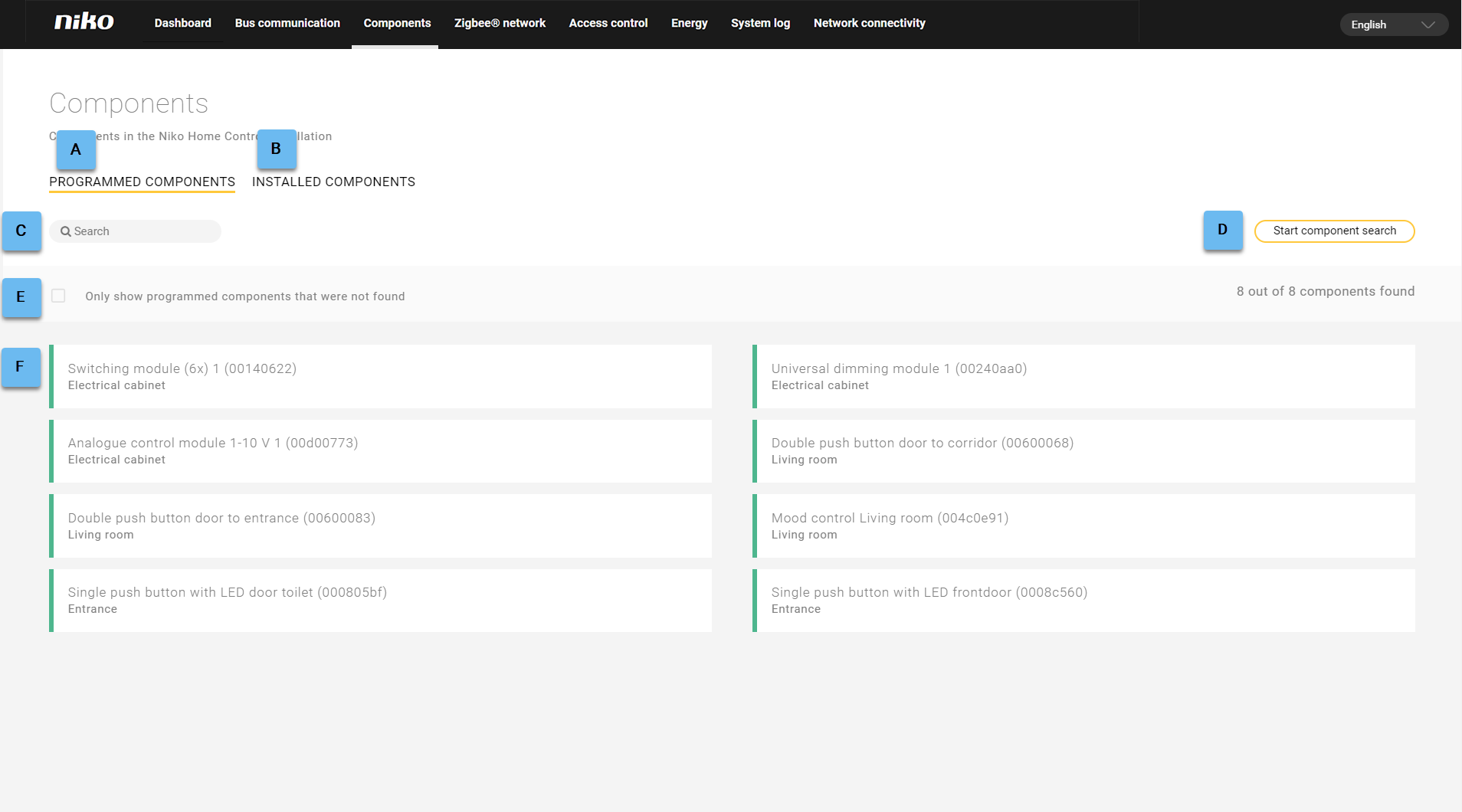
|
Ref |
Component |
|---|---|
|
A |
Programmed components |
|
B |
Installed components |
|
C |
|
|
D |
Start the search for components |
|
E |
Shows only the components that were not found |
|
F |
Component search
To view the components of the installation and check their status:
-
Click on the desired tab: Programmed components or Installed components.
-
At the top right of the list, click on Start component search.
Result: The list is systematically extended and you can see a waiting symbol in the place of the start button. A colour code indicates the status of the checked components.Check the option
Only show components that were not found
to see only the components with a red status.
A few examples of search terms are:
-
the name of a control or a device as entered in the programming software
-
the address of a control or a module
-
a room
Component list
The component list contains the following information for each component.
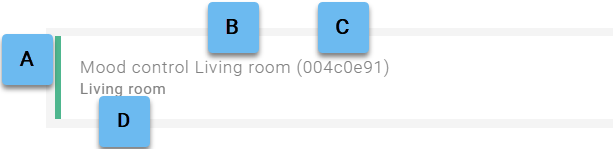
|
Ref |
Component and description |
|---|---|
|
A |
Status indicator for: |
|
B |
Name of the control or device as entered in the programming software |
|
C |
Address of the control or module |
|
D |
Room where the control or device is located (as entered in the programming software) |
Status indicator for the programmed components
|
Colour |
Meaning |
|---|---|
|
Green |
The component has been programmed and is physically present. |
|
Red |
The component has been programmed but cannot be found. |
Status indicator for the installed components
|
Colour |
Meaning |
|---|---|
|
Grey |
The component is physically present but has not been programmed in the software. |
|
Red |
The component is physically present and has been programmed in the software. |