Niko Home Control is evolving into MOTIV Building Control. MOTIV is a new brand for intelligent building automation. Built on the trusted foundation of Niko Home Control, MOTIV solutions are designed to make buildings work more naturally for the people inside them. MOTIV helps professionals create smarter, more comfortable buildings. With technology that works quietly in the background. All existing Niko Home Control solutions remain fully compatible with MOTIV. Over time, the full portfolio will move to the MOTIV brand. During this transition, you will see both Niko Home Control (NHC) and MOTIV Building Control (MBC) appear in this documentation. Discover MOTIV at niko.eu/MOTIV
Software Manual
2.28.1 2.27.1 English Danish Dutch French German Slovak Swedish

Ruimtes, basisacties en routines organiseren en bewerken

Alleen van toepassing voor de volgende touchscreens 550-20101 en 550-20102. Voor de nieuwere modellen worden alle weergave-instellingen ingesteld op het touchscreen.

Ongeacht het touchscreenprofiel kun je de namen en iconen van de ruimtes bewerken. Je kunt ook kiezen in welke volgorde de ruimtes en bijhorende basisacties en routines verschijnen op al je touchscreens.

Startpunt

  • Je hebt basisacties en/of routines aangemaakt.

  • Je bevindt je in het overzichtsvenster Dashboard.
    https://s3-eu-west-1.amazonaws.com/guideimages/Screenshots/V2.9/NL/s03_01_02_226_001.png

Procedure

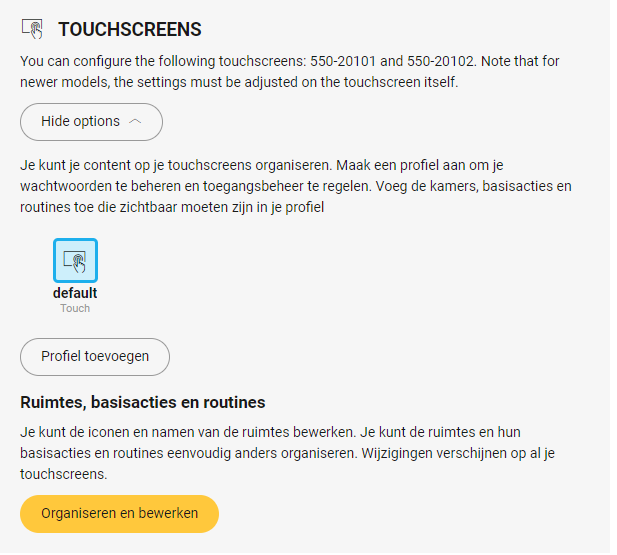
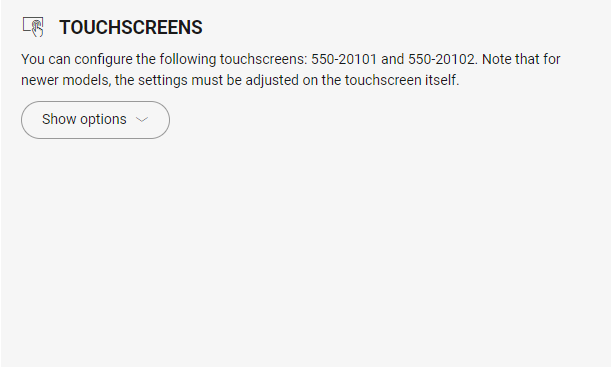
  1. Klik op Opties weergeven.

    https://s3-eu-west-1.amazonaws.com/guideimages/Screenshots/V2.9/NL/s03_01_02_226_002.png
  2. Klik op Organiseren en bewerken.

  3. Breng de nodige wijzigingen aan.

    • De naam en het pictogram van een ruimte wijzigen: Klik op de ruimte en wijzig de naam en/of het pictogram.

    • Ruimtes organiseren: Klik op de ruimte, sleep de ruimte naar de gewenste plaats en zet ze neer.

    • Basisacties en routines binnen een ruimte ordenen: Klik op het pijltje naast de ruimte. Klik op de basisactie of routine, sleep deze naar de gewenste plaats en zet ze neer.

  4. Klik op de knop Sluiten om terug te keren naar het overzichtsvenster Dashboard.