
Starting point
-
You have created the necessary controls, including a Niko touchscreen for Niko Home Control and/or a MOTIV Touch10.
-
All components you want to address are in place and connected to the installation.
-
Your computer is connected to the installation.
-
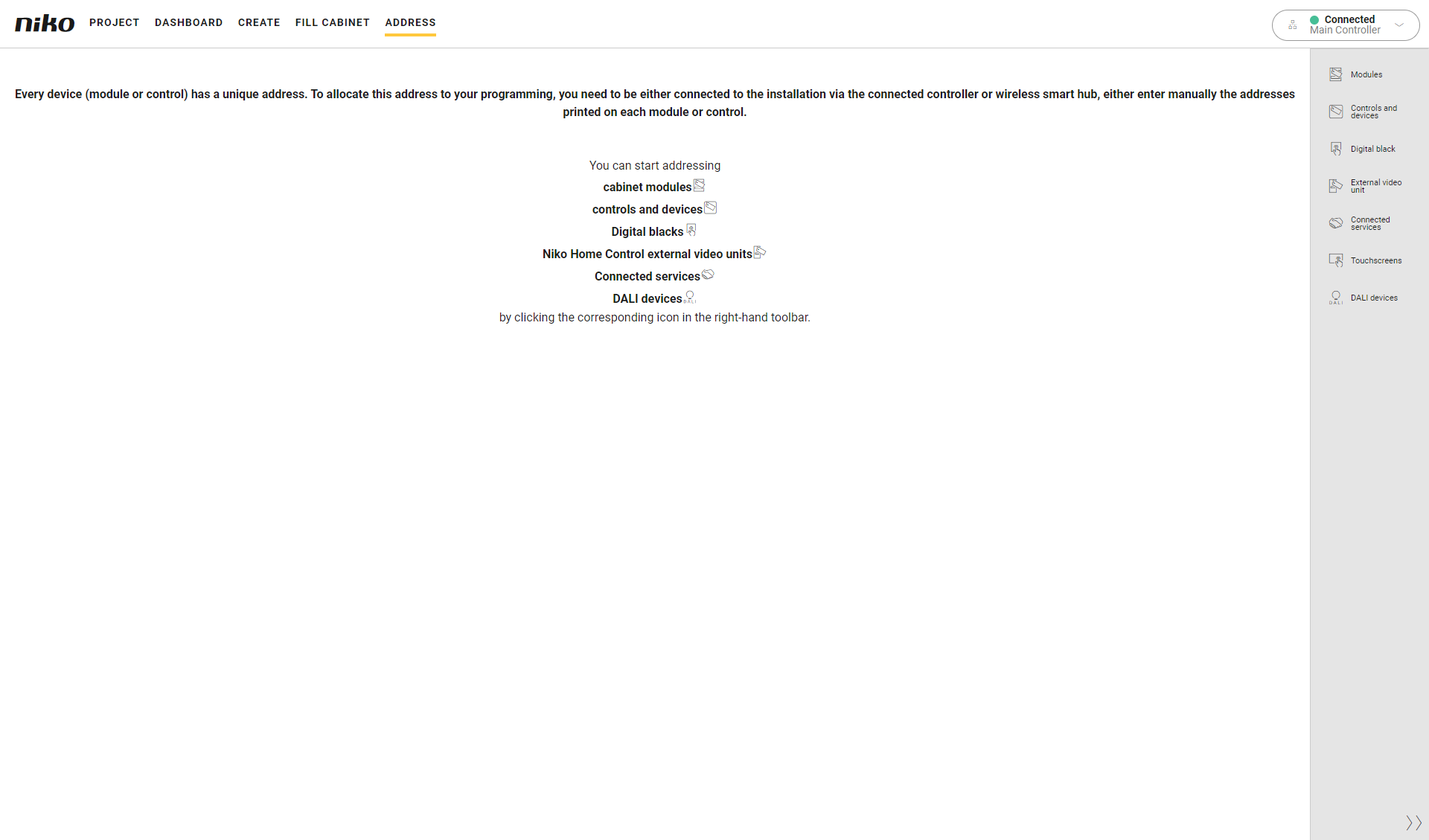
You are in the Address overview window.
Procedure
-
In the right-hand button bar, click on the button Touchscreens.
Result:-
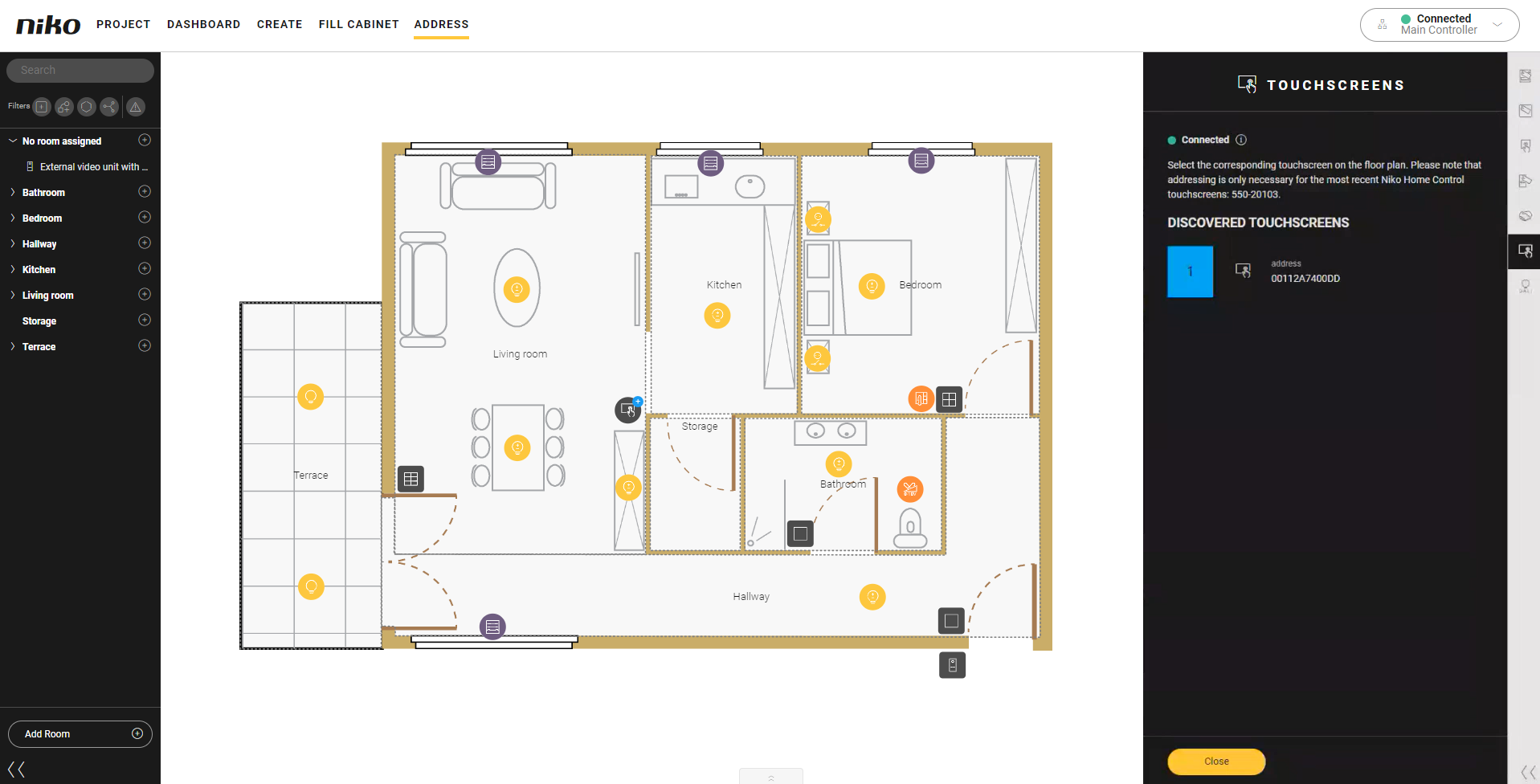
The Link touchscreen pane appears and shows the touchscreens found in the installation.
-
In the drawing area the touchscreens are shown.
-
-
Click on the plus sign of a touchscreen on the floor plan to link it.
Result:
The name of the touchscreen is added next the address.Touchscreen
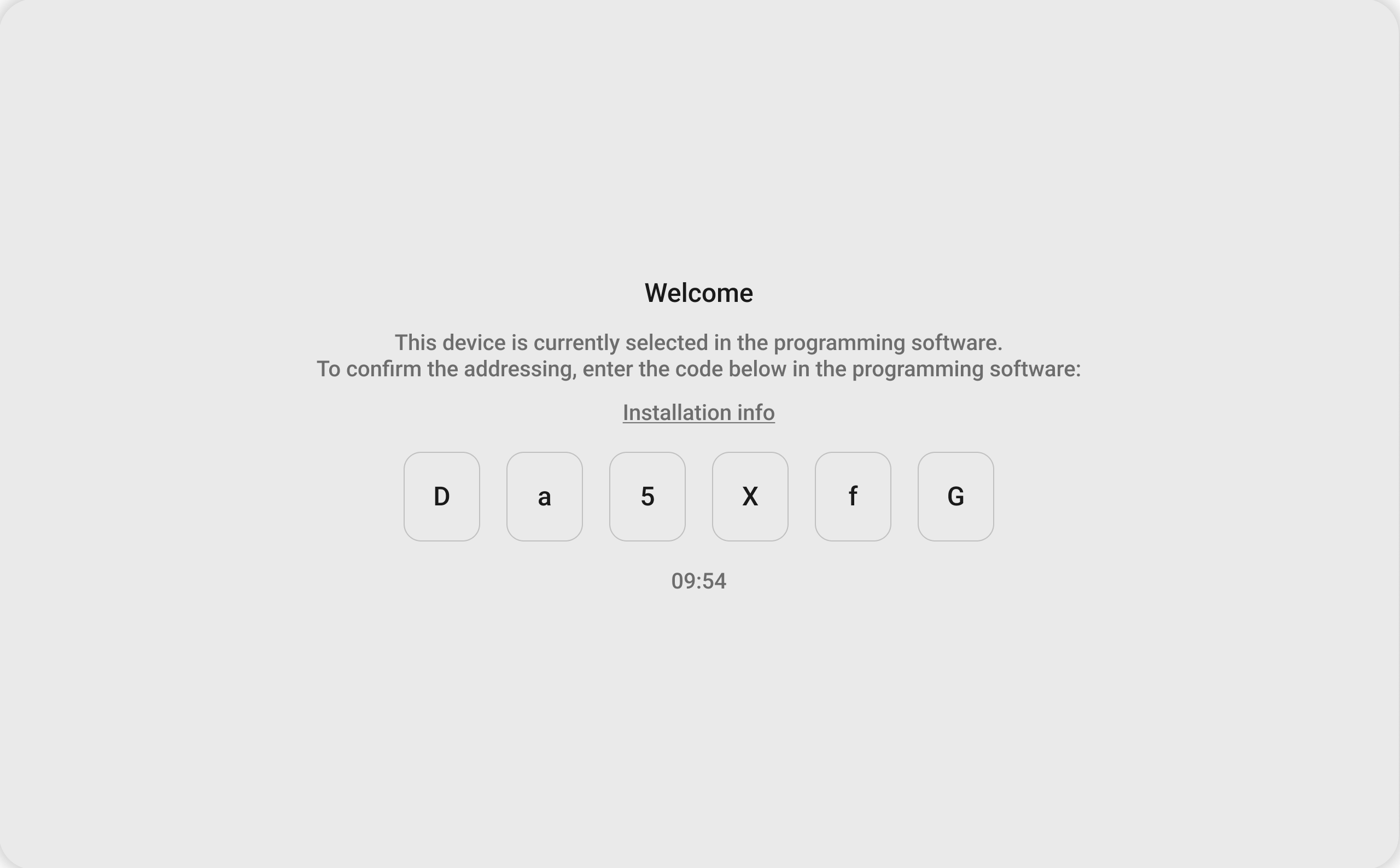
Programming software

-
Typ the onboarding code from the touchscreen in the pop-up in the programming software.
-
Click the OK button.
-
Repeat step 2 to 4 for each touchscreen in your installation.
-
Click the Close button to return to the Address overview window.
If you address a touchscreen that has already been addressed in the installation before, you will not be prompted to enter the onboarding code again.