
Point de départ
-
Vous avez créé les commandes nécessaires, y compris un écran tactile Niko pour Niko Home Control et/ou un MOTIV Touch10.
-
Tous les composants que vous voulez adresser sont en place et connectés à l'installation.
-
Votre ordinateur est connecté à l'installation.
-
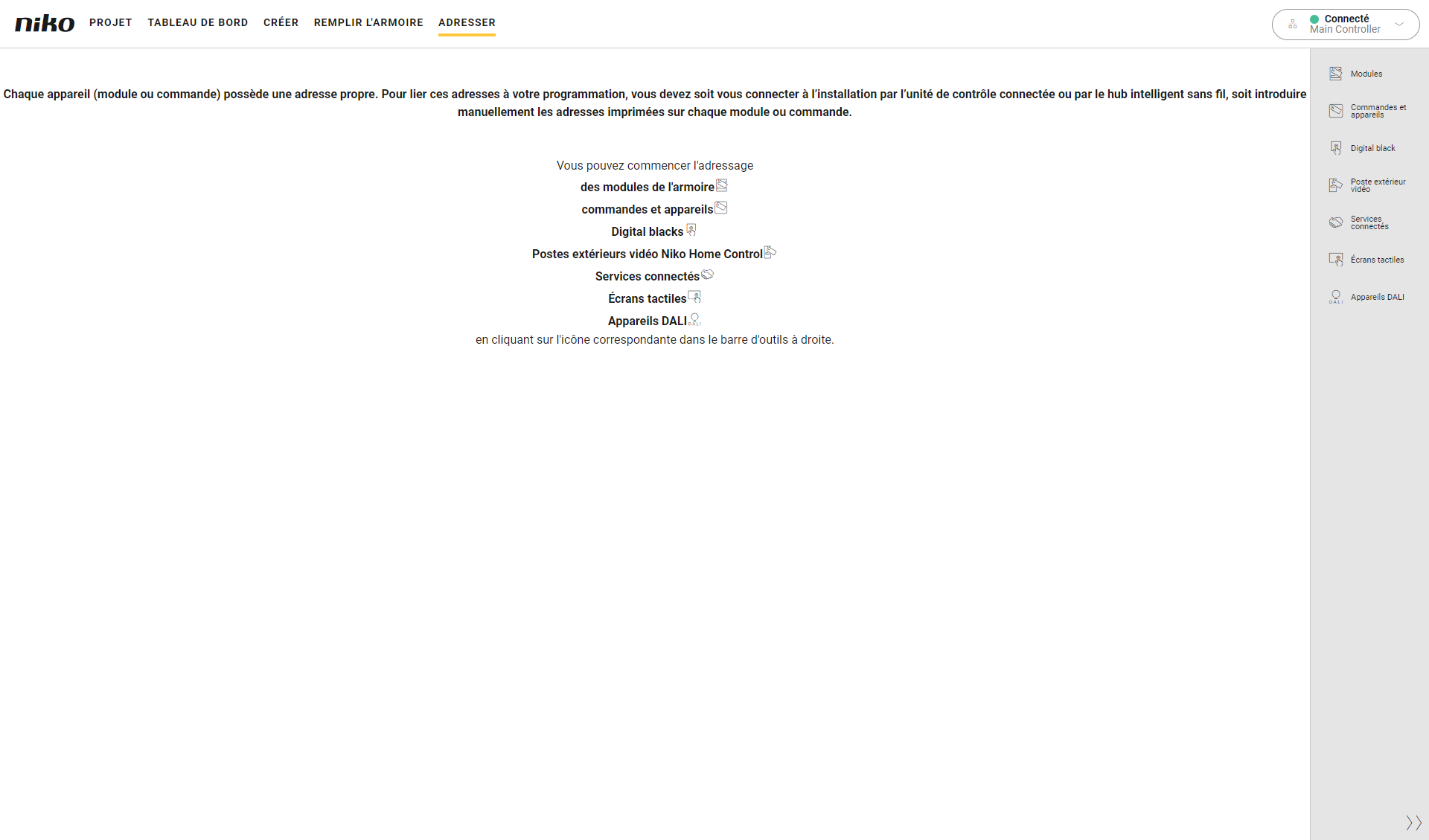
Vous êtes dans la fenêtre d'aperçu Adressage.
Procédure
-
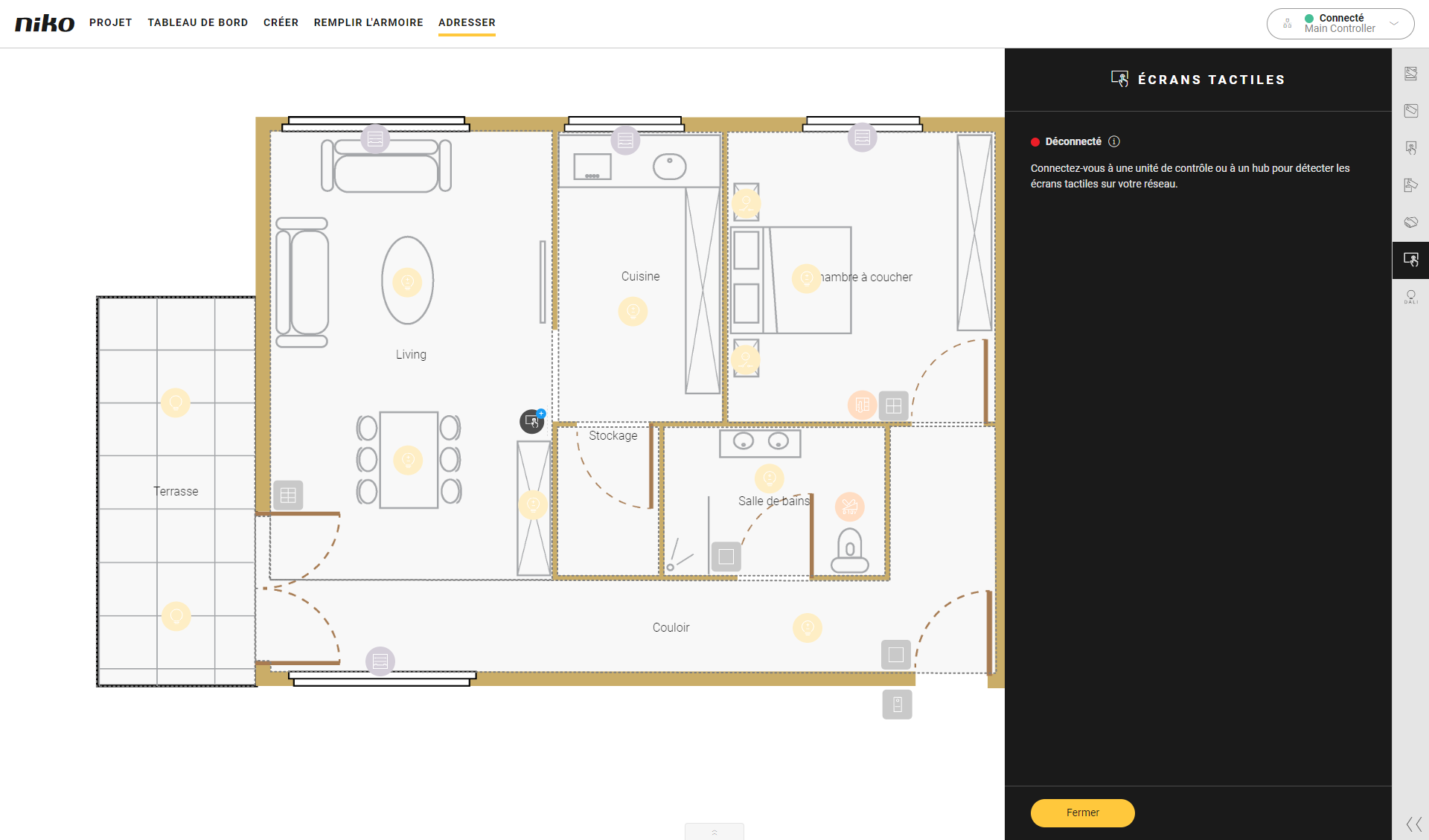
Dans la barre de boutons à droite, cliquez sur le bouton Écrans tactiles.
Résultat :-
Le volet Lien écran tactile apparaît et affiche les écrans tactiles trouvés dans l'installation.
-
Les écrans tactiles sont présentés dans la zone de dessin.
-
-
Cliquez sur le signe plus d'un écran tactile sur le plan au sol pour le lier.
Résultat :
Le nom de l'écran tactile est ajouté à côté de l'adresse.Écran tactile
Logiciel de programmation
-
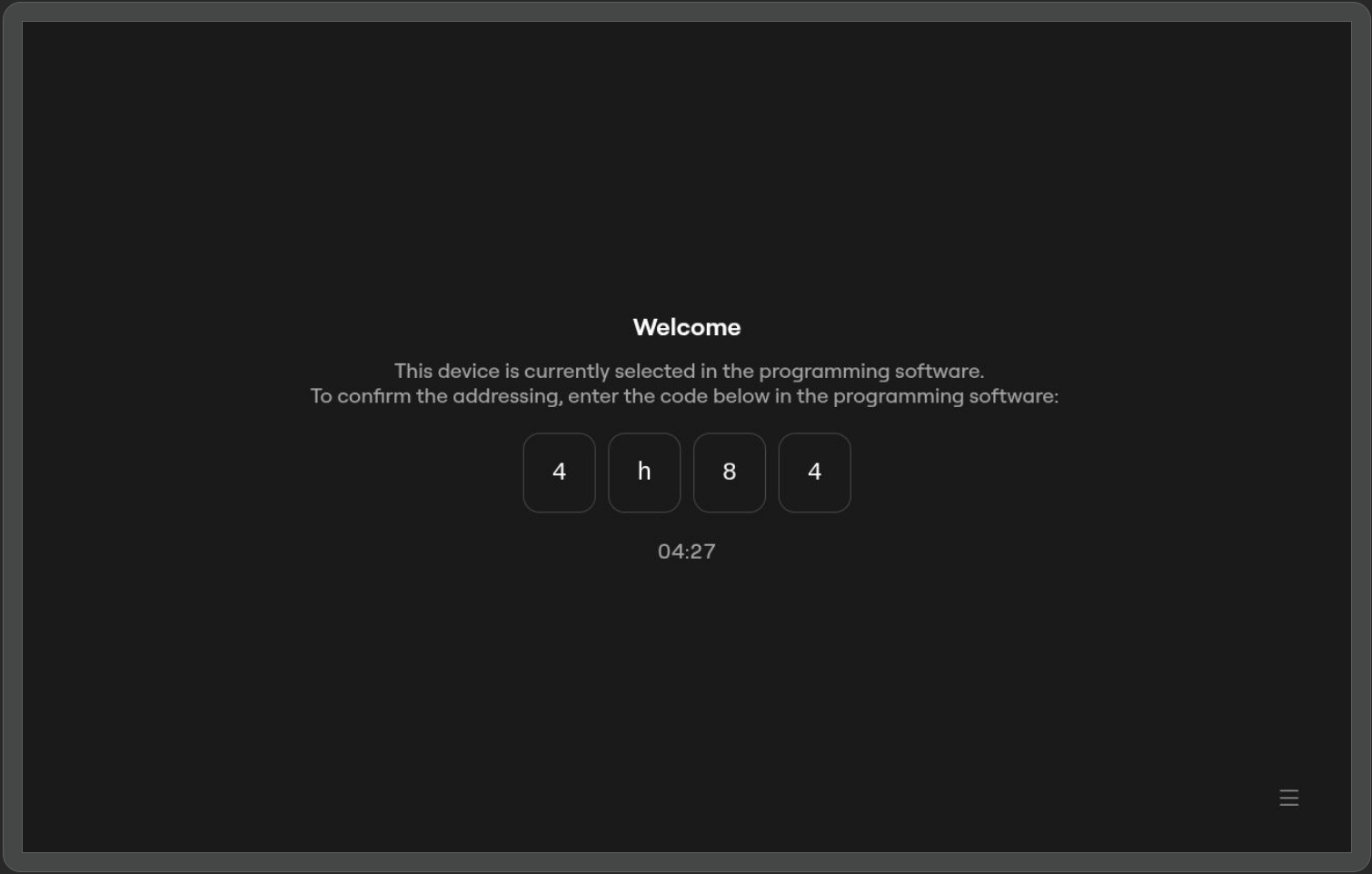
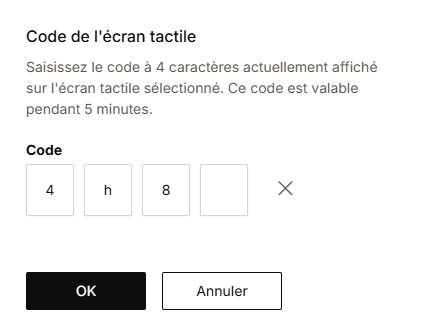
Tapez le code d'intégration de l'écran tactile dans la fenêtre contextuelle dans le logiciel de programmation.
-
Cliquez sur le bouton OK.
-
Répétez les étapes 2 à 4 pour chaque écran tactile dans votre installation.
-
Cliquez sur le bouton Fermer pour revenir à la fenêtre d'aperçu Adresser.
Si vous adressez un écran tactile qui avait déjà été adressé dans l'installation auparavant, vous ne serez pas invité à saisir à nouveau le code d'intégration.