
-
This alternative addressing procedure only works for Zigbee® 3.0-certified products. It cannot be used to address thewireless measuring module (3 channels).
-
You can also onboard a Zigbee® device with the Niko Home app, see Hardware manual.
Starting point
-
The Zigbee® device you want to address is in place.
-
Your computer is connected to the installation.
-
You are in the Address window.
-
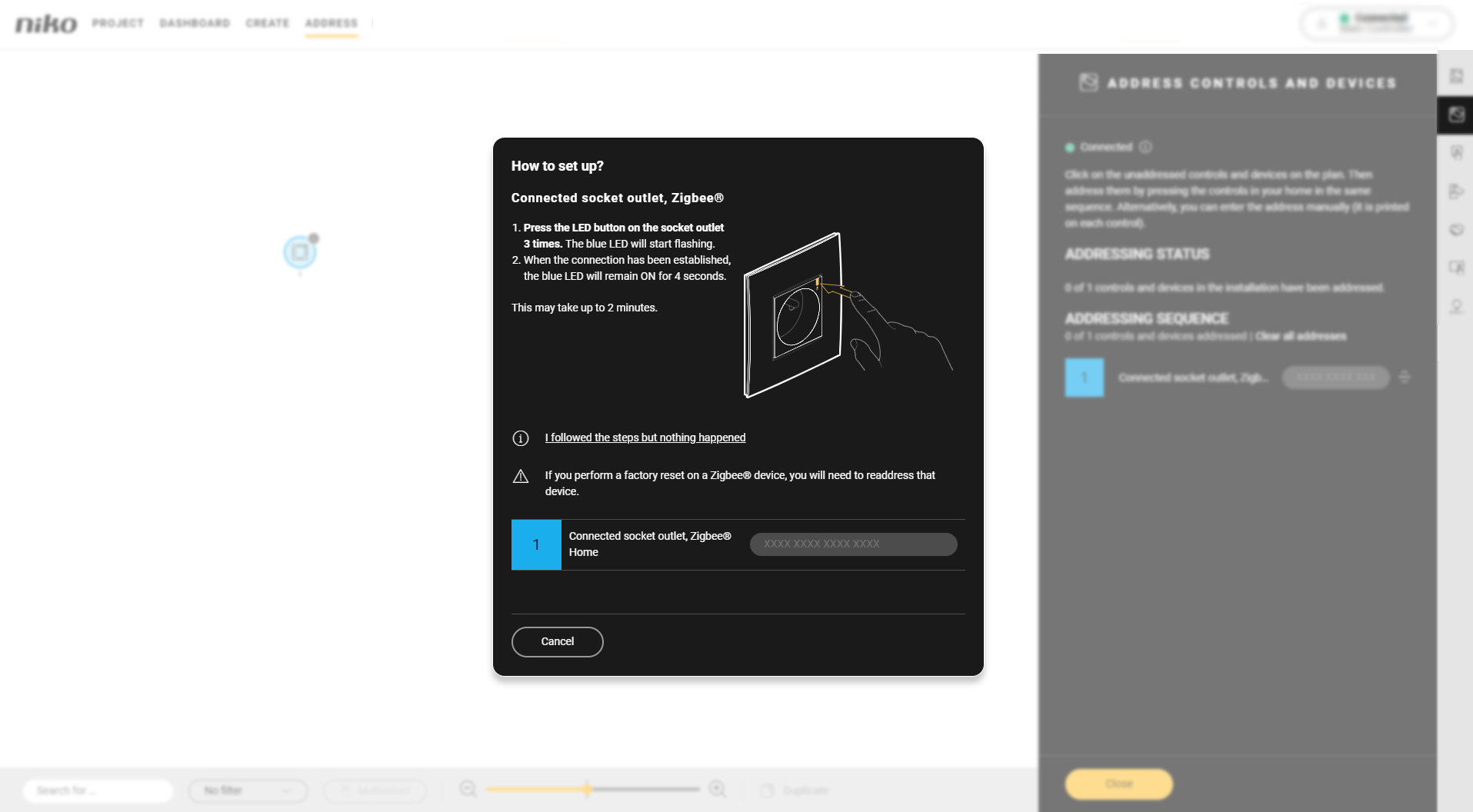
You followed the address procedure, but nothing happened. The Zigbee® address is not added next to the device name.
Procedure
-
Click on “I followed the steps but nothing happened”.

-
Follow the steps 1 to 4 listed in the window.
-
Try addressing the device again.
-
If addressing still fails:
-
Click on “I followed the steps but nothing happened”.
-
Click on “Enter the device’s MAC address and installation code (printed on the device)”.

-
-
Enter the MAC address and installation code of the device. These are printed on the device.
-
Click on the Next button.
-
Click on the Next button.
-
Address theZigbee device again by following the instructions in the window.
Result: The Zigbee® address is added. The device is addressed. -
Click the Close button to return to the Address overview window.