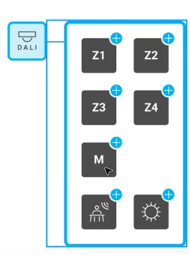
Your MOTIV installation requires a DALI bridge and a connected controller installed in the cabinet to be able to communicate with the DALI master detector.
Starting point
-
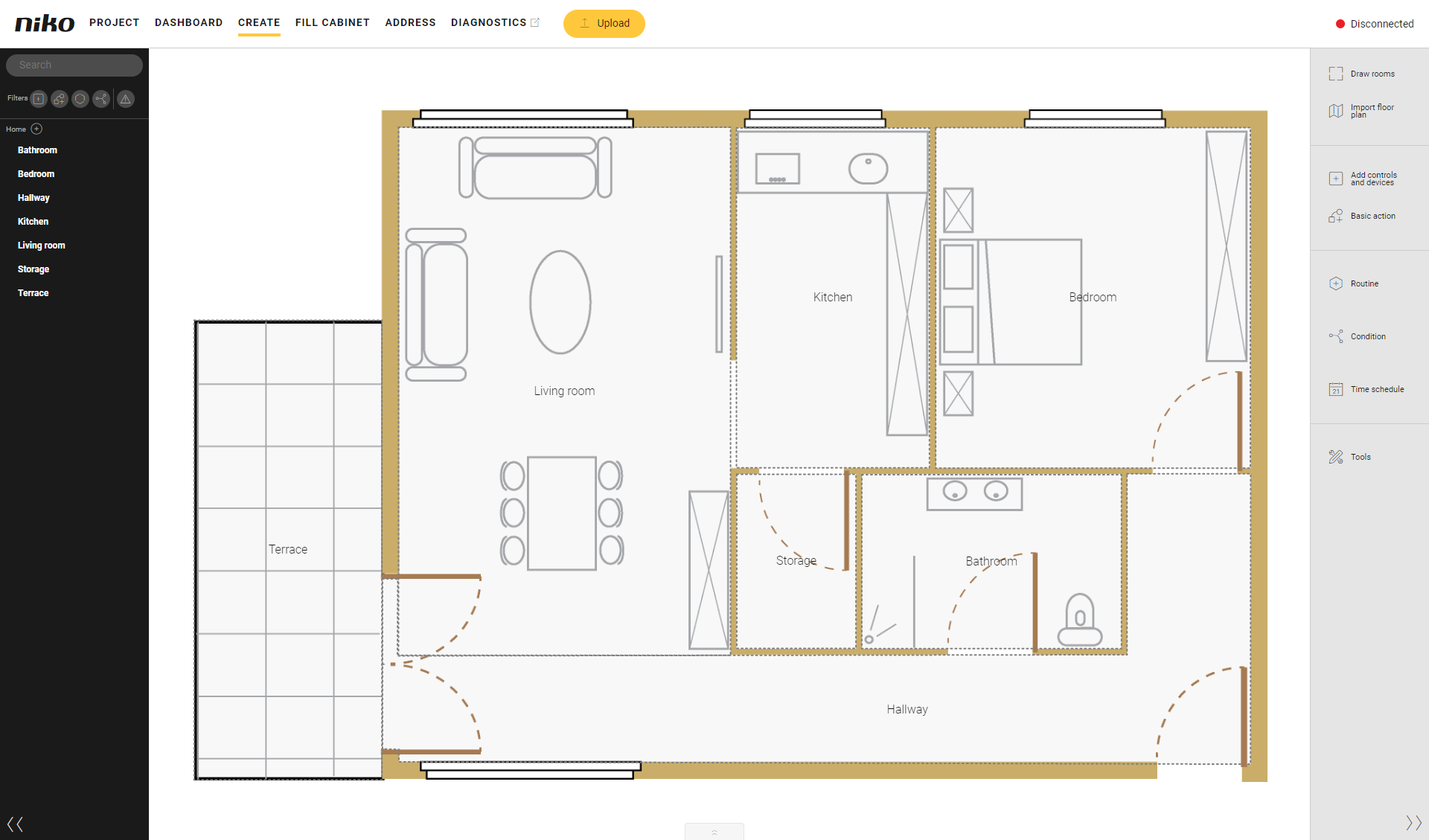
You are in the Create overview window.
Procedure
-
In the right-hand button bar, click on the Add controls and devices button.
Result:
The Add controls and devices pane appears and shows the categories into which the controls and devices are subdivided.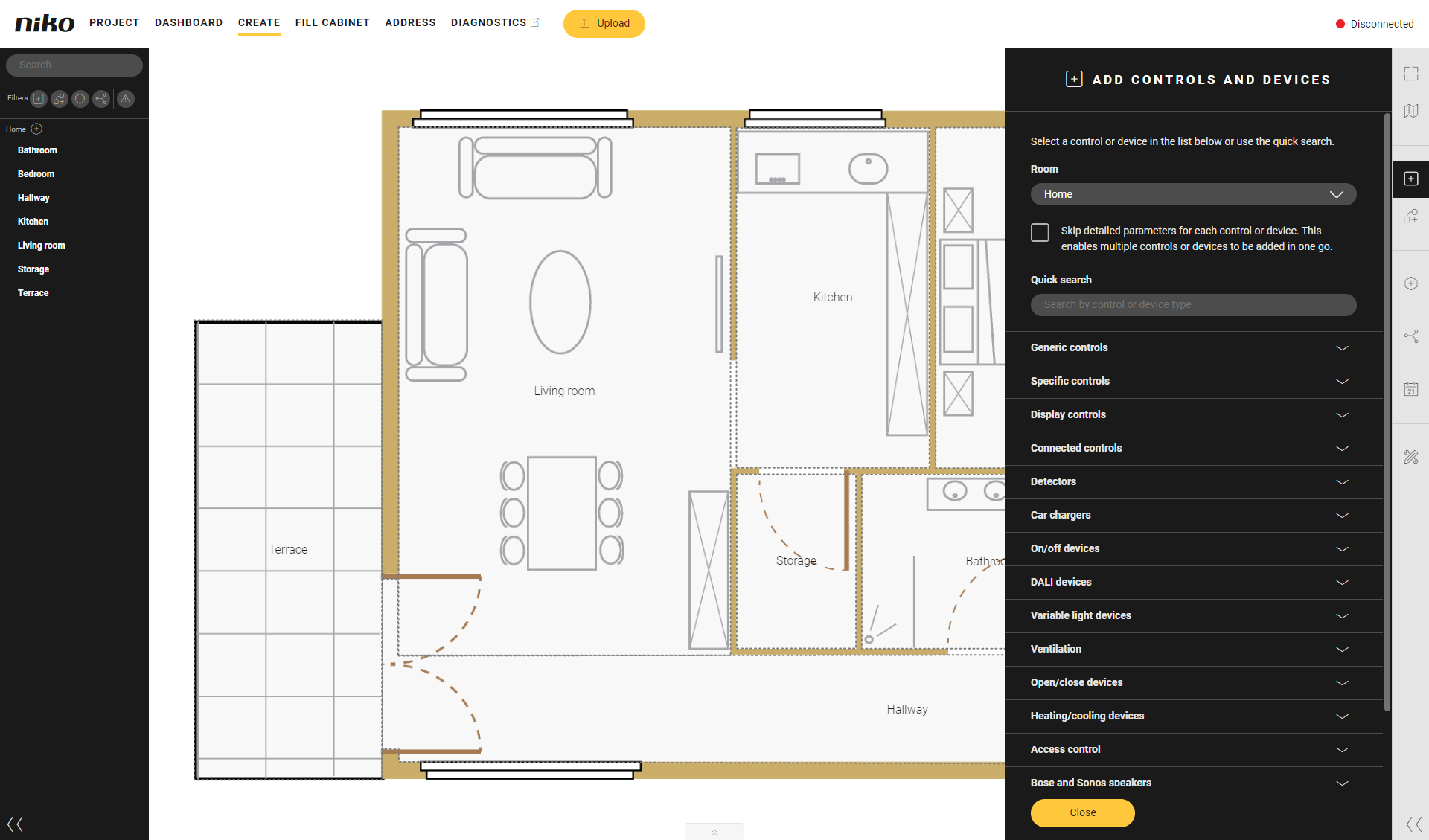
-
You now have the choice:
-
If you tick the selection box Skip detailed parameters for each control or device, you can quickly add several controls or devices by clicking on them. However, you will then need to enter the name and parameters for each control or device afterwards.
-
If you untick the selection box Skip detailed parameters for each control or device, you can set the name or parameters for the current control or device immediately.
-
-
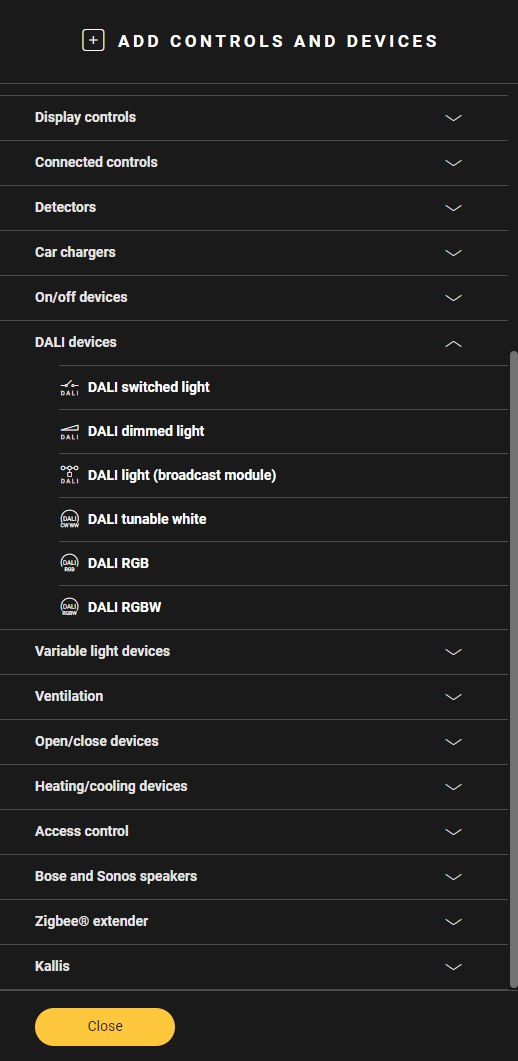
Click on the arrow next to the DALI devices category.
-
Select the desired room at the top of the pane or click inside the room where you want to place the DALI master detector.
-
Select the DALI master detector.
Result: The DALI master detector is placed in the selected room. -
Click on the Close button to return to the Add controls and devices pane.
-
Click on the Close button to return to the Create pane.
Once theDALI master detector is created, you have to do the following:
-
Use the DALI devices in basic actions and inroutines.
-
Configure the same zones as in your Niko detector tool app. Max. 4 zones and multizone.
-
Use motion detection and light intensity in conditions.
-
-
Fill the cabinet with the DALI bridge and address it.
-
Address the DALI master detector.