
-
When you have transferred the ownership of the installation to your client and you are not on-site, you can use the Remote connection feature to connect from a distance to the controller of the transferred installation. Your customer has to allow access to his installation via the Niko Home app.
-
The Remote connection feature is currently free to use. Pricing will be introduced in a future update.
Starting point
-
Your customer is available to provide you with the identification code and password from his Niko Home app (see below).
-
The controller is online.
-
Your computer is connected to the internet.
-
You have opened and logged in into the MOTIV Building Control programming software,
or you have clicked Home when a project was open.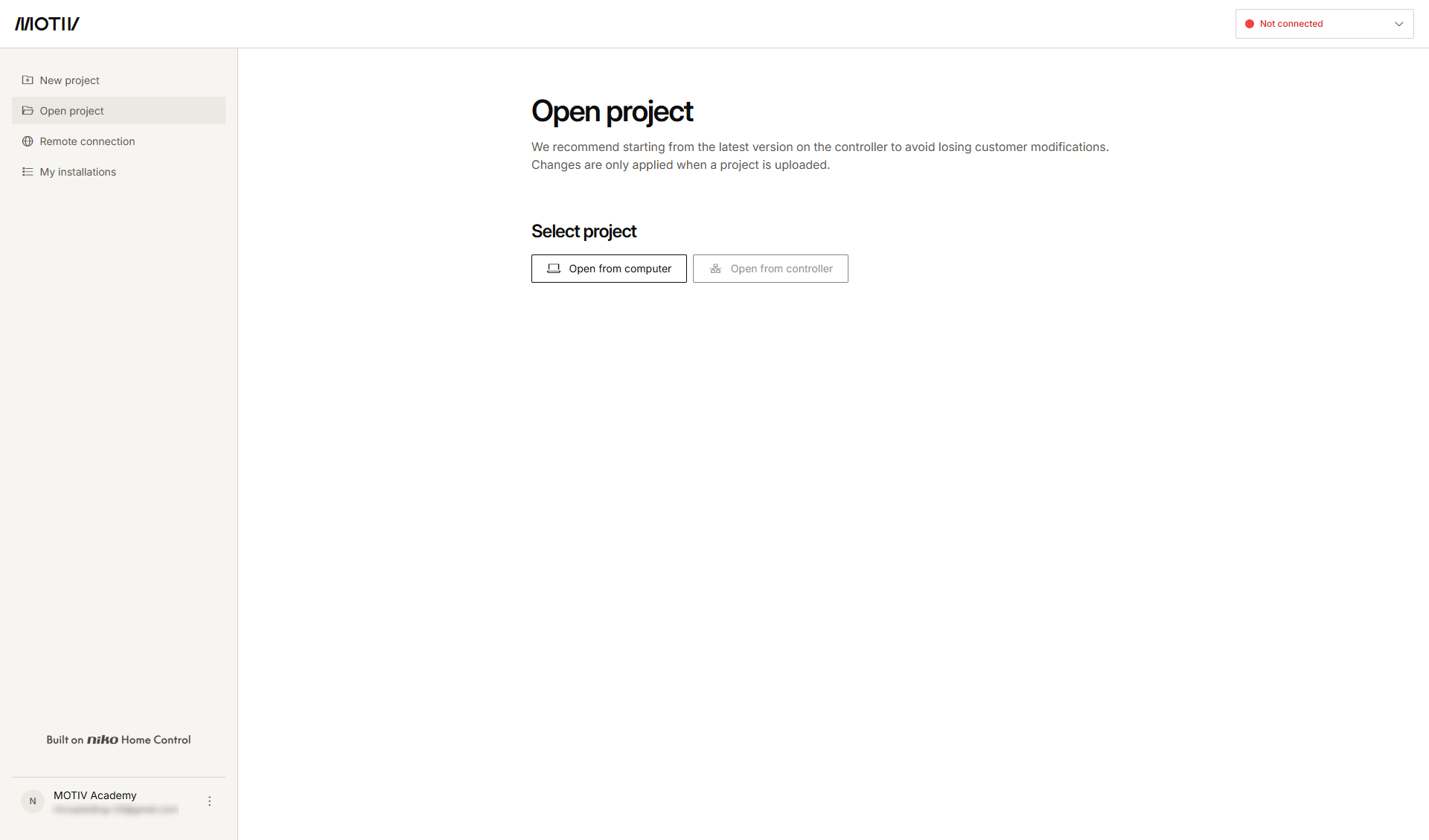
Procedure
-
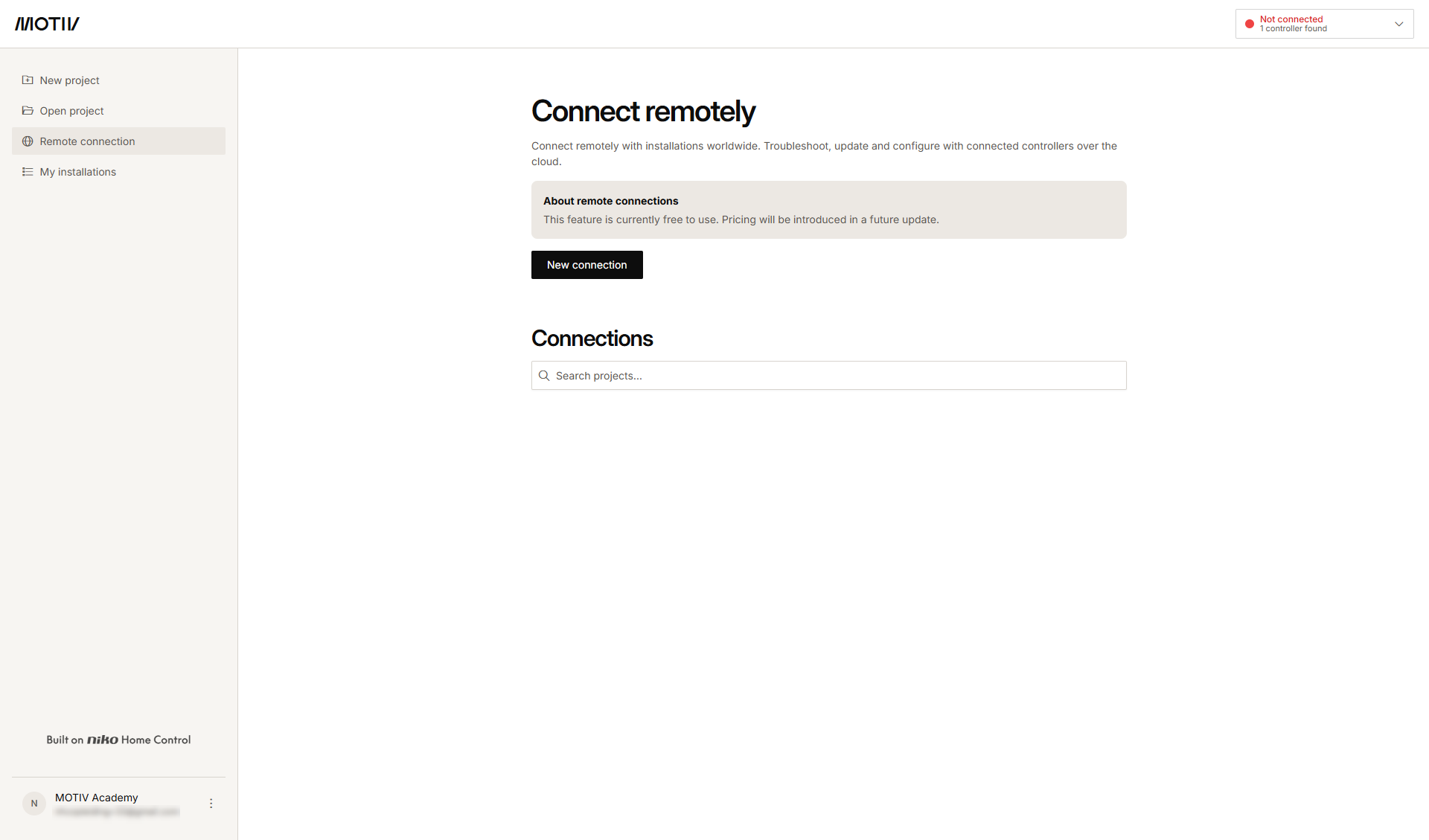
In the left-hand menu, click Remote connection.
-
Click New connection.
-
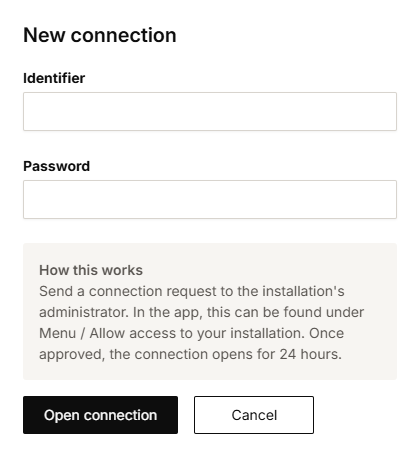
Type the identification code and password provided from the client's Niko Home app.
-
Click Open connection.
Result: Depending on the amount of controllers found:-
If one controller is found, you are connected automatically. Go to step 7.
-
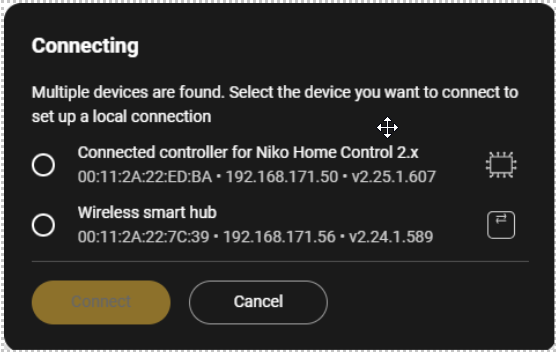
If more than one controller is found, a list is displayed. Go to step 5.
-
-
Select the desired controller from the list.
-
Click Connect.
Result:
Your computer is connected to the controller, the programmation file is loaded from the controller into the MOTIV Building Control programming software and the Dashboard overview window appears.
-
The identifier and password give access to all the controllers in the installation.
-
Your customer finds the identification code and password for setting up the remote connection in the Niko Home app under Menu > Allow access to your installation
-
The identifier and password are valid for 24 hours.