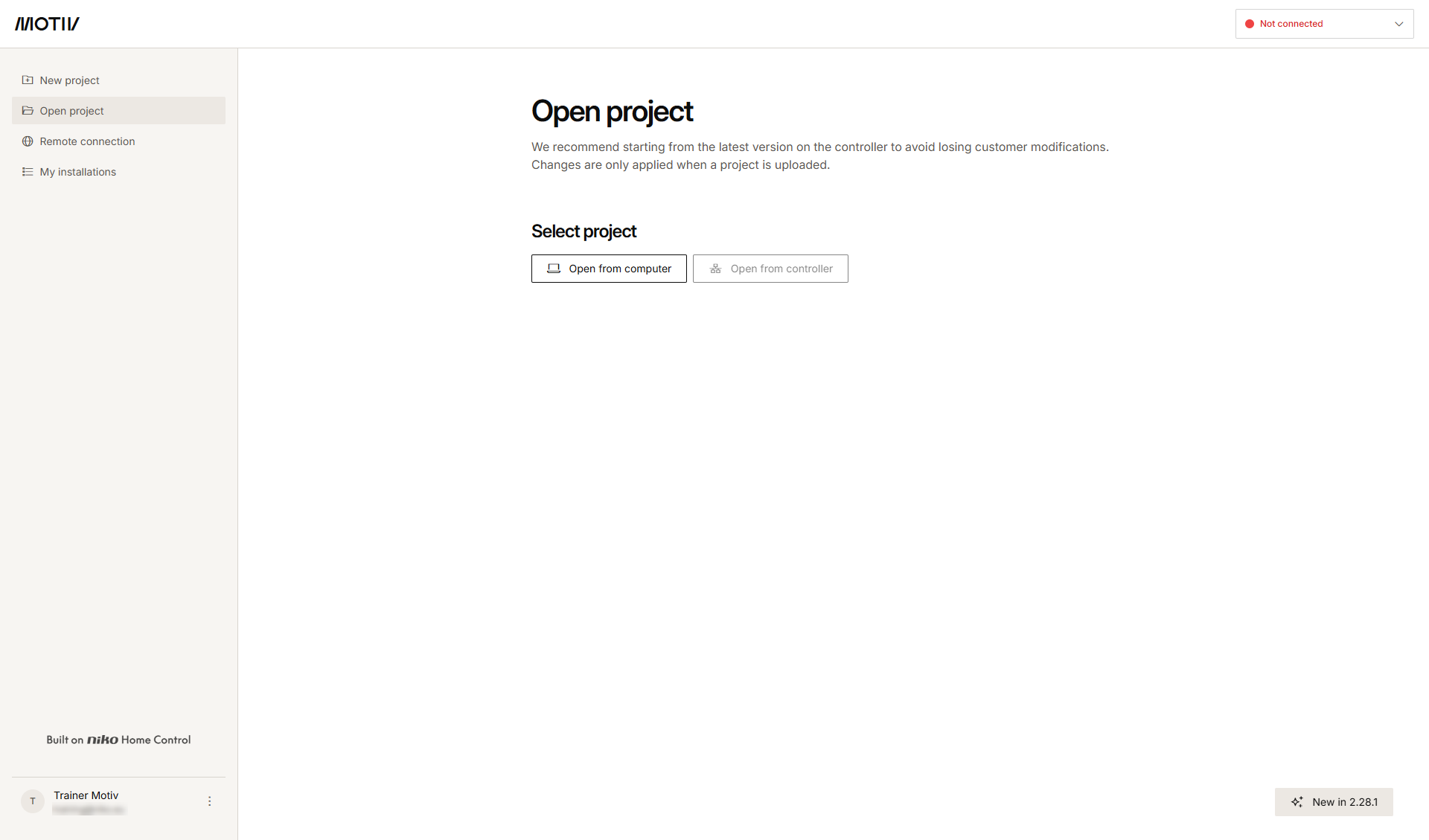
Starting point
-
You have logged in with your installer MOTIV account in the MOTIV Building Control programming software.
-
You do not have a project open, or you clicked Home when a project was open.
Procedure
-
In the left-hand menu, click My installations.
Result:
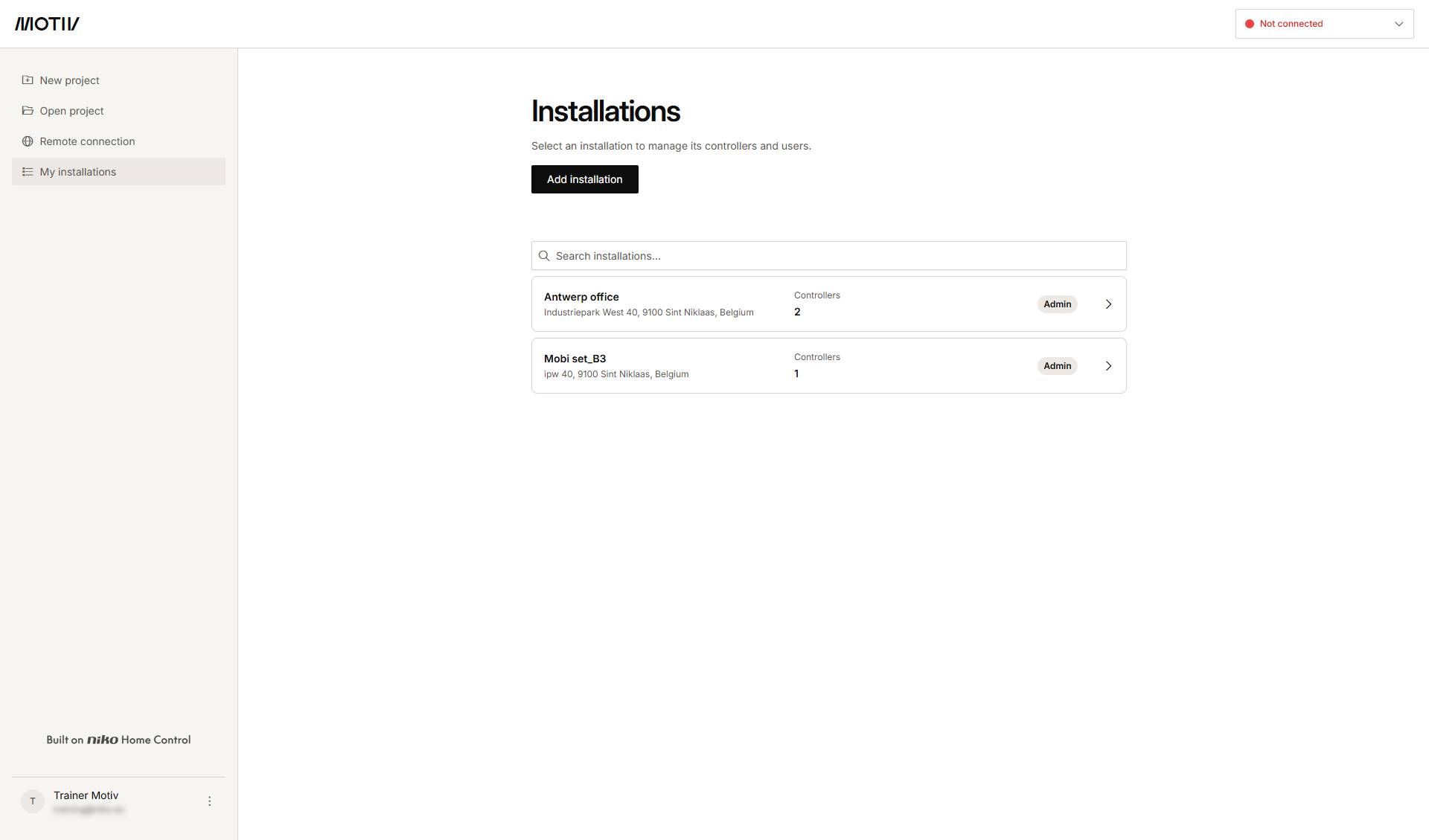
A list is shown with all the installations the logged in account has access to.
For each installation the lists shows:-
the installation name
-
the number of controllers in the installation
-
access level of the logged in account (Admin/User)
-
Leave option for installations the logged in account currently has access to as a user (not as an admin). If you leave the installation, you will lose access to the installation. Your account remains available for your other installation(s).
-
-
Click the arrow next to an installation to manage it.
-
Make the necessary changes in the tabs:
Click Add installation to register a new installation and its controller(s).
Description of the tabs
Controllers tab
The Controllers tab provides a list of all the controllers in the selected installation with their status (offline/online).
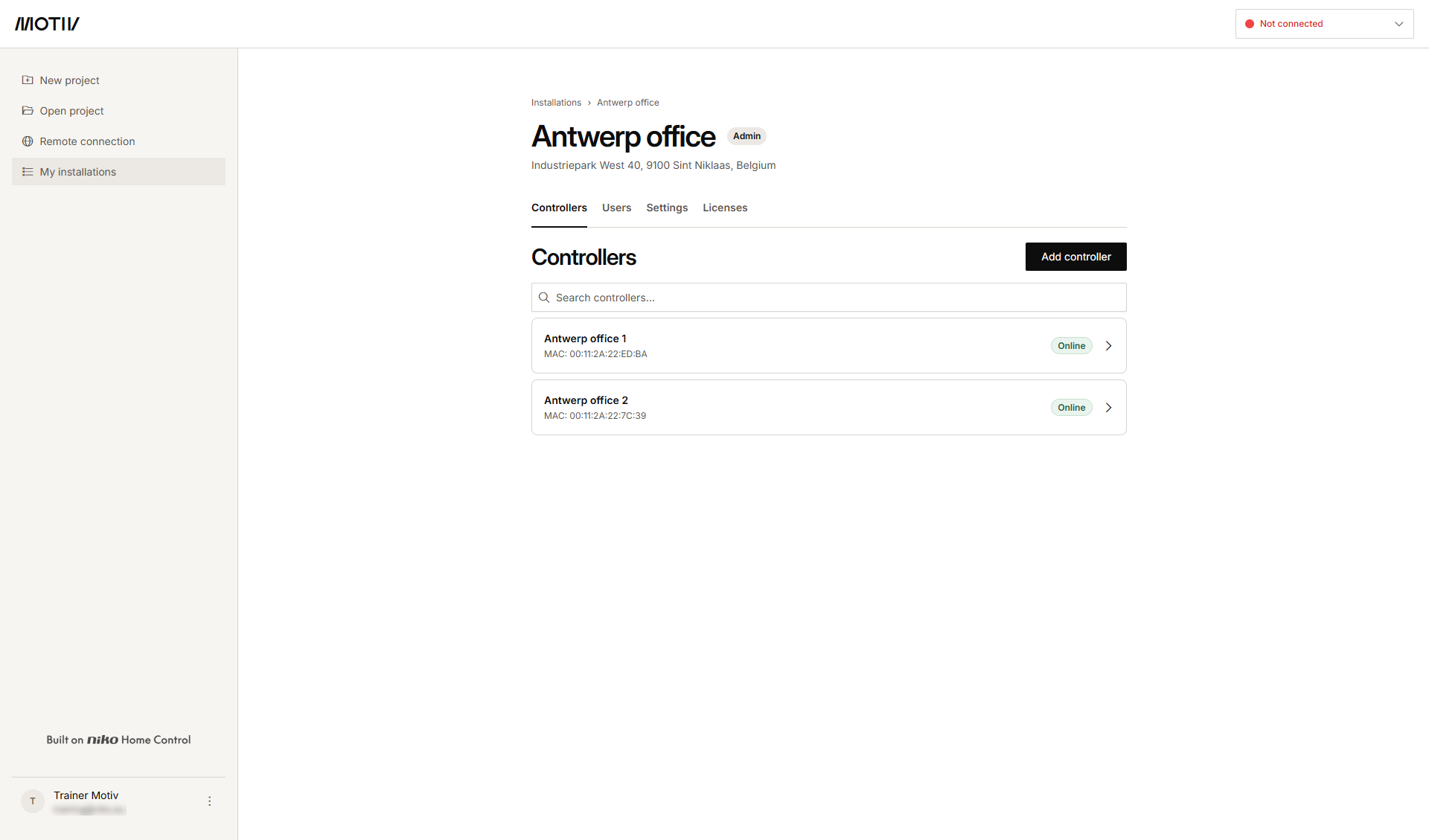
Click Add controller to add a controller to the selected installation.
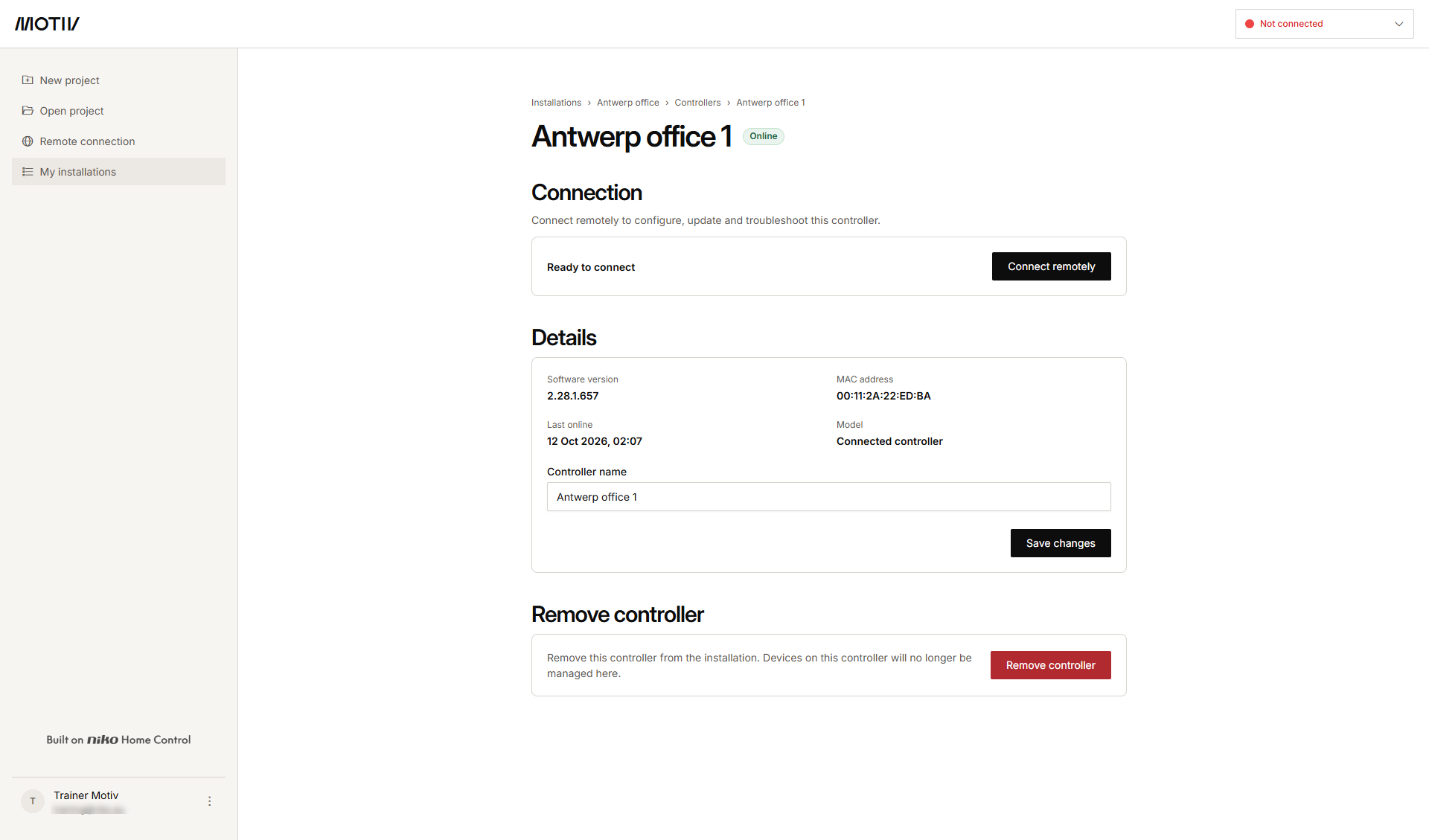
Click the arrow next to a controller to do the following:
-
connect remotely to the controller
-
check the controller details and/or change its name
-
remove the controller from the installation
Users tab
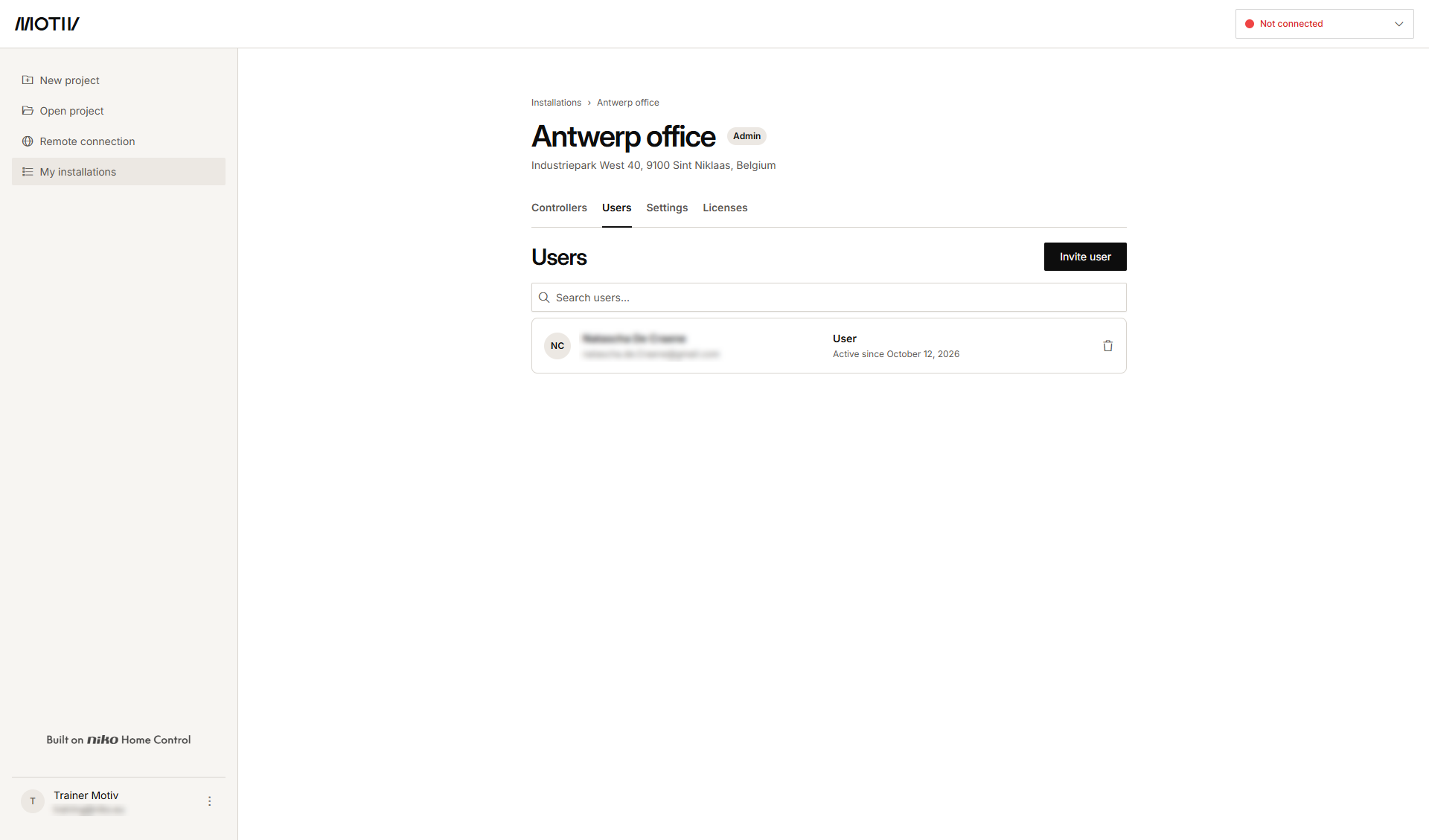
The Users tab provides a list of all users with their e-mail addresses, access levels (admin/users) and activation details.
-
Click the bin icon next to a user to remove this user from the installation.
Result:The user will lose access to the installation. If needed, you can invite them again later. The MOTIV or Niko Home Control account of the removed user will not be removed. -
Click Invite user to add an extra user to the installation.
Settings tab
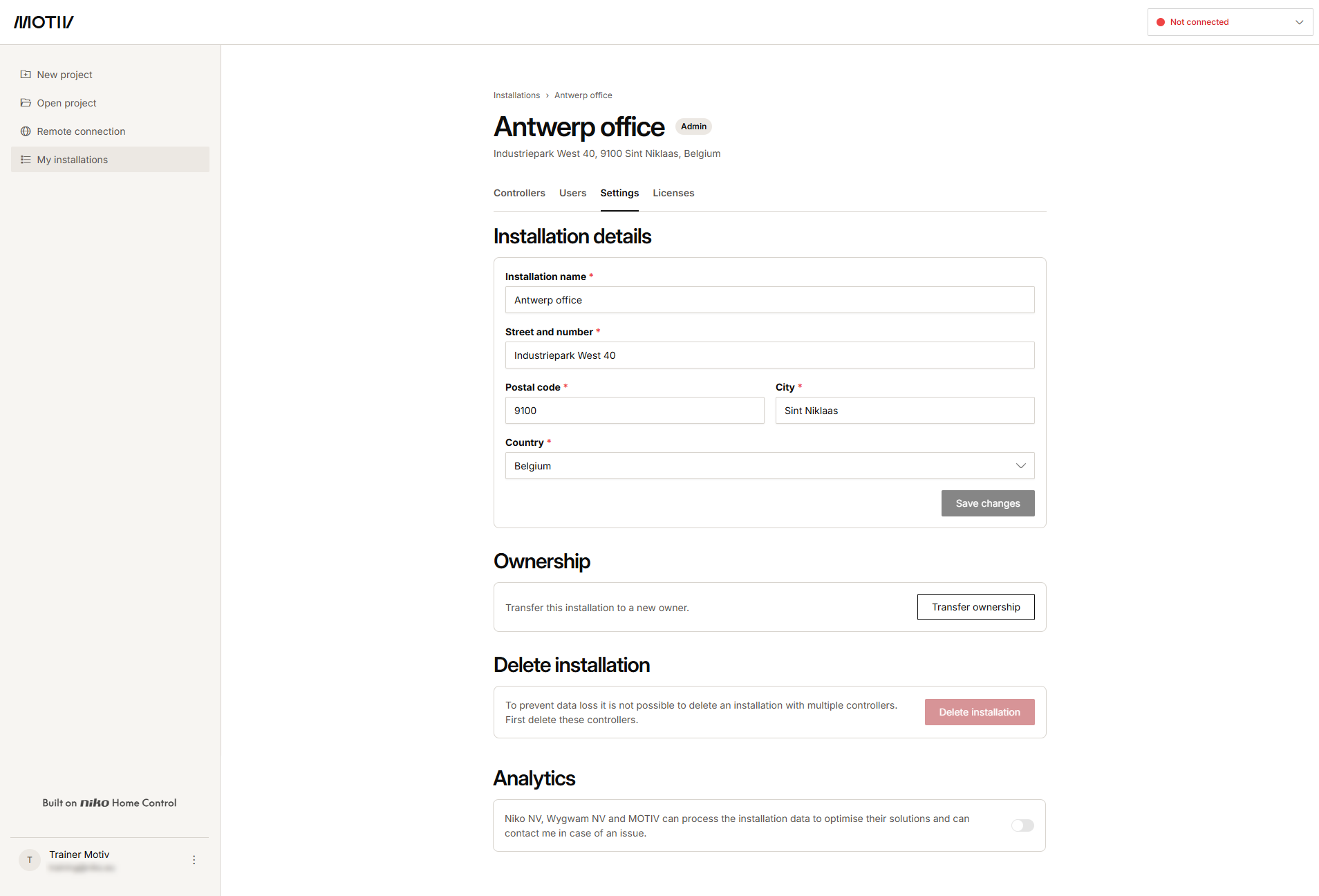
In the Settings tab you can:
-
Change installation details (name and address)
-
Transfer the ownership of the installation to a new owner
-
Delete an installation. This action deletes the installation, its controllers and access for all the users. This action cannot be undone.
-
Activate or deactivate Analytics. By default this option is off. Set the slider to on if you want Niko NV, Wygwam NV and MOTIV to process your installation data.
When you want to delete an installation, first delete all users (see Users tab) from the controllers, then delete the controllers one by one (see Controllers tab) and finally delete the installation.
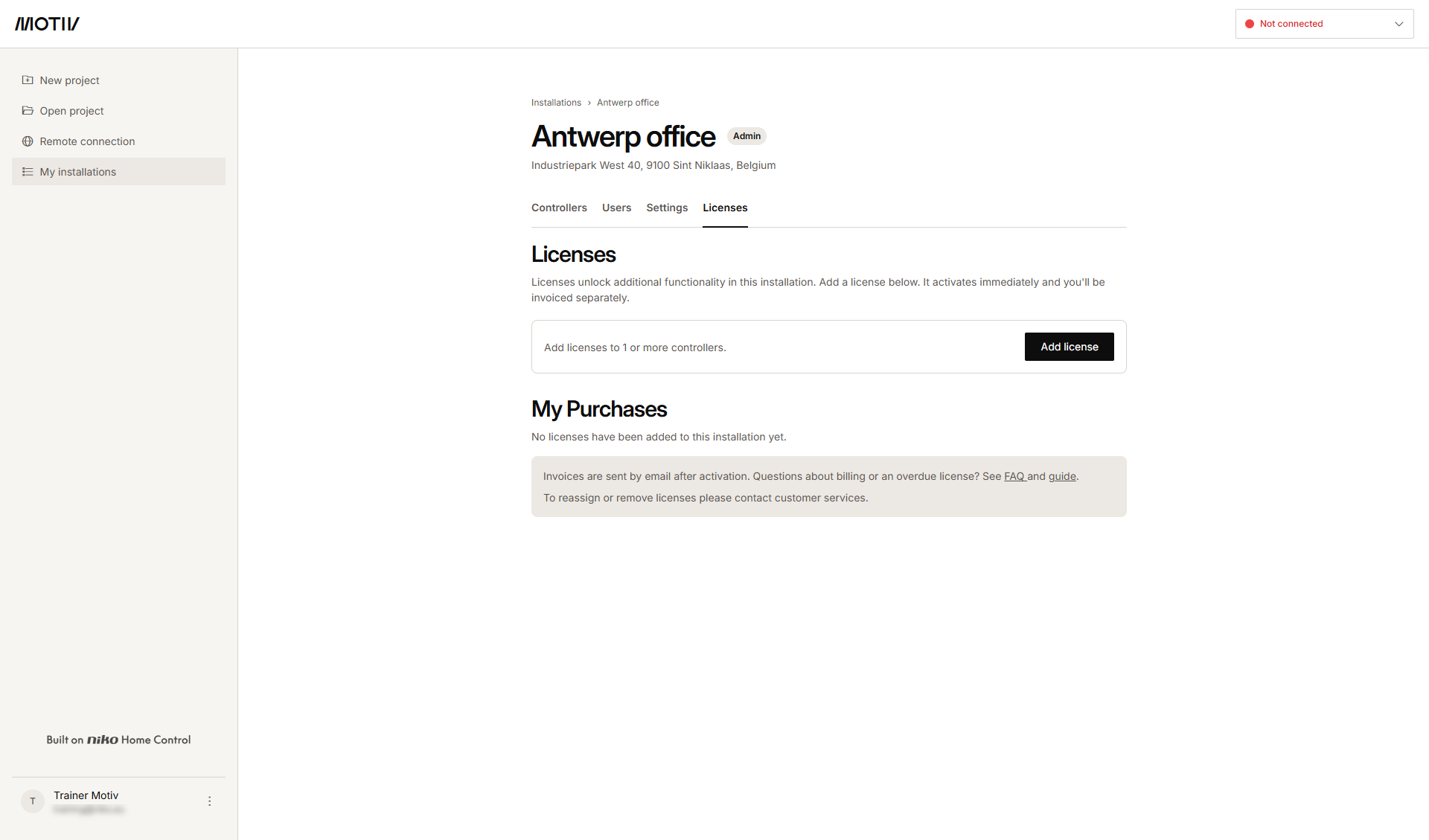
Licenses tab
In the Licenses tab you can:
-
Add Site Connect to controllers
-
See an overview of your purchases