
Log in or use offline
-
Logging in with your MOTIV or Niko Home Control account is optional, but it is necessary if you want to connect remotely to a controllor of an installation.
-
You can only use the remote feature with an installer account (admin account).
-
You only have to log in once a year.
Starting point
-
Your computer is connected to the internet.
-
You have installed the MOTIV Building Control programming software.
-
If you already have a MOTIV or Niko Home Control account, you have your e-mail address and password on hand.
Procedure
-
Open the MOTIV Building Control programming software.
-
If an upgrade of the software is available, you can download and install it immediately or decide to install it later.
-
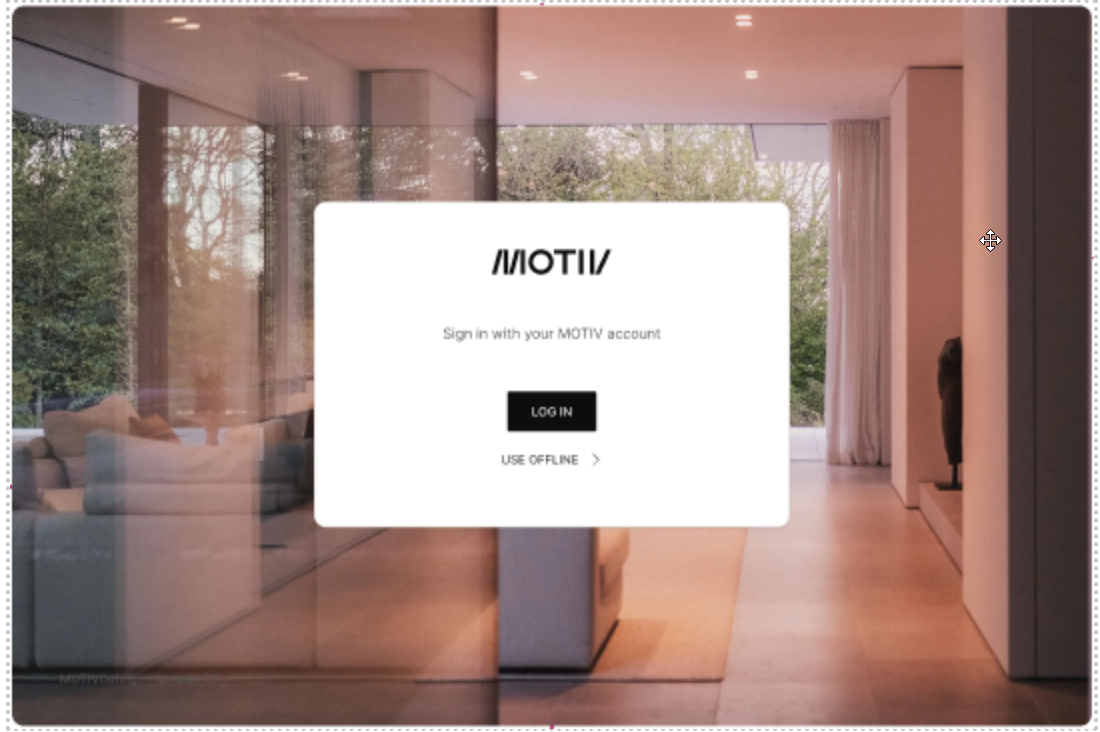
Do one of the following:
-
Click Log in if you already have a MOTIV or Niko Home Control account, or if you want to create an account.
-
Click Use offline.
-
-
Do one of the following if you chose Log in in the previous step:
-
If you have an account type your e-mail address and password and click Sign in.
-
If you don’t have an account, click “Don’t have an account? Create one” and follow the instructions on the screen. Once the account is created you can sign in.
-
-
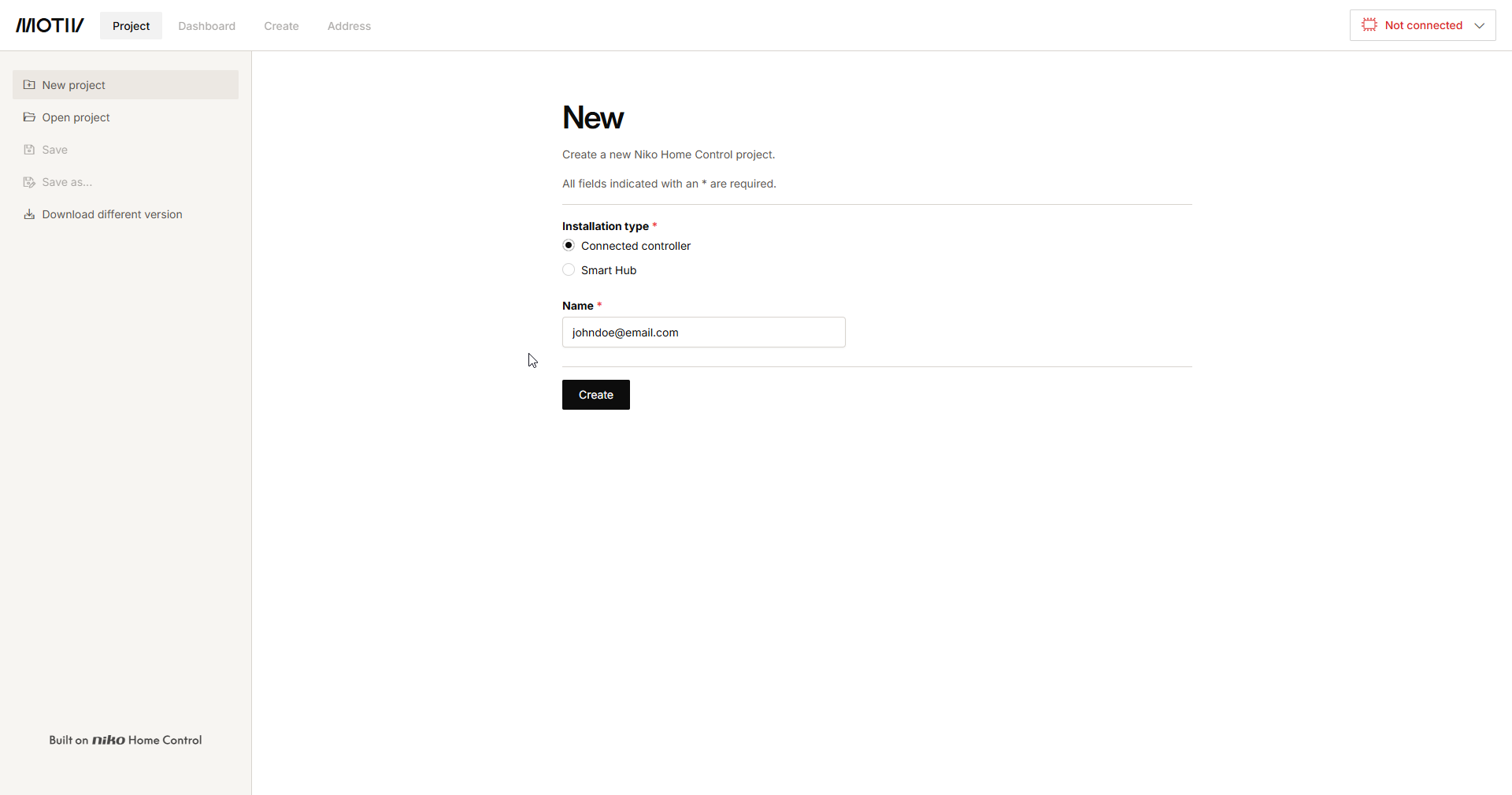
Go to Installation management.