Niko Home Control is evolving into MOTIV Building Control. MOTIV is a new brand for intelligent building automation. Built on the trusted foundation of Niko Home Control, MOTIV solutions are designed to make buildings work more naturally for the people inside them. MOTIV helps professionals create smarter, more comfortable buildings. With technology that works quietly in the background. All existing Niko Home Control solutions remain fully compatible with MOTIV. Over time, the full portfolio will move to the MOTIV brand. During this transition, you will see both Niko Home Control (NHC) and MOTIV Building Control (MBC) appear in this documentation. Discover MOTIV at niko.eu/MOTIV
Software Manual
2.28.1 2.27.1 English Danish Dutch French German Slovak Swedish

Einen Controller zu einer Installation hinzufügen

Ausgangspunkt

  • Ihr Computer ist mit dem Internet verbunden.

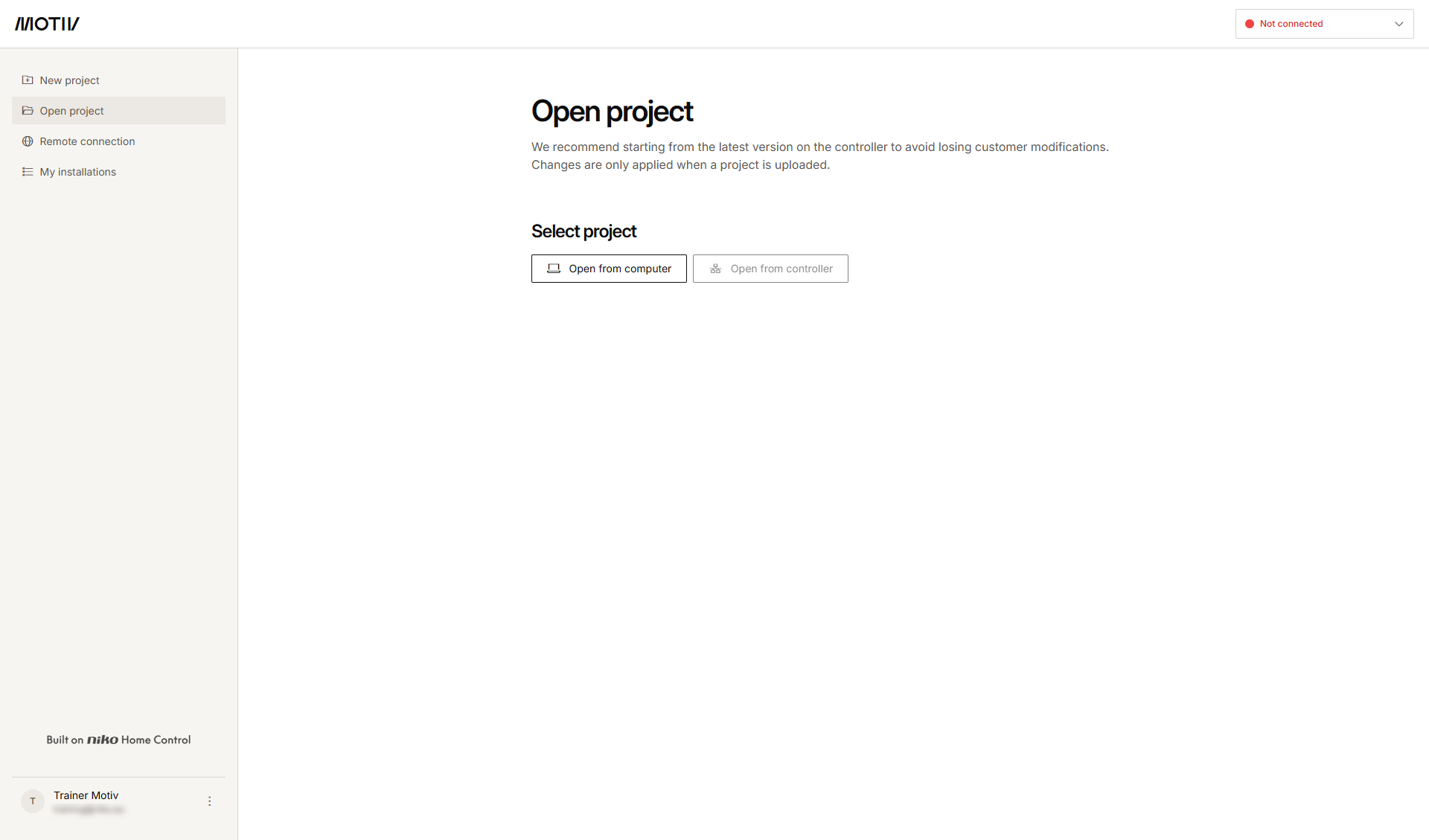
  • Sie haben die MOTIV Building Control-Programmiersoftware
    geöffnet und sich dort angemeldet, oder Sie haben auf Home geklickt, während ein Projekt geöffnet war.

  • Sie haben die Installation registriert.
https://s3-eu-west-1.amazonaws.com/guideimages/Screenshots/V2.9/EN/s19_02_07_228_001.png

Vorgehen

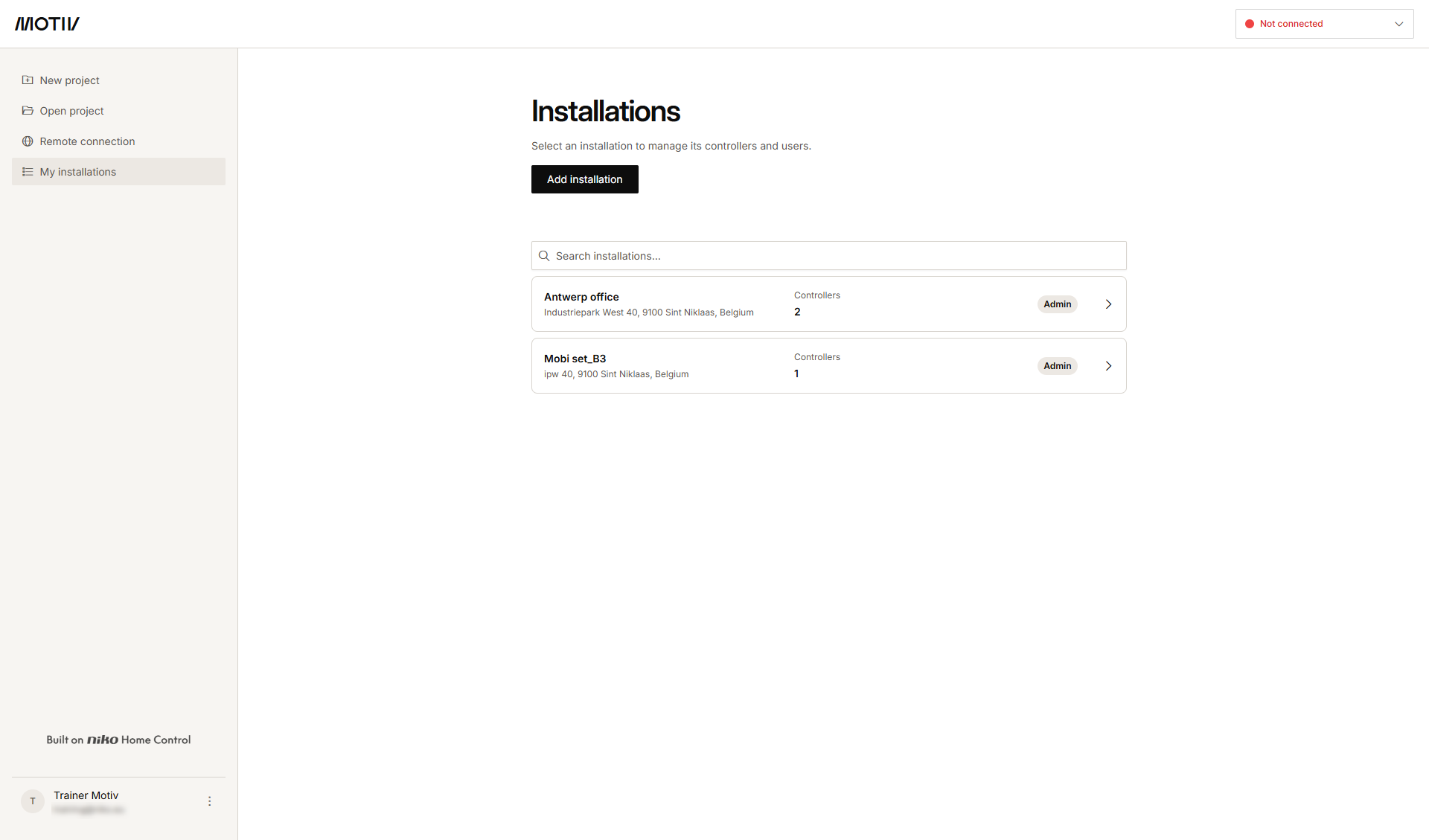
  1. Klicken Sie im Menü auf der linken Seite auf Meine Installationen.
    https://s3-eu-west-1.amazonaws.com/guideimages/Screenshots/V2.9/EN/s19_02_07_228_002.png
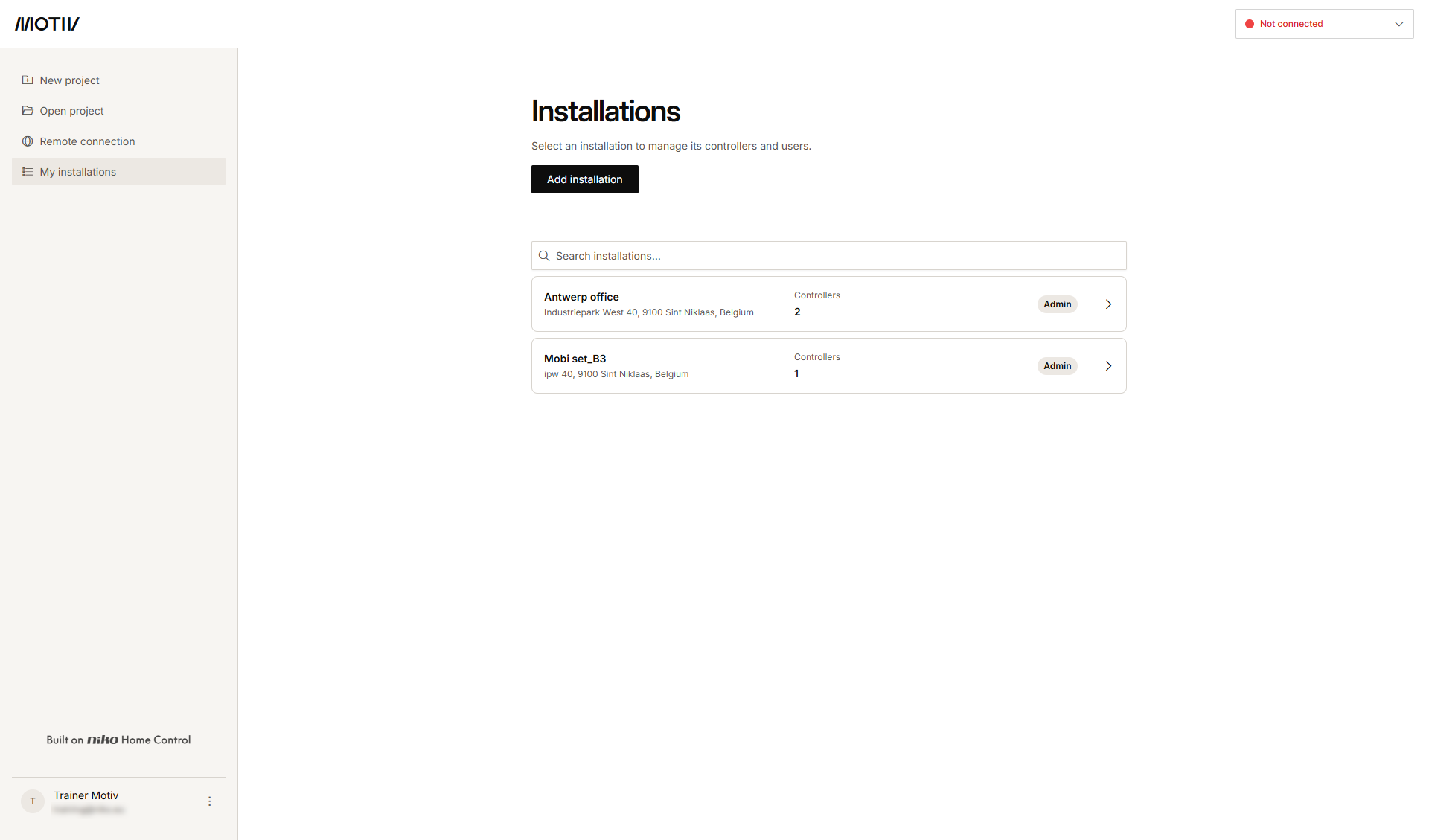
  2. Klicken Sie auf den Pfeil neben der Installation, für die Sie einen neuen Controller hinzufügen möchten.
    Ergebnis: Die Liste der Controller in der Installation wird mit ihrem Status werden angezeigt.
    s19_02_07_228_003
  3. Klicken Sie auf Controller hinzufügen.
    s19_02_07_228_004


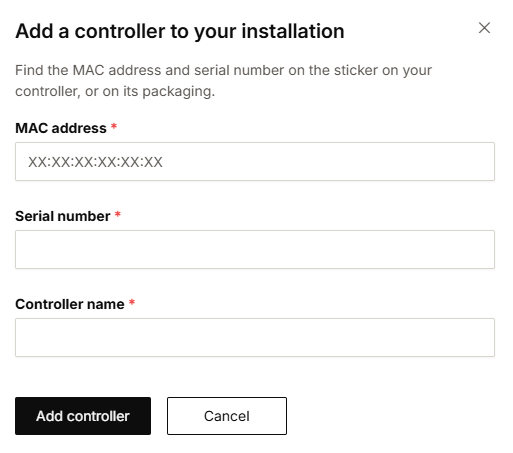
  4. Geben Sie die MAC-Adresse, die Seriennummer und den Namen des Controllers ein.

  5. Klicken Sie auf Controller hinzufügen.