
Use case
Your customer wants to start an action (e.g. turn on a lamp) when a specific numeric combination (e.g. 1234) is pressed on a four-fold push button (with LEDs). The correct combination has to be pressed within 4 seconds.
In this example a combination of four buttons is used. You can also use more buttons or a different numeric combination.
Procedure
Creating the controls and the devices
-
Create a four-fold push button (PB1).
-
Create a lamp (LAMP1).
-
Create the virtual devices (VIRT1 to VIRT4):
-
VIRT1: Button 1 of PB1 active
-
VIRT2: Button 2 of PB1 active
-
VIRT3: Button 3 of PB1 active
-
VIRT4: Button 4 of PB1 active
-

Creating the routines
The correct numeric combination has to be pressed within 4 seconds.
-
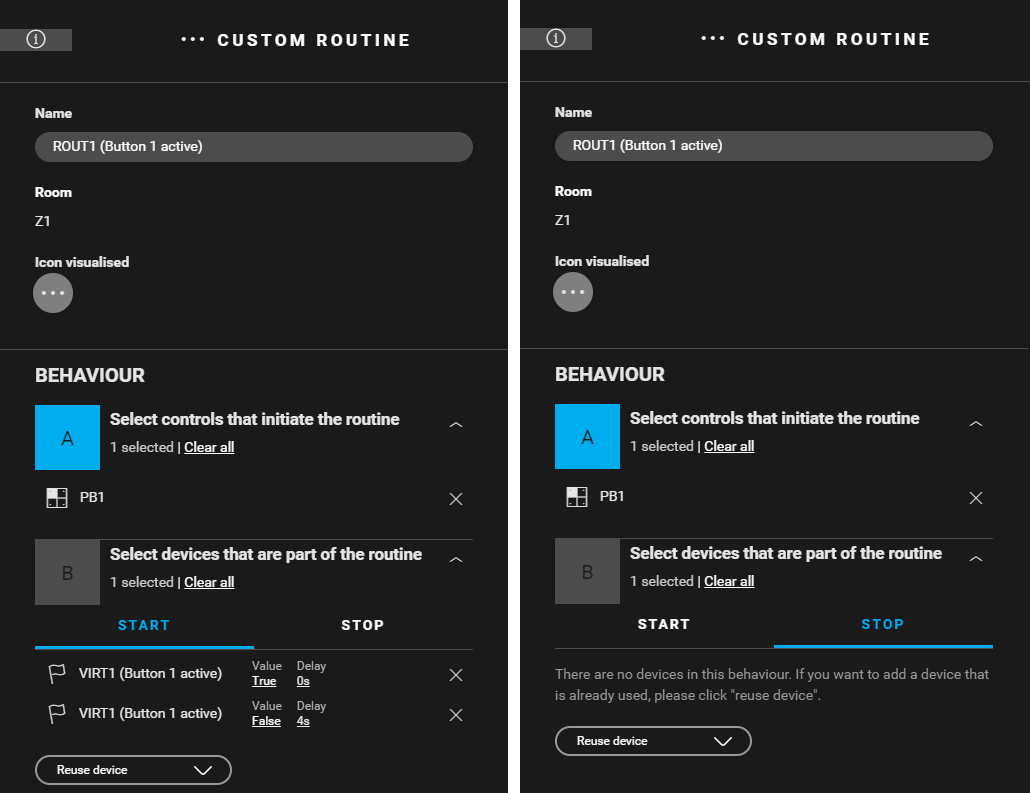
Create a custom routine (
ROUT1
) to activate VIRT1 with button 1 of the push button for 4 seconds. Use the following behaviour:
-
Control that initiates the routine: button 1 of the push button (PB1).
-
Devices that are part of the routine: VIRT1
-
Start behaviour:
-
VIRT1: Value = true, Delay = 0 s
-
VIRT1: Value = false, Delay = 4 s
-
-
Stop behaviour: leave empty
-
-
-
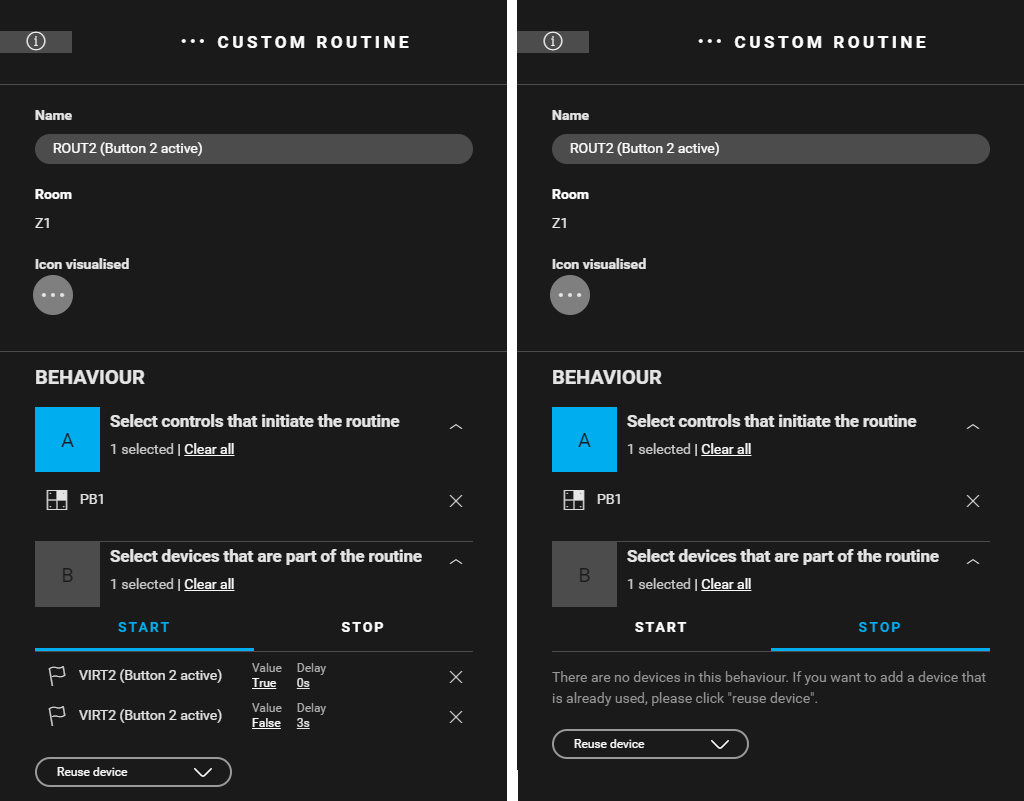
Create a custom routine (
ROUT2
) to activate VIRT2 with button 2 of the push button for 3 seconds. Use the following behaviour:
-
Control that initiates the routine: button 2 of the push button (PB1).
-
Devices that are part of the routine: VIRT2
-
Start behaviour:
-
VIRT2: Value = true, Delay = 0 s
-
VIRT2: Value = false, Delay = 3 s
-
-
Stop behaviour: leave empty
-
-
-
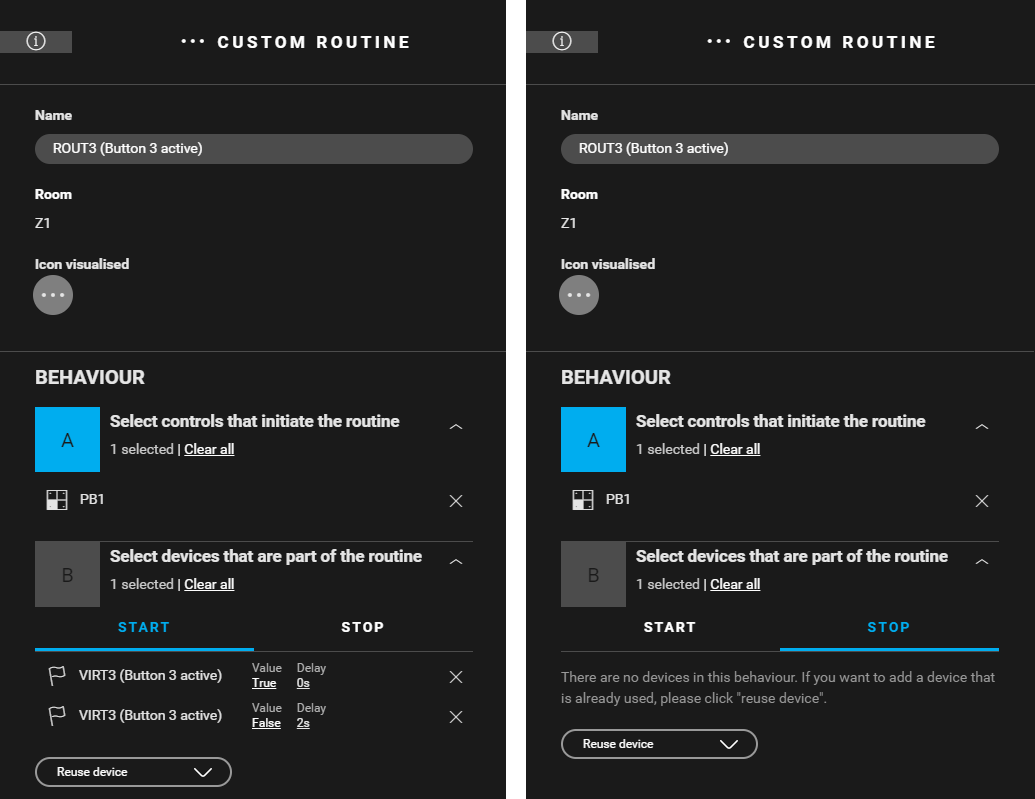
Create a custom routine (
ROUT3
) to activate VIRT3 with button 3 of the push button for 2 seconds. Use the following behaviour:
-
Control that initiates the routine: button 3 of the push button (PB1).
-
Devices that are part of the routine: VIRT3
-
Start behaviour:
-
VIRT3: Value = true, Delay = 0 s
-
VIRT3: Value = false, Delay = 2 s
-
-
Stop behaviour: leave empty
-
-
-
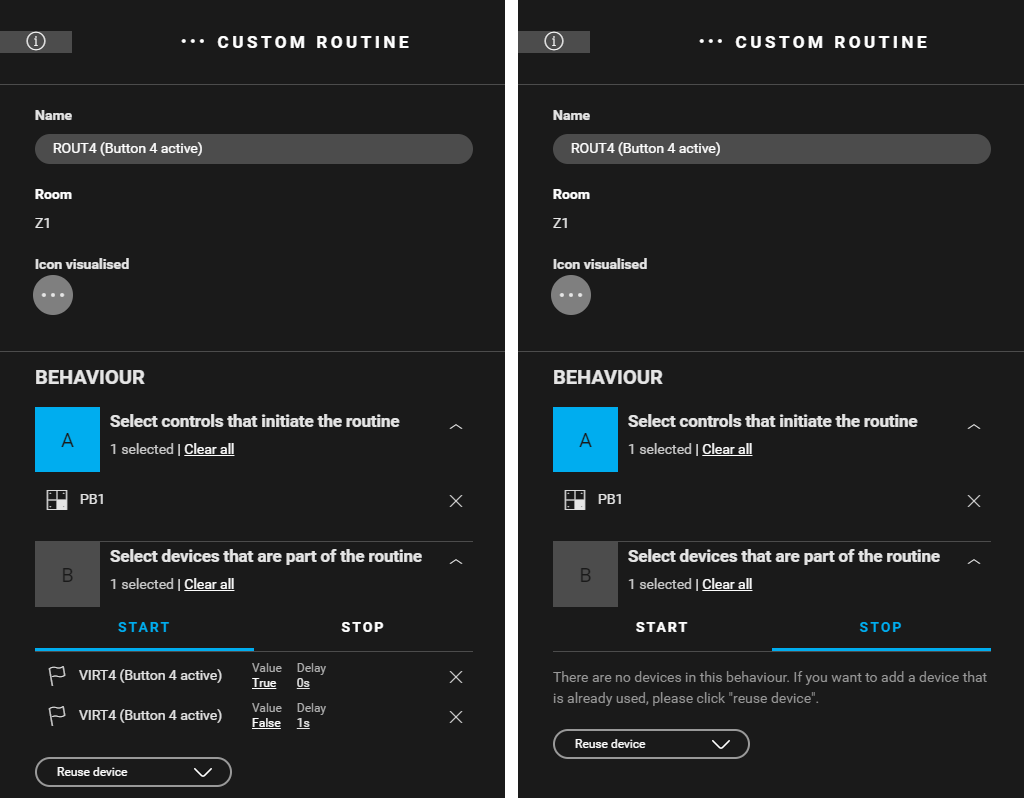
Create a custom routine (
ROUT4
) to activate VIRT4 with button 4 of the push button for 1 second. Use the following behaviour:
-
Control that initiates the routine: button 4 of the push button (PB1).
-
Devices that are part of the routine: VIRT4
-
Start behaviour:
-
VIRT4: Value = true, Delay = 0 s
-
VIRT4: Value = false, Delay = 1 s
-
-
Stop behaviour: leave empty
-
-

Creating the conditions
The conditions below are a built-in safety precaution. When you press a wrong code within 4 seconds, the four virtual devices are not set to "true" at the same time.
-
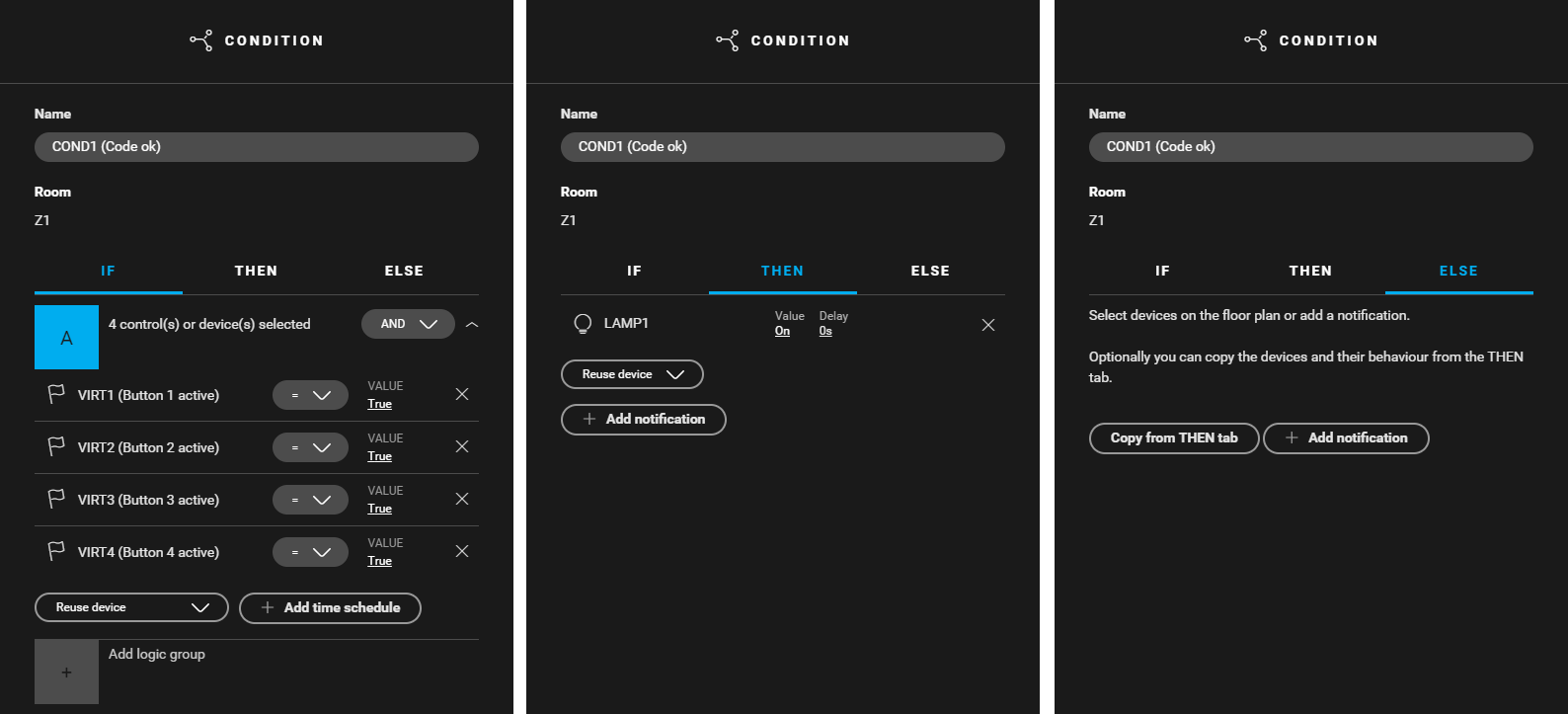
Create a condition (
COND1
) for pressing the correct code. The lamp is turned on. Use the following logic:
-
IF (VIRT1: Value = true) and (VIRT2: Value = true) and (VIRT3: Value = true) and (VIRT4: Value = true)
-
THEN LAMP1: Value = on
-
ELSE leave empty
-
-
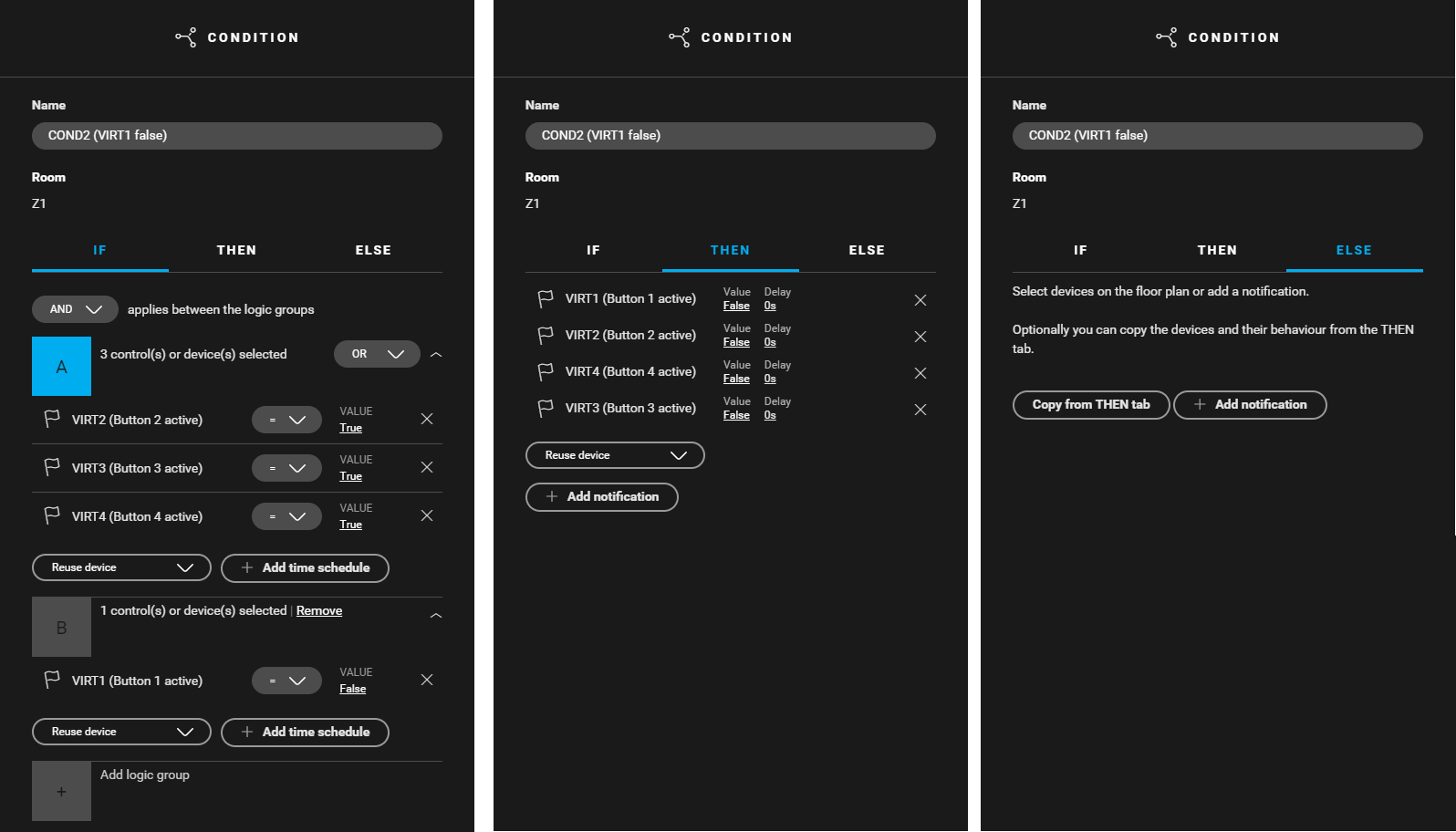
Create a condition (
COND2
) for pressing a wrong code (the first button pressed is wrong). Use the following logic:
-
IF [(VIRT2: Value = true) or (VIRT3: Value = true) or (VIRT4: Value = true)] and (VIRT1: Value = false)
-
THEN VIRT1 to VIRT4: Value = false
-
ELSE leave empty
-
-
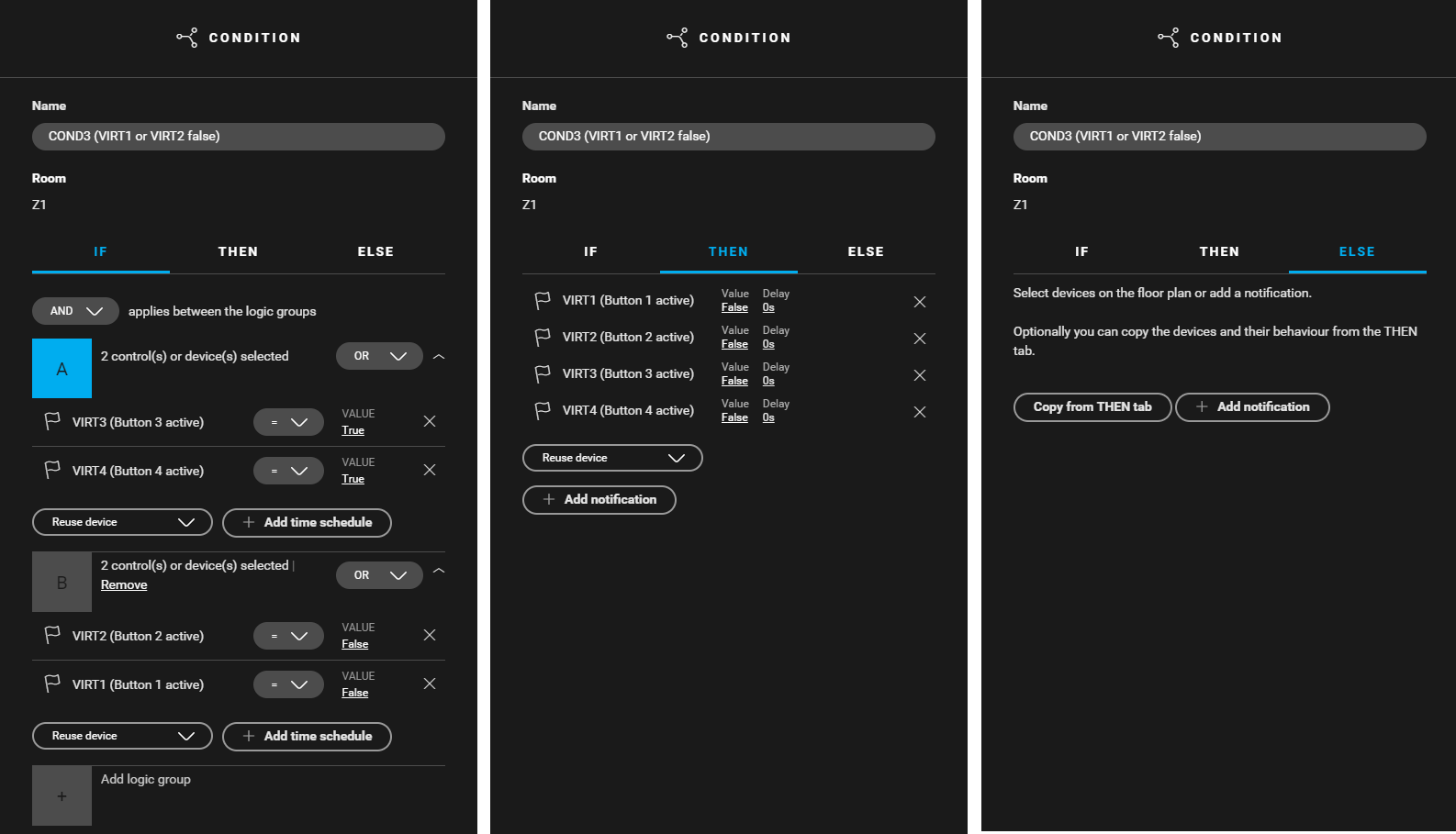
Create a condition (
COND3
) for pressing a wrong code (the first or second button pressed is wrong). Use the following logic:
-
IF [(VIRT3: Value = true) or (VIRT4: Value = true)] and [(VIRT1: Value = false) or (VIRT2: Value = false)]
-
THEN VIRT1 to VIRT4: Value = false
-
ELSE leave empty
-
-
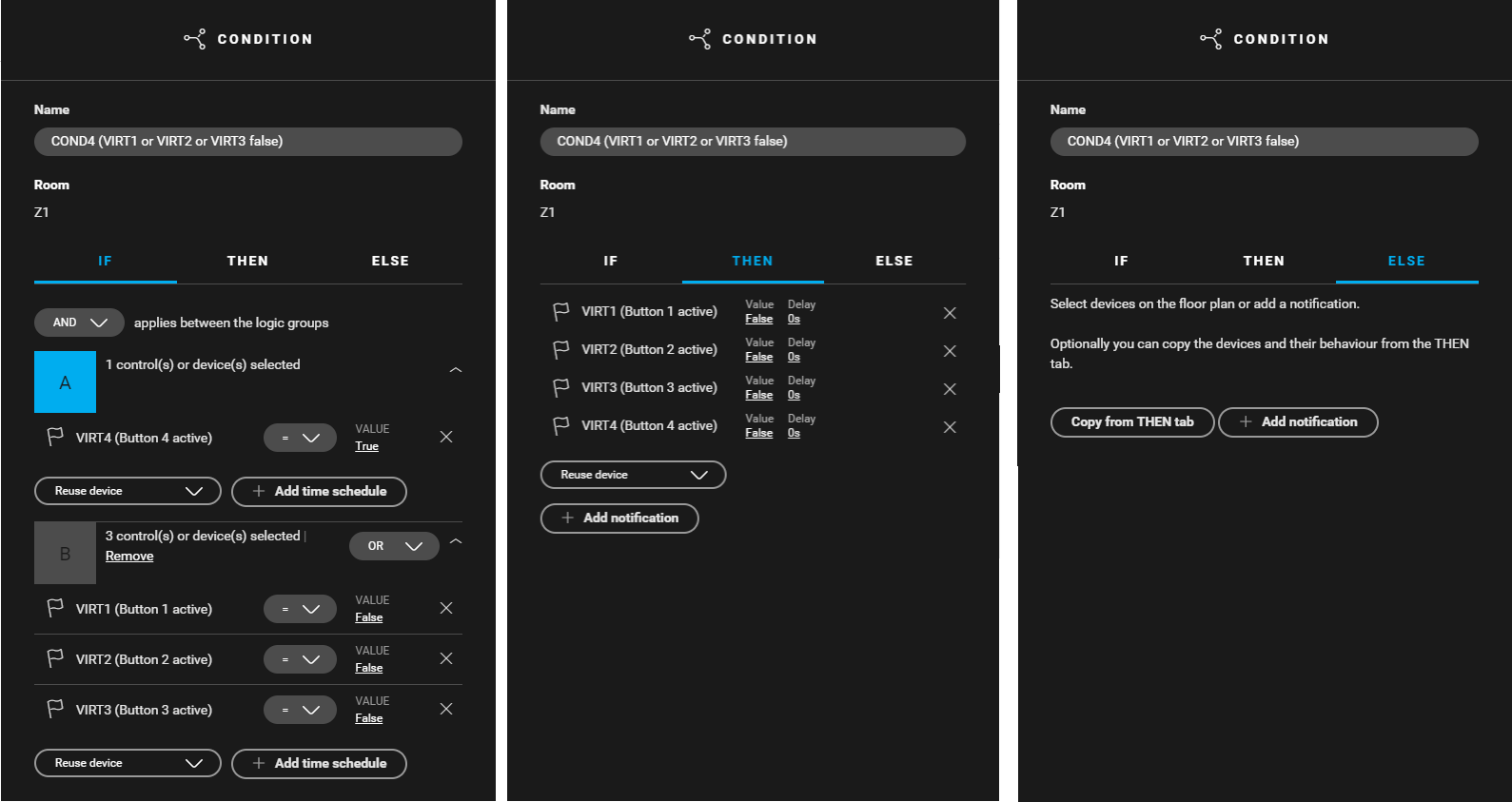
Create a condition (
COND4
) for pressing a wrong code (the first or second or third button pressed is wrong). Use the following logic:
-
IF (VIRT4: Value = true) and [(VIRT1: Value = false) or (VIRT2: Value = false) or (VIRT3: Value = false)]
-
THEN VIRT1 to VIRT4: Value = false
-
ELSE leave empty
-

Example
Click here to download the programming example (nhc2 file).