
Use case
Your customer would like to control the Sonos/Bose speakers and a dimmable lighting circuit with a mood control, programmed with two scenes, "dancing" and "chill".
|
Scene |
Light intensity |
Speaker volume |
|---|---|---|
|
dancing |
20% |
100% |
|
chill |
60% |
30% |
The installation is also equipped with an external video unit. When someone rings at the door, the volume of the speakers is turned off. At the end of the call, the speakers are turned on again and the volume is set to its original setting.
When the programmed button of a six-fold push button with LEDs is pressed, the Basic all-off routine is activated: the lighting circuit and the speakers are turned off.
Procedure
Creating the controls and the devices
-
Create the following controls:
-
a six-fold push button with LEDs (PB1)
-
a mood control (MOOD1)
-
an external video unit (VDS1)
-
-
Create the following devices:
-
a dimmable lighting circuit (LAMP1)
-
a Sonos/Bose speaker (LS1)
-

Creating the routines
-
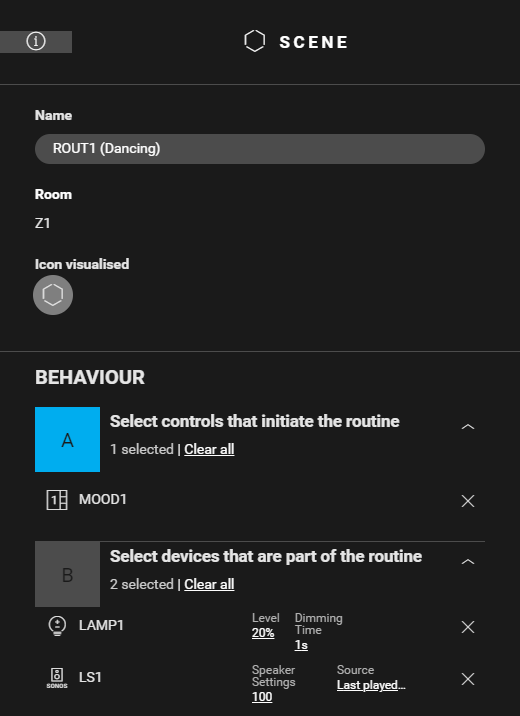
Create a routine Scene "Dancing" (
ROUT1
). Configure the following behaviour:
-
control that initiates the routine: button 1 of MOOD1
-
devices that are part of the routine:
-
LAMP1: Level = 20%
-
LS1: Speaker settings = 100 - Source = Last played source
-
-
-
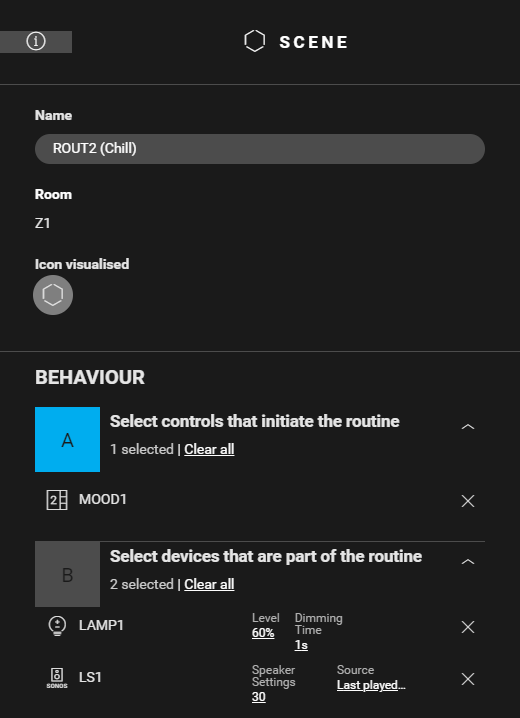
Create a routine Scene "Chill" (
ROUT2
). Configure the following behaviour:
-
control that initiates the routine: button 2 of MOOD1
-
devices that are part of the routine:
-
LAMP1: Level = 60%
-
LS1: Speaker settings = 30 - Source = Last played source
-
-
-
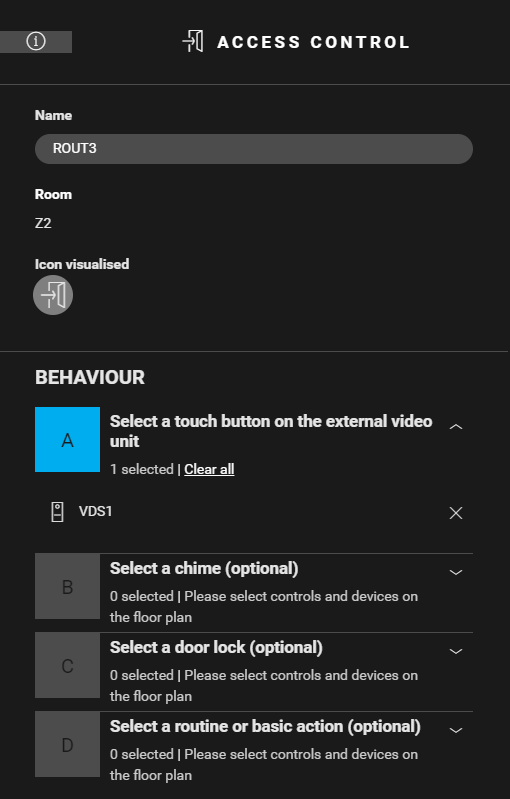
Create a routine Access control (
ROUT3
). Configure the following behaviour:
-
Select a button on VDS1.
-
(optional) Select a chime, a door lock and/or a routine or a basic action.
-
(optional) Select a different ringtone.
-
-
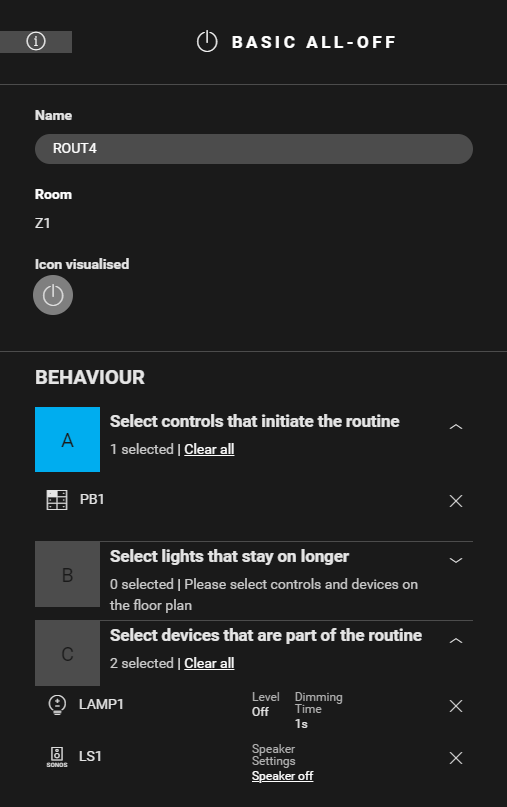
Create a routine Basic all-off (
ROUT4
). Configure the following behaviour:
-
control that initiates the routine: PB1
-
devices that are part of the routine:
-
LAMP1: Level = Off
-
LS1: Speaker settings = speaker off
-
-

Creating the condition
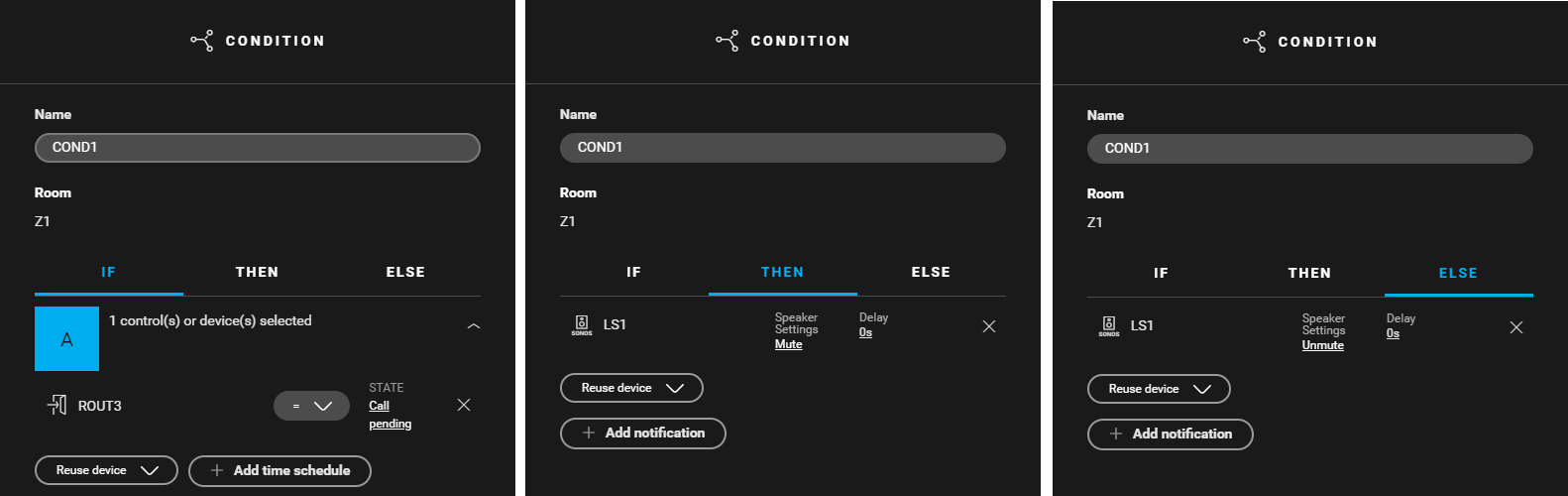
Create a condition (COND1) for turning off the speakers when someone is at the door. Use the following logic:
-
IF ROUT3: state = calling pending
-
THEN LS1: speaker settings = mute
-
ELSE LS1: speaker settings = unmute

Editing the touchscreen profile
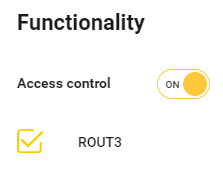
To be able to answer the call with the touchscreen turn on the access control functionality in the touchscreen profile. You can find the touchscreen profile(s) in the Dashboard menu.
Filling the cabinet and addressing the devices
|
Fill the cabinet with ... |
and address the following device ... |
|---|---|
|
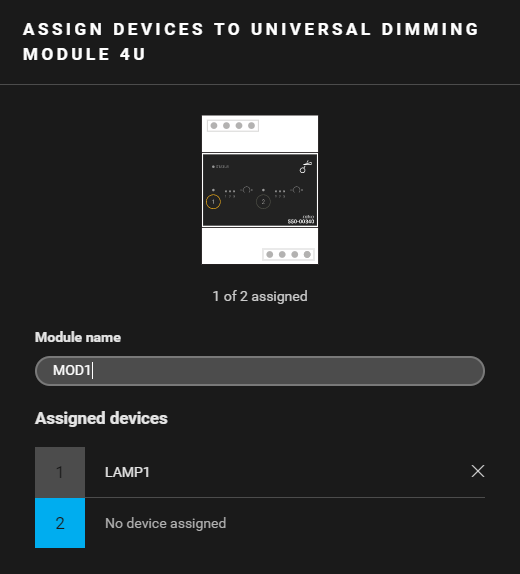
a universal dimming module ( MOD1 ) |
dimmable lighting circuit LAMP1. |
Example
Click here to download the programming example (nhc2 file).