
What is heating/cooling per circuit?
With the routine Heating/cooling per circuit you can define the cooling/heating behaviour of a single or a combined system. If your system comprises a circuit pump, this will be controlled with this routine. Within the system, you can connect a zone valve to a thermostat (550-13053), a push button with LED(s) and comfort sensors, a MOTIV Sense3 or a Digital black, 24 V.
The Digital black 230V cannot be used as a thermostat.
Starting point
-
You have created the following:
-
one or more thermostats (550-13053), push buttons with LED(s) and comfort sensors, MOTIV Sense3 or Digital blacks, 24 V
-
a cooling or heating system (possibly combined)
-
one or more zone valves
-
(optional) a circuit pump or a virtual device
-
-
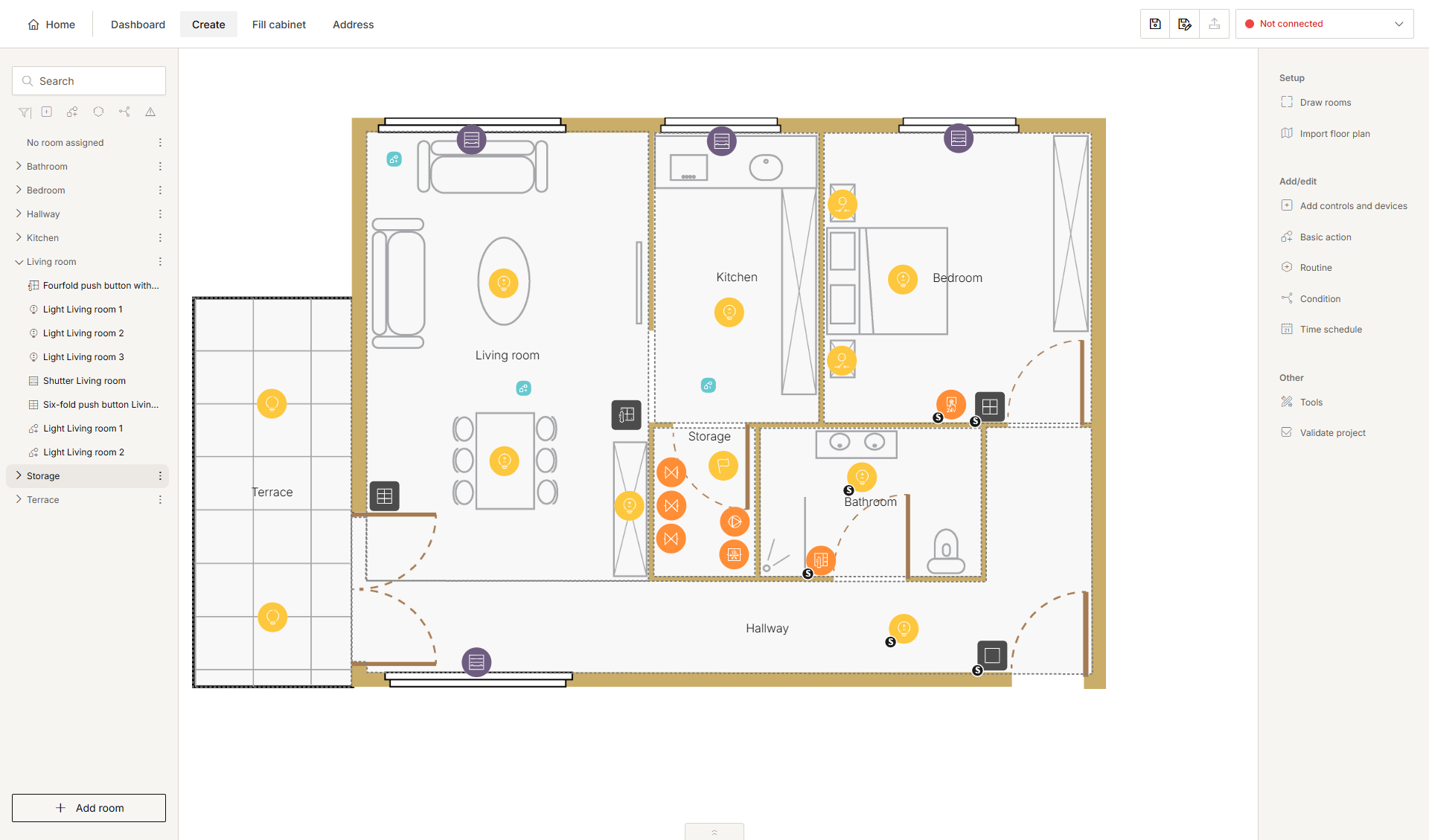
You are in the Create overview window.
Procedure
-
In the right-hand button bar, click Routine.
Result:
The Routine pane appears.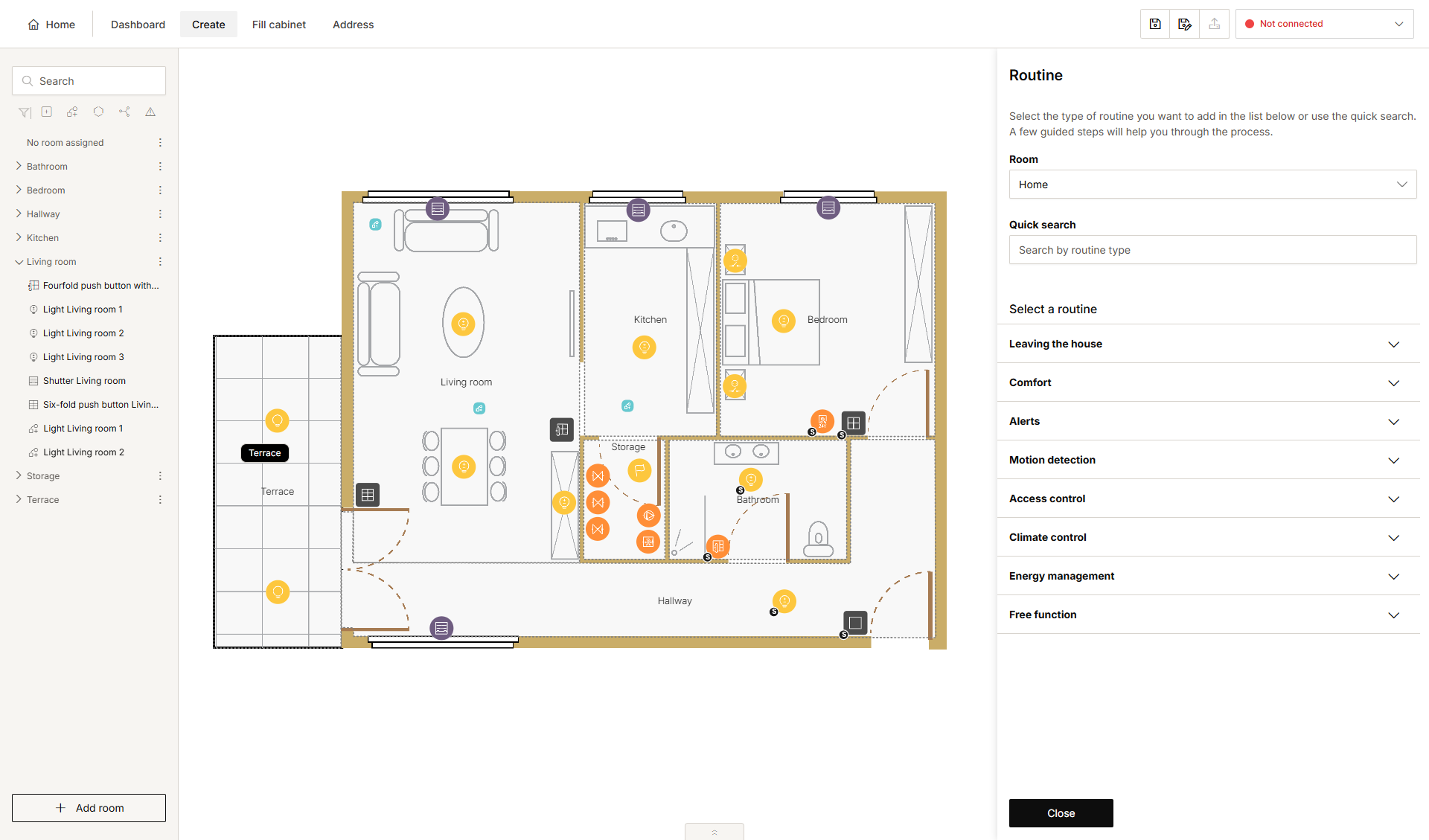
-
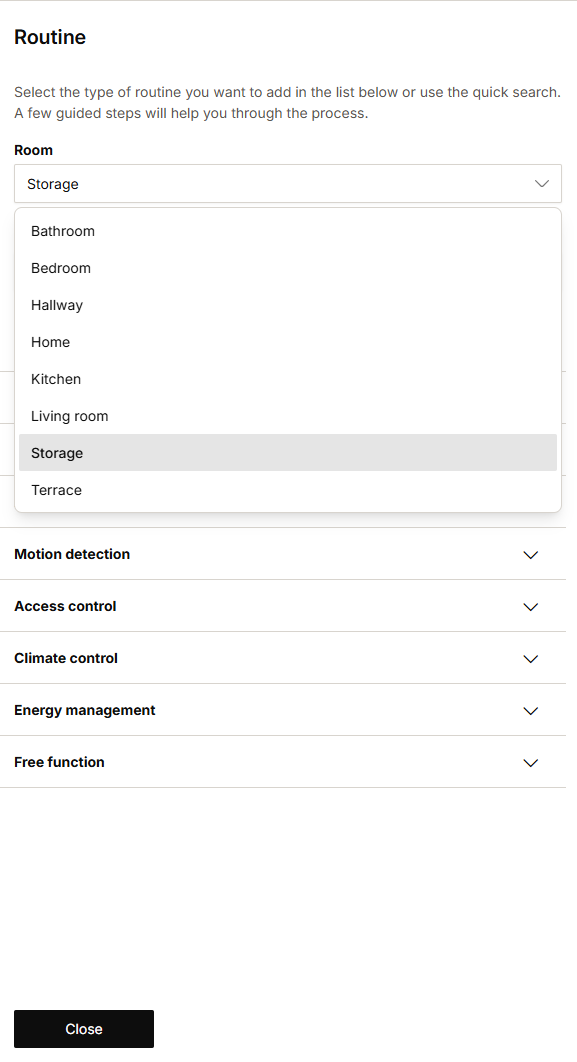
Choose the room as follows:
-
Choose Room from the drop-down list.
-
Click on the room in the drawing area.
-
-
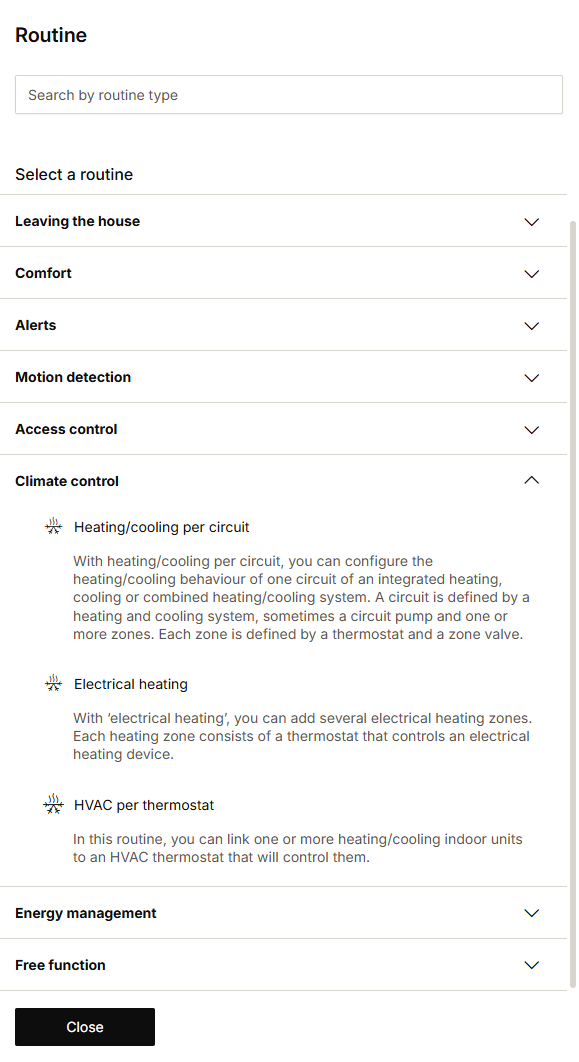
Click on the arrow next to the category Climate control.
-
Click on Heating/cooling per circuit.
-
Give the routine a name.
-
Set the behaviour as follows:
Behaviour
What?
How?
A
Choose the heating or cooling system which will activate the routine.
Click on the plus sign of the system you want to include in the routine.
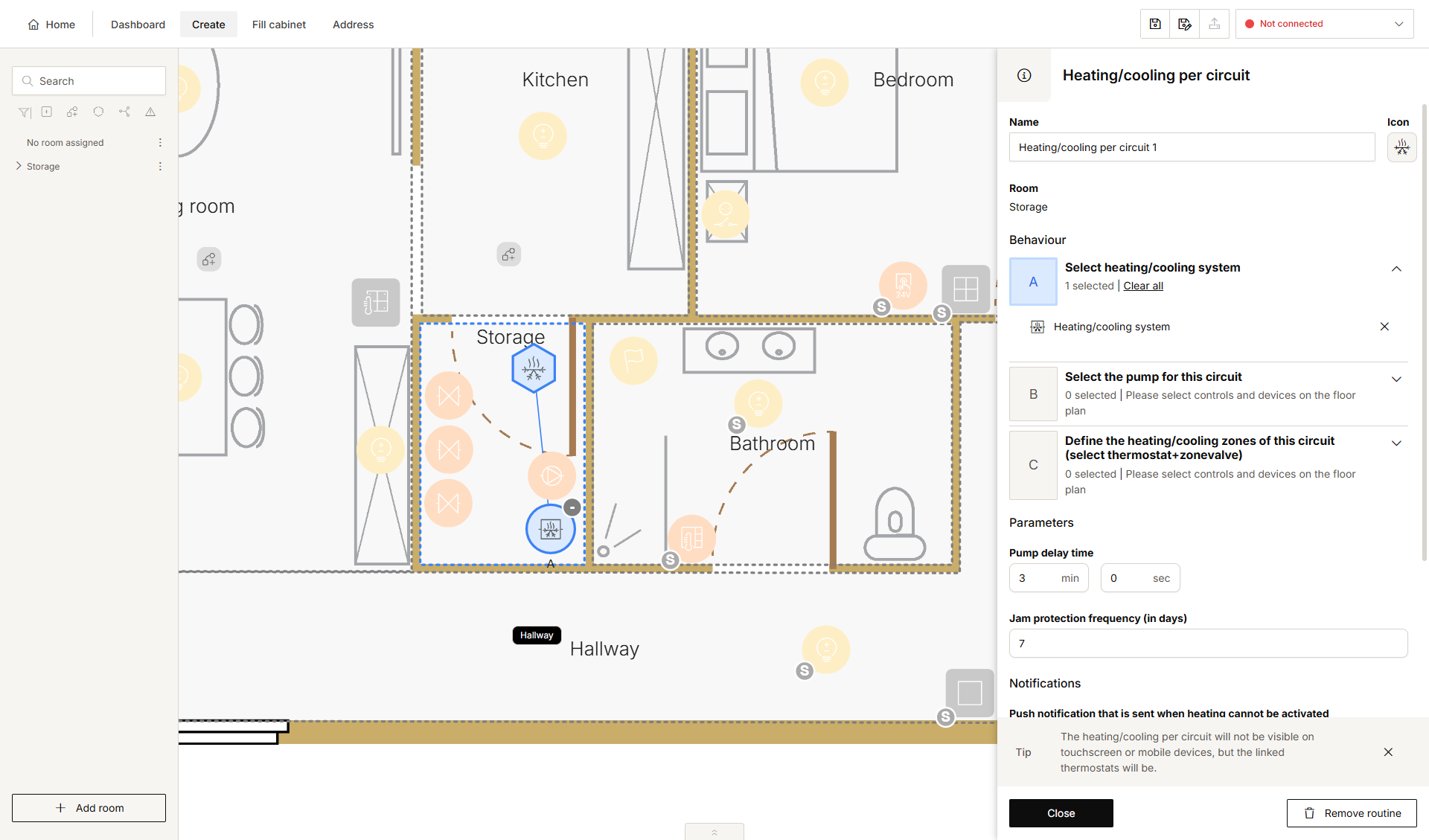
You can select only one heating or cooling system. You can choose the release contact of the boiler or heat pump.
B
(optional) Choose a circuit pump or a virtual you want to activate when the routine starts.
Click on the plus sign of the circuit pump.
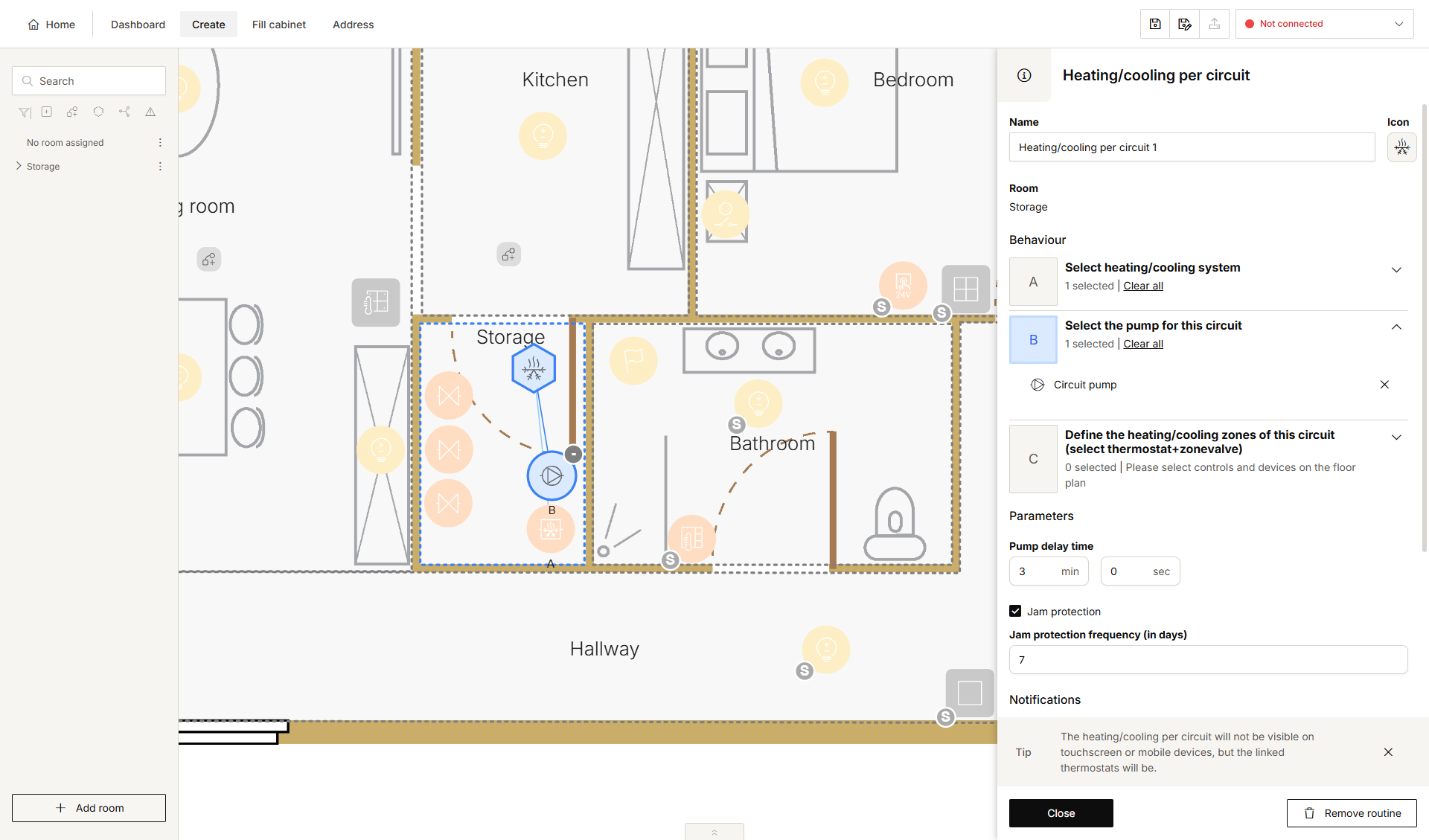
C
Choose the area(s) you want to heat or cool.
Click on the plus sign of a thermostat, a push button with LED(s) and comfort sensors, a MOTIV Sense3 or a Digital black, 24 V, and a zone valve to connect them to each other.
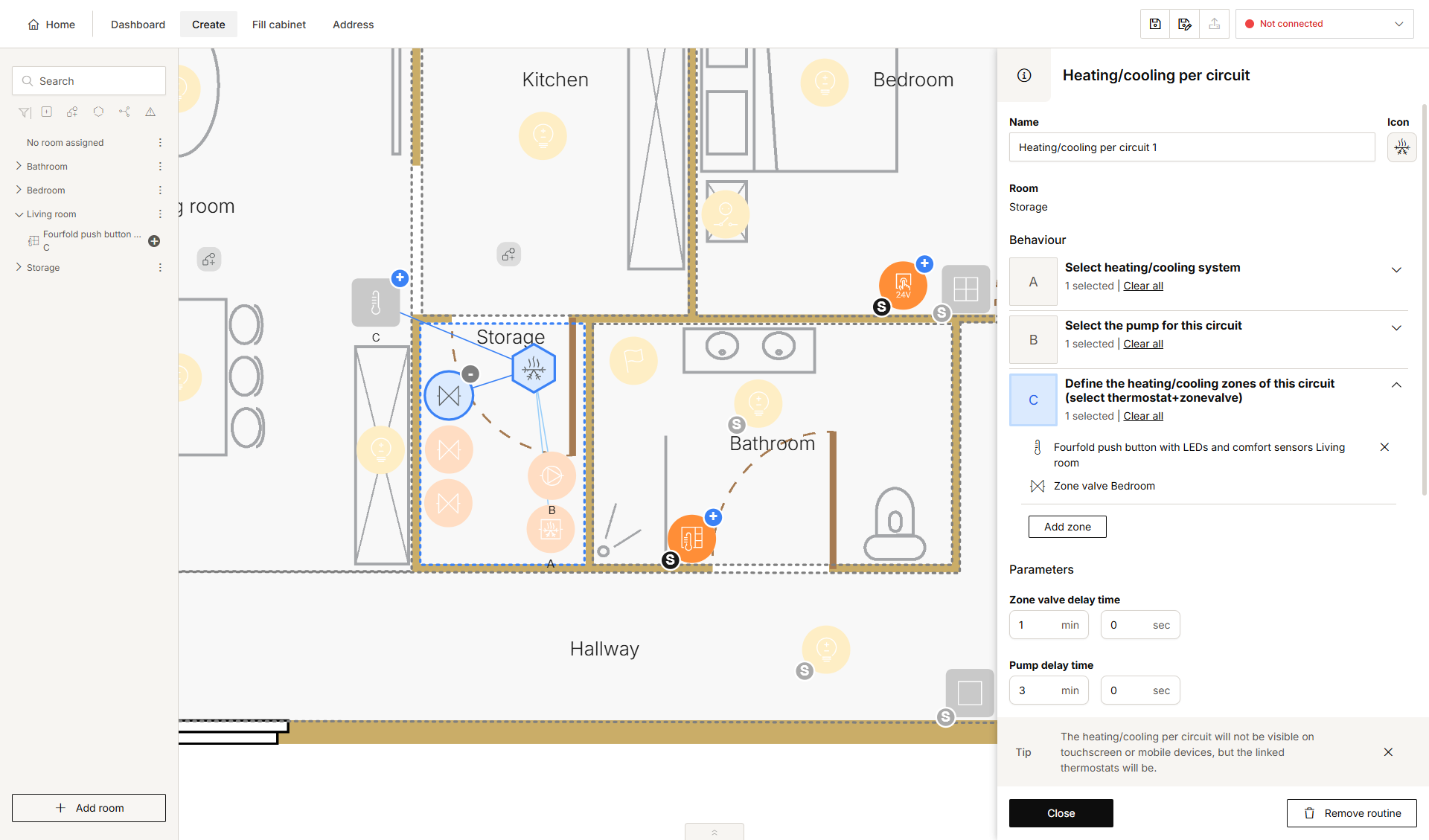
You can connect several zones.
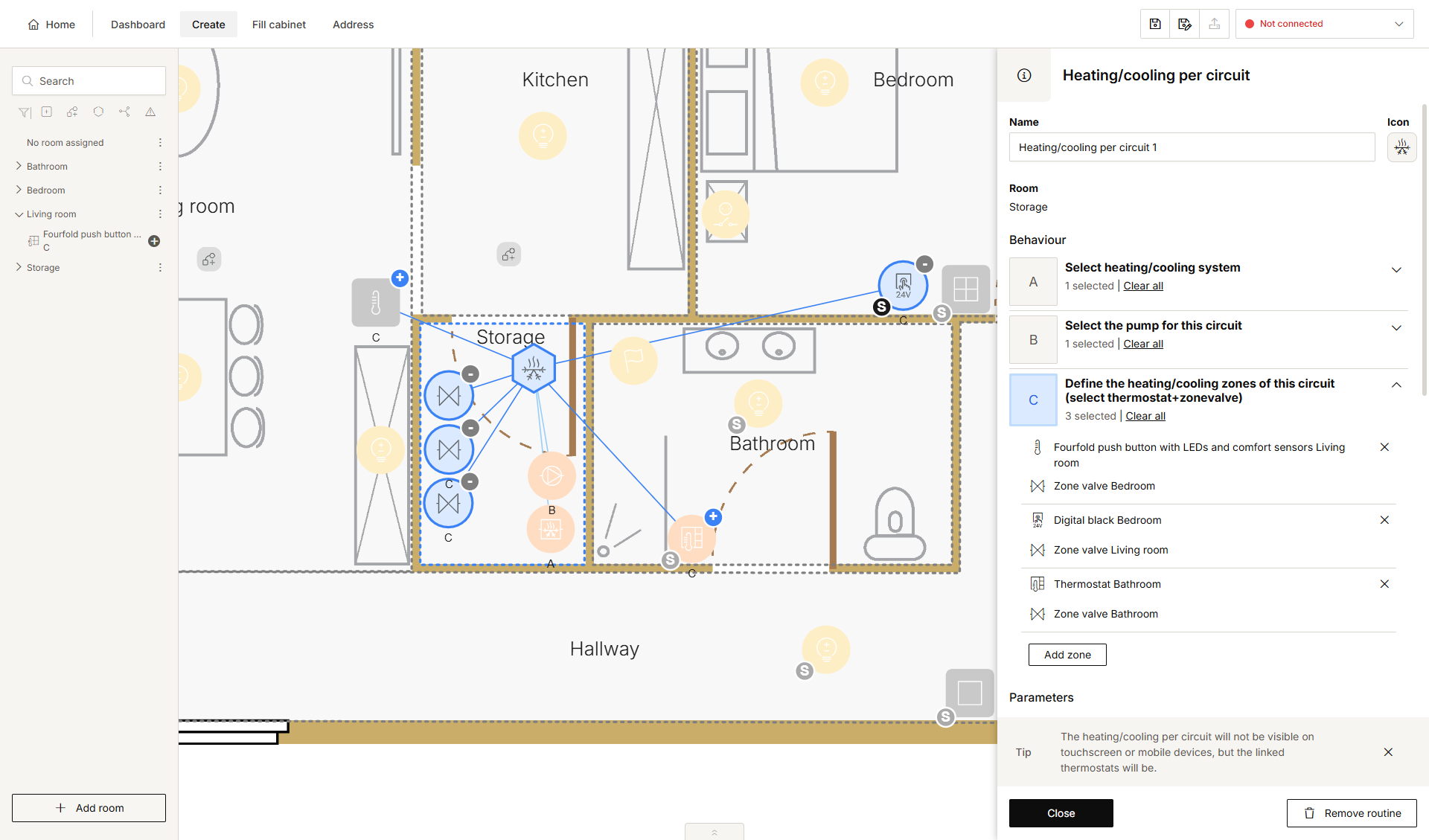
Use Multiselect to select various devices at the same time.
-
Under Parameters, set the following:
Parameter
Choice
Description
Example
Zone valve delay time
0 - 15 min.
Standard: 1 min.
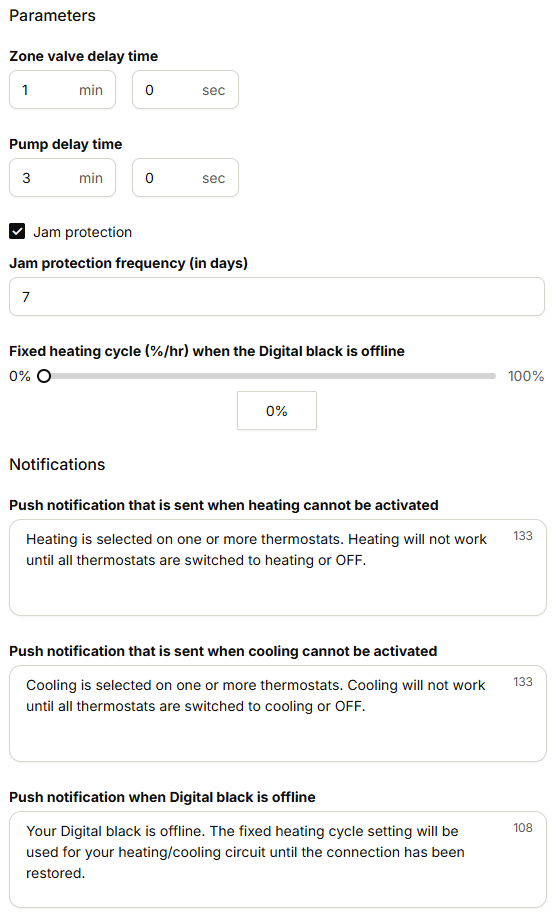
Pump delay time
0 - 15 min.
Standard: 3 min.
Jam protection for pump and valves
On/off
Jam protection frequency
1 - 100 days
Standard: 7 days
(when a Digital black is used) Fixed heating cycle (%/h) when the Digital black is offline
0 - 100 %
Standard: 0 %
Push notification that is sent when the heating cannot be switched on
Text
This text is sent when the heating cannot be switched on.
Push notification that is sent when the cooling cannot be switched on
Text
This text is sent when the cooling cannot be switched on.
(when a Digital black is used) Push notification that is sent when Digital black is offline
Text
This text is sent when the installation lost its connection to the Digital black.
-
Click Close to return to the Routine pane.
-
Click Close to return to the Create overview window.