
Each controller you import elements in requires a Site Connect license. This license is not free of charge and can be purchased in the MOTIV Building Control programming software.
Why import shared elements?
When you import shared elements from other controllers and hubs, you can use these elements in the current configuration.
Starting point
-
You have registered your controllers with the same MOTIV account.
-
You have purchased a Site Connect license for the controller.
-
The involved controllers are in the same network and connected to the internet.
-
Your MOTIV Building Control programming software has an active connection with the controller where you want to import shared elements.
-
You have shared the necessary elements from one or more of the controllers.
-
You are in the Create overview window.
Procedure
-
In the right-hand button bar, click Tools.
Result: The Tools pane appears.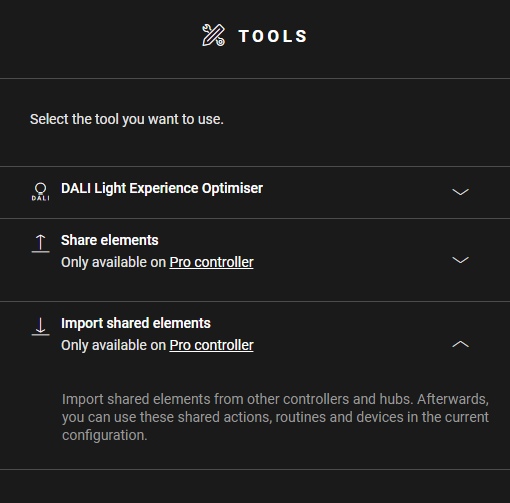
-
Click Import shared elements.
-
Click the arrow next to the controller from which you want to import elements.
Result: An overview is displayed of the elements of that controller.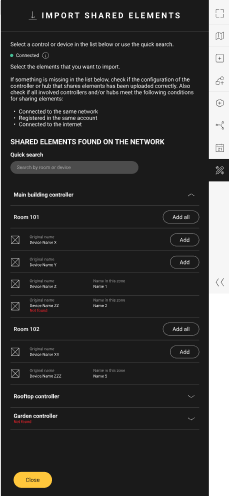
-
You have now two options:
-
Click on the Add all button next to the controller you want to import all elements of it.
-
Click on the Add button next to the elements you want to import.
Result: The imported elements appear with an 'I' on the drawing area.
-
-
(optional) Use the imported elements in basic actions and routines.
-
Upload the configuration file.