Niko Home Control is evolving into MOTIV Building Control. MOTIV is a new brand for intelligent building automation. Built on the trusted foundation of Niko Home Control, MOTIV solutions are designed to make buildings work more naturally for the people inside them. MOTIV helps professionals create smarter, more comfortable buildings. With technology that works quietly in the background. All existing Niko Home Control solutions remain fully compatible with MOTIV. Over time, the full portfolio will move to the MOTIV brand. During this transition, you will see both Niko Home Control (NHC) and MOTIV Building Control (MBC) appear in this documentation. Discover MOTIV at niko.eu/MOTIV
Software Manual
Working version 2.28.1 2.27.1 English Danish Dutch French German Slovak Swedish

Smappee

What can you do with MOTIV Building Control?

By using MOTIV Building Control, you can do the following:

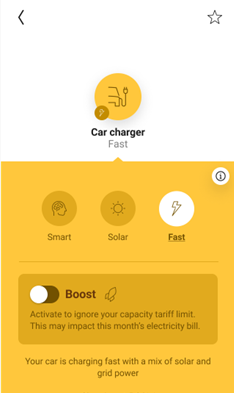
  • charge your car as efficiently as possible in one of the following modes: 

    • Solar mode

    • Normal mode

    • Smart mode

    • Boost mode

  • pause or stop the charging of your car

When charging your car using MOTIV Building Control, the following features are supported:

  • Load balancing: i.e. the car's charging power is adapted automatically as a fuse overload protection mechanism

  • Control your peak consumption via the Niko Home app. See Energy management of car chargers

  • Control max. 4 electric vehicle charging sockets/connections per controller. These 4 sockets can be a combination of multiple brands supported by MOTIV Building Control
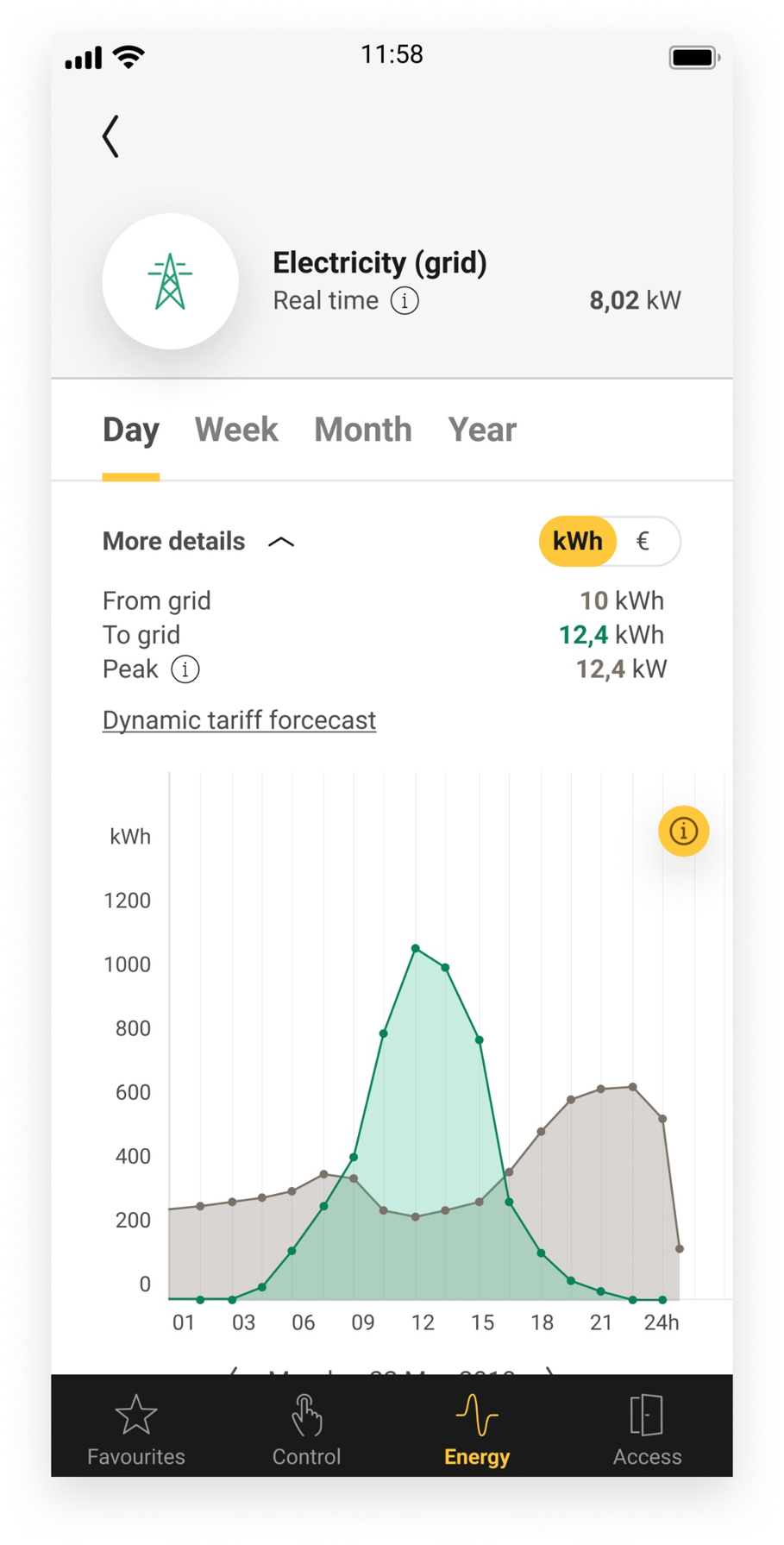

https://s3-eu-west-1.amazonaws.com/guideimages/Screenshots/V2.9/EN/s03_05_15_221_001.png
https://s3-eu-west-1.amazonaws.com/guideimages/Screenshots/V2.9/EN/s03_05_26_221_001.png

What do you need?


In short

Extra information

General

  • No additional electrical wiring is required.

  • You have connected both systems to the same home network via cable and/or Wi-Fi.


https://s3-eu-west-1.amazonaws.com/guideimages/Screenshots/V2.9/EN/MOTIV-logo.png


Your MOTIV Building Control installation meets the following requirements:

  • It has a wireless smart hub or a connected controller.

  • It is configured with the most recent programming software (version 2.24 or higher).

  • It is registered.

  • You have your MOTIV Building Control installation e-mail address and password on hand.

  • If you want to use the charging functions in combination with MOTIV Building Control routines, these routines need to be programmed with the MOTIV Building Control programming software after the link has been activated.

  • If you have not registered your MOTIV Building Control installation, go to Register your installation.

  • You need global electricity measurement:

    • For installation type wireless smart hub, you need to connect the smart hub to the P1 port of your digital meter with the provided P1 cable. Alternatively, you can use the wireless measuring module with clamps.

    • For installation type connected controller with analogue meter, you need to:

    • For installation type connected controller with digital meter, you need to connect your installation to the P1 port of your digital meter by using the wireless bridge for Niko Home Control and provided P1 cable.

https://s3-eu-west-1.amazonaws.com/guideimages/Screenshots/V2.9/EN/logo-smappee.png
  • Your Smappee EV charging station is for residential use, equipped with a GeniusFlexmodule.

  • You have the username, password and (in case of connection problems) the IP address of your Genius 2 module on hand.

  • It needs to be active and configured with the Smappee configuration tools to guarantee correct operation.

  • The following prerequisites must be met before your Smappee charging station can be connected to Niko Home Control:

    • Your Smappee EV charging station is connected to the Genius Flex module.

    • Your Genius Flex module needs to be connected to the same local network as your Niko Home Control installation.

    • The Smappee energy management functions are disabled.

  • During the activation of the link, select Autodetect on network.

  1. Check if you have everything you need (see above).

  2. Activate the Smappee connected service in the Dashboard menu. Doing this, you already can control your Smappee system via the Niko Home app and a touchscreen. To control the Smappee functions on your Digital black, select the Smappee controls for your Digital black in the Niko Home app or configure the Digital black in the MOTIV Building Control programming software. See Energy management of car chargers.

  3. Add a device generic car charger Smappee to the floor plan.

  4. (optional) Create the desired routines and/or conditions with the device. You cannot add the generic car charger Smappee to the routines Solar mode and Peak mode.

  5. Address the generic car charger Smappee.

  6. Upload the configuration file to your installation.

  1. Deactivate the Smappee connected service in the Dashboard menu.
    If you used your Smappee system as a part of your configuration (used the system in routines and/or conditions), follow the additional steps below.

  2. Remove the generic car charger Smappee from the floor plan.

  3. Upload the configuration file to your installation.

After deactivating the link, the following happens:

  • The Smappee functions disappear from your Niko Home app and your Digital black.

  • When used in MOTIV Building Control routines, the Smappee functions will not be executed anymore.