
Use case
Your customer wants to link the external video unit, with 1 illuminated touch button, with the touchscreen. The installation is equipped with an electrical door lock and a chime. When someone is at the door, the outside lighting is activated. The lamp can also be controlled with the touchscreen and during the call. When the call is ended, the outside lighting stays activated for 1 min.
Procedure
Creating the control, the access control elements, the device and the basic action
-
Create an external video unit with 1 illuminated touch button (VDS1).
-
Create a door lock (LOCK1).
-
Create a chime (CHIME1).
-
Create the outside lighting (LAMP1).
-
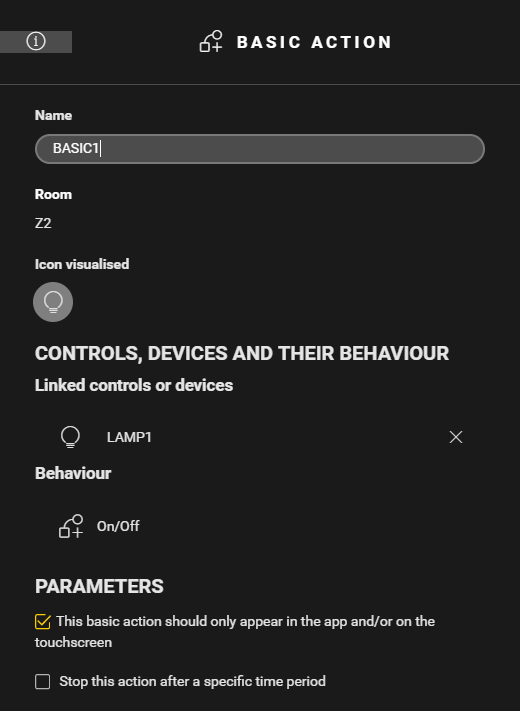
Create a basic action (BASIC1) to control the outside lighting with the touchscreen. Check the parameter "This basic action should only appear in the app and/or the touchscreen".

Creating the condition
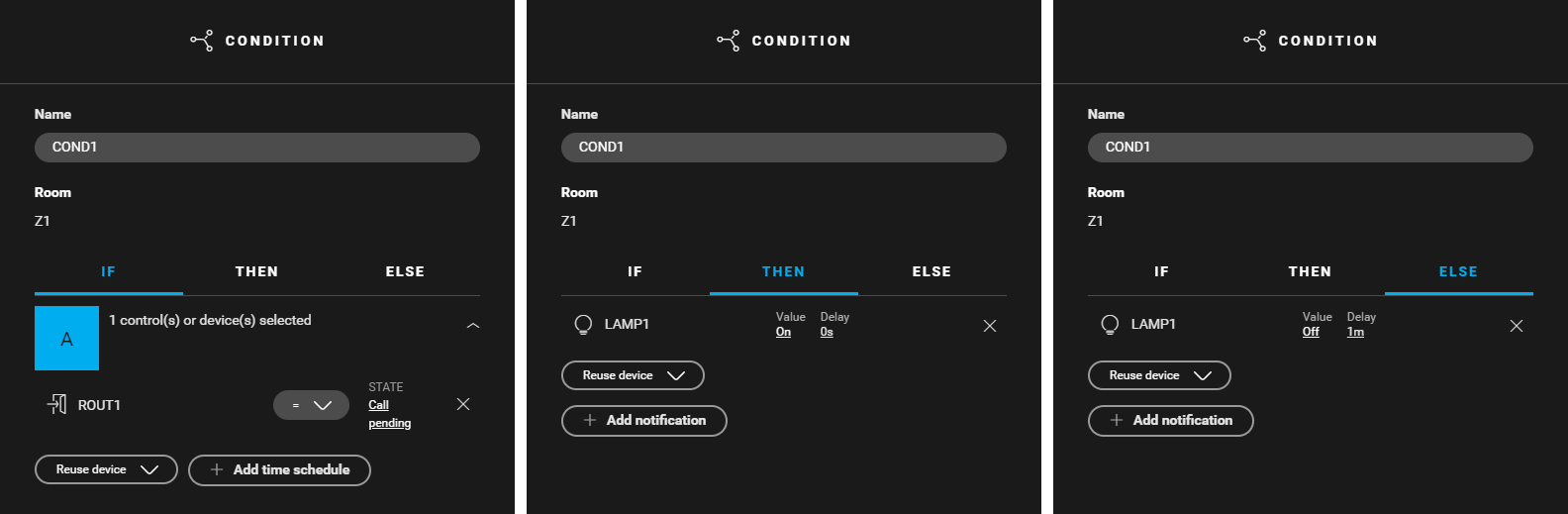
Create a condition (COND1) to control the outside lighting when someone is at the door. Use the following logic:
-
IF ROUT1: State = call pending
-
THEN LAMP1: Value = on
-
ELSE LAMP1: Value = off, Delay = 1 m

The delay set in the ELSE clause gives the visitor some time to leave the front door when the outside lighting is still activated.
Creating the routine
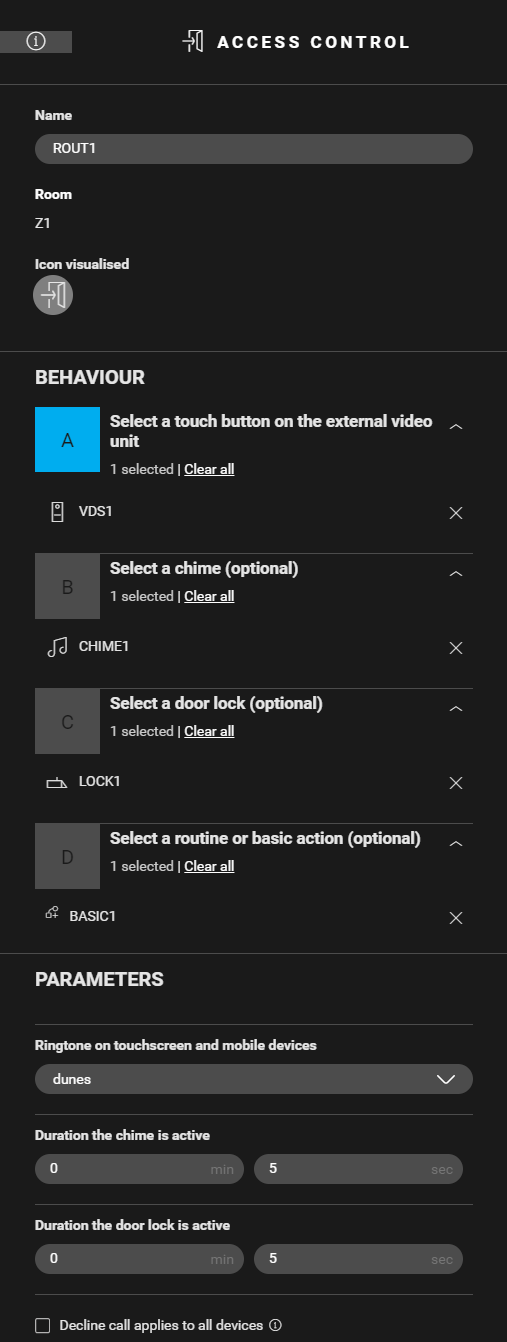
Create a routine Access control (ROUT1). Configure the following behaviour:
-
Select the button on the external video unit.
-
Select the chime.
-
Select the door lock.
-
Select the basic action that controls the outside lighting (BASIC1).
-
(optional) In the parameters, select a different ringtone and the duration of both the chime and the door lock.

Editing the touchscreen profile
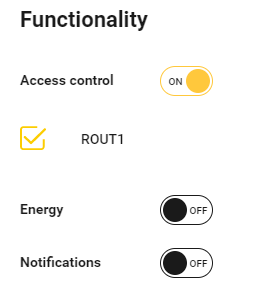
To be able to answer the call with the touchscreen, turn on the access control functionality in the touchscreen profile. You can find the touchscreen profile(s) in the Dashboard menu.
Filling the cabinet and addressing the device
|
Fill the cabinet with ... |
and address the following devices ... |
|---|---|
|
a switching module (3X) 2U ( MOD1 ) |
|
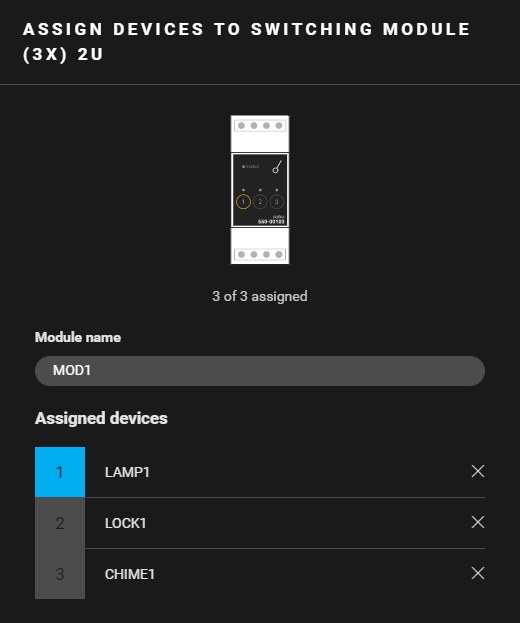
Example
Click here to download the programming example (nhc2 file).