
Starting point
-
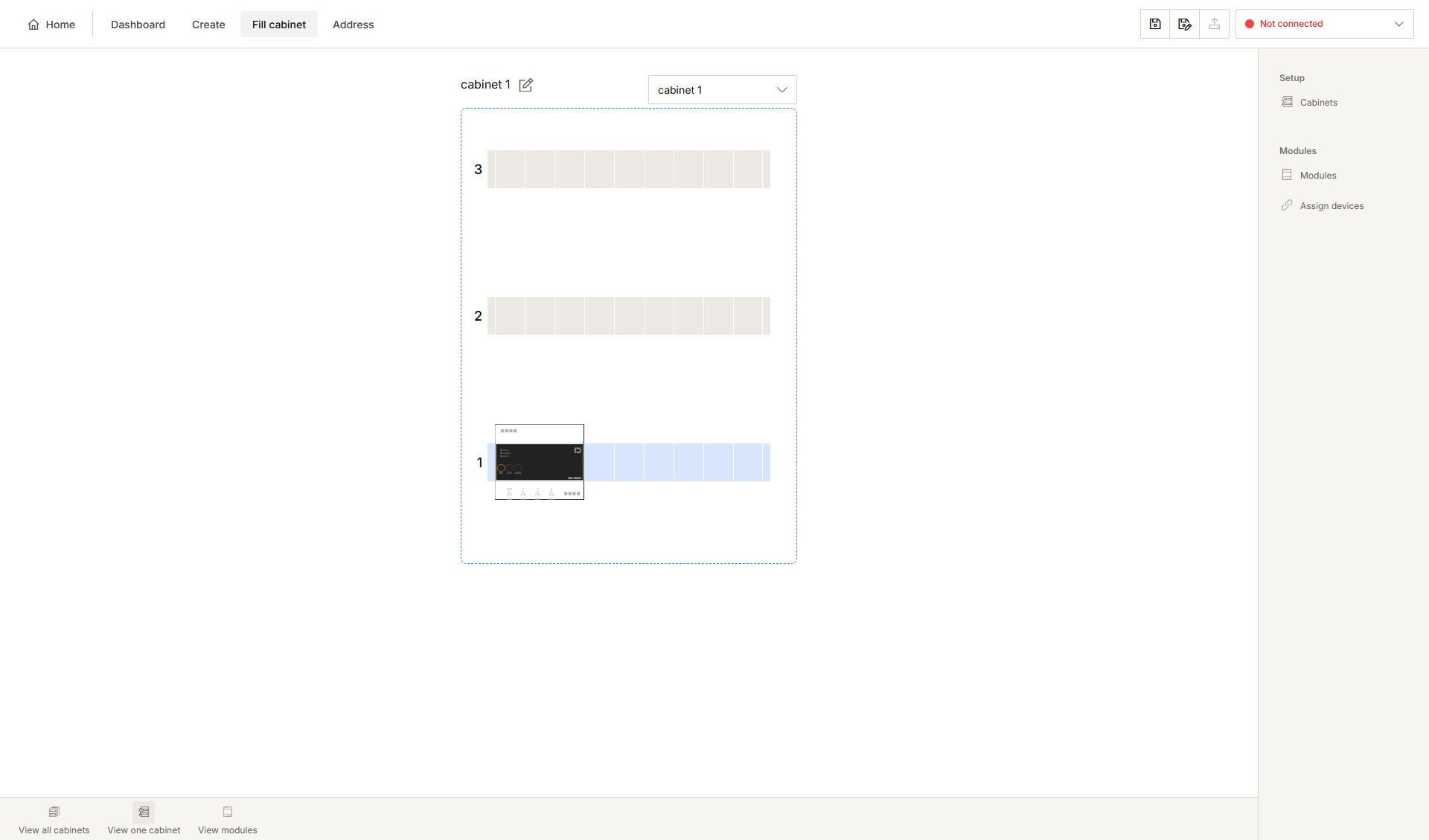
You are in the Fill cabinet overview window.
Procedure
-
In the right-hand button bar, click Modules.
Result:
The Modules pane appears and shows the different types of modules.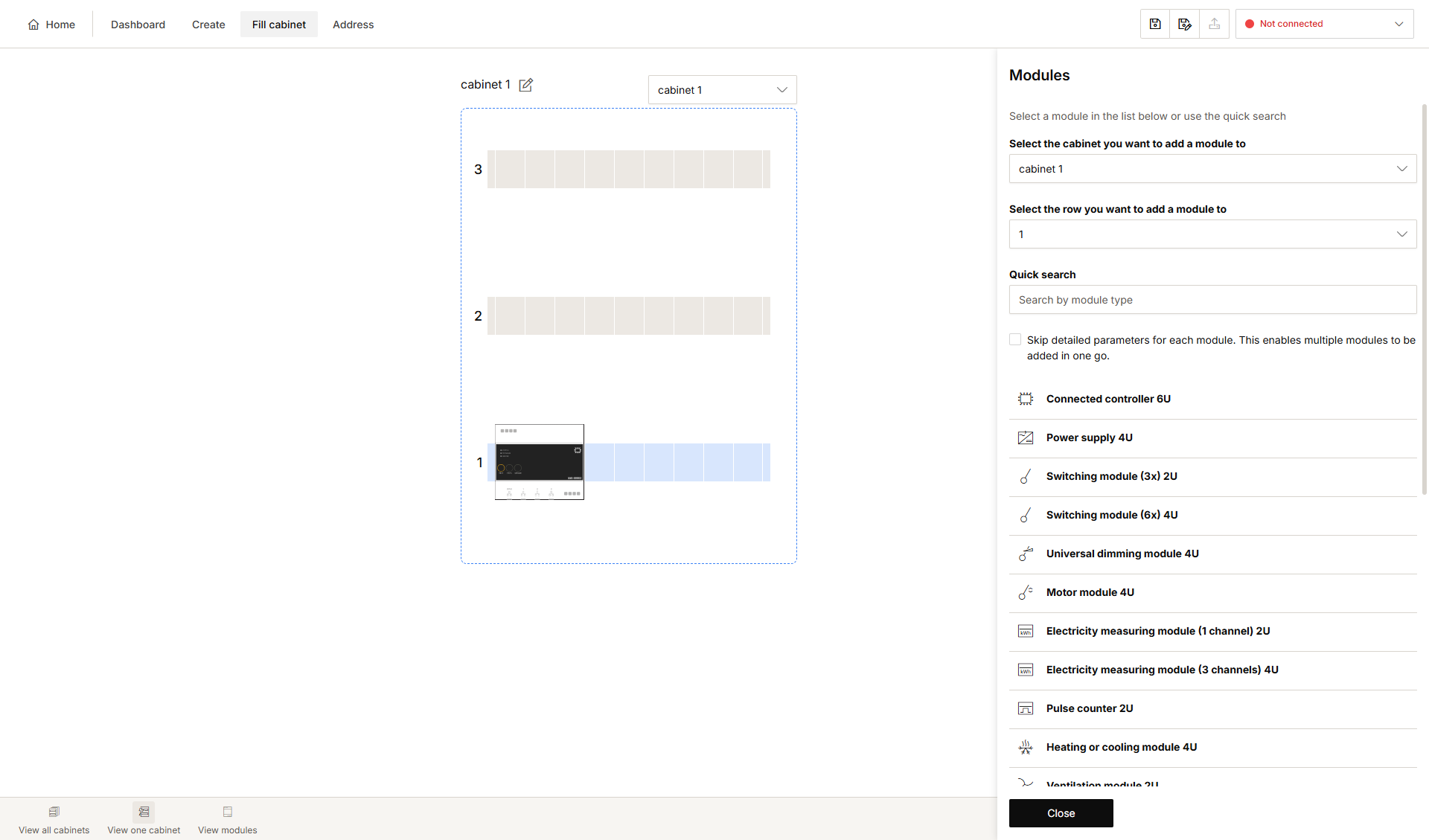
-
You now have the choice:
-
If you tick the selection box Skip detailed parameters for each module, you can quickly add several modules by clicking on them. You can change the name later.
-
If you untick the selection box Skip detailed parameters for each module, you can change the name immediately.
-
-
Choose a cabinet at the top of the pane or click on the cabinet to which you want to add a module.
-
Choose a row of the cabinet in the pane or click on the desired row of the cabinet.
-
Select the desired module.
Result:
The Edit module pane appears and shows the name of the module.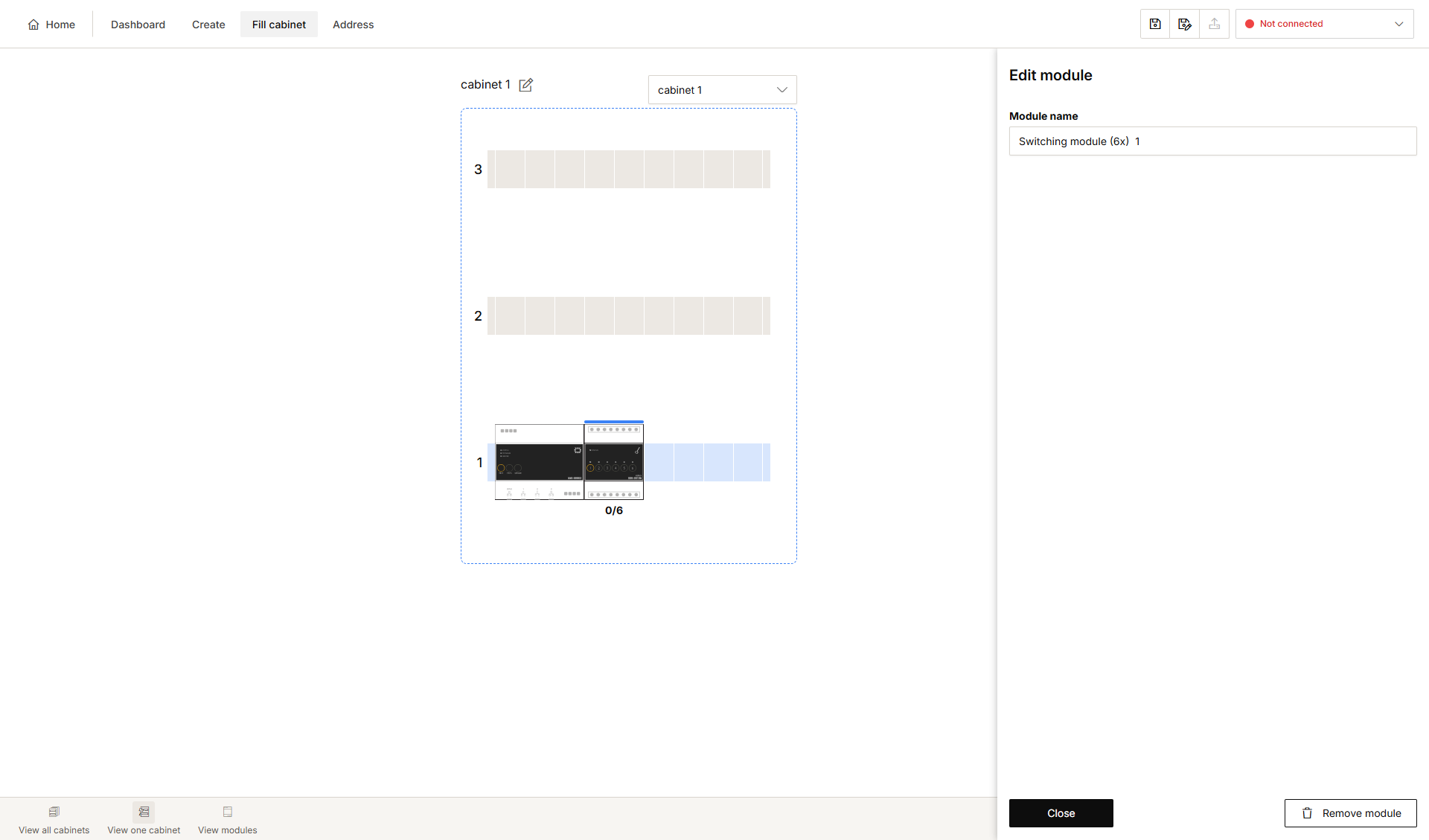
-
If you wish, you can change the name of the module.
-
Click Close to return to the Modules pane.
-
Click Close to return to the Cabinet overview window.