
Starting point
-
You are on the Wireless mesh network overview.
Description of the wireless mesh network overview
The wireless mesh network overview shows the status of your wireless mesh network and your wireless mesh devices. You can reset the wireless mesh network, identify and remove wireless mesh devices.
The tab contains static information, click Refresh data to reload the page.
E.g. If you activate the wireless indoor motion detector while the tab is open, you have to click Refresh data to reload the information.
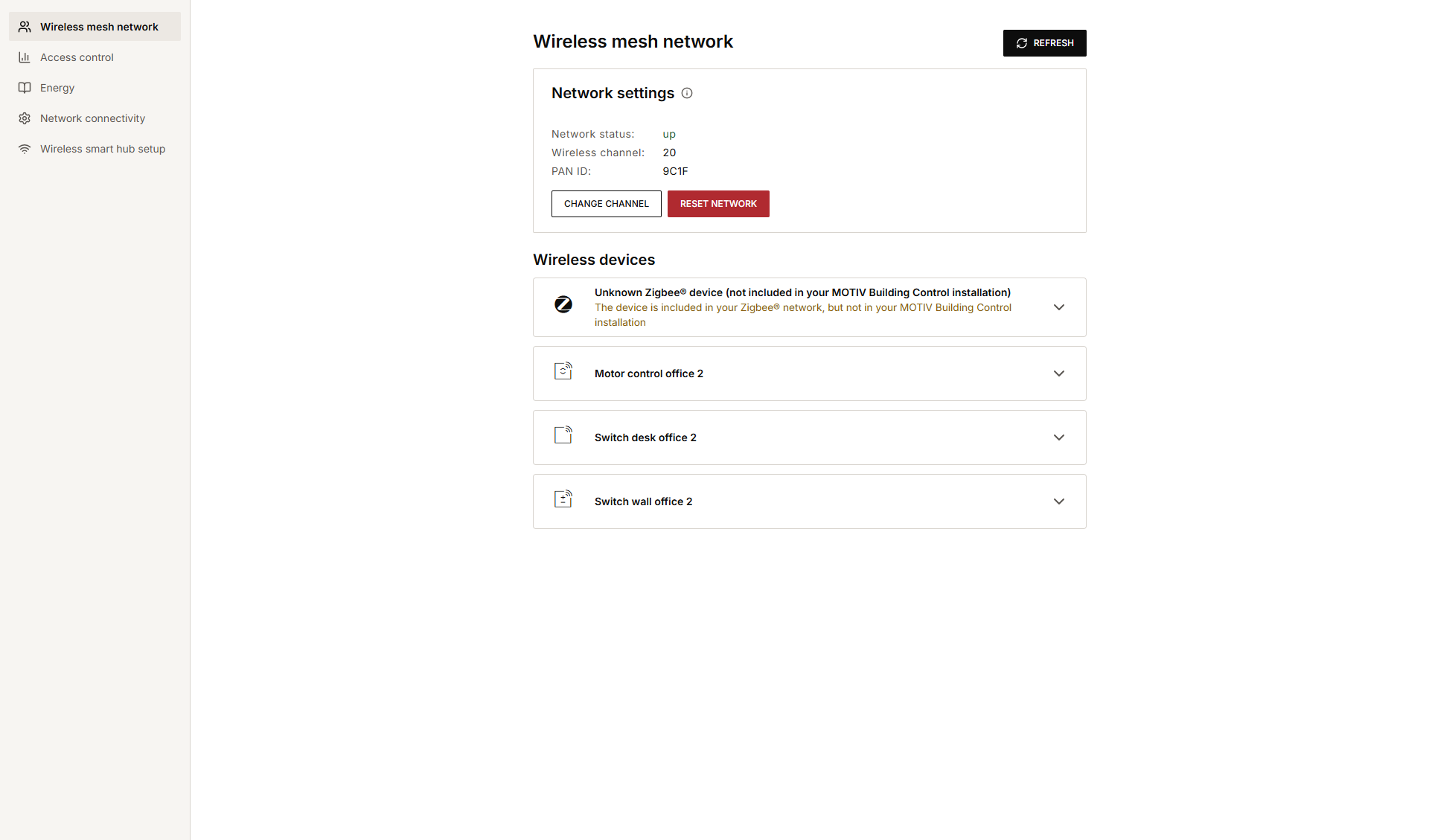
|
Ref |
Component |
Description |
|---|---|---|
|
A |
Network status |
|
|
Wireless channel |
Wireless channel used for the wireless mesh communication (read-only) |
|
|
PAN ID |
An ID that can help to diagnose wireless mesh network problems. Have it on hand when you contact Niko customer services. |
|
|
Change channel |
Only use "Change channel" when you encounter problems controlling your wireless mesh devices. Don't change the channel if everything is working. If you decide to change the channel, all wireless mesh devices migrate to the new channel. If after few minutes, some wireless mesh devices are not functioning properly or yet you have to:
|
|
|
Reset wireless mesh network |
Only use "Reset wireless mesh network " when you encounter problems controlling your wireless mesh devices. Don't reset if everything is working. If you decide to reset the network, the impact is as follows:
You can use this button when your wireless mesh devices don't function as they should e.g. you installed an extra access point in your house. |
|
|
B |
Arrow |
Click the arrow next to the wireless mesh device you want to diagnose. |
|
Information |
The wireless mesh devices section shows the wireless mesh devices you already onboarded in your MOTIV Building Control installation. For each device, the device type, the wireless mesh address, the Device ID, the manufacturer, the software version, the battery level (*) and the signal quality with the time stamp when the device was last seen by the connected controller or wireless smart hub, are shown. (*) If you have notifications enabled in the mobile app profile your customer is using, the customer will be notified automatically in due time when the battery runs low. |
|
|
Info icon |
Click the info icon next to the signal quality indication to get more information. |
|
|
Identify |
Click the button Identify to switch on the identification LED of the selected device and make it blink for 3 min. or until another device is identified. |
|
|
Remove |
Click the button Remove to remove a Zigbee device from your installation (not the programming software). If you want to use the device again, you have toonboard it again. |
For more information about the Zigbee network principle, see the Niko Home Control Hardware manual.
Onboarding removed Zigbee devices
If you want to onboard a removed Zigbee device again, you have to do the following:
-
Factory reset the Zigbee device.
-
Open the Address menu and click Controls and devices.
-
Delete the device's address.
-
Address the device again.
-
Upload the configuration file to the installation.