
-
With the Site Connect license you can share elements (controls, device, routines,…) over different controllers and installations.
-
This feature is not free of charge. The license is activated immediately upon confirmation in the MOTIV Building Control programming software. You will receive an invoice by mail. If the invoice is not paid on time, the license will be automatically disabled.
-
Each controller you share elements with requires a Site Connect license.
-
For more information about multicontroller installations, see Multicontroller installations.
-
For more information about sharing elements from one controller and share them with other controllers, see Share elements and Import shared elements.
-
To reassign or remove a Site Connect license, please contact Customer Services.
Starting point
-
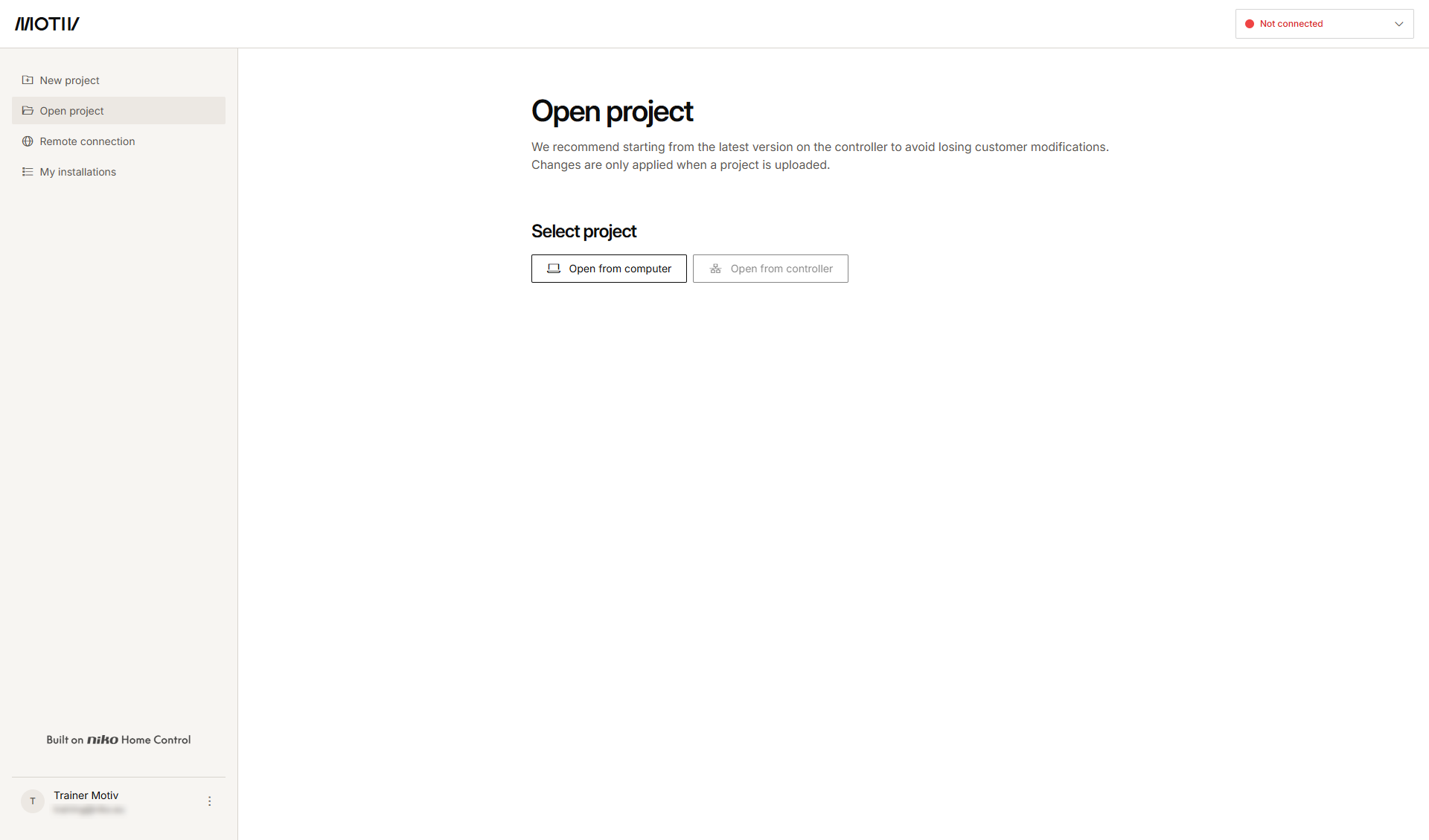
Your computer is connected to the internet.
-
You have logged in with your installer MOTIV account in the MOTIV Building Control programming software.
-
You are Admin of the installation.
-
You have opened and logged in into the MOTIV Building Control programming software, or you have clicked Home when a project was open.
Procedure
-
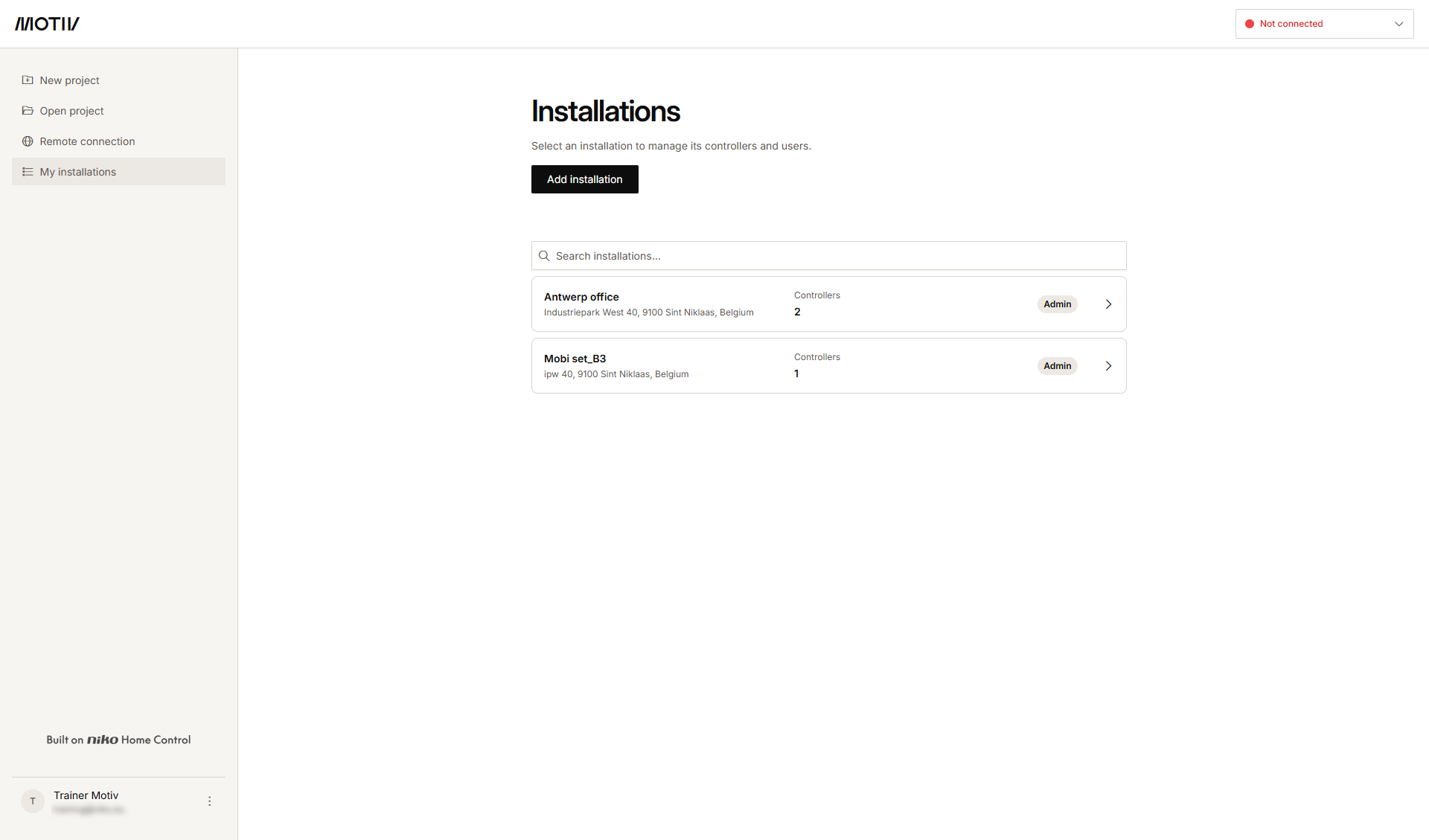
In the left-hand menu, click My installations.
-
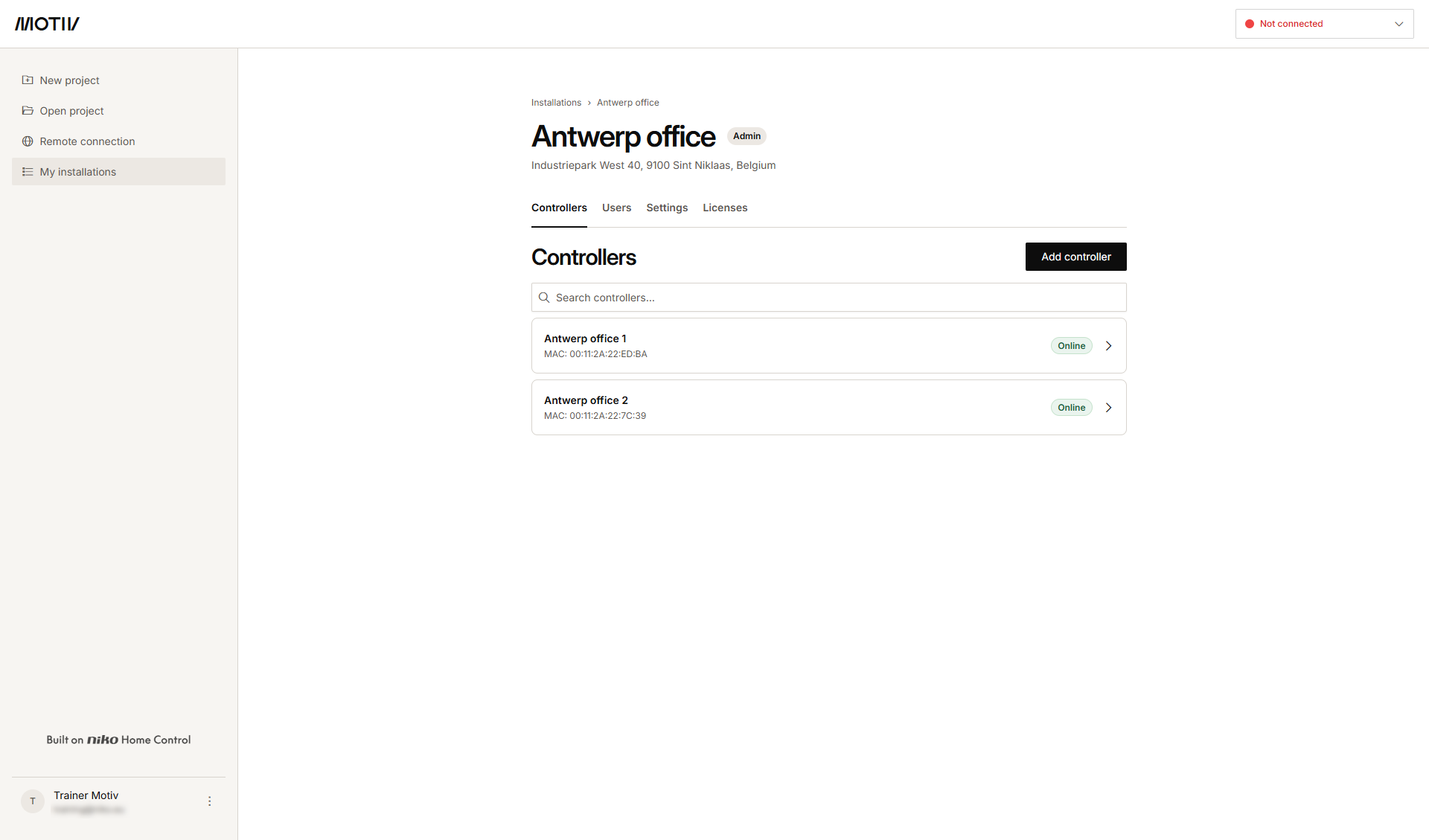
Click the arrow next to the installation to which you want to add a Site Connect license to a controller.
-
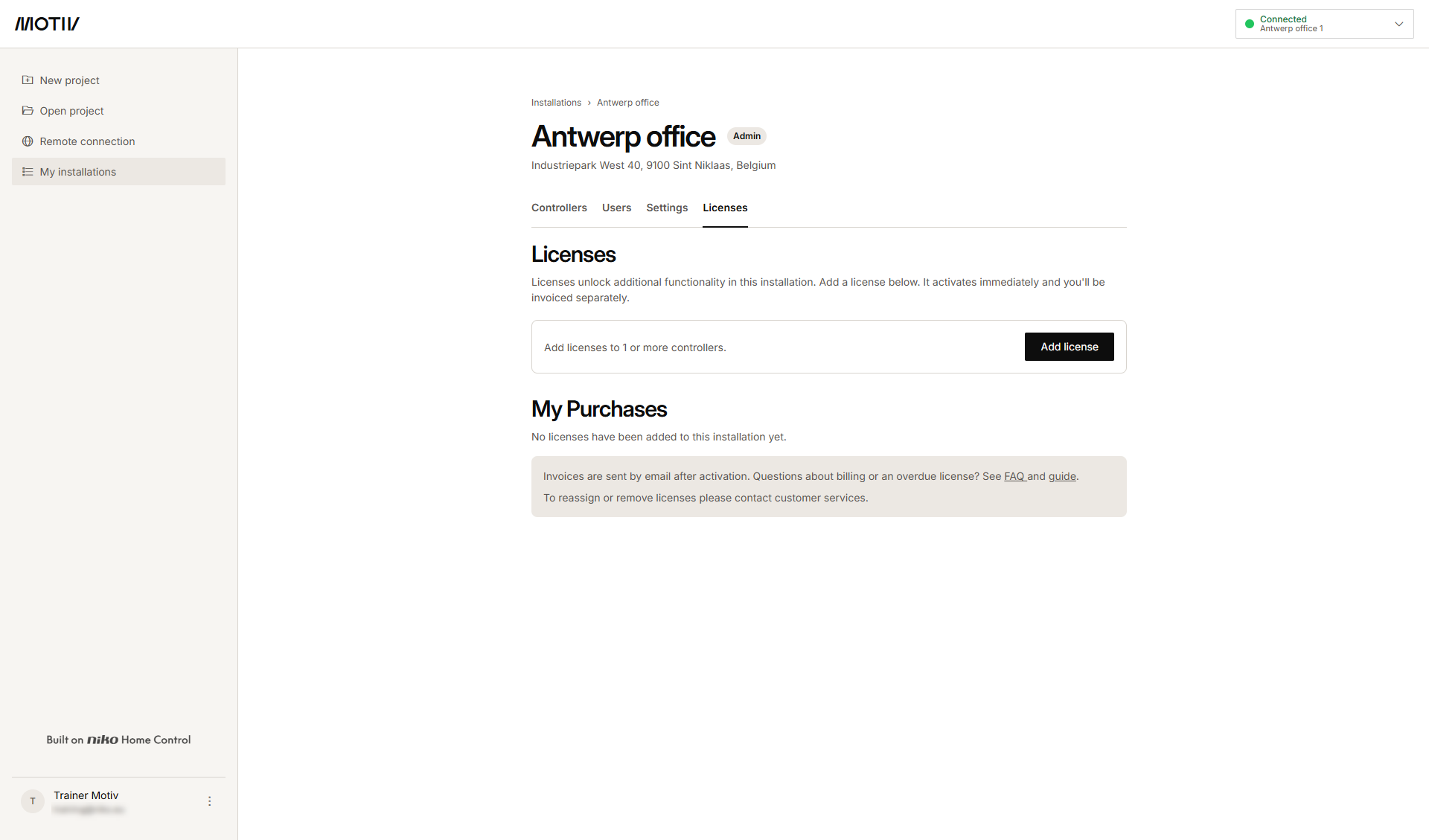
Click the Licenses tab.
-
Click Add license.
-
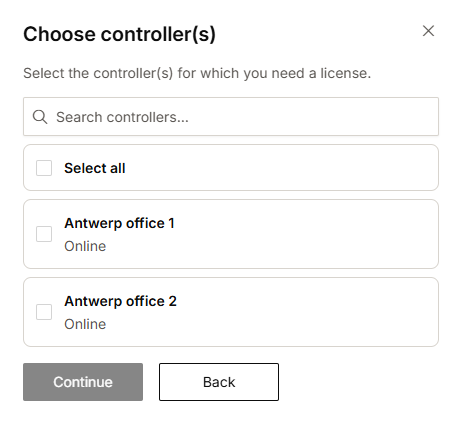
Select the controllers to which you want to add a Site Connect license and click Continue.
-
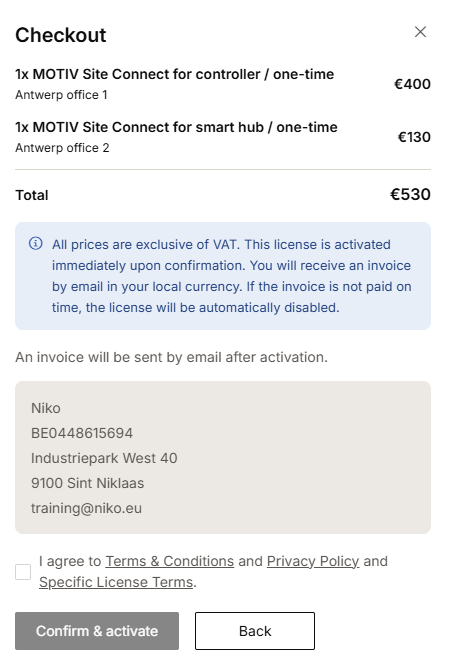
Select the box to agree to the General License Terms and Privacy Policy.
-
Click Confirm & Activate.
Result: The license is added to the My Purchases overview.