
Once you have finished the project you can transfer the ownership of the installation to your client.
Transferring ownership is permanent and you will lose access to the transferred installation. The new owner becomes Admin of the installation.
Use the Remote connection feature, if you want to connect the installation after the transfer is done.
Starting point
-
Your computer is connected to the internet.
-
You are Admin of the installation.
-
You have completely programmed the installation and uploaded the final version into the controller.
-
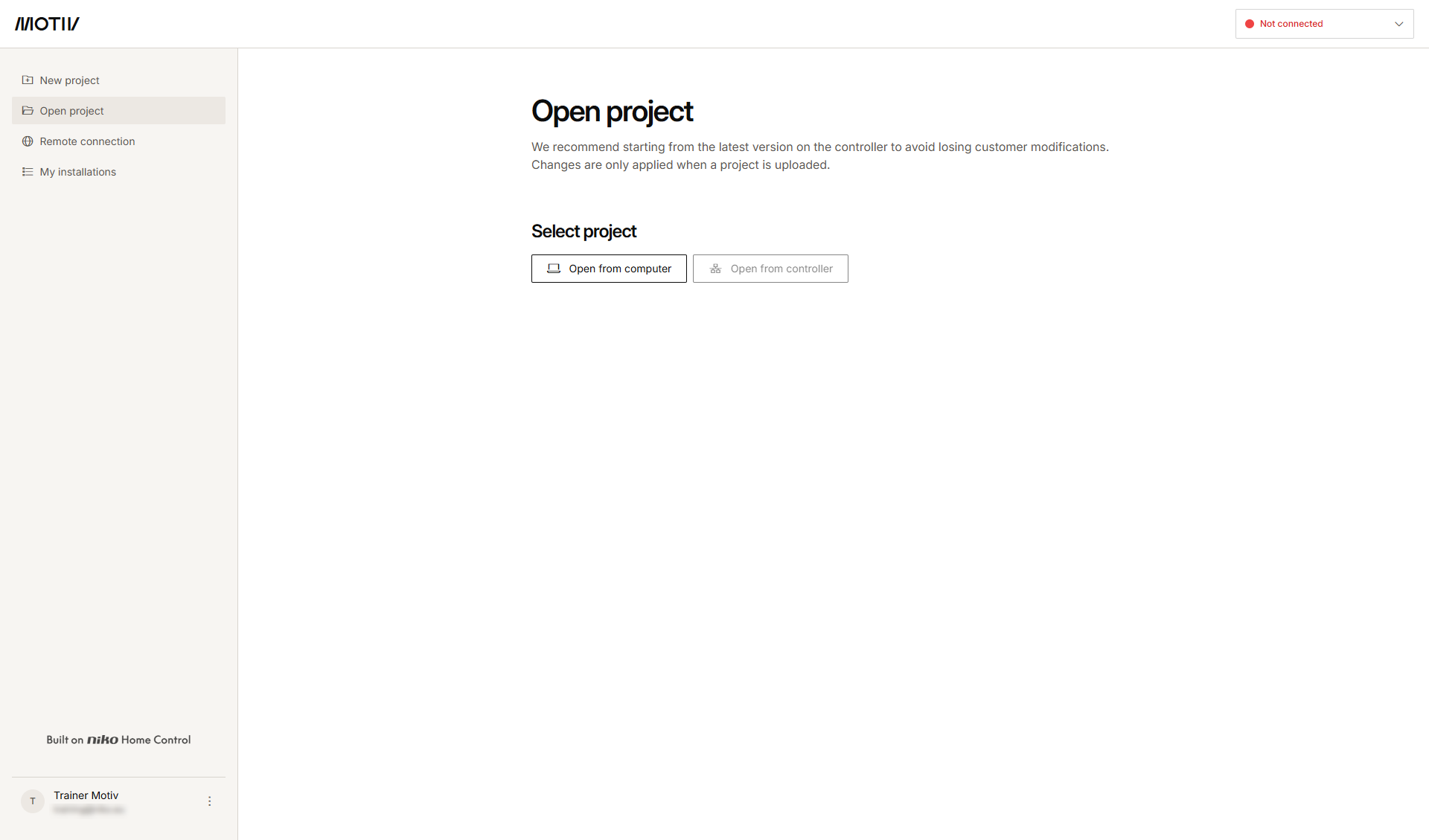
You have opened and logged in into the MOTIV Building Control programming software, or you have clicked Home when a project was open.
Procedure
-
In the left-hand menu, click My installations.
Result: The list of installations you have access to is displayed.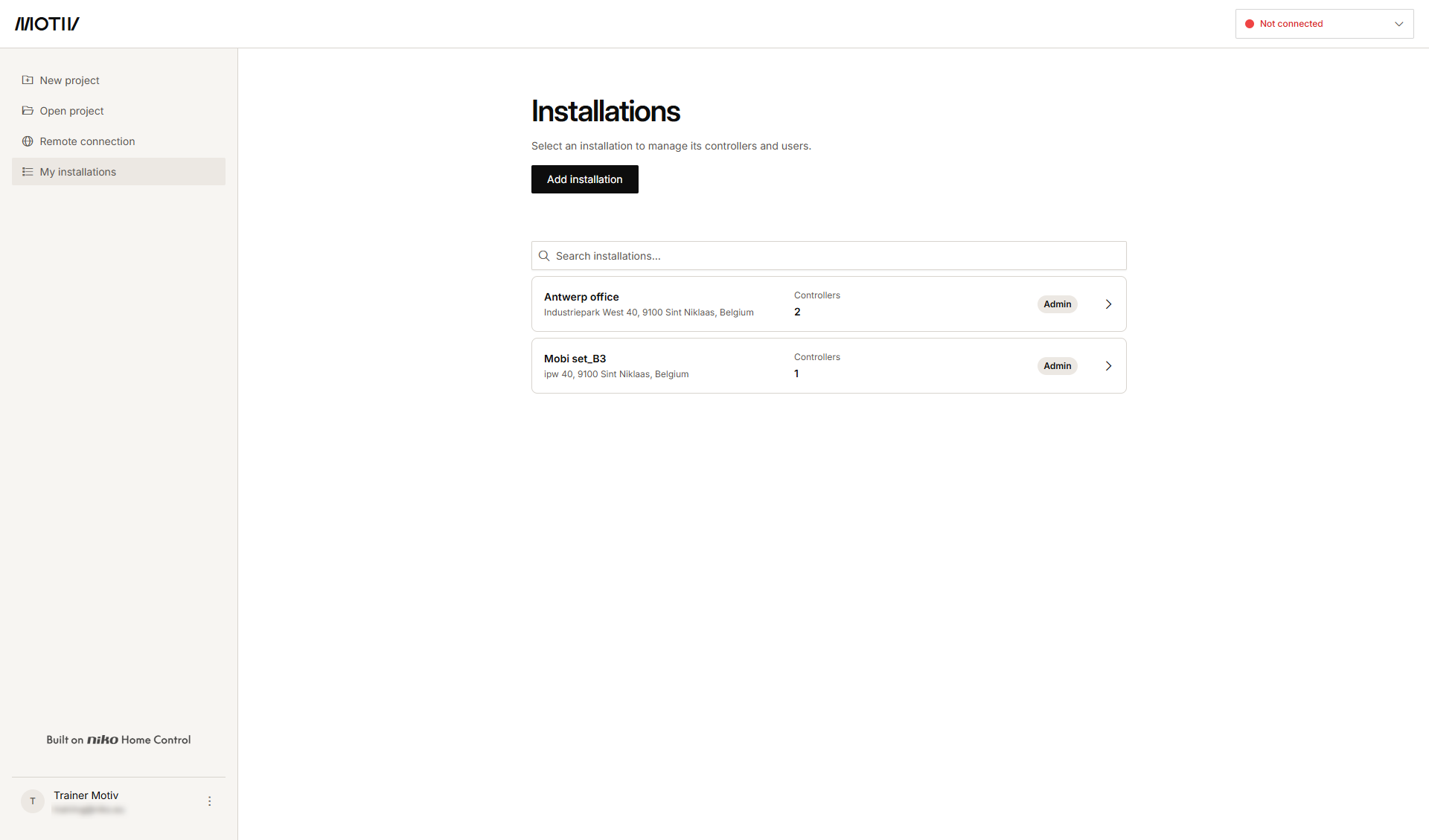
-
Click the arrow next to the installation of which you want to transfer the ownership.
Result: The list of controllers in the installation appears.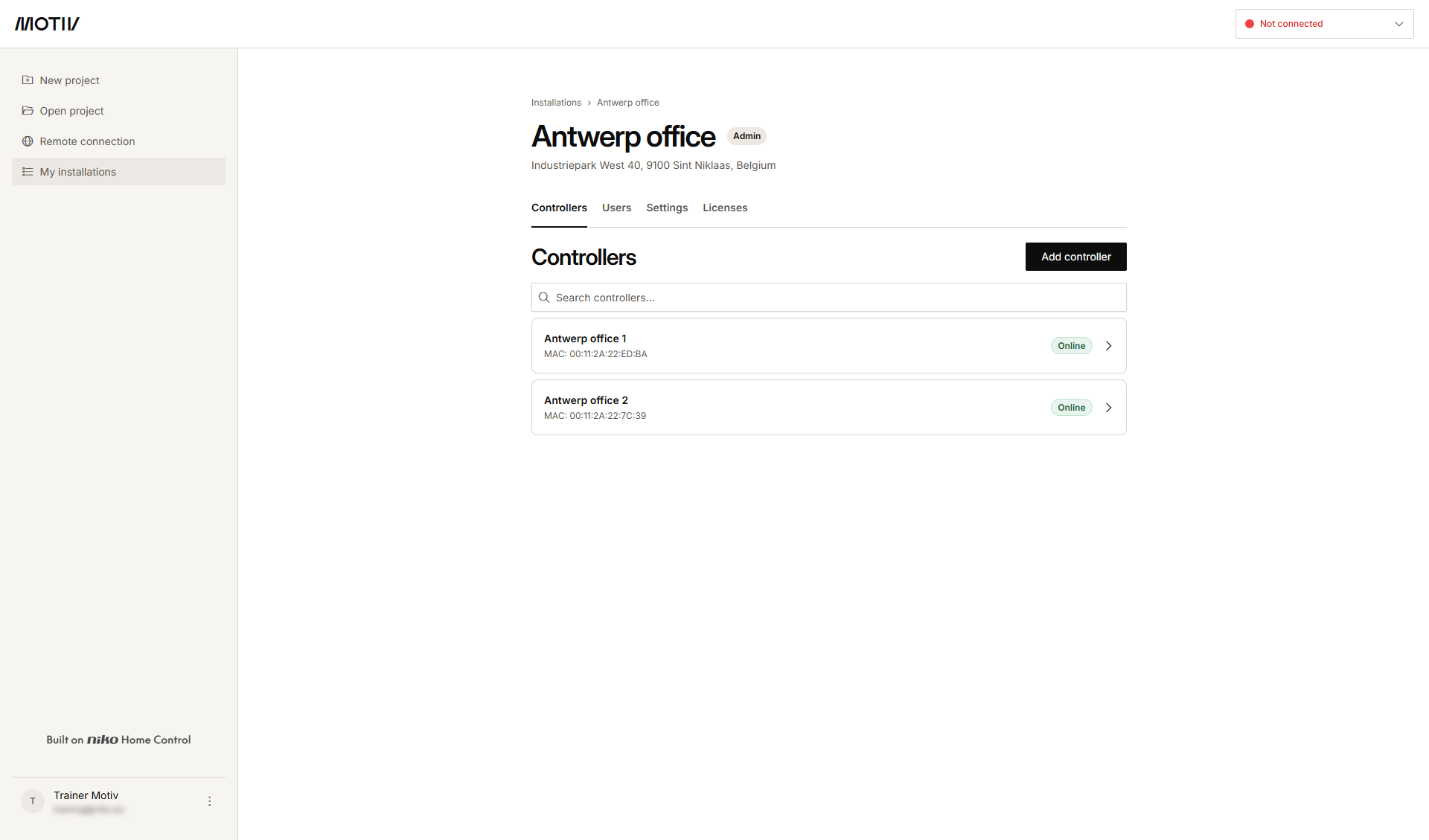
-
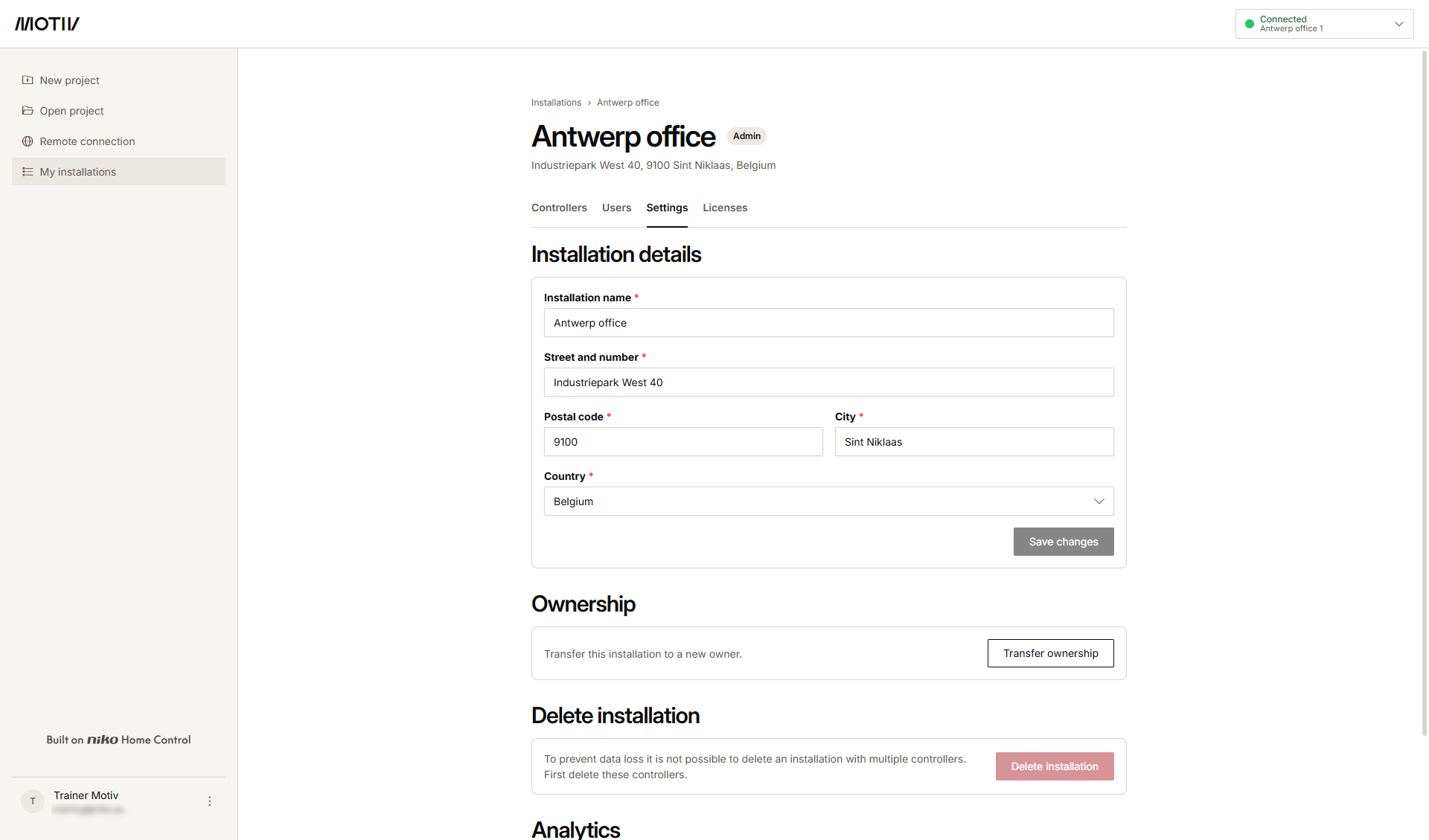
Select the Settings tab.
-
Click Transfer ownership.
-
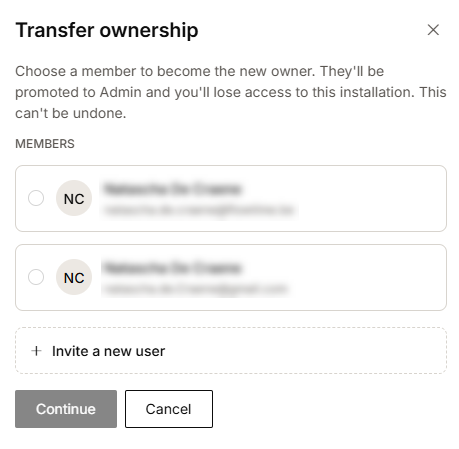
Select an existing user or invite a new user to become the new owner of the installation and click Continue.
-
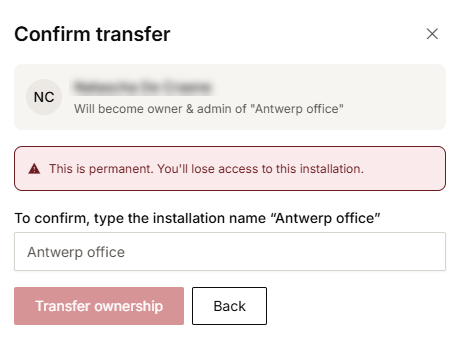
To confirm the transfer, enter the Installation name.
-
Click Transfer ownership.
Result: An e-mail will be sent to the new owner asking him to accept the ownership transfer. Once accepted the transfer is complete.
If you want to transfer the ownership to a new user,
-
Select Invite a new user
-
Enter the e-mail address of the new user.
-
Click Invite user.
-
An e-mail will be sent to the new user asking him to create a MOTIV account and accept the ownership transfer.