
Use this feature to remotely connect to and configure an installation for which you are Admin.
Starting point
-
You are Admin of the installation.
-
You have added a controller to the installation.
-
The controller is online.
-
Your computer is connected to the internet.
-
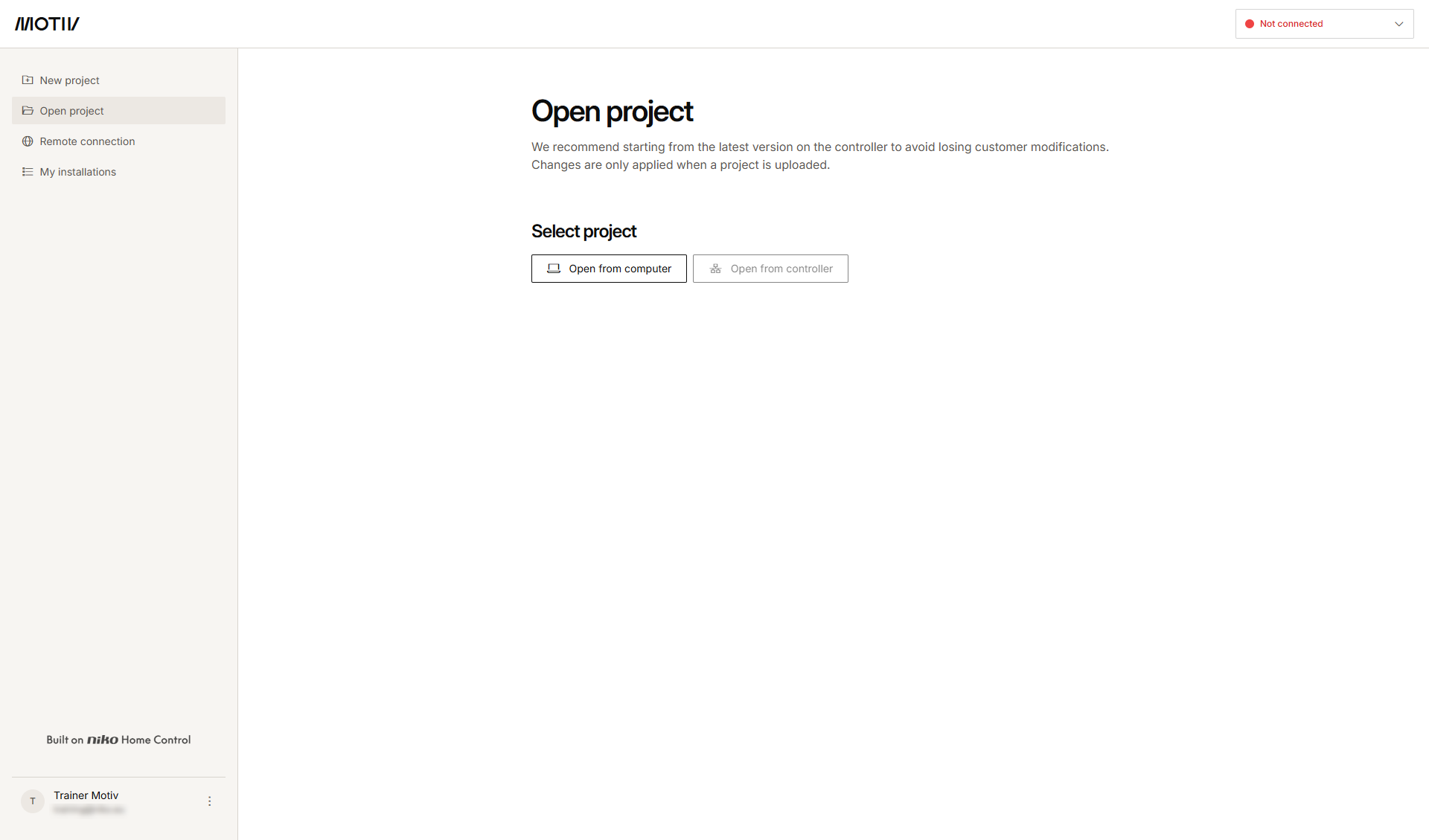
You have opened and logged in into the MOTIV Building Control programming software,
or you have clicked Home when a project was open.
Procedure
-
In the left-hand menu, click My installations.
Result: The list of installations you have access to is displayed.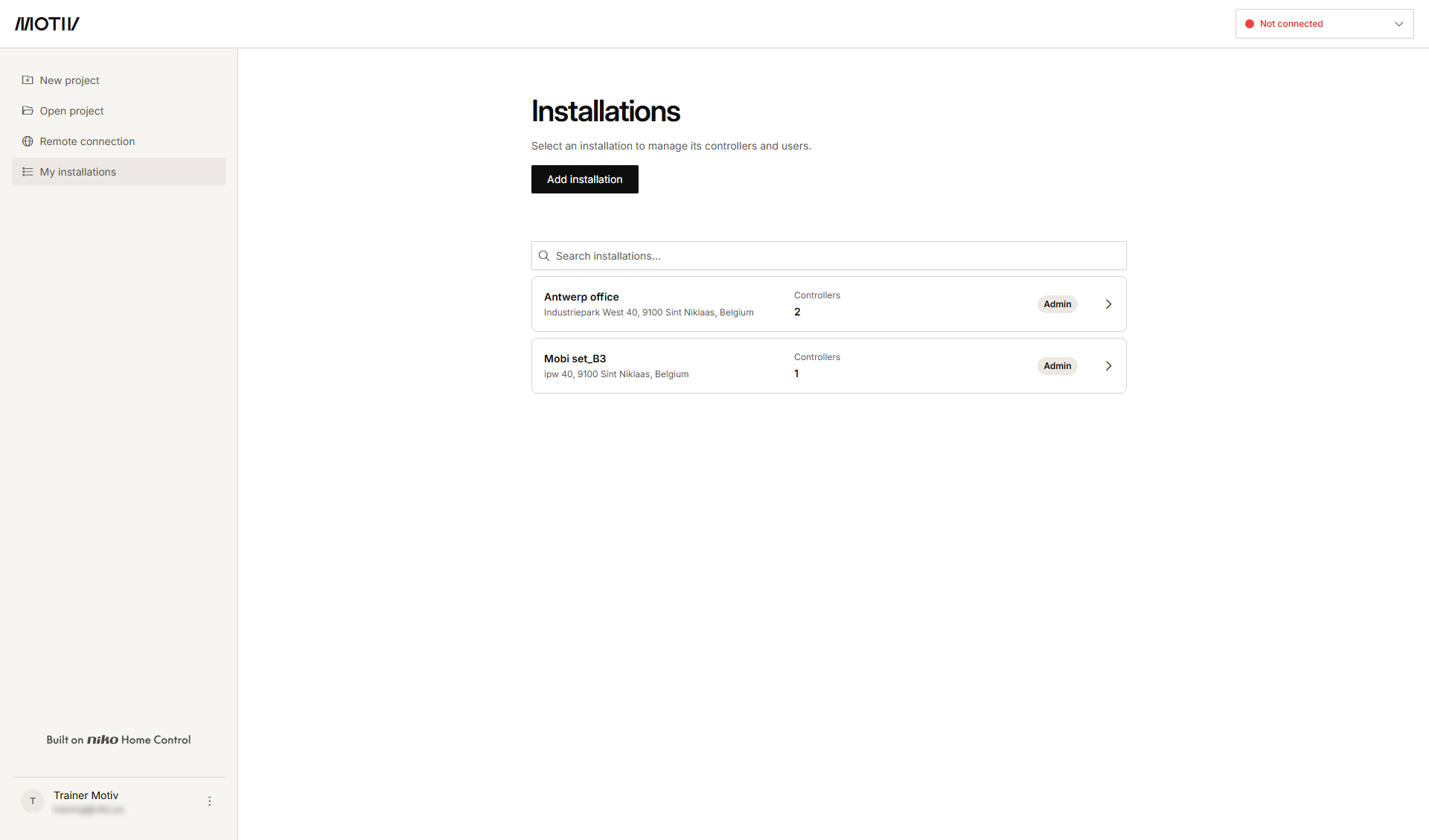
-
Click the arrow next to the installation containing the controller you want to connect to.
Result: The list of controllers in the installation with their status is displayed.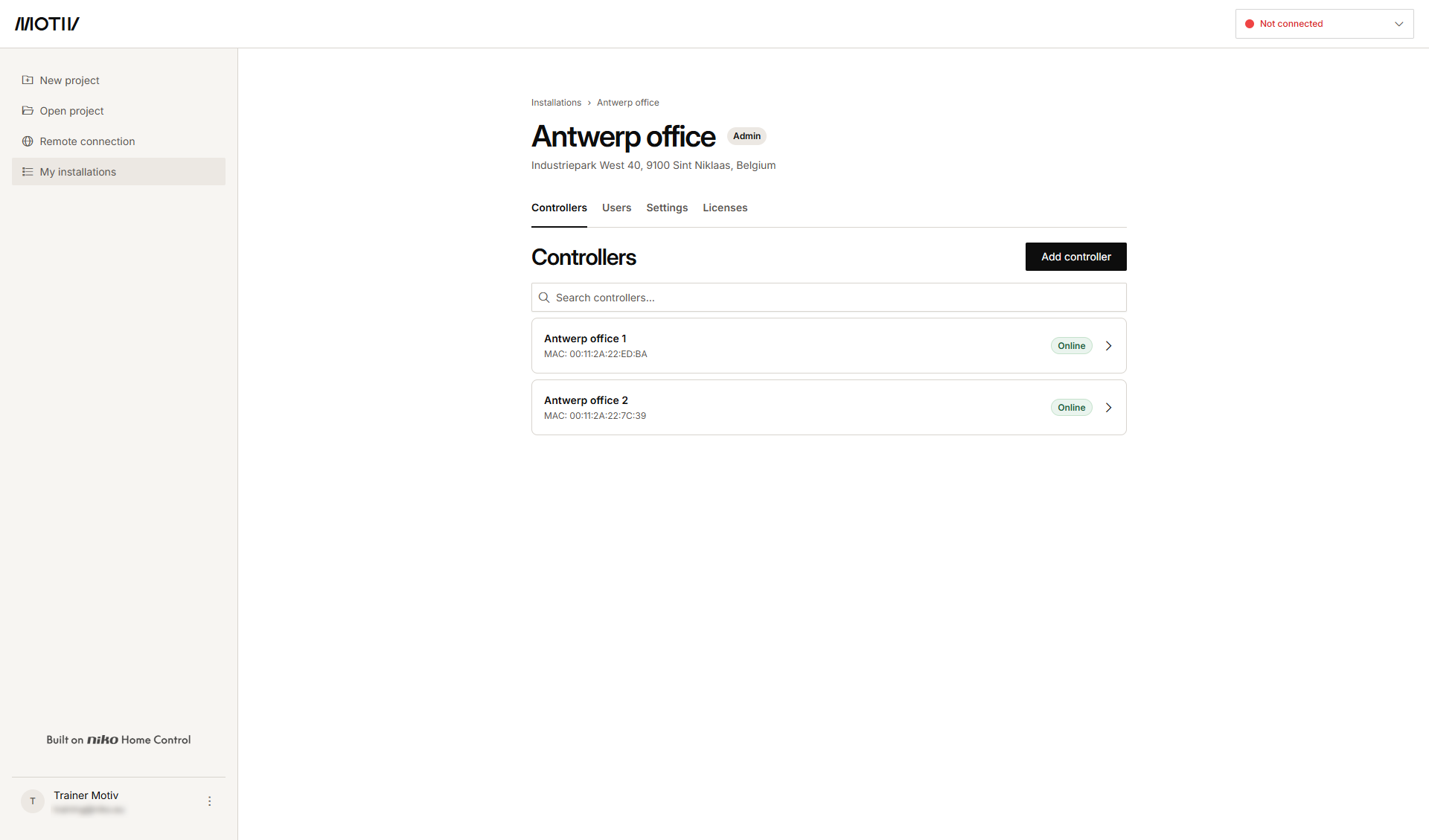
-
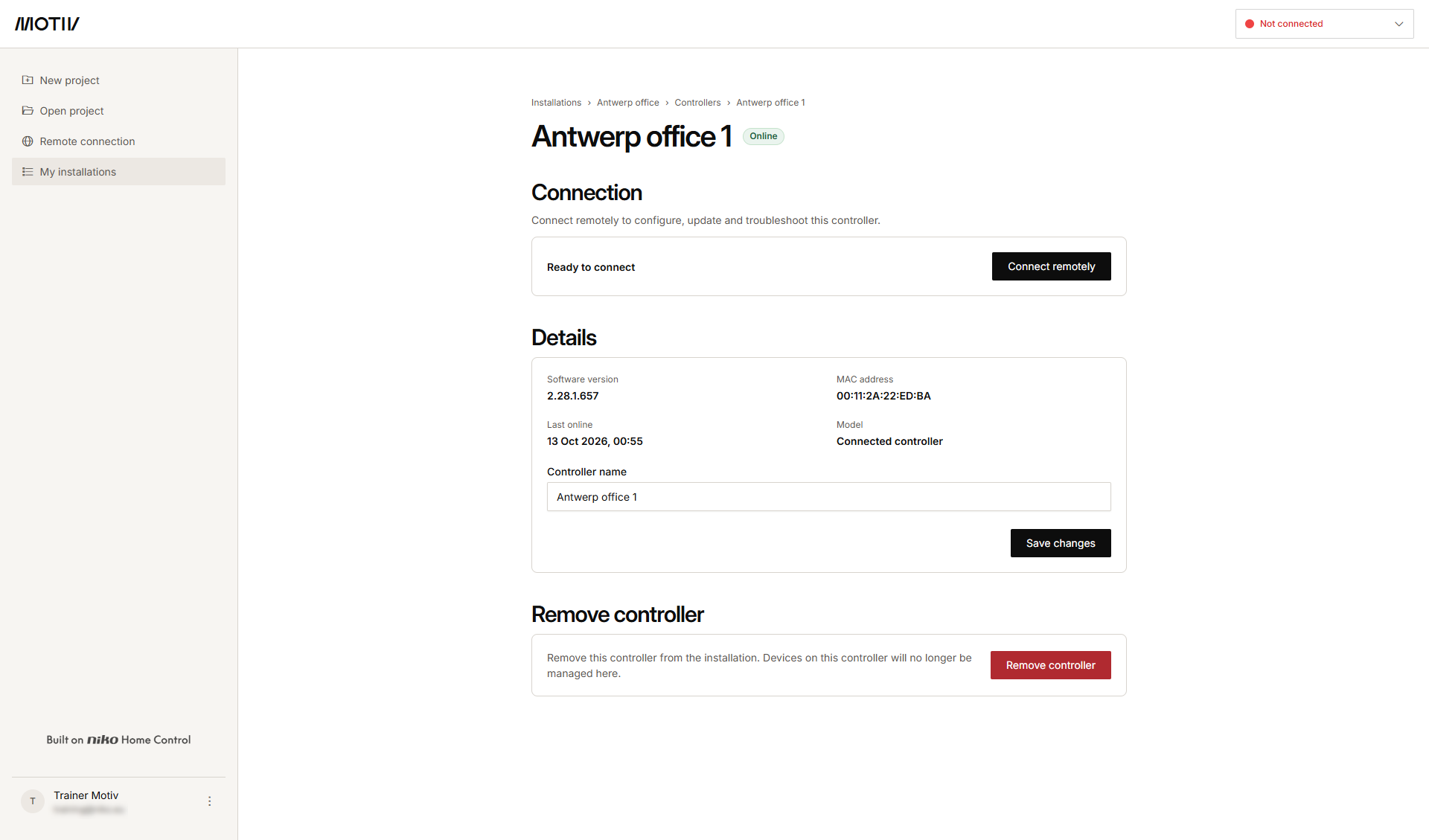
Click the arrow next to the controller you want to connect to.
-
Click Connect remotely.
Result: Your computer is connected to the controller, the programmation file is loaded from the controller into the MOTIV Building Control programming software and the Dashboard overview window appears.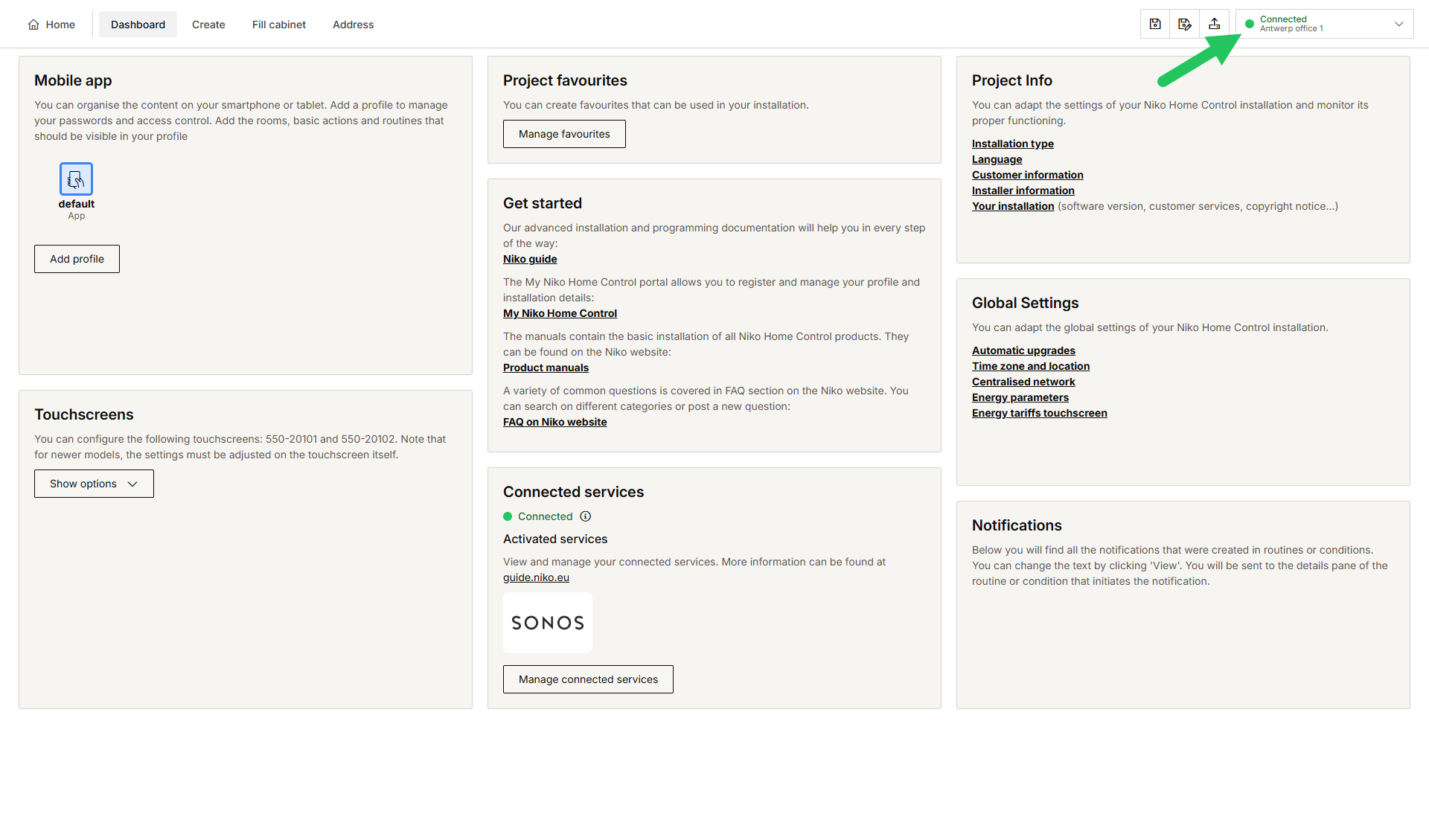
-
The identifier and password give access to all the controllers in the installation.
-
Your customer finds the identification code and password for setting up the remote connection in the Niko Home app. To do so, the customer needs to open the Menu in the Niko Home app and select General information > Remote access.
-
Once a remote connection is set up to an installation, it remains open for 24 hours.
-
You can also use this procedure to connect remotely to a controller.